01
Generic
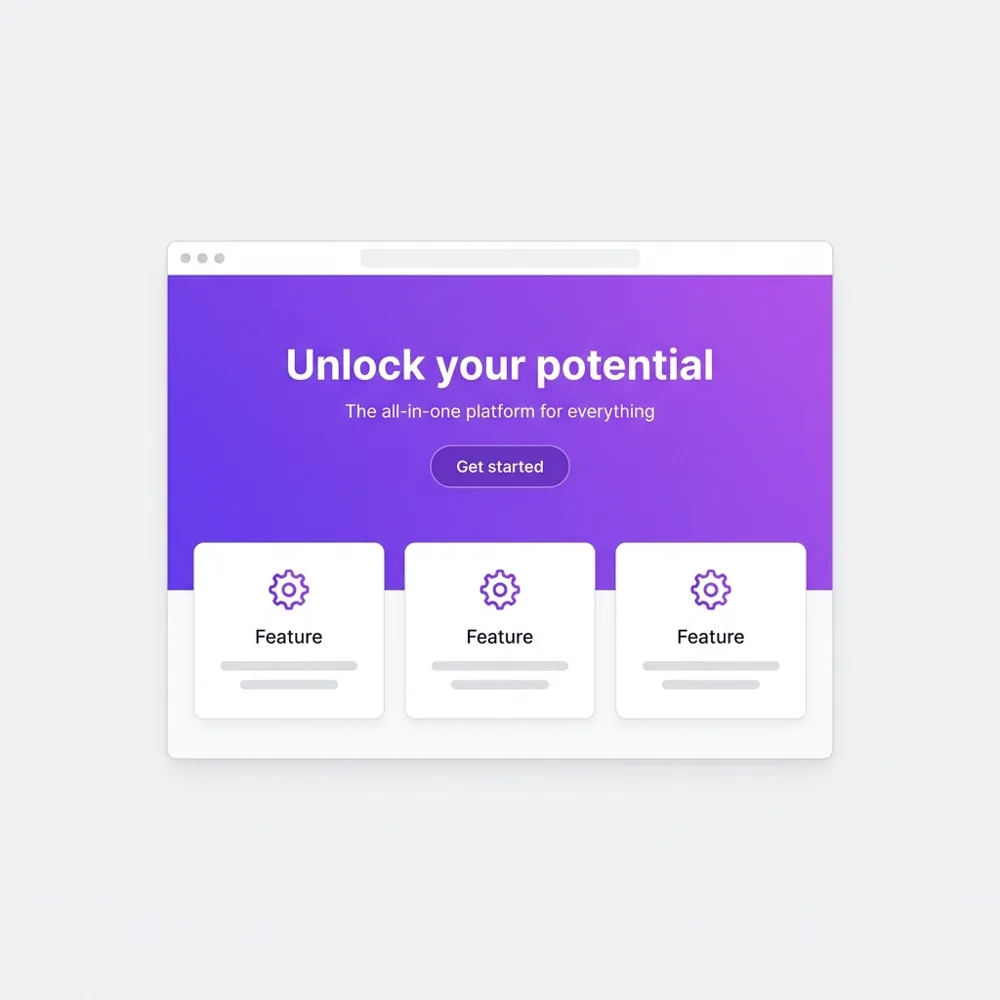
A purple gradient, a centred headline and three icon cards. Cover the logo and you couldn't say whose product it is.
Choose a look from the brief and let it show in the type, colour and layout.
Free agent skill
A free skill for Claude Code, Cursor, Codex and other coding agents. Your agent already builds screens that work. This helps it build screens that look like a designer was involved.
You don't need to sign up. It's a small zip file in the open Agent Skills format.
Why
We’re a design studio and we work with agents every day. Whenever one got something wrong, we wrote the fix down as a rule, added the reason, and tried again. This skill is that list, tidied up so your agent can use it too.
Before and after
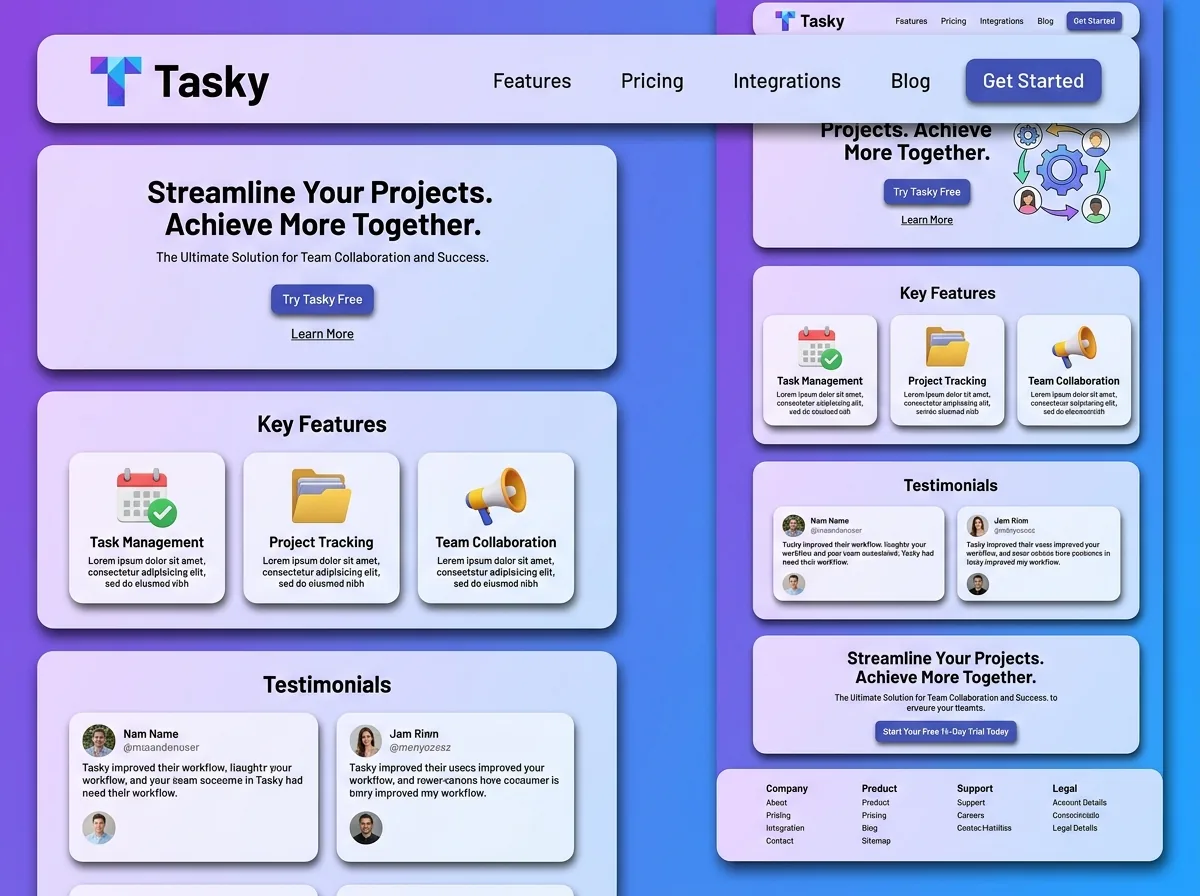
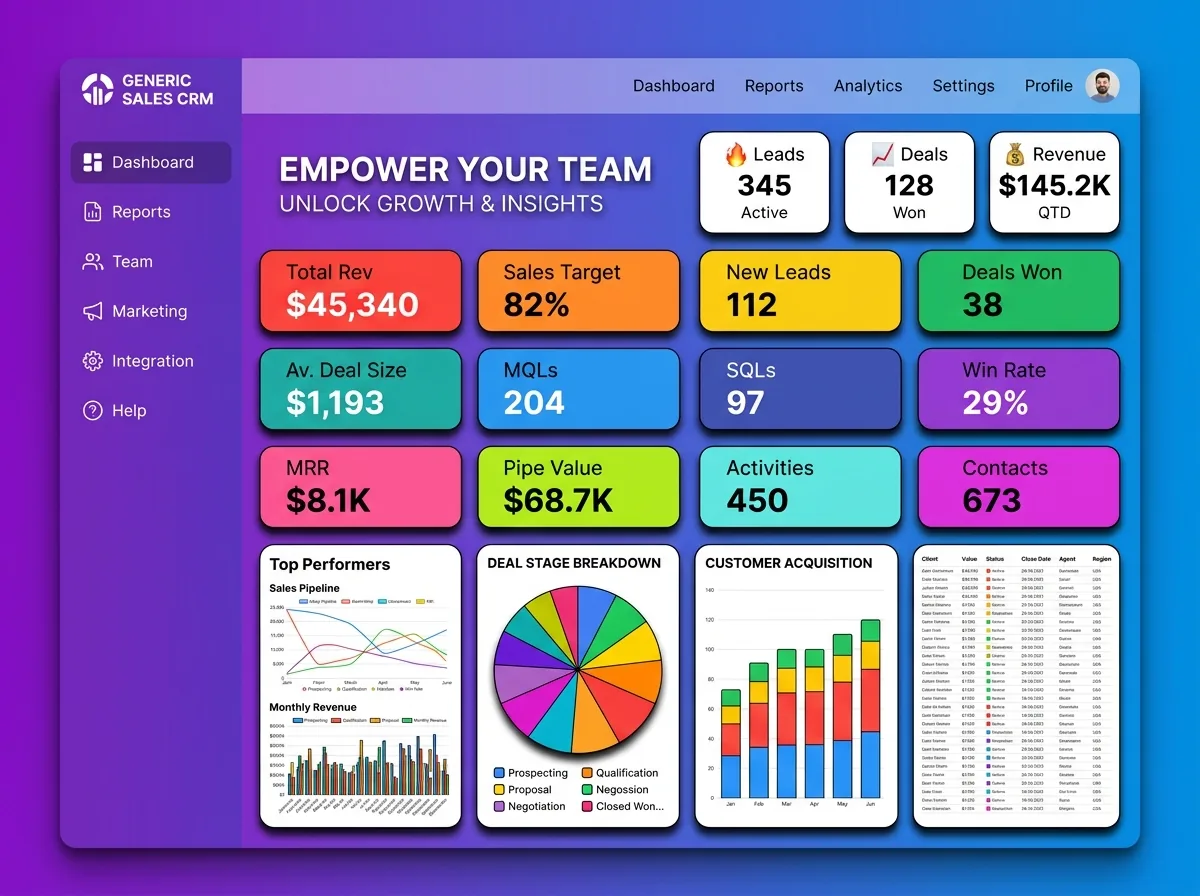
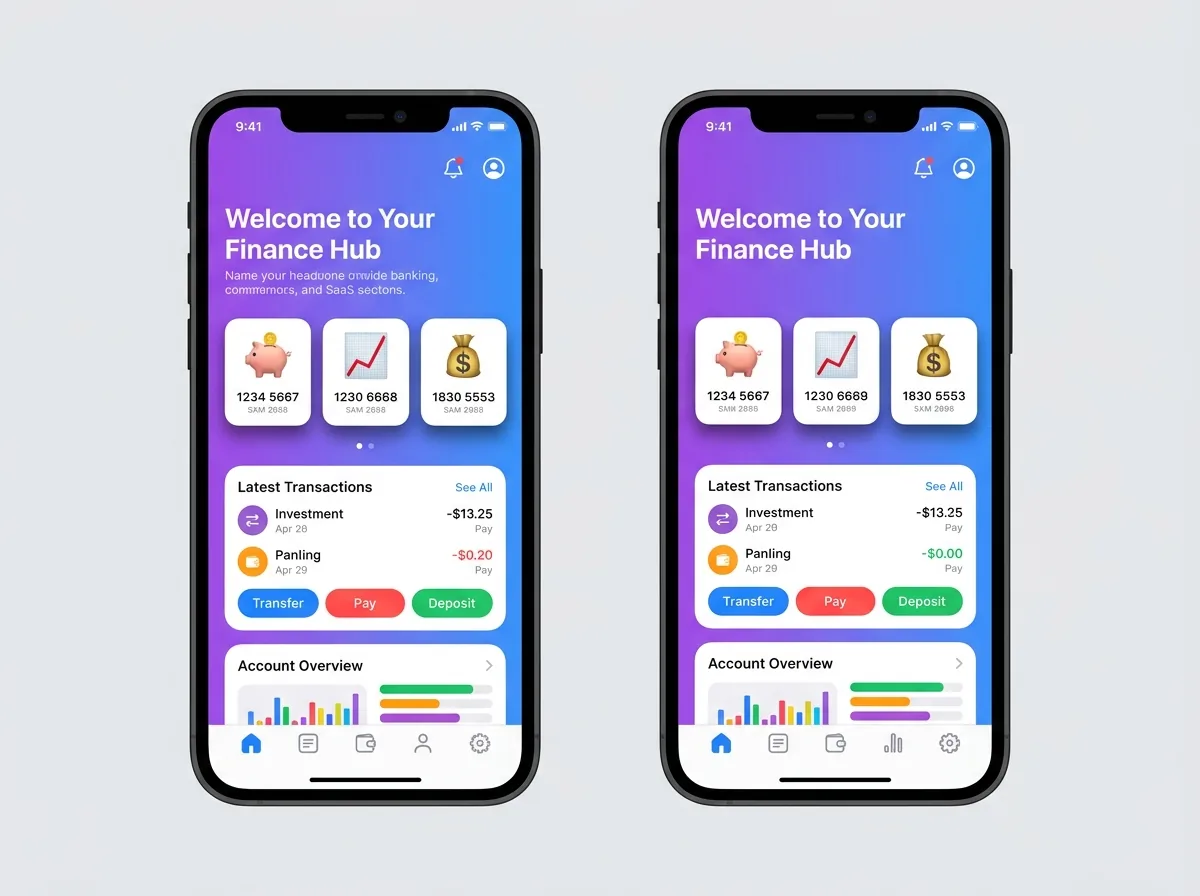
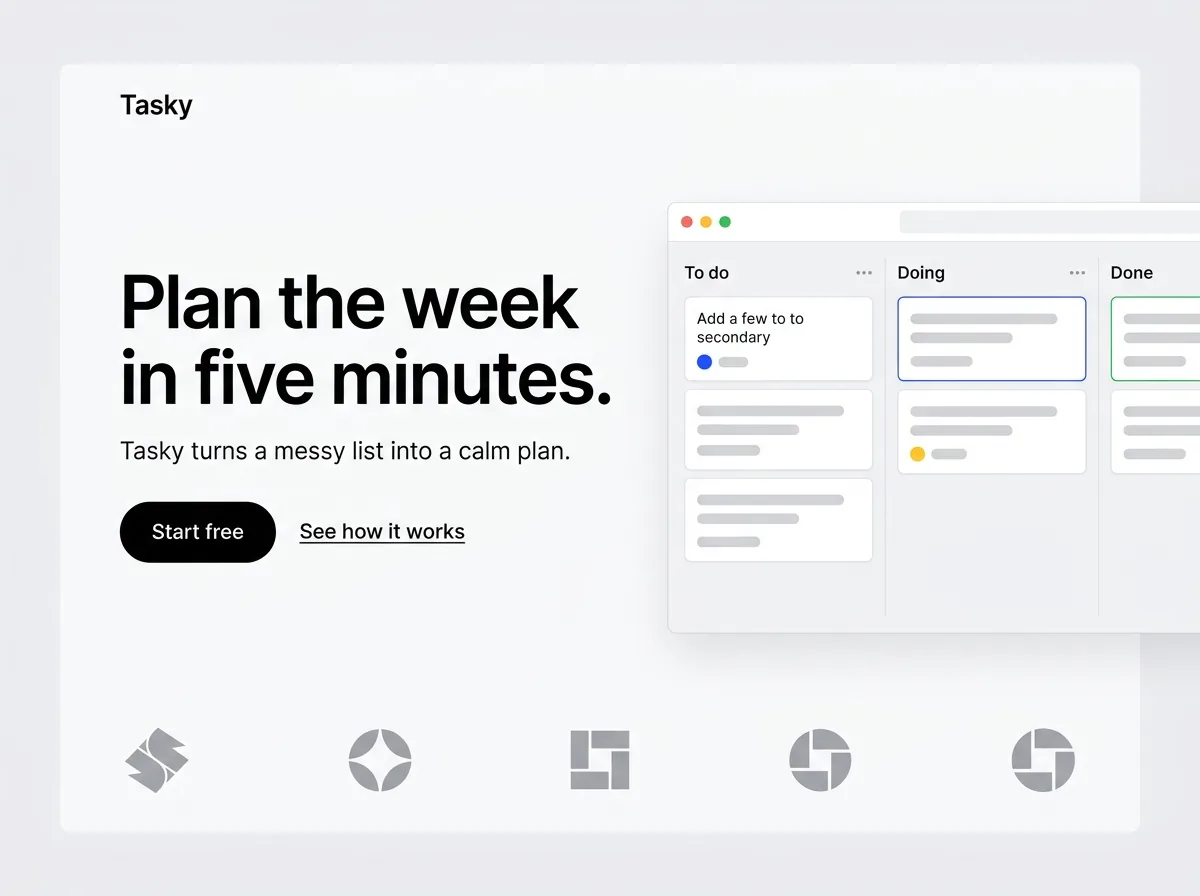
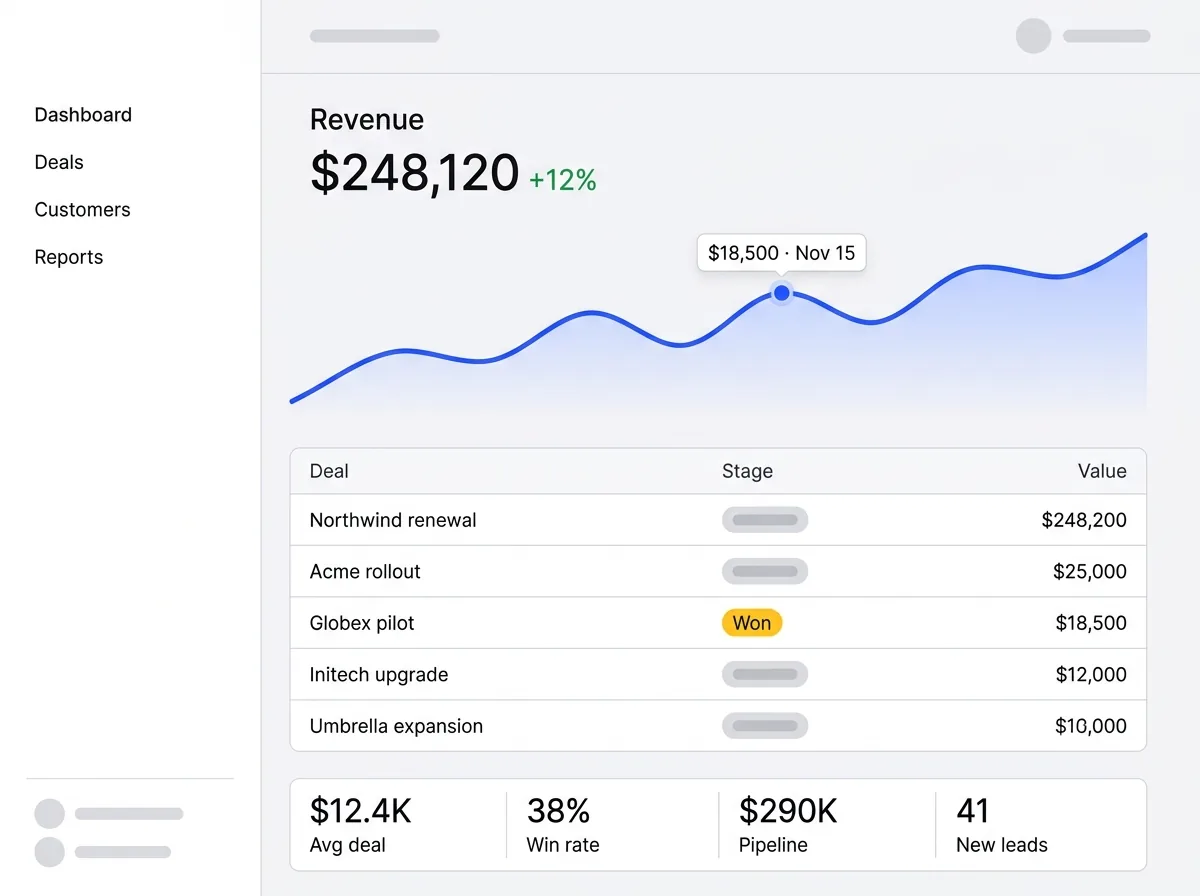
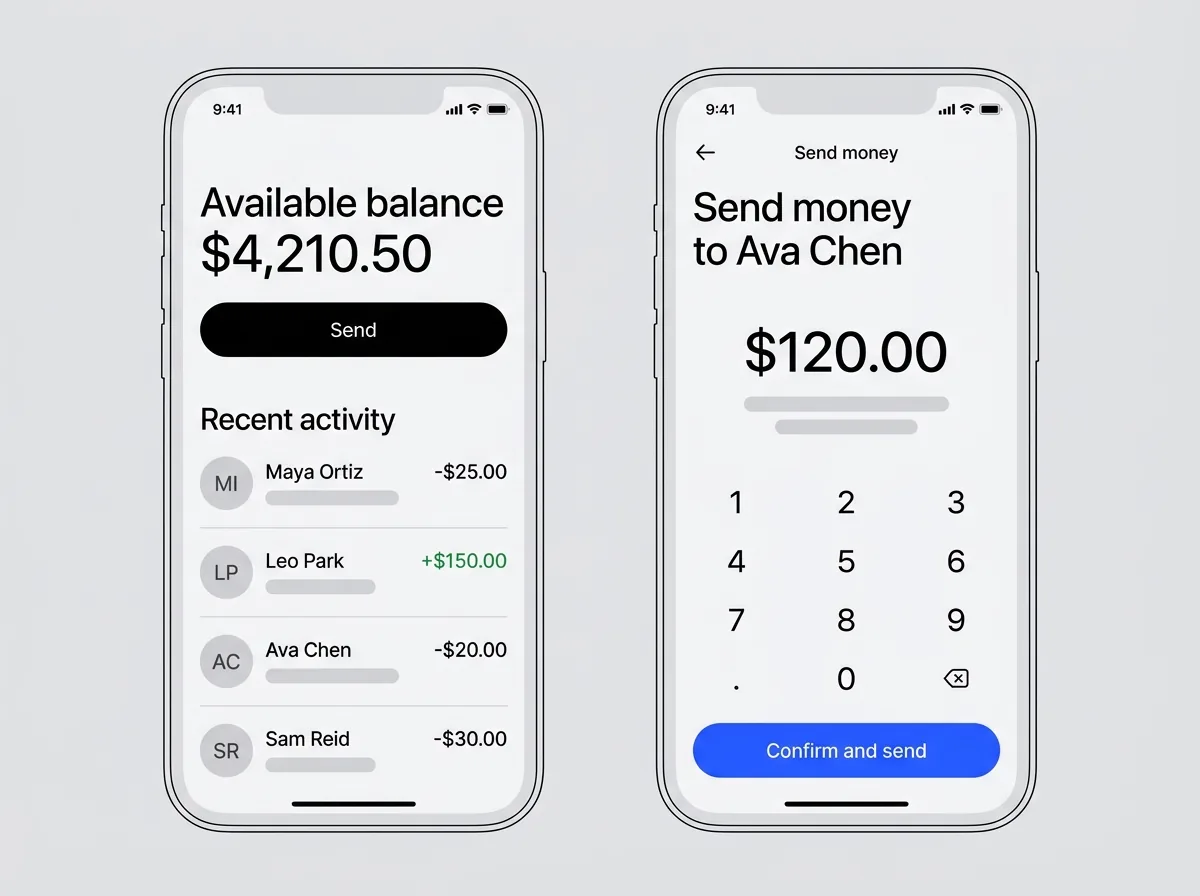
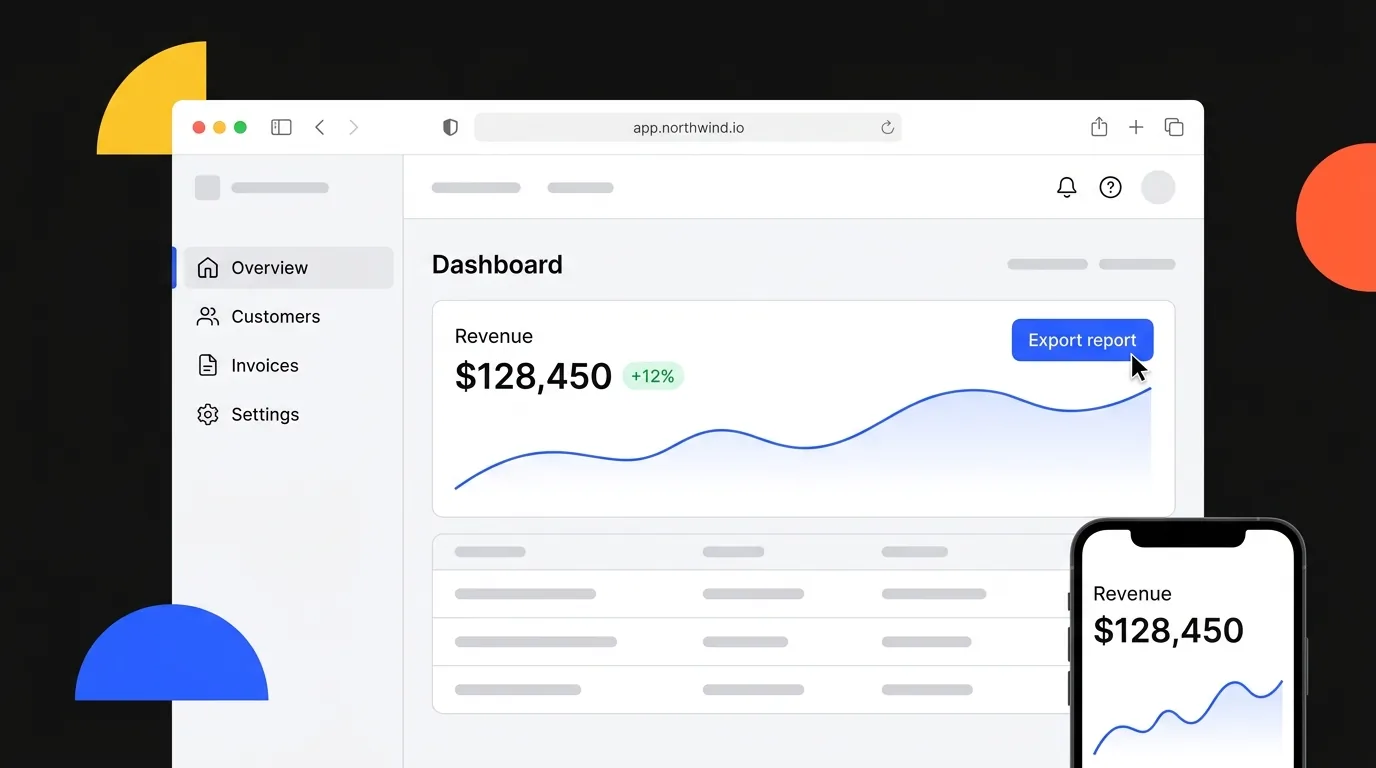
These are illustrations we made for this page, not real screenshots.
Common mistakes
When a screen your agent made looks off, it’s usually one of these. The skill gives each one a name, so your agent can spot it and fix it.
01
A purple gradient, a centred headline and three icon cards. Cover the logo and you couldn't say whose product it is.
Choose a look from the brief and let it show in the type, colour and layout.
02
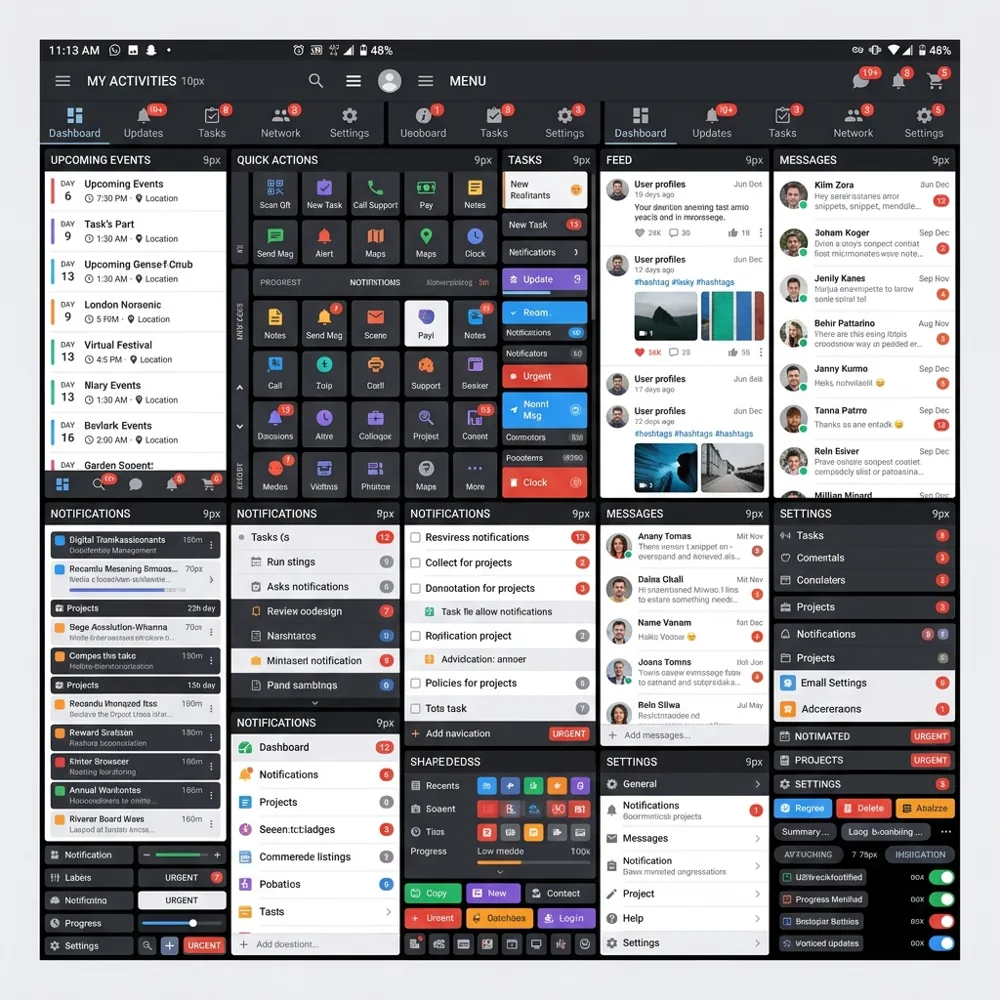
Every feature the product has, squeezed onto one screen at the same size.
Give each screen one job, cut what doesn't help with it, and group what's left.
03
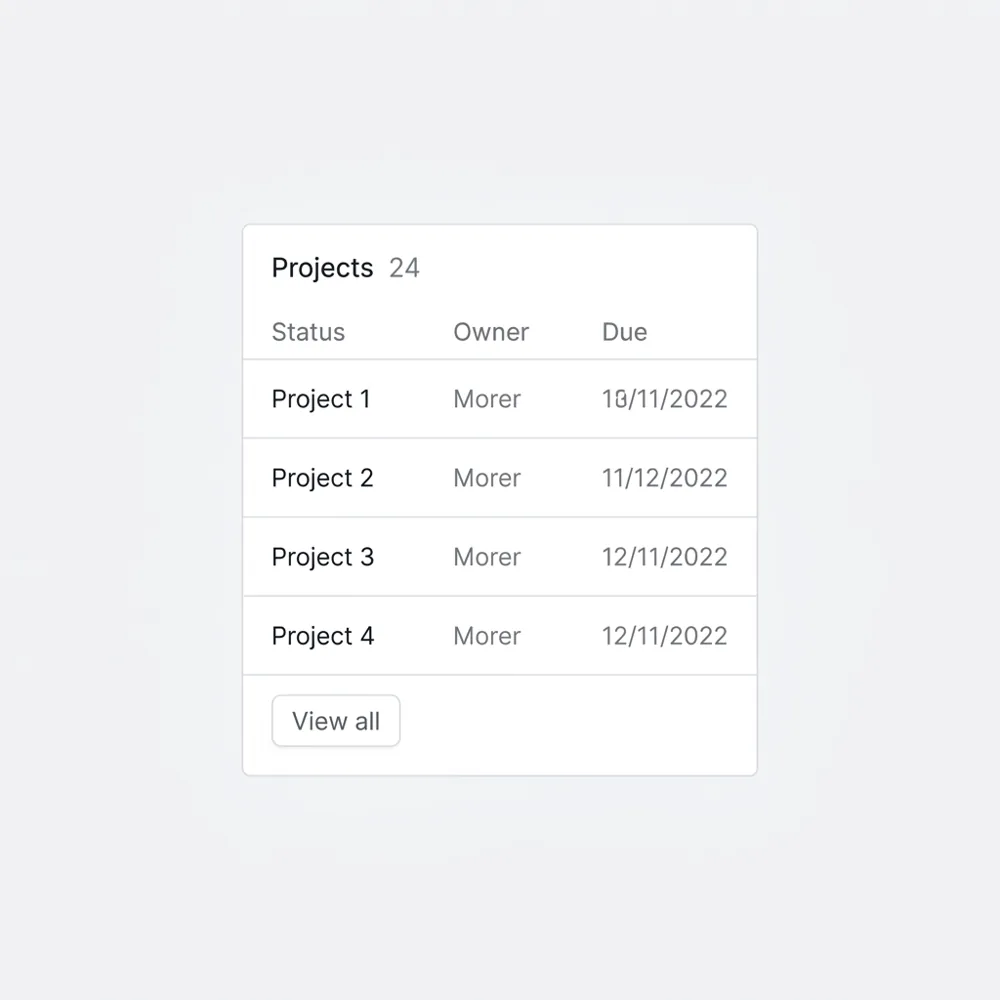
Headings, labels and buttons all carry the same weight, so your eye has nowhere to land.
Decide what matters most on the screen and make everything else quieter.
04
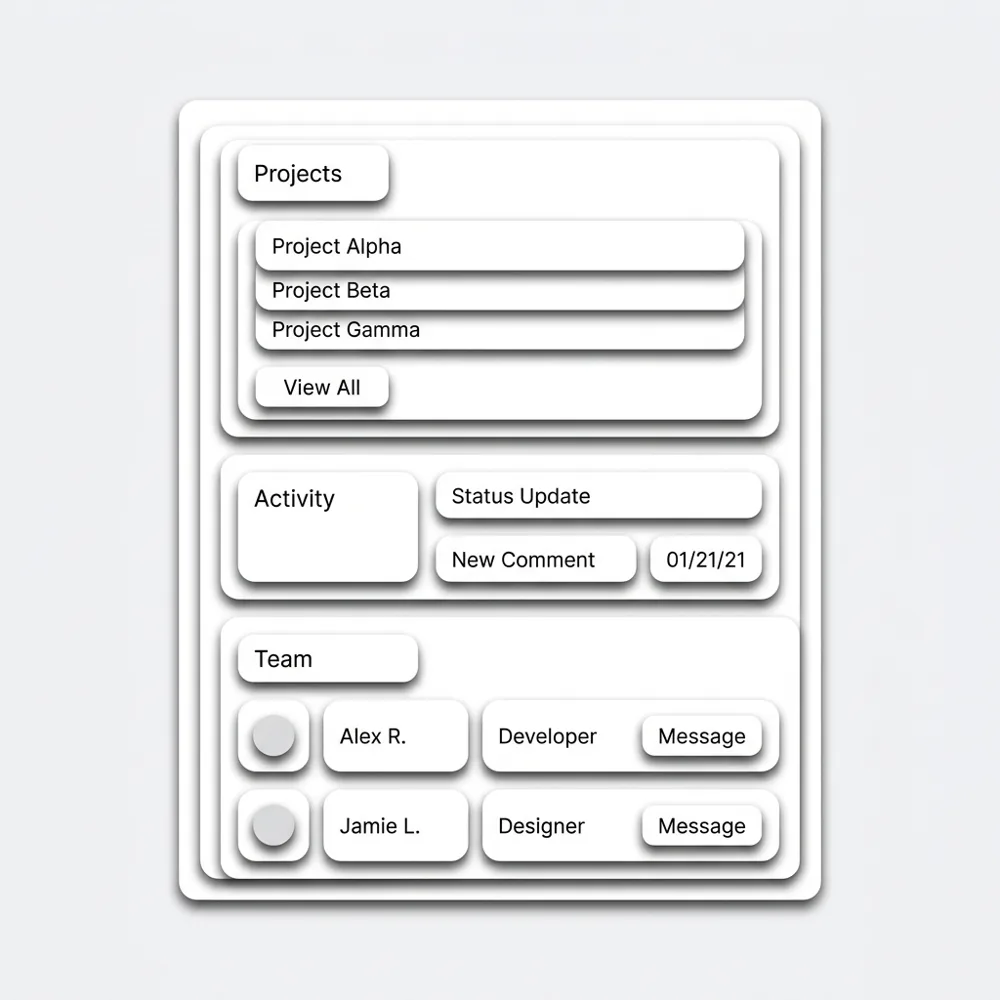
Each block sits in its own shadowed card, and the page ends up as a grid of boxes.
Group things with space and thin dividers, and keep cards for things that really are separate.
05
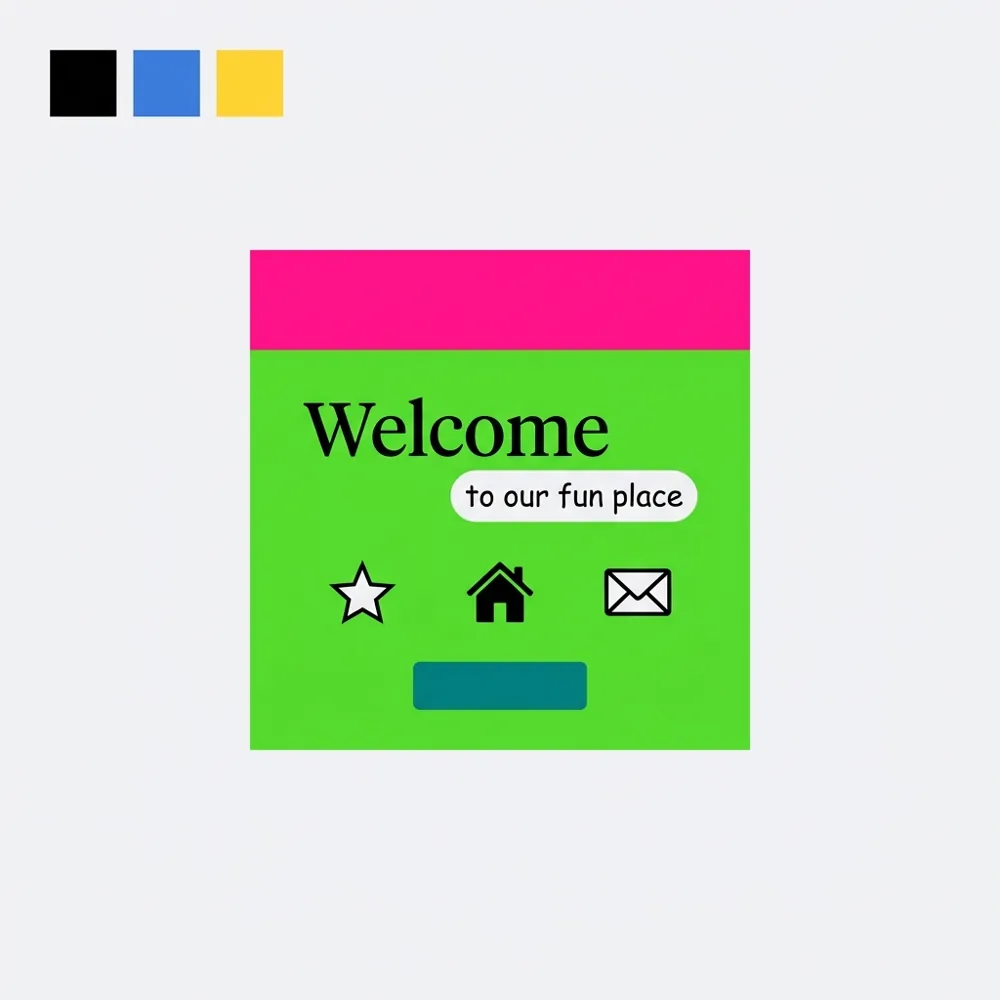
The brief asked for certain colours, fonts and a tone of voice, and the result uses none of them.
Fill in the token sheet before building and stick to what's on it.

06
Things fade in for no reason, hop a few pixels or jump when a loop restarts.
Only move something when a click or a change gives it a reason to move.
How it works
Write a line each on who will see it, what they need to do, where it appears and how big it is.
Decide on light or dark, an accent colour and where it may appear, the typeface, corner radius and density, and write it down.
Name what people should notice first and what comes after. If nothing comes first, the screen is trying to do too much.
Write the real headline, labels and button text before laying anything out, because placeholder text hides problems.
Set the spacing first, then the type, and add colour last so it can't cover up a weak layout.
Add movement only when something caused it, like a click or new content arriving. Most screens need very little.
Take screenshots at phone, tablet and desktop width, go through the checklist, fix what's wrong and look again.
A taste of the rules
Knowing the reason helps your agent with cases the rule didn’t cover. If a rule clashes with your own design system, your system wins.
When everything is blue, nothing stands out.
Odd values like 13px look like mistakes, even if nobody can say why.
Otherwise a form looks like a pile of loose parts.
People read the label right before they click. "Send invoice" tells them what will happen and "Submit" doesn't.
Animating width or position makes the page stutter and jump.
A whole app shrunk down into a card looks like a pasted screenshot.
What’s inside
SKILL.mdThe workflow, the six common mistakes and 36 rules, each with the reason behind it.references/tokens.mdA sheet for your colours, type, spacing and motion, to fill in before you build.references/motion.mdHow long animations should take, which easing to use, and the motion bugs worth checking for.references/mockups.mdHow to make product mock-ups look like the real thing, from cropping to how the cursor moves.references/review.mdWhat your agent checks before it calls a screen finished.scripts/check.mjsTakes screenshots at three widths and points out sideways scrolling and text that doesn't fit.Install
In Claude Code, add our plugin marketplace and install it. You don’t need the zip for this:
/plugin marketplace add designfitai/skills
/plugin install designfit-craft@designfit
Or unzip it yourself, for every project or just one:
unzip designfit-craft.zip -d ~/.claude/skills
unzip designfit-craft.zip -d .claude/skills
For Codex, Cursor, Gemini CLI and others, use whichever skills folder your agent reads. It’s often .agents/skills.
On Claude.ai, go to Settings, then Capabilities, then Skills, and upload the zip.
After that, ask for screens the way you normally would. Your agent picks up the skill when the task calls for it.
Make it yours
It has limits. It can’t tell a dull idea from a good one, and it can’t draw illustrations for you. The checks will catch a broken layout, but you’ll still want a person to judge whether the result is any good.
We design brands, websites, apps and ads, and we use agents for the busywork.