Blog Design Best Practices for Long Articles
A practical guide to designing long articles that help people find the answer and give search engines clear, useful information to understand.
On this page
- Before you start: decide what the article needs to do
- Step 1: Build a useful outline before writing
- Step 2: Set a comfortable reading column
- Step 3: Put the answer near the top
- Step 4: Use tables when people need to compare
- Step 5: Add a table of contents when it earns its space
- Step 6: Create visual rhythm without adding noise
- Step 7: Show who wrote and checked the article
- Step 8: Make the next step useful and visible
- Step 9: Check the article before publishing
- Common mistakes that make long articles harder to use
- How to decide which layout to use
- Wrap-up: design the article around the reader’s next question
Long articles are easier to read and navigate when the layout gives people clear signposts, readable text and useful summaries. The same choices can make key information easier for search systems to identify, but no layout can guarantee an AI citation or a search ranking. These blog design best practices show you how to structure an article for readers first, with machine-readable content as a useful result of good publishing.
Design is not decoration added after writing. It shapes what readers notice, how confidently they move through an article and whether they can find the next step. If your blog is part of a wider website that needs to turn attention into enquiries, DesignFIT’s website design service can help connect editorial layout with the rest of the customer journey.
Before you start: decide what the article needs to do
A long article should not be long just to look authoritative. It should answer a worthwhile question in enough depth to help a reader make a decision, complete a task or understand a subject. Before opening your CMS, write down the reader, their question and the action you want them to take next.
For example, a guide comparing booking software might need a decision table and links to product details. A medical explainer may need clear definitions, reviewed authorship and careful signposting to professional advice. A practical tutorial may need numbered steps, screenshots or examples. Layout should follow the job the content has to do.
Use this short brief before you draft:
- Reader: Who is this for, and what do they already know?
- Question: What specific question should the article answer?
- Decision or task: What should a reader be able to decide or do afterwards?
- Evidence: What original sources, examples, data or expertise can you show?
- Next step: What relevant page or action would genuinely help?
- Constraints: Does the topic need accessibility, legal, medical or editorial review?
Then check your existing site structure. Pick the most useful internal page to link to and decide where it belongs naturally. A related website redesign cost guide, for example, can help readers who are still deciding whether a design project fits their budget. Add links because they answer a reader’s next question, not to fill a quota.
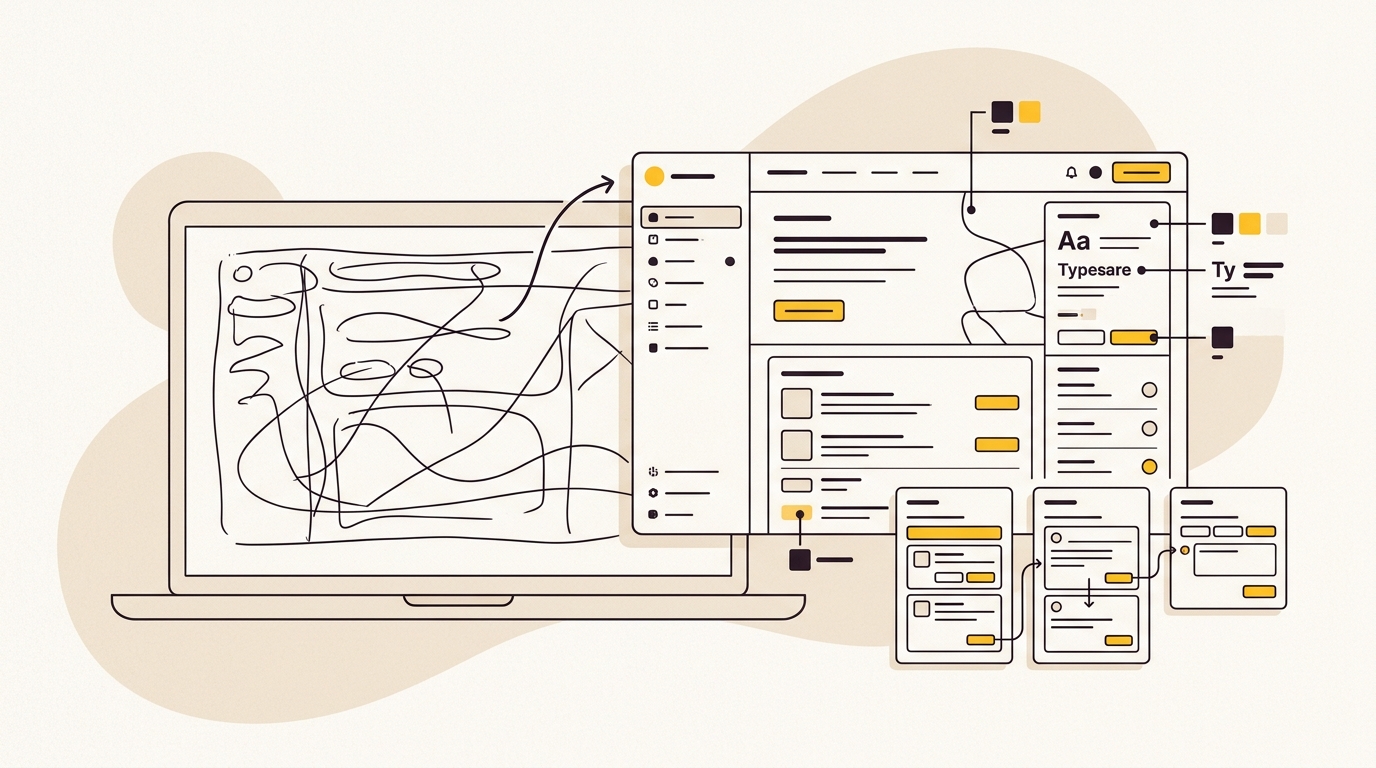
The design work should begin with the outline. If your outline has no hierarchy, a table of contents will not fix it. If the article has no evidence, a highlighted statistic will not create credibility. Structure and visual styling work best when they make useful content easier to find.
Step 1: Build a useful outline before writing
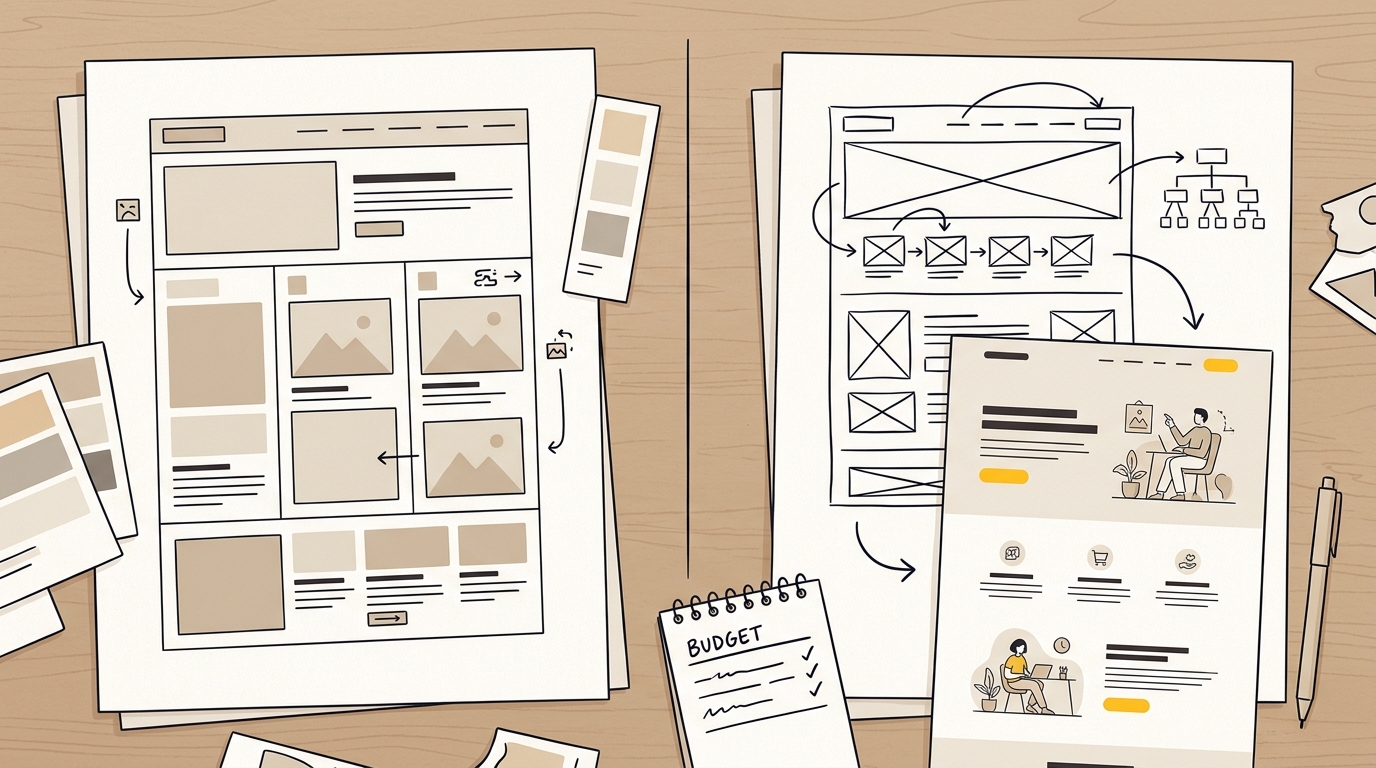
A long article needs a clear route through the subject. Start with the main question, then group the answer into a small number of logical sections. Each section should contribute a distinct piece of the answer rather than repeat the introduction in different words.
Write headings that tell readers what they will get. “Typography” is a broad label. “How wide should the text column be?” tells a reader exactly what the section will resolve. Headings also help people scanning the page decide which parts matter to them. Research by Nielsen Norman Group on how users read on the web shows that visitors scan headings and subheadings before committing to full paragraphs.
A workable outline often includes:
- A direct answer near the start.
- The context or materials a reader needs first.
- Steps, decisions or criteria in a useful order.
- Examples, comparisons or evidence that support the advice.
- Common mistakes and how to avoid them.
- A short conclusion with one relevant next action.
Keep heading levels in order. Use one H1 for the article title, then H2s for the main sections and H3s for subsections. Do not choose a heading level just because its font size looks right. The visual design can be adjusted with styles; the heading structure should describe how the content is organised.
Make each section understandable when encountered on its own. Start with the point, define any unfamiliar term and add the explanation or evidence after it. This helps a reader who jumps in from a contents link, and gives a search system a clearer passage to interpret. It does not mean every paragraph should be stripped of context. Include enough context for a quoted passage to remain accurate.
A useful test is to read only the title and headings. Could someone explain the article’s route from that outline? If the headings are vague, repetitive or out of order, revise them before you polish the prose.
Step 2: Set a comfortable reading column
Long-form text is hard to follow when lines stretch across a wide desktop screen. Readers have to travel farther from the end of one line back to the start of the next. A narrow column gives the eye a more manageable measure and makes paragraphs look less like a solid block.
A practical starting point is a text column around 680 to 720 pixels wide, then testing it with the actual typeface and font size. UXPin’s overview of optimal line length for readability discusses a commonly used range of roughly 50 to 75 characters per line. Research from Baymard Institute on line length and readability also emphasizes that overly long lines make it difficult for readers to track from the end of one line to the start of the next. Treat that as a design starting point, not a rule that overrides testing. Different typefaces have different character widths, and a 700-pixel column will not produce the same measure in every font.
You can also use a character-based width in CSS, such as 65ch, as a starting value. The ch unit is based on the width of the “0” character in the selected font. It is not a precise count of all characters, so inspect real paragraphs at desktop and mobile widths rather than trusting the number alone.
Choose type size and spacing for real reading
For many business blogs, body text around 18 pixels is a sensible first test on desktop. A smaller size may be uncomfortable for some readers; a larger size can work well if the design gives it enough space. Check the type at the size people will actually read, rather than judging it only on a large design canvas.
Line height is the space between lines of text. A value around 1.5 to 1.7 times the font size is often a useful starting point for long paragraphs. If lines feel crowded, increase it. If paragraphs become so tall that readers lose their place, reduce it slightly or revisit the font and column width. Paragraph spacing should make new ideas visible without making the article feel disconnected.
WCAG 2.2’s text-spacing criterion is about allowing users to override spacing, including line height and paragraph spacing, without losing content or functionality. It does not prescribe one ideal default for every website. Test your design with increased text spacing and zoom so that a reader who changes these settings can still use the page. The W3C guidance on text spacing explains the criterion and its intent.
Contrast matters too. Standard text should be easy to distinguish from its background, including in muted labels, captions and callouts. Do not rely on pale grey text as a way to create visual subtlety. Check contrast using an appropriate tool, and refer to the WCAG contrast guidance when reviewing text colour choices. A stylish palette is not useful if key information becomes difficult to read.
Test the column on different screens
Do not design only for a wide desktop monitor. At a narrow viewport, check that the text does not touch the edges, headings wrap cleanly, and links are easy to tap. At a very wide viewport, make sure the article does not expand to fill the screen. Use flexible side padding and a maximum reading width rather than a fixed width that breaks on smaller devices.
Look at the whole reading experience, not just body copy. Tables, code blocks, captions, lists and pull quotes can each introduce a different width. Give wider elements a deliberate treatment, such as a contained horizontal scroll area for a large table, while keeping the primary text column comfortable.
Step 3: Put the answer near the top
Readers arrive with a question. Give them a direct answer before asking them to work through a long introduction. Under the title and byline, add a short summary that sets expectations and captures the main takeaway.
A useful summary usually has a brief opening statement and three or four specific points. Keep the points concrete. “Good design matters” tells a reader little. “Keep the text column narrow, use descriptive subheadings and make comparison data available in a real table” gives them a clearer preview.
For example:
In short: Use a readable text width, descriptive headings and a clear route through the article. Put the main answer near the top, use tables when readers need to compare options, and label evidence so people can check it.
Style the summary so it is easy to spot but still part of the page’s normal reading order. A soft background or accent border can distinguish it without turning it into an advert. On a phone, it should fit the viewport without tiny text, clipped content or a crowded stack of labels.
A summary can help a busy reader decide whether to continue. It can also provide a concise passage for systems that retrieve relevant information. But it is not a shortcut to being cited. The summary still needs to be accurate, supported by the article and consistent with the detail below it. Do not put a bold claim in the summary that the article never explains.
Use a short answer at the start of important sections too. If a section asks “How wide should a blog text column be?”, answer in the opening sentence, then explain the range, trade-offs and test. This answer-first pattern is especially useful in how-to content, comparisons and FAQ sections because it makes the key point easy to find without removing nuance.
Avoid turning every paragraph into a standalone answer block. Repetition makes a page feel mechanical, and repeated claims do not add evidence. Give each section one job, then use examples and transitions to connect it to the next.
Step 4: Use tables when people need to compare
Tables are useful when readers need to compare the same qualities across several options. They can make a decision faster than a sequence of paragraphs, especially for costs, features, requirements, timelines or pros and cons. Use a table when its rows and columns create a meaningful comparison, not simply because a table looks authoritative.
For example, a publishing team could compare three layout choices like this:
| Layout choice | Useful when | Watch for |
|---|---|---|
| Single text column | The article is mainly long-form reading | Keep the line length comfortable on wide screens |
| Text plus desktop contents panel | The guide has several substantial sections | Collapse or reposition the panel on narrow screens |
| Full-width page template | The content relies on diagrams or wide examples | Keep paragraphs constrained to a readable width |
Make tables real text in the page, not screenshots. Use clear column headings and short cell content. Where your CMS supports it, use semantic table markup with header cells associated with the relevant rows or columns. This helps assistive technology communicate the table’s structure, and keeps the information available to systems that process page text.
On small screens, test the actual table with a phone or responsive preview. If it has too many columns, do not shrink text until it is unreadable. Consider a limited horizontal scroll region with a visible cue, simplify the comparison, or present each option as a labelled card. Make the mobile treatment obvious and usable with a keyboard as well as touch.
The research paper on Generative Engine Optimisation from Princeton and co-authors tested different content interventions across a benchmark of queries and generative search systems. Its results suggest some changes, including adding statistics and citations, can improve visibility in that experimental setting. They do not establish that tables guarantee citations, or that a particular table format will work across every current AI product. Use structured, well-sourced content because it helps people compare and verify information, and treat any search benefit as uncertain. If you want to see how generative search systems interpret your own site, a free AI search audit can provide a baseline.
Make evidence easy to check
When you include a statistic, identify what it measures and link the original source. Give enough context to avoid implying that a research finding applies to every business, device or reader. If the evidence comes from a particular test or sample, say so. Do not decorate a callout with a number whose source you cannot trace.
A good comparison table also has a clear scope. State which options you compared, what the comparison date is when information changes, and where a reader can see details. If two options are not directly comparable, explain why instead of forcing them into a tidy grid.
Step 5: Add a table of contents when it earns its space
A table of contents (TOC) helps readers jump to the section that answers their question. It is especially useful for a substantial guide with several sections, but it can clutter a short post or repeat a tiny set of headings. Use it when the article’s length and structure make navigation easier, not as a template feature that appears automatically everywhere.
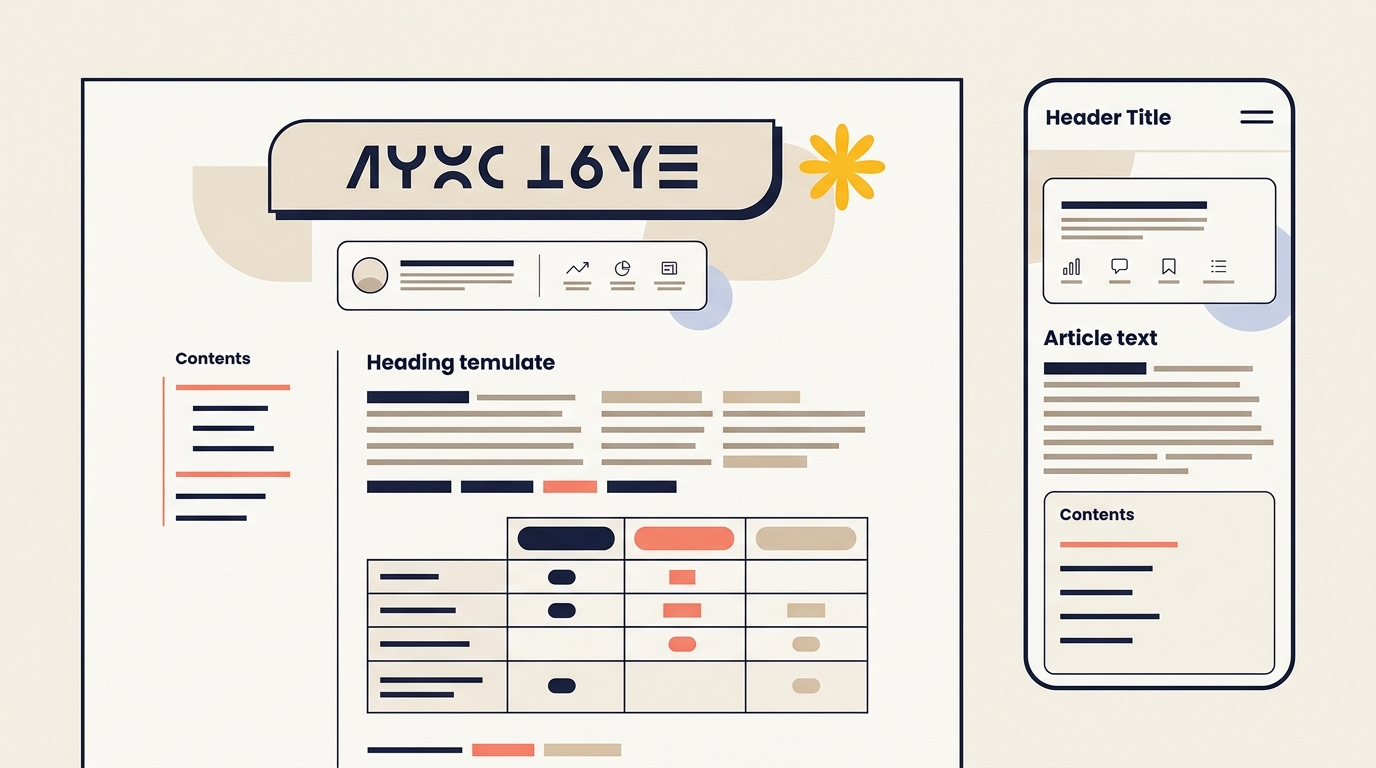
Place it near the beginning of the article, after the summary or introduction. Use the actual headings as link labels so that the destination matches the promise. Keep the list short enough to scan. If the page has many H3s, include the main H2s first and consider whether readers need the deeper outline.
A desktop sidebar can keep the TOC visible while someone reads, but a sticky panel can compete with the text or cover content. Test it at common laptop heights and zoom levels. It should not obscure the heading a reader has reached. On mobile, a collapsible “In this article” control is usually less intrusive than a fixed sidebar. Check that it can be opened and closed with a keyboard and is labelled clearly for assistive technology.
Anchor links can take readers directly to a section. Give each destination a unique, stable identifier and ensure the heading is not hidden behind a sticky site header after a jump. Avoid making the TOC dependent on scripts that prevent its links from working when JavaScript is unavailable.
A reading progress bar is optional. It can orient a reader in a long guide, but it should be subtle and should not take attention away from the content. Test it with keyboard navigation, screen magnification and reduced-motion settings. If it adds complexity without helping people move through the article, leave it out.
Step 6: Create visual rhythm without adding noise
A long page needs changes in rhythm, but every change should support comprehension. Use lists for a sequence of distinct items, tables for comparisons, examples to clarify abstract advice and callouts for information worth pausing on. Do not use a coloured box for every paragraph. If all content is highlighted, nothing is.
Break up a long section when its idea changes. A paragraph can usually make one main point, then give the evidence or example that supports it. Short paragraphs are easier to scan, but too many one-sentence fragments can make the page feel choppy. Read the article at normal screen size and adjust the rhythm where a section looks like an uninterrupted wall.
Use pull quotes sparingly. A quote should be a genuine statement from a named source, reproduced accurately and linked or attributed in context. Do not invent an expert quote or repeat a sentence from the article simply to make it look like a quotation. For an original observation, label it as your own editorial note rather than formatting it as someone else’s words.
Images should clarify, demonstrate or provide useful context. A diagram can explain a process more quickly than a long description. A screenshot can show where a setting lives, but it should have a caption and alternative text that describes relevant information. Avoid stock imagery that takes up space without helping the reader understand the subject.
Keep styling consistent across the article. Use one treatment for tips, another for warnings and a restrained approach to links. A reader should not have to guess whether a coloured phrase is a link, a label or decoration. Underlines or other clear link styling help people identify interactive text.
Step 7: Show who wrote and checked the article
Readers need to know whether an article is trustworthy, especially when it informs a business, health, legal or financial decision. Include an author name and a short biography that explains relevant experience. If someone with appropriate expertise reviewed the article, identify them and describe the review rather than implying a review happened when it did not.
An author card can include a relevant role, qualifications, a link to a fuller profile and the article’s publication or update date. A headshot is optional. It should be an accurate image of the named author, not a generic stock portrait. Keep the card compact so it supports the article rather than interrupting it.
Review dates honestly. Update the date when you have made a meaningful revision, and explain what changed if that information helps the reader. Do not change dates just to make old content appear new. For topics that shift over time, state the date of prices, product features or policy details near the claim itself.
Structured data may help search systems interpret information about a page or its author, but it cannot make inaccurate credentials true or guarantee visibility. Make sure the visible article and any structured data agree. A clear byline, sourced claims and transparent editorial process matter even when no search system uses the markup as intended.
Step 8: Make the next step useful and visible
A good article should help before it asks. Once the reader has received the information they came for, offer one relevant next step. That might be a related guide, a useful service page, a consultation or a checklist. The action should follow naturally from the subject.
For instance, someone learning how to improve a blog layout may need a wider site review if the article template, mobile experience and calls to action all need attention. Link to the DesignFIT website service where readers can explore that kind of work. If they want to understand how a project is scoped, the DesignFIT pricing page can help them consider the next decision.
Avoid placing several competing buttons in the middle of the article. A colourful “Book now” panel, newsletter prompt, pop-up and floating chat widget can all demand attention at once. Choose a primary action, make supporting links quieter and check that anything fixed to the screen does not cover the article on mobile.
The path should be clear after the click. Link labels should describe the destination, and the destination should deliver what the label promises. A reader who clicks “website design service” should not arrive at a generic page with no relevant information.
Step 9: Check the article before publishing
Use a pre-publish review that checks more than spelling. Read the article as a reader, test its navigation and verify its factual claims. A polished layout cannot compensate for broken links, unsupported numbers or headings that promise an answer the section never gives.
Content and structure checklist
- Does the opening answer the main question in plain language?
- Does the outline move from what the reader needs first to what they can do next?
- Do headings describe the information in each section?
- Are technical terms defined before they are used repeatedly?
- Are statistics, quotes, prices and product details supported by sources?
- Are comparisons fair, scoped and dated where details can change?
- Does each callout add something rather than repeat the surrounding text?
- Is the next step relevant to the reader’s problem?
Layout and accessibility checklist
- Is the body text comfortable at desktop and mobile sizes?
- Does the text column stay readable on wide screens?
- Can readers increase text spacing and zoom without losing content?
- Are text and interface colours easy to distinguish?
- Do links look like links and describe their destinations?
- Does the TOC work by keyboard and take readers to visible headings?
- Can tables be understood without relying on colour alone?
- Do images have useful alternative text where it is needed?
- Do pop-ups, sticky elements and banners leave the content usable?
Test the published page, not only the preview. Check at least one desktop and one mobile viewport, follow every important link and inspect the page with keyboard navigation. If you can, ask someone who did not write the article to find a particular answer. Watch where they hesitate. That feedback can reveal a layout problem that looks invisible to the person who knows the content by heart.
Common mistakes that make long articles harder to use
Making the page full width. The article may look spacious in a design file but become difficult to track on a large screen. Constrain the body copy while allowing selected diagrams or tables to use more width.
Using headings as decoration. Skipping from H2 to H4 because the text looks right creates a confusing content outline. Set the semantic heading level first, then style it to fit the visual system.
Putting the useful answer at the end. A long preamble can lose readers who came with a specific question. Give the direct answer early, then use the rest of the article to explain how and why.
Treating a table as an SEO trick. A table is not useful when it repeats prose, hides caveats or compares unlike things. Use it to make a real comparison easier, with clear labels and evidence.
Adding every navigation feature. A sticky TOC, progress bar, floating share buttons and chat bubble can compete for the same small screen. Keep the features that solve a real navigation problem and remove the rest.
Using design to imply authority. A badge, callout or author photo cannot replace transparent sources and accurate expertise. Make claims that you can support, and make the evidence easy to inspect.
Assuming AI systems reward a specific layout. Search and AI products change, and their selection systems are not fully transparent. Clear writing, useful evidence and accessible structure are sensible publishing choices, not a promise of citations.
How to decide which layout to use
Choose the simplest layout that fits the article’s job. A single-column article is often the clearest choice for a narrative or focused explanation. Add a TOC when readers need to move between several substantial sections. Use a comparison table when readers must weigh consistent criteria. Use a wider visual only when it communicates information that ordinary text cannot show as efficiently.
| Article type | Layout to start with | Add only if it helps |
|---|---|---|
| Short opinion or update | Single column, clear subheadings | One source note or example |
| Long how-to guide | Narrow text column, summary and numbered steps | TOC, screenshots or troubleshooting table |
| Product or platform comparison | Direct answer and comparison table | Detailed criteria and links to original product information |
| Research-led explainer | Clear definitions, evidence and author details | Charts or callouts that clarify the findings |
| Case study | Problem, approach, evidence and outcome | Diagrams, project timeline or related service link |
Make the design responsive and consistent with the rest of your brand. A blog template should feel like part of the same business as the service pages, following your established brand guidelines, but it should be tuned for reading rather than copied from a sales landing page. That means a calmer content column, predictable heading styles and fewer competing actions.
Wrap-up: design the article around the reader’s next question
The best blog design is not the one with the most components. It is the one that makes the answer clear, the evidence checkable and the route through the page comfortable. Start with the outline, set a readable text width, put a concise answer near the top, and add tables or navigation only when they reduce effort.
Then test the page with real content on real screens. Check that readers can find the section they need, understand the evidence and take a useful next step. If your articles are part of a website that needs a stronger reading and enquiry experience, talk to DesignFIT about your website.
Key takeaway
Design long articles so readers can quickly find, understand and verify the answer, then offer one relevant next step.
Questions people ask
What is the ideal line length for a blog article?
A useful starting point is around 50 to 75 characters per line, but the font and screen size affect the result. Test the actual typeface and layout, and keep the main text column from stretching across a wide desktop screen.
Should every long blog post have a table of contents?
No. Add a table of contents when an article has enough substantial sections that readers are likely to jump between them. Keep it easy to use on mobile and make sure its links take readers to visible headings.
Do tables help an article get cited by AI search engines?
A clear table can make comparisons easier for people and may help systems interpret structured information, but it does not guarantee a citation. Use a table when it genuinely clarifies comparable information, and support claims with linked sources.
What should go in a summary at the top of a blog post?
Give the direct answer and a few specific takeaways that match the article. Keep the summary accurate, concise and supported by the detailed sections that follow.