Canva Claude Integration: Create On-Brand Content Faster
A practical workflow for connecting Claude and Canva, building reusable templates and checking every design before it goes live.
On this page
- What the Canva Claude integration does, and what it does not do
- What you need before connecting the tools
- Step 1: Connect Claude to Canva
- Step 2: Choose a template before writing the content
- Step 3: Give Claude design constraints as well as a writing task
- Step 4: Ask Claude to update the Canva design
- Step 5: Review the design with five human checks
- Step 6: Make channel versions without losing the design system
- Step 7: Export, name and store the final asset
- Step 8: Learn from performance, then improve the template
- Tips for a smoother Canva Claude integration workflow
- Mistakes to avoid
- A quick pre-publish checklist
- Is the Canva Claude integration right for your team?
- Wrap-up: use AI to speed up production, not replace design judgement
The canva claude integration can help you turn a clear content brief into editable Canva designs, using Claude to shape the message and Canva to place it in a design. It works best when you start with an approved template and treat the result as a draft, not a finished asset. The human check matters: hierarchy, spacing, legibility and brand fit still determine whether people understand and trust what they see.
If you need a stronger foundation before automating content, start with a considered brand identity and design system. Templates can speed up production, but they cannot fix unclear positioning or inconsistent visual rules.
What the Canva Claude integration does, and what it does not do
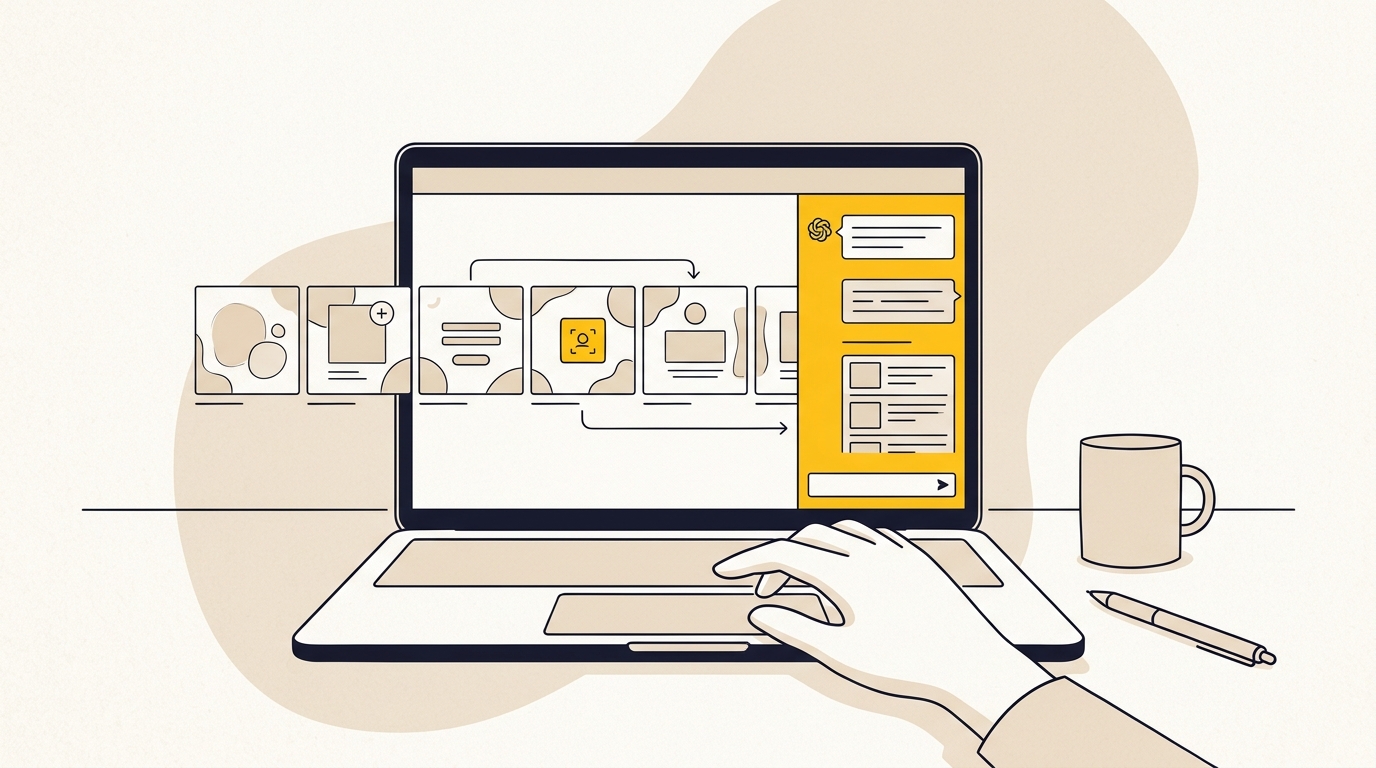
The Canva Claude integration connects Claude to Canva so you can ask for actions involving designs in your Canva workspace. Depending on the tools and permissions available to your account, you may be able to find existing designs, create or update designs, work with templates and export assets. Canva explains its AI assistant connection in its guide to connecting Claude to Canva, while its MCP overview for AI assistants describes the underlying connection approach.
MCP, or Model Context Protocol, is a way for an AI assistant to connect to external tools and services. For teams connecting multiple tools, Hoook acts as the integration layer for AI agents with auth and actions across 3,000+ apps and hosted MCP servers. In this workflow, Claude handles the conversation and instructions, while Canva remains the place where the design is assembled and edited. That is different from asking Claude to return a finished image file: the aim is to work with a Canva design you can review and change.
The integration is not a substitute for a brand system, a designer or a marketing strategy. Claude may produce copy that is too long for a layout, select the wrong asset, or follow an instruction in a way that technically fits a template but weakens the message. Treat tool actions as a way to remove repetitive work, not as approval to publish without review.
A useful way to divide the work is:
| Part of the job | Best role in this workflow | What still needs human judgement |
|---|---|---|
| Campaign message | Claude can help organise a brief and draft variants | Is the offer clear, accurate and persuasive? |
| Copy structure | Claude can produce text for named fields and length limits | Does each line sound like your business and suit its audience? |
| Layout | Canva can apply a design or template | Does the hierarchy guide attention in the right order? |
| Brand expression | Canva can use available brand assets and templates | Are colours, type, image choices and tone appropriate here? |
| Final release | Canva can export a design | Is the asset readable, correct and fit for each channel? |
Canva lists its AI assistant connection steps in its official setup guidance. Because available actions, permissions and account requirements can change, check Canva's current instructions before setting up a team process. As of October 2026, check the vendors' live Canva plan information and Claude plan information rather than relying on old price lists or feature summaries.
What you need before connecting the tools
Before you connect accounts, prepare the decisions that should guide the designs. This saves time later and reduces the chance that AI-generated content becomes a collection of polished but inconsistent posts.
1. A clear brand reference
Collect the things a marketer would otherwise have to remember or look up each time:
- Your logo files and rules for using them.
- Approved colours, including which colours are for backgrounds, text and highlights.
- Font names and their roles, such as heading, body and accent.
- Photography or illustration guidance, including what does not fit your brand.
- Your tone of voice, with examples of phrases you use and phrases you avoid.
- A few examples of finished content that represent the standard you want.
If this information lives in a well-maintained brand guidelines document, use it as the source of truth. If it is spread across old presentations, Canva files and Slack messages, take time to resolve conflicts before asking an assistant to follow it. An instruction such as “use our blue” is not useful when the team uses several blues for different purposes.
2. A reusable Canva template
A template is not just a blank layout with a logo. It should define the visual decisions that are costly or easy to get wrong: where the headline sits, how much text a panel can hold, how the call to action is treated, and which elements should stay fixed.
Build templates around recurring jobs. For example, a social carousel might need a hook slide, several insight slides, a proof or example slide and a final action slide. A campaign email graphic may need a single message, product image and offer. A presentation template needs a different rhythm again. Avoid making one master layout carry every format and message.
Keep fixed elements fixed where possible. These might include the logo position, background treatment, footer, decorative shapes and core type hierarchy. Mark the text or image areas that are meant to change. The more design decisions a template settles in advance, the less chance that each new version drifts away from the brand.
3. A real content brief
Claude can help with a vague brief, but it cannot reliably infer the business context you have not supplied. Write down the audience, objective, offer, proof, channel and action before you ask for copy.
A useful brief answers:
- Who should notice this content?
- What do they need to understand or do?
- What is the one main point?
- What supporting evidence can we use, and is it approved?
- Where will the content appear?
- What is the next step for the reader?
- What must not be claimed or shown?
For example, “make a post about our new service” leaves too much open. “Explain the new after-hours appointment option to existing clinic patients, state that bookings are made online, avoid promising availability, and direct readers to the booking page” gives the tools a useful boundary. The exact claims and destination should still be checked by the person responsible for the campaign.
4. Access and permissions
Use your own approved account and follow your organisation's rules for third-party AI tools. Ask the Canva team administrator whether integrations are permitted, and confirm that the workspace contains only material you are authorised to use. Do not paste confidential customer details, unreleased commercial information or sensitive data into a tool unless your organisation has explicitly approved that use.
Canva's documentation describes the connection and available assistant tools. You can review the current MCP tool list and rate-limit documentation, as well as the official Canva MCP tools reference, to understand the kinds of actions the integration supports. The actual tool options can depend on the account, permissions and product changes. Avoid building a process around a particular action until you have tested it in your own workspace.
Step 1: Connect Claude to Canva
Open Claude's settings or connector area and look for Canva. Follow the authentication flow to sign in to the Canva account you want to use, then review and approve the access requested. Canva also provides instructions for connecting an AI assistant and an MCP agent setup guide. Labels and steps can change, so follow the current on-screen instructions rather than an old screenshot.
After connecting, test a low-risk task first. Ask Claude to find a specific existing design or template in a test folder. Check that it finds the right item and that you can open it in Canva. Then try a small edit using non-sensitive sample copy. This confirms both that the connection works and that the account has access to the intended workspace.
If the design is not found, do not immediately assume the integration is broken. Check the design name, folder, sharing permissions and which Canva account is connected. If a tool action fails, read the error and confirm the relevant permissions before trying again. Repeating an unclear request can create duplicate drafts and make it harder to tell which file is current.
For a team, write down who owns the connection and who can approve new templates. Individual account access, shared workspace permissions and admin controls may differ. Set up a simple rule for naming files and storing approved masters. A reliable system is easier to use than an informal collection of similarly named designs.
Step 2: Choose a template before writing the content
Start by selecting the design format and the template that already suits the job. Do not ask Claude to invent a new visual direction when your actual need is to fill an existing brand layout. A template-first approach makes the work more repeatable and gives the content a visual boundary.
Search for a template by its exact name or by a clear description. If you have several similar options, create a short naming convention that distinguishes channel, format and purpose. For example, a file name could identify that it is an approved LinkedIn carousel template rather than a generic social design.
Inspect the template before handing it to Claude. Check that:
- The intended audience and channel match the job.
- Its text areas can accommodate the copy you plan to use.
- The headline, supporting text and action have distinct visual roles.
- The layout has room for the required image or evidence.
- The colours and typography are current, not leftovers from an old campaign.
- Fixed elements are not likely to be overwritten during editing.
A good template protects meaningful design decisions. It gives the headline enough prominence to be found, creates a predictable reading order, and leaves enough breathing room for the content to feel deliberate. If the template is cramped or confusing, fix that first. Repeatedly asking Claude to make awkward copy fit will not solve the layout problem.
Step 3: Give Claude design constraints as well as a writing task
Write a prompt that tells Claude what the content needs to accomplish and how the design is meant to work. Include the template name, audience, purpose, tone, required facts, prohibited claims and the character or word limits for each field.
A practical prompt might look like this:
Help me prepare copy for a five-slide LinkedIn carousel using the approved template named “Service Case Study Carousel”. The audience is small business owners considering this service. The goal is to explain the problem, our approach and one verified lesson, then invite readers to learn more. Use a clear, confident and plain tone. Do not invent results, customer quotes or statistics. Slide 1 needs a headline of no more than six words and a supporting line of no more than twelve. Slides 2 to 4 need one main point each, with body copy short enough to fit the template without reducing the type size. Slide 5 needs one direct call to action. First draft the copy in a table with a column for slide, headline, body and visual note. Do not update Canva until I approve the copy.
The exact limits should be set by the template, not copied from a generic prompt. A six-word limit may work for one design and be too long for another. Test the layout with realistic copy, then record the maximum that works while keeping the type size and spacing consistent.
Ask Claude for structured content, not a paragraph that you have to divide up manually. Naming each field makes it easier to check whether the message is complete and makes any subsequent Canva action more precise. Also ask it to flag missing facts rather than filling gaps with plausible-sounding claims.
Before using the integration to change a design, review the draft in Claude. Check accuracy, spelling, claims, tone and the action you want readers to take. It is quicker to correct a weak headline before it goes into a template than after it has been fitted and exported in several formats.
Step 4: Ask Claude to update the Canva design
Once the copy is approved, ask Claude to locate the named template and apply the approved content to the intended fields. Keep the instruction specific. Tell it which design to use, which text belongs in which field, which components are not to be changed, and whether you want a new copy rather than edits to the master template.
For example:
Use the approved “Service Case Study Carousel” template. Create a new working copy, not an edit to the master. Put the approved slide 1 headline and supporting line in their matching fields, then place the approved slide 2 to 5 copy into the corresponding slide fields. Keep the logo, background colours, type styles and layout elements unchanged. Do not add images, claims or extra text. Return the editable Canva design so I can review it.
The key instruction is to preserve the master. A master template should remain a clean source for future content. If you edit it by mistake, pause and restore the approved version before continuing. Keep a test version for experiments and a clearly named master for production.
Claude may return a design link or describe an action it took. Open the design in Canva and confirm the result yourself. Check that the correct file changed, every field contains the intended copy, and nothing has shifted or disappeared. A success message is not a visual quality check.
If the assistant creates a generic new layout instead of using your intended template, stop and restate the specific design name and instruction. Do not accept a visually different result just because it contains the right words. The design system is part of the brief, not decoration added after the writing.
Step 5: Review the design with five human checks
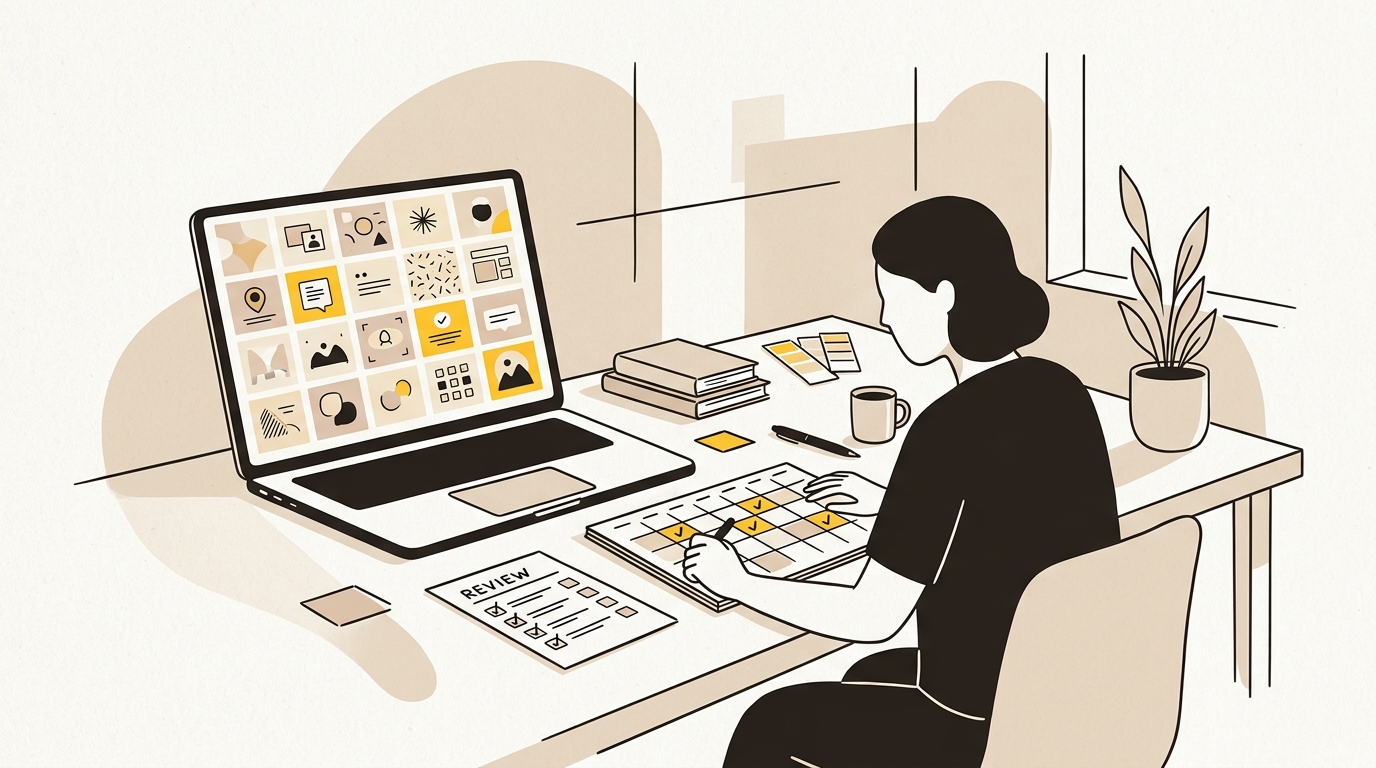
Claude can help move content into a design, but a person should review the actual Canva file before publishing. Check the design on the intended device and at the intended size. A slide that looks balanced on a desktop canvas can be difficult to read on a phone.
Check 1: Is the main point obvious first?
Look at the asset briefly before reading it closely. Can you tell what the main message is? The headline should have a clear role, with supporting copy and details visibly secondary. If every element appears equally prominent, people have to work harder to understand what matters.
Check that the headline is not competing with the logo, a decorative shape or a large image. A strong hierarchy is not simply making one line bigger. It is deciding what the viewer should notice first, what they should understand next and where they should look after that.
If the design is a carousel, check the sequence as a whole. Does the first slide give a reason to continue? Does each following slide add something useful? Does the final slide make the next action clear? The layout and message need to work across the sequence, not just as individual cards.
Check 2: Is there enough space around the content?
Look for text sitting too close to the edge, image, logo or other elements. Check that the layout has breathing room and that the message is not crowded by an unnecessary icon or flourish. Negative space is active design space: it helps separate information and gives the key content room to register.
Pay particular attention to text boxes that resize, wrap or change font size when their contents change. If a line spills over or the type appears smaller on one slide, shorten the copy before changing the overall type scale. Consistent typography helps a multi-part campaign feel like one coherent piece of work.
Do not solve every fit problem by shrinking the font. That can make a design technically complete but practically unreadable. Edit the wording, split a complex point into more than one slide, or choose a more suitable template. The right fix depends on the message and the format.
Check 3: Are the type and line breaks easy to scan?
Read each heading and body block at the size people will see it. Check for awkward line breaks, isolated short words and dense paragraphs. A line break can change the meaning or emphasis of a headline, even when the words themselves are correct.
Make manual line-break adjustments where needed, but review the result at more than one screen size. Do not add breaks just to make two lines look symmetrical if that makes the text harder to read. The goal is a comfortable reading rhythm, not perfect geometry at the expense of clarity.
Confirm that the type styles match the intended roles. Headings, body copy, labels and calls to action should be distinguishable without introducing a new typeface or style for every element. If the template relies on one type system, keep it consistent across all slides and versions.
Check 4: Can people read the text against its background?
Review contrast on every background, including photographs and coloured panels. Body text should be clearly distinguishable from what sits behind it. If it is difficult to read in the editor, it will be worse on a small screen, in a bright environment or when viewed quickly in a feed.
Where text crosses a photograph, check the whole text area rather than one convenient corner. You may need a solid or semi-transparent background, a different crop or a simpler image. Do not assume a brand colour is automatically readable on every other brand colour.
For digital content, use accessibility as a design requirement, not a final optional check. Canva's colour choices alone do not guarantee readable contrast. If the asset is part of a website or other experience covered by accessibility standards, follow the appropriate guidance for that context and test the actual foreground and background combination.
Check 5: Do images and details support the message?
Confirm that the image is relevant, current and approved for the campaign. Inspect the crop, especially around faces, products, logos and other details that give the image meaning. A technically attractive image can still be the wrong image if it makes the offer unclear or suggests something the business does not provide.
Check names, dates, prices, links, disclaimers, spelling and punctuation against the approved brief. AI-assisted writing can introduce a subtle factual error while sounding confident. Make sure any customer story, performance statement or testimonial is authorised and accurate before it appears in a public design.
Finally, review the call to action. Does it tell the reader what to do? Does the link or destination match the action? If the design says “Book now”, the booking path should work and be appropriate for the audience. Correct copy cannot compensate for a broken or mismatched next step.
Step 6: Make channel versions without losing the design system
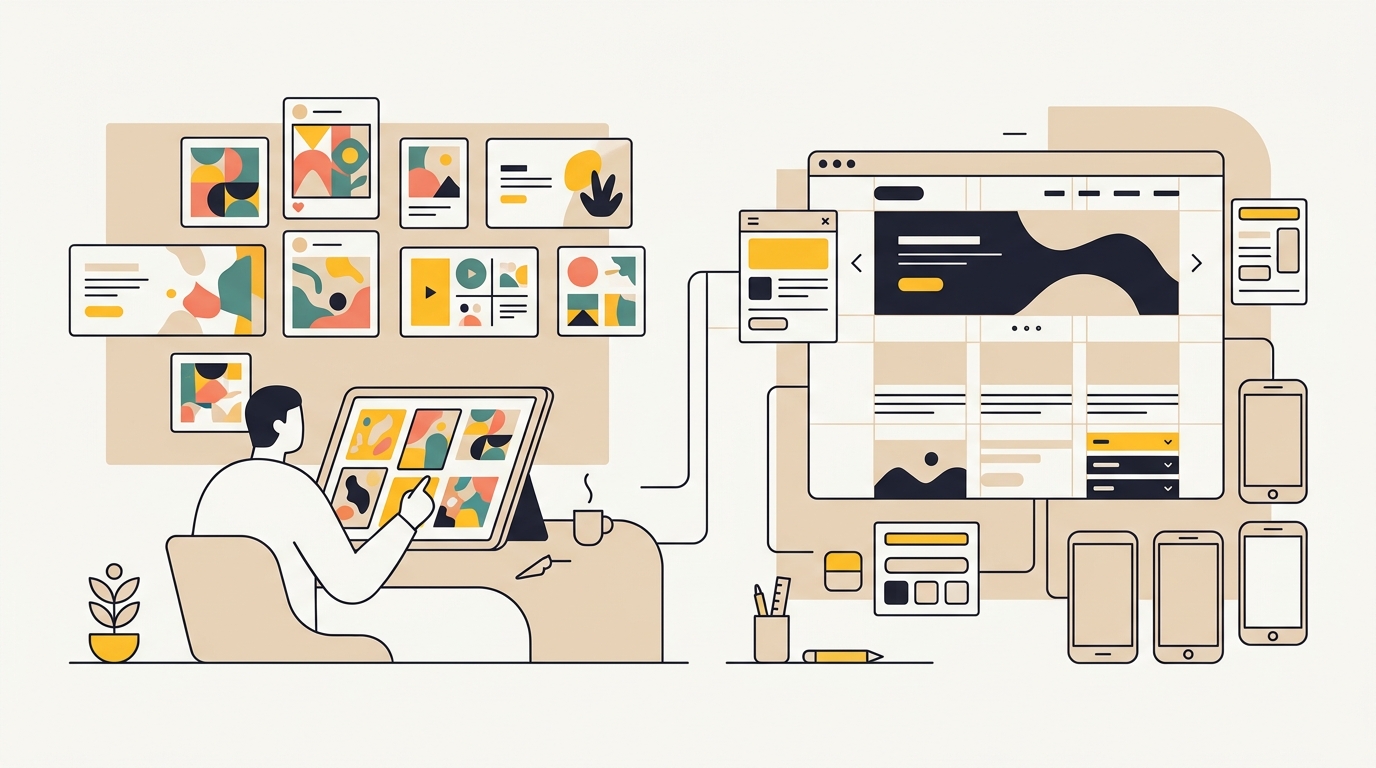
A social post, story, presentation slide and email banner need different compositions. Resizing one design can be a useful starting point, but it does not guarantee that the new format has a good hierarchy. The subject may move, the copy may wrap differently and the action may no longer be easy to find.
Use the original approved design as the source, then inspect every adapted version individually. Check the focal point and safe space around text. Confirm that the right information is visible without cropping, and remove copy that no longer earns its space. If the message needs a different order in a vertical story, restructure it rather than forcing the square layout into a taller canvas.
Keep channel-specific templates for formats you use regularly. This makes production faster and helps the team make better design choices by default. If you publish to several channels, document which asset is the master, which versions are approved and what changes are allowed for each channel.
For teams creating a larger content library, connect this process to your broader brand and campaign creative so the visual system stays consistent across social posts and related materials. Consistency does not mean every asset looks identical. It means the audience can recognise the brand while the layout still suits the job.
Step 7: Export, name and store the final asset
When the design has passed review, export it in the format and dimensions required for its destination. Check the export itself, not just the Canva canvas. Look for missing elements, unexpected cropping, poor image quality and any text that appears differently in the downloaded file.
Use a predictable naming system. Include the campaign or content theme, channel, format, date or version where useful, and approval status. For example, name a working draft differently from a final asset so nobody publishes an outdated version by mistake.
Store the final export alongside the editable Canva design and the approved brief. That makes later updates easier and gives the team a record of which copy and template produced the asset. Avoid relying only on a link in a chat history. A colleague should be able to find the current version without reconstructing the conversation that created it.
If you use Canva's export or design tools through the integration, check the vendor's current documentation for supported tools. Available actions and restrictions can change. Keep a manual export route available so a temporary connector issue does not block a time-sensitive campaign.
Step 8: Learn from performance, then improve the template
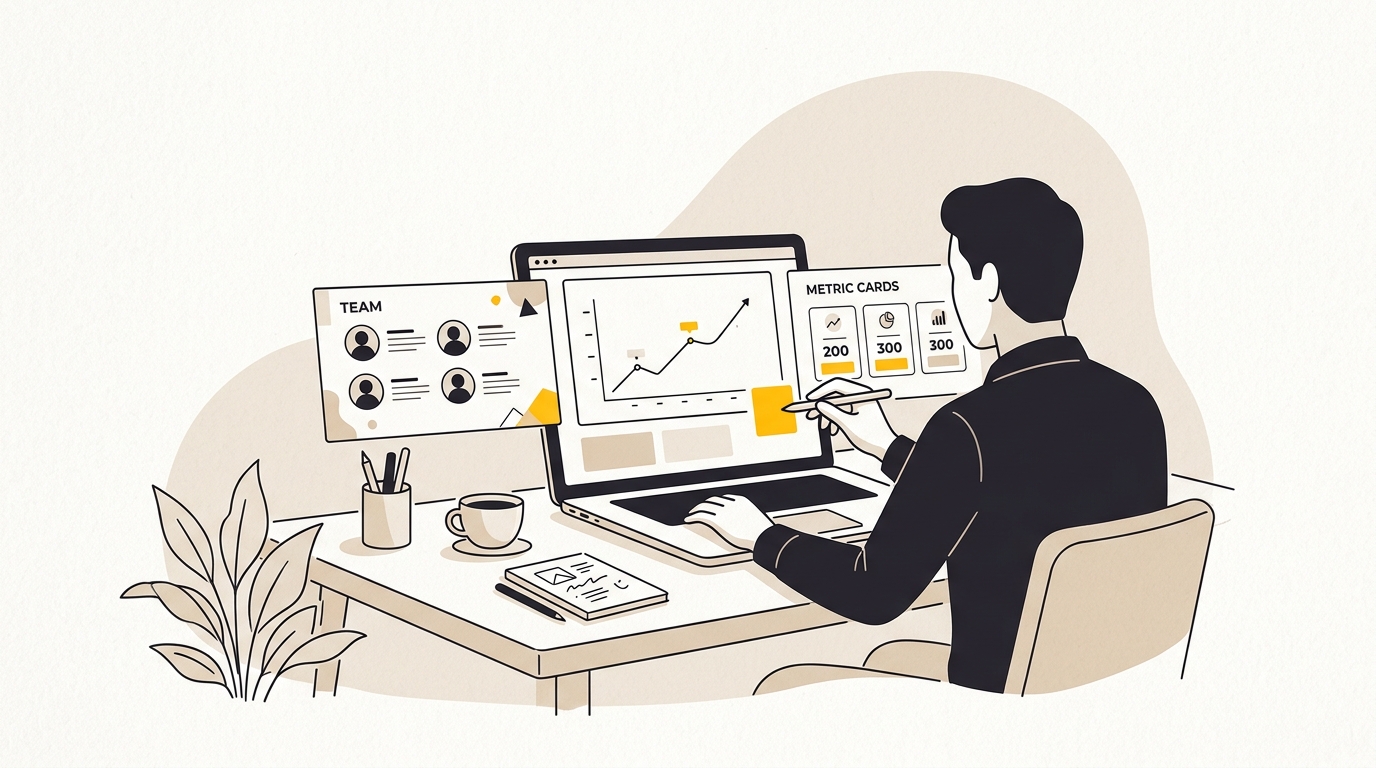
A design workflow should improve over time. Track the outcome that matters for the campaign, such as qualified clicks, enquiries, sign-ups or saves. Do not judge a design only by whether the team liked it or whether it was quick to make. Production speed is useful, but the purpose is to communicate clearly and support a business goal.
Compare assets only when the audience, message and distribution are reasonably similar. If one post receives more engagement, the design may have helped, but timing, topic, reach and the offer can also explain the difference. Avoid treating a single result as proof that one colour, font or layout always performs better.
Keep a short record of what you tested. Note the template, message, channel, audience and outcome. If a certain headline structure repeatedly needs fewer edits or a particular layout makes a complex point clearer, update the template or the guidance. If a design is frequently hard to read, fix the underlying layout instead of adding another warning to the prompt.
A small review loop can be simple:
- Choose one recurring content format.
- Record the current template and the purpose it serves.
- Publish a reviewed asset and capture the relevant result.
- Note the design or message issue that may have affected the result.
- Make one deliberate change to the template or brief.
- Review the next comparable asset before making another change.
This is where design and data work together. Use observations to form a sensible next test, not to claim certainty from limited evidence. The DesignFIT blog has more practical guides for improving the way brand and digital work supports business goals.
Tips for a smoother Canva Claude integration workflow
- Keep one source of truth. Store current logo files, colour rules, type choices and templates where the team can find them.
- Use a separate working copy. Preserve approved masters and make campaign versions from them.
- Give each content field a job. Ask for a hook, explanation, evidence and action rather than several interchangeable paragraphs.
- Set limits from the layout. Test what actually fits at a readable size, then use those limits in your prompt.
- Request a draft before an edit. Review claims and tone before asking the tools to modify a design.
- Use approved facts only. Provide the source material and tell Claude not to fill in missing details.
- Review the real export. A finished-looking canvas is not the same as a correctly exported, readable file.
- Make a human the publisher. Agree who checks the design, links and claims before anything goes live.
- Document exceptions. If a campaign intentionally changes the usual design system, record why and who approved it.
Mistakes to avoid
Asking for “something on brand” without giving the brand rules
That instruction leaves too much to interpretation. Provide the actual colours, type roles, tone, asset choices and template name. If the information is not documented, resolve it with your team before using AI to scale it.
Letting the assistant invent a layout when a template exists
Generating a new design can be useful for exploration, but it is not the best shortcut for repeatable branded content. Use a new layout only when the existing template does not suit the job, and have a designer approve the new direction before it becomes a recurring format.
Pasting long copy into a small text area
More words do not automatically make a design more informative. Decide the one takeaway, cut supporting detail that does not help, and move deeper explanation to the caption, landing page or next slide. Do not make every sentence fit by reducing the font size.
Editing the master by accident
A master that has quietly changed can spread errors across future campaigns. Ask for a working copy and confirm the file name before editing. Keep an approved version that is not used for day-to-day experimentation.
Trusting a design because the tool completed the action
A completed action only tells you that the tool performed a task. It does not confirm that the hierarchy is clear, the crop is sensible, the copy is accurate or the design is accessible. Always inspect the file and its export.
Treating every platform version as a resize
Different formats have different viewing conditions and space. Recompose where needed. A square asset compressed into a vertical story may technically fit while placing the headline, product and action in the wrong order.
Publishing without checking the destination
Review calls to action and links after export. Confirm that a booking, product or information link works on a phone and leads to the intended page. A visual asset is part of a customer journey, not an isolated picture.
A quick pre-publish checklist
Before publishing an AI-assisted Canva design, check:
- The content uses the correct approved template and a working copy.
- The main message is clear at a glance.
- Headlines, body copy and calls to action have distinct roles.
- Text fits without inconsistent shrinking or cramped spacing.
- Type, colours, logo and imagery follow current brand guidance.
- Text is legible against every background and in the exported file.
- Names, dates, offers, links and claims are accurate and approved.
- Images are relevant, correctly cropped and authorised for use.
- Each channel version has been reviewed in its intended format.
- The final file and editable design are stored with a clear name.
- A responsible person has approved the asset for publishing.
Is the Canva Claude integration right for your team?
It is a good fit when you already have a clear brand system, a few recurring content formats and a person who can review the work. It can reduce repetitive copying and help a marketer create structured drafts more quickly. It is less helpful when every campaign needs a new visual direction, when the brand rules are unclear, or when nobody has time to check the output.
If the brand has no approved templates, invest in those first. If copy changes constantly because the offer or audience is unclear, fix the brief before automating production. If the assets are inconsistent even when the same people make them, document the rules and improve the design system. Automation amplifies the process you already have, including its weak points. You can review DesignFIT's transparent design pricing to see what establishing these systems involves.
For a small business, the practical sequence is usually: define the brand, create a few useful templates, connect the tools, test a low-risk format, and review what happens before expanding the workflow. Do not begin by automating every channel. Start with one repeatable job where the cost of a mistake is manageable and where a good template can make the result more consistent.
Wrap-up: use AI to speed up production, not replace design judgement
The Canva Claude integration is most useful when Claude structures and places content inside a well-designed Canva template. The template sets the visual rules; a human checks the message, hierarchy, spacing, contrast, imagery and final export. That combination can make content production more efficient without making every asset look generic.
If your team needs a clearer identity or a set of templates built around the way you market, explore DesignFIT's brand design service.
Key takeaway
Use Claude to speed up structured content work, Canva templates to protect brand consistency, and human review to make sure every design communicates clearly.
Questions people ask
Can Claude design directly inside Canva, or does it only write copy?
The Canva connection can let Claude interact with Canva designs using the actions available to your account, which may include finding or creating designs and working with existing layouts. The result should still be opened and checked in Canva before you use it.
Why do designs made with Claude and Canva look generic or misaligned?
A vague prompt or a request to create a design from scratch leaves important visual choices open. Start with a well-designed, approved template, give clear copy limits and review the actual file for spacing, hierarchy and image crops.
Do I need Canva Pro to use the Canva Claude integration?
Account requirements and available actions can change, and some capabilities may depend on your plan or workspace permissions. Check Canva's current [plan details](https://www.canva.com/pricing/) and [Claude connection instructions](https://www.canva.com/help/connect-claude/) before deciding.
Is it safe to connect Canva to Claude for business content?
Follow your organisation's rules for third-party AI tools, review the permissions requested and avoid sending sensitive information unless its use is approved. Ask your Canva administrator which integrations are allowed, and use only content and assets you are authorised to share.