Canva vs Figma: When to Switch for Your Brand and Website
Keep Canva for fast, repeatable marketing assets. Move the design work that needs consistency, responsive behaviour or developer handoff into Figma.
On this page
- Canva vs Figma: what are you comparing?
- Side-by-side comparison: Canva vs Figma
- Which design decisions change when you move to Figma?
- Five signs your team is ready to move some work to Figma
- What should you keep in Canva?
- Pros and cons of Canva vs Figma
- How to move from Canva to Figma without disrupting the team
- What does the switch cost?
- Which should you choose? A verdict by situation
Canva vs Figma is not a choice between a basic tool and a professional one. Canva is built for quickly making and sharing finished assets; Figma is built for designing connected interfaces and reusable systems. If your team is outgrowing Canva, you may need to move only the work that benefits from structure, not every social post and presentation. A clear brand identity and design system can define what belongs in each tool.
The practical test is whether your current process makes it hard to keep the brand consistent, adapt layouts or hand website designs to a developer. When those problems start costing time or making customer-facing experiences less clear, Figma can help. Canva can still be the faster choice for everyday campaign production.
Canva vs Figma: what are you comparing?
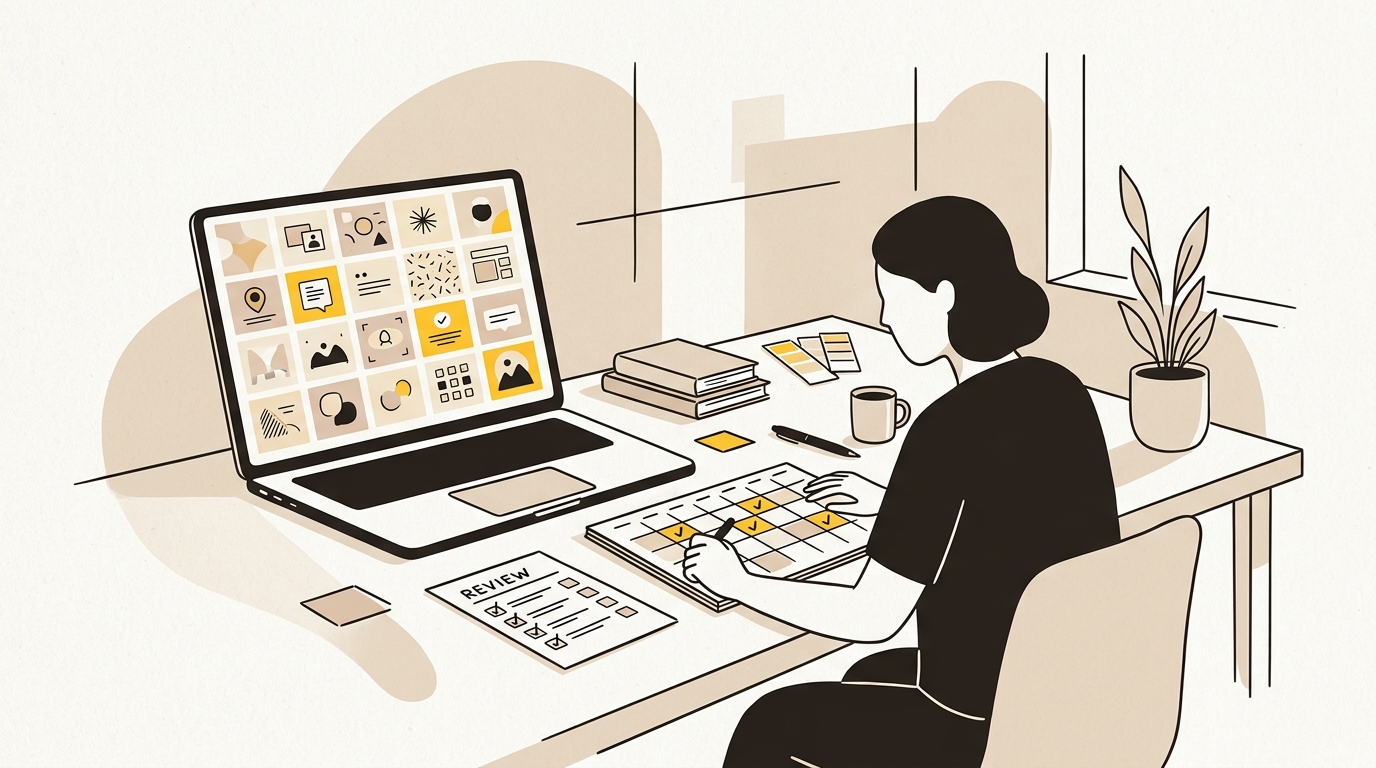
Canva is a browser-based design and publishing tool for making finished graphics, presentations, documents and other visual content. Its templates and familiar editing controls help people create assets without having to build a design system first. It is especially useful when the job is to produce a known format quickly and share it with a team.
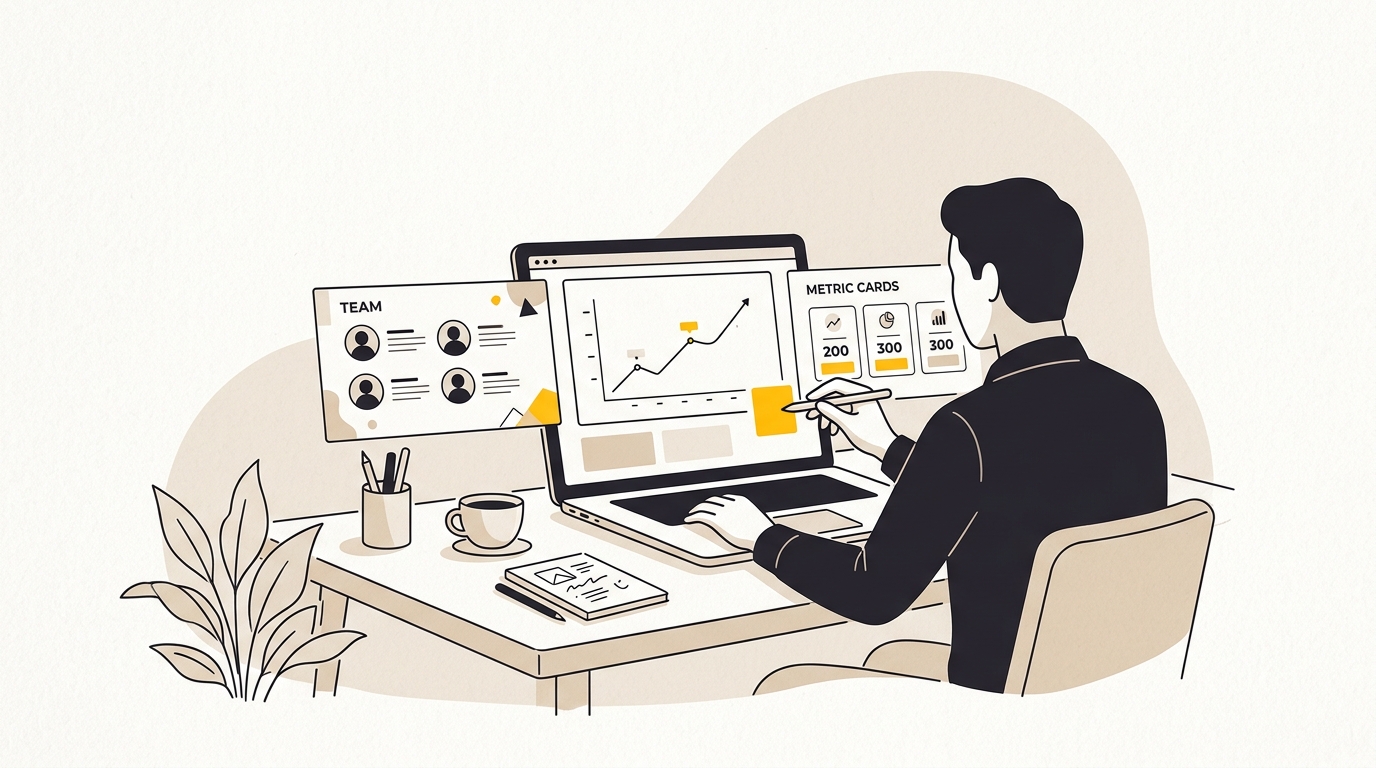
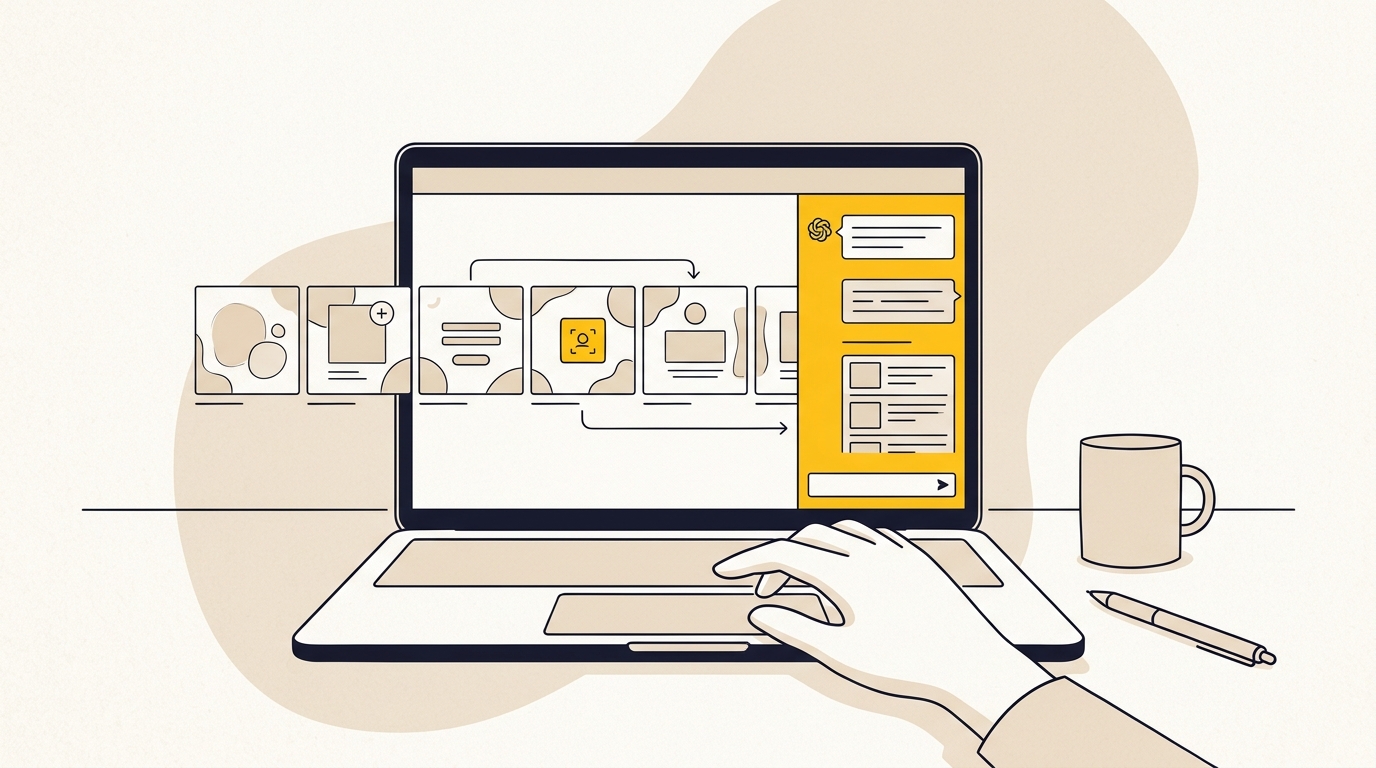
Figma is a collaborative interface design tool. It is used to lay out websites and product screens, create reusable components, make interactive prototypes and share design details with people building the interface. Its capabilities include Auto Layout, components and variables. Figma documents its current plan and feature differences in its official comparison of Figma plans and features.
The difference is less about who is allowed to use each product and more about the kind of work each supports, an angle explored in practical evaluations of Canva vs Figma workflows. Canva starts with an output, such as a social tile or slide deck. Figma can start with a system of rules and components that can produce many related screens.
Neither tool is a substitute for good design judgement. A tidy Figma file will not fix a confusing offer, and a Canva template is not automatically off-brand. The tool affects how easily the team can make sound design decisions repeatedly.
Side-by-side comparison: Canva vs Figma
| Decision | Canva | Figma | What it means for your business |
|---|---|---|---|
| Main job | Create and publish finished visual assets | Design interfaces, systems and prototypes | Choose based on the work, not a general ranking |
| Starting point | Templates, pages and a fixed output size | Frames, components and layout rules | Templates can speed up routine production; systems help manage connected experiences |
| Layout behaviour | Strong for placing and editing content on a canvas | Auto Layout and constraints help layouts respond to content | Figma is better suited to exploring how a page adapts when content changes |
| Reuse | Brand assets and templates can guide repeated work | Components and libraries support reuse across interface files | Reuse in either tool needs clear ownership and rules |
| Prototyping | Useful for presenting a sequence of pages or ideas | Supports interactive interface prototypes and linked flows | Figma is more appropriate when people need to test a website journey before development |
| Team contribution | Accessible for marketers and other occasional designers | More capable, but asks the team to learn a design workflow | Keep routine production simple for non-designers |
| Developer handoff | A visual reference or exported asset may need interpretation | Inspectable design details can help communicate intended layout | Figma improves the handoff conversation, but does not build or guarantee the final website |
| Best fit | Campaign graphics, decks, simple documents and template-based content | Websites, digital products, design systems and interface prototypes | A hybrid approach is often more practical than a full switch |
Feature availability and plan limits change. Check the vendors' current information before choosing a paid plan. Canva describes differences between some of its offerings in its Canva Pro and Enterprise overview. Team size, permissions and the number of people who need to edit can affect the real cost in either product.
Which design decisions change when you move to Figma?
A move is worthwhile when it improves the decisions your team needs to make. Figma's extra structure matters most when a layout has to work across pages, devices, content changes or people. Here are the practical differences to assess.
1. Layout: placing objects or defining how they fit
In Canva, it is natural to think in terms of a canvas: place a heading, image and button where they look right for that particular asset. That is an efficient approach for a social post or a one-off graphic. It can become repetitive when the same content pattern has to be recreated in multiple website sections or for several screen widths.
Figma's Auto Layout lets designers define how elements sit together, including spacing, padding and how a container responds to its contents. Instead of drawing each button at a particular width, for example, a designer can set it up so the shape follows the label while keeping consistent padding. This is useful when button copy changes or when several buttons need to follow the same rule.
It does not mean every Figma layout automatically behaves like production code. A designer still needs to choose sensible constraints, test different content lengths and work with the developer on how the design should be implemented. But the layout model makes those decisions easier to show and discuss before development starts.
2. Type and hierarchy: repeatable rules instead of local fixes
A customer should be able to tell the main message from the supporting detail without having to work it out. That depends on hierarchy: the relationships between headings, body text, labels, buttons and other elements. When a team changes type sizes by eye on each page, the same brand can start to feel inconsistent.
A Figma file can define reusable text styles and variables for a set of type decisions. A designer can create a small, intentional scale for page titles, section headings, body copy and labels, then apply it consistently. This makes global changes easier to manage and helps a developer understand which role each style serves.
Canva can also use brand settings and templates to guide type choices. For many marketing assets, that is enough. The trigger to use Figma is not that Canva cannot display a heading. It is that repeated, connected interface layouts need a more explicit system, or that changes to the hierarchy are difficult to apply consistently.
3. Components: reusable interface parts
A website often repeats the same elements: navigation, buttons, cards, forms and footers. If each page is designed as a separate composition, even small differences can accumulate. One call-to-action may use different padding, another may have a different corner radius, and a third may use an old colour.
Figma components give a team a reusable source for interface elements. A component can also have variants for meaningful differences, such as a primary and secondary button or a card with and without an image. When a component is updated, its instances can reflect the change. The designer still needs to check the affected screens and decide whether every instance should change.
Canva templates also help people repeat a visual format. They are useful when the goal is to create many related campaign assets and the content can fit within a familiar structure. Components are more valuable when those repeated elements make up a website or product experience and need to stay aligned as the experience grows.
4. Responsive design: planning for different screens
A website is not one poster enlarged or shrunk. Its content and controls may need to rearrange on a narrow screen: a multi-column section might become a single column, a full navigation might become a menu, and buttons may need a larger touch area. Those are design decisions that affect whether visitors can find information and complete an action on their phone.
Canva's resize tools can help adapt a graphic to another output format, but resizing a promotional image is not the same task as designing responsive website behaviour. A resized banner can still work as a banner. A redesigned mobile page must account for the order, readability and behaviour of its content.
Figma lets a designer create and inspect layouts at different frame sizes, and use constraints and Auto Layout to make intended behaviour clearer. It cannot prove that a live site will work on every device. The developer must implement the layout, and the finished site still needs testing in real browsers. Figma is useful because teams can resolve more of the layout questions before code is written.
5. Prototypes and flows: showing what happens next
A static image can show a page's appearance, but it cannot fully explain how a visitor moves through it. For example, a designer may need to communicate what happens when someone selects a navigation item, opens a menu, submits a form or moves from a product page to checkout.
Figma prototypes can link screens and demonstrate selected interactions. They help a founder or marketing lead review whether the next step is clear before a developer builds the page. A prototype is not the finished website and does not replace usability testing, but it can make feedback more specific than comments on a static screenshot.
Canva can present pages and ideas in sequence, which works well for a pitch or a visual story. Choose Figma when the purpose is to explore an interface flow or to test how a website journey makes sense to a person using it.
6. Handoff: making design intent easier to build
When a developer receives a Canva export or a screenshot, they may have to infer dimensions, spacing, font styles and how the page should adapt. The visual can be a helpful reference, but it may leave important decisions unanswered. That creates avoidable back-and-forth, especially if the design includes several page types or interactive states.
Figma can give developers a shared file with inspectable properties and named assets. Dev Mode and other inspection features are intended to help developers understand design details. Still, extracted values are not a finished implementation. Developers must make appropriate choices for the website platform, codebase, accessibility, performance and content management.
A good handoff includes more than a link. It includes the key page states, responsive intent, asset names, typography and spacing rules, and notes about behaviour that is not obvious from the canvas. For a website build, the website design and development process should connect these design decisions to the actual site, not treat a Figma file as the deliverable by itself.
Five signs your team is ready to move some work to Figma
You do not need to wait until Canva feels unusable. Look for recurring friction. One isolated problem may be solved with a better template or clearer file ownership. Several repeated problems are a stronger sign that the workflow needs a more structured design environment.
1. You are planning a website redesign or a new digital product
A website redesign involves page structure, content hierarchy, responsive layouts, repeated components and user journeys. Canva can be useful for a rough moodboard or a simple visual direction, but it is not the best place to manage a complex set of interface decisions. Figma gives the team a way to work through page templates and shared elements before development.
Use Figma when a developer needs to build from the design, or when the team needs to compare different page structures and mobile layouts. If you are only producing a single graphic to promote the existing site, Canva remains a sensible choice.
2. Updating the brand means hunting through old files
If changing a logo, colour or font requires the team to locate and revise many individual assets, the problem may be a lack of a source of truth. Figma can help establish reusable interface styles and components. Canva's brand settings and approved templates can then support day-to-day output.
The change is not simply “put everything in Figma”. First decide which decisions are central to the identity and should be controlled, and which assets need to remain editable by the wider team. A well-maintained brand guidelines system can make those boundaries clear across both tools.
3. Developers keep asking what the design means
Questions about spacing, font size, hover states or mobile behaviour are normal in a build. But if the developer repeatedly has to guess what the design intends, the handoff may be too static or incomplete. Figma can make details easier to inspect and can show related states in one place.
Before switching, ask which questions keep coming up. If the answer is mostly about missing copy or an unclear offer, a new tool will not solve it. If the answer is about recurring interface patterns, responsive layouts or developer specifications, Figma is more likely to help.
4. Several people are creating their own versions of the brand
Growth often means more people need to make assets. That can lead to duplicate templates, inconsistent fonts, stretched logos and colour choices that drift from the identity. A controlled Canva template library may be sufficient if the assets are simple and the rules are clear. Figma can be useful for defining the underlying system, especially for web and product interfaces.
The aim is not to stop colleagues from contributing. It is to give them a safe, straightforward way to make the content they need without having to redesign core brand elements each time.
5. You need to review a journey, not just a picture
If the team needs to see how a visitor moves from a landing page to an enquiry form, how a menu opens or what happens after an action, a static asset may be too limited. Figma's prototyping features can help make those flows concrete before development. This can also make stakeholder feedback more useful: people can respond to a journey rather than debating a screenshot in isolation.
What should you keep in Canva?
A move to Figma does not need to mean cancelling Canva or migrating every old file. Canva is still a strong choice when a non-designer needs to produce a repeatable asset quickly, particularly if the format is already defined and the content changes more often than the design system.
Keep Canva for work such as:
- Social media creative and simple campaign graphics made from approved templates.
- Slide decks, internal presentations and event materials.
- Simple documents or downloadable resources where the page format is fixed.
- Quick edits by team members who do not need to work on website interfaces.
- Approved assets that need to be duplicated, resized or updated by a wider group.
Use Figma for work such as:
- The source design for the website and its reusable interface patterns.
- Responsive page layouts and important mobile states.
- Interactive prototypes for journeys that need review before development.
- Shared components, type styles, colour variables and interface rules.
- Developer handoff for custom website or product work.
A useful hybrid workflow has one clear owner for the core system. That owner maintains the approved logo files, colour values, type choices, spacing principles and reusable website patterns in Figma. They then translate the parts that need everyday editing into approved Canva brand assets and templates. The team can create campaign content in Canva without treating every campaign as a chance to reinvent the identity.
Do not assume there is a perfect automatic sync between the tools. Check what can be imported or exported in the formats you use, and test how fonts, vector assets, transparency and sizing behave. Keep an organised library of approved files and note which version is current. If the same design decision is being changed in both products, decide which one is authoritative before the team creates another variation.
Pros and cons of Canva vs Figma
Canva: pros
- Quick to learn for common graphic and presentation tasks.
- Templates can help a team produce assets without starting from a blank page.
- A practical option for distributed marketing work where many people need to make small edits.
- Useful for outputs that have a known size and do not need to behave like an interface.
Canva: cons
- A collection of assets can become difficult to govern when there is no clear source of truth.
- It is less suited to managing a connected, responsive website interface and its interaction states.
- Developers may need extra explanation when a file is primarily a visual reference.
- Making recurring design rules explicit can require more manual discipline than a dedicated interface system.
Figma: pros
- Designed for interface layouts, reusable components and interactive prototypes.
- Makes it easier to show responsive intentions and shared patterns in one design environment.
- Can improve the clarity of collaboration between designers and developers.
- Helps teams manage visual rules for a growing website or product.
Figma: cons
- Takes more learning than making a simple template-based graphic.
- A detailed file can become hard to use if components, pages and naming are not maintained.
- It does not automatically create a working website or guarantee that a developer will implement the design exactly.
- It may add unnecessary process if the business mostly needs simple marketing assets.
How to move from Canva to Figma without disrupting the team
1. Audit the work before migrating files
List the assets your team creates often and mark which ones are tied to the website, which are recurring campaign formats and which are one-offs. Note who edits each kind of asset, how often it changes and what breaks when it is updated. This tells you what needs a system and what simply needs a reliable template.
Do not start by importing an entire archive. Old files can contain outdated logos, old offers and inconsistent versions. Moving them all may make the new workspace harder to trust. Start with current, high-use work and keep an archive for reference.
2. Choose the source of truth for each decision
Decide where the approved logo files live, who owns the core brand rules and which tool is used for each type of work. For example, Figma might hold the website's interface system while Canva holds editable campaign templates. Write that down in a short guide so people do not have to guess.
Include practical rules: which logo version to use, which colours are approved, what type styles to use, where templates are stored and who can approve changes. A brand system only works when people can find and follow it.
3. Build a small, useful Figma system first
Start with the pieces that have the greatest reuse: colours, typography, buttons, form fields, navigation and one or two common page patterns. Avoid building a large library of hypothetical components before you know what the business uses. A small system that reflects real pages is easier to maintain than a comprehensive file no one opens.
Name components in a way that makes sense to the people who use them. Show the intended variations, such as a primary button and a secondary button, and note important behaviour. If a component has exceptions, document why instead of silently creating another nearly identical version.
4. Create a handoff that answers real questions
Agree how the designer and developer will work together. Identify the pages and screen sizes that need to be reviewed, provide the final copy where possible, and explain any interaction that is not obvious. Use comments to resolve questions rather than leaving decisions scattered across email and chat.
Figma inspection is one part of handoff, not the whole handoff. The developer still needs to know how the design connects to the site's content, platform and accessibility requirements. Review the built pages at the relevant sizes and compare them with the design intent.
5. Keep Canva templates focused on safe editing
Once the core visual rules are established, update the templates the team uses regularly. Make it easy to replace a headline or image without accidentally changing the logo, colours or layout. If your Canva plan and permissions support the controls you need, use them, but test the setup with an ordinary team member rather than assuming it is clear.
A template that is hard to edit will be bypassed. Ask the people who make the assets to try it and note where they get stuck. The best system balances brand control with the speed the team needs to publish.
6. Review the workflow after the first real campaign
The first use of a new system will expose practical issues: missing formats, confusing file names, font availability or a component that does not cover a common case. Review what happened and adjust the system based on actual work. Avoid adding rules just because a design tool makes them possible.
What does the switch cost?
The cost is not only the subscription. It includes the time to learn a new workflow, organise files, establish ownership and maintain the design system. If your team uses Canva mainly for simple assets, moving everyone into Figma may cost more in time and complexity than it saves.
For a website or growing brand, consider the effort involved in the alternative: repeated one-off designs, duplicated updates and unclear handoffs. Figma may reduce those points of friction, but the result depends on how well the system is designed and maintained. Compare the current seat options and feature limits directly before committing. Figma's plan structure is documented in its official plan comparison, while detailed breakdowns of Figma seat costs and Canva pricing structures show how licensing scales across different roles.
A small team may only need a designer to own Figma while other staff use Canva templates. A team building a product or managing a substantial website may need more people to collaborate on interface files. Choose seats based on what each person needs to do, and confirm current prices with the vendors rather than relying on old comparison articles.
Which should you choose? A verdict by situation
| Your situation | Better fit | Why |
|---|---|---|
| You mainly create social posts, presentations and simple documents | Canva | The work is output-focused, and fast template editing matters most |
| You are planning a website redesign | Figma for the website design, Canva for campaign assets | Responsive layouts, page patterns and developer handoff need a more structured environment |
| Your brand is inconsistent across everyday marketing | Start with better Canva templates; add Figma if the core system needs work | The right answer depends on whether the issue is template use or system design |
| Your developer repeatedly has to guess layout details | Figma for interface design and handoff | It can make layout rules and states easier to inspect and discuss |
| You are a small team with little interface work | Canva | A new tool and process may add overhead without solving a current problem |
| You have a product, multiple page types or a growing design team | Figma for the interface system, with Canva retained for routine assets | Reuse and shared design rules become more valuable as work grows |
The clearest answer to Canva vs Figma is usually not “replace one with the other”. Keep Canva where speed and simple editing matter. Bring Figma into the workflow when the team needs to design a website or product as a connected system, test a journey, or give developers a clearer specification.
Before switching, identify the repeated decisions that are currently causing friction. If those decisions are about interface structure, reusable components, responsive behaviour or handoff, Figma is a good fit. If the problem is that your assets do not look consistent, you may first need clearer brand rules and better templates, not another subscription.
DesignFIT helps growing businesses turn brand decisions into practical systems for marketing and digital experiences. If your identity needs clearer rules, a stronger brand system built for everyday use is a sensible next step. If the bigger issue is how your website is structured and performs, explore website design and development or check our project pricing to plan your next stage.
Key takeaway
Keep Canva for fast, repeatable marketing assets, and use Figma when your brand or website needs reusable interface rules, responsive layouts and clearer developer handoff.
Questions people ask
Should I use Canva or Figma for a website design?
Use Figma for the website's page layouts, responsive behaviour, reusable interface elements and prototypes. Canva can still help with moodboards or campaign graphics, but it is not a replacement for a structured website design and developer handoff.
Can a small business use Canva and Figma together?
Yes. A practical setup is to keep the website and core interface system in Figma, then provide approved Canva templates for routine marketing assets. This lets the team edit everyday content without asking everyone to work in a more complex design file.
Is Figma difficult to learn if I already use Canva?
Figma has more concepts to learn, including frames, components, Auto Layout and prototypes. You do not need every team member to become a Figma designer; one person can maintain the system while others use Canva templates for common tasks.
Will Figma automatically turn my design into a website?
No. Figma helps communicate layouts, styles and interactions, but a developer still needs to build and test the website in its chosen platform. A clear design file can reduce ambiguity, but it does not guarantee the final result or replace development.