Custom Canva Templates From Your Brand Guidelines
A practical designer’s method for turning a brand guide into Canva templates that are consistent, useful and hard to break.
On this page
- Why do brand guidelines fail when staff use Canva?
- What is a custom Canva template?
- Start with the business task, not the Canva file
- A designer’s five-step method for custom Canva templates
- How do Canva locks and Brand Controls differ?
- The design decisions that affect results
- How to introduce templates without slowing the team down
- Canva Free, Pro or a team plan: what should you check?
- How do custom Canva templates fit with Figma or Adobe?
- Common mistakes when building Canva brand templates
- A founder’s checklist for auditing a Canva workspace
- What to prepare before asking a designer for templates
- The takeaway: build a system, not a folder of pretty files
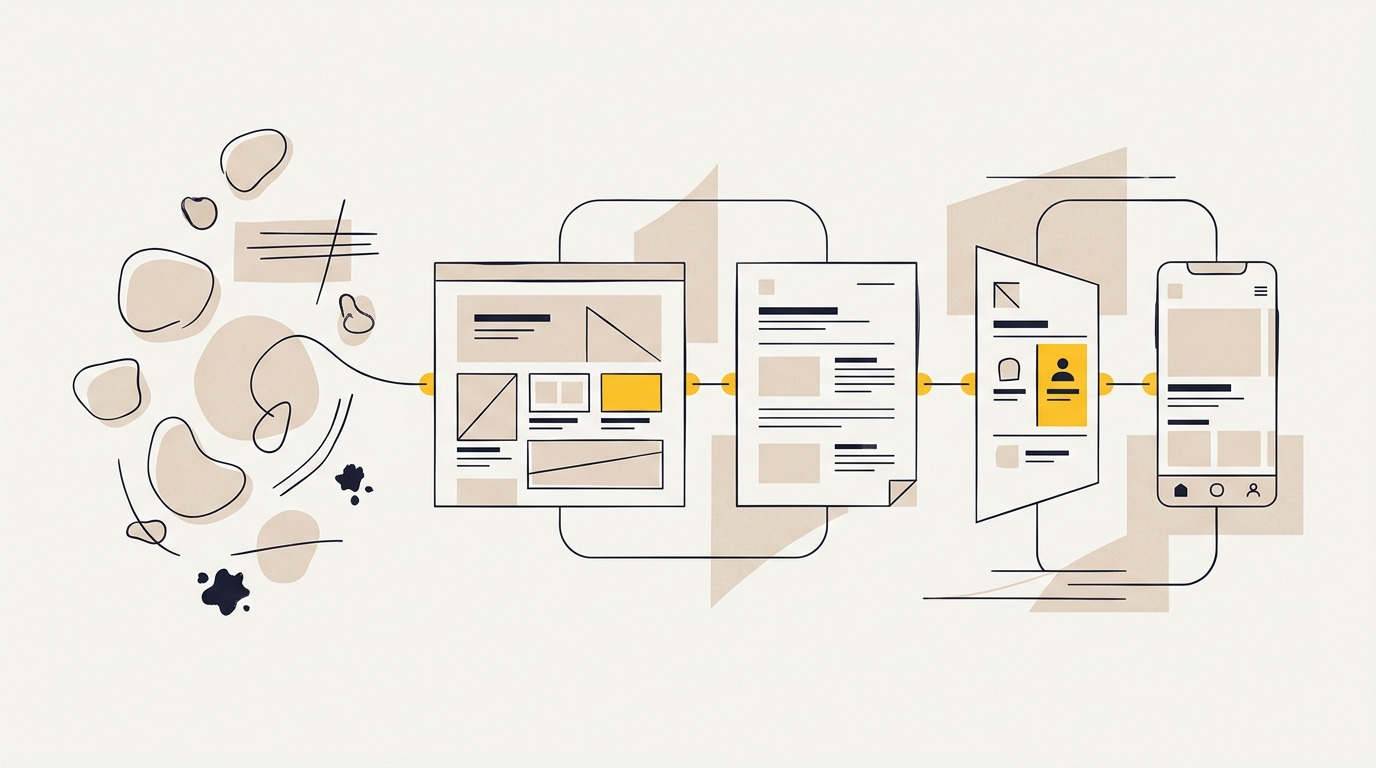
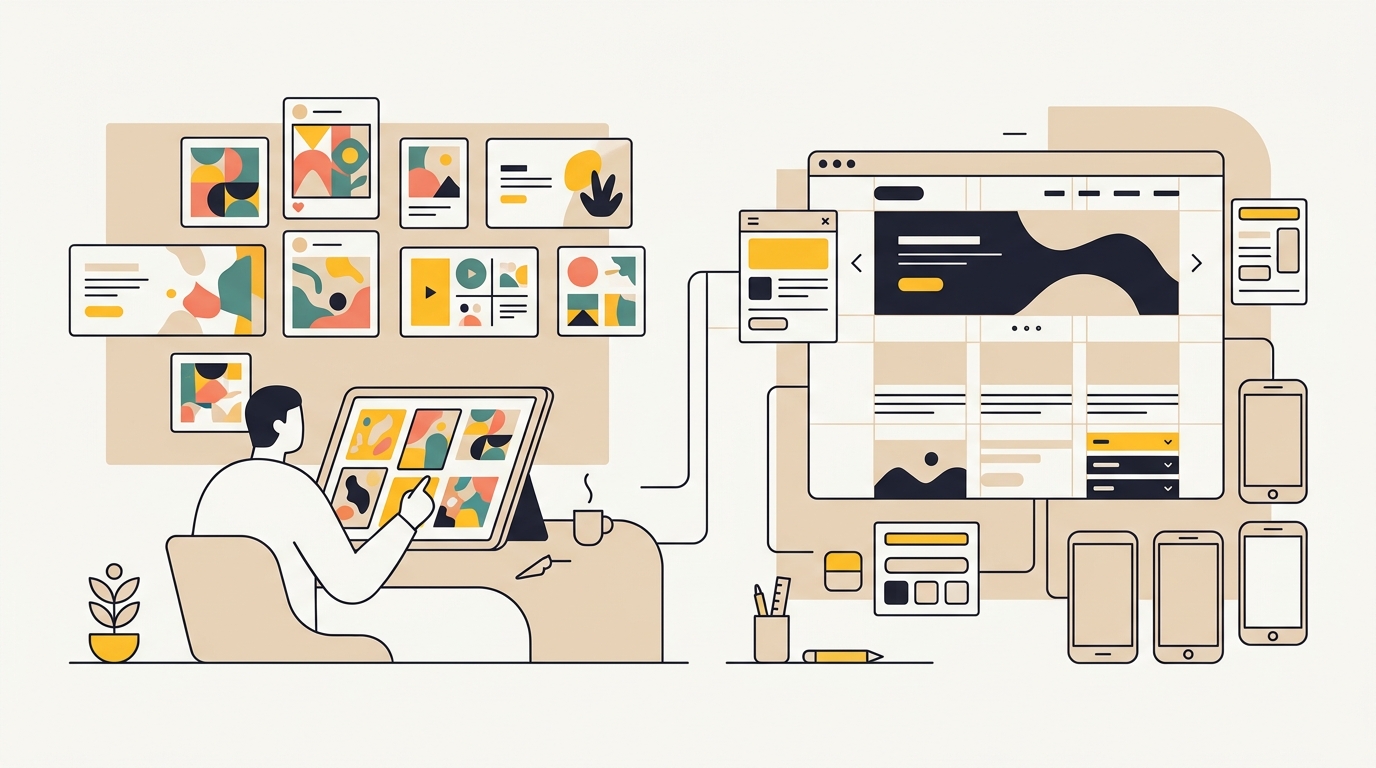
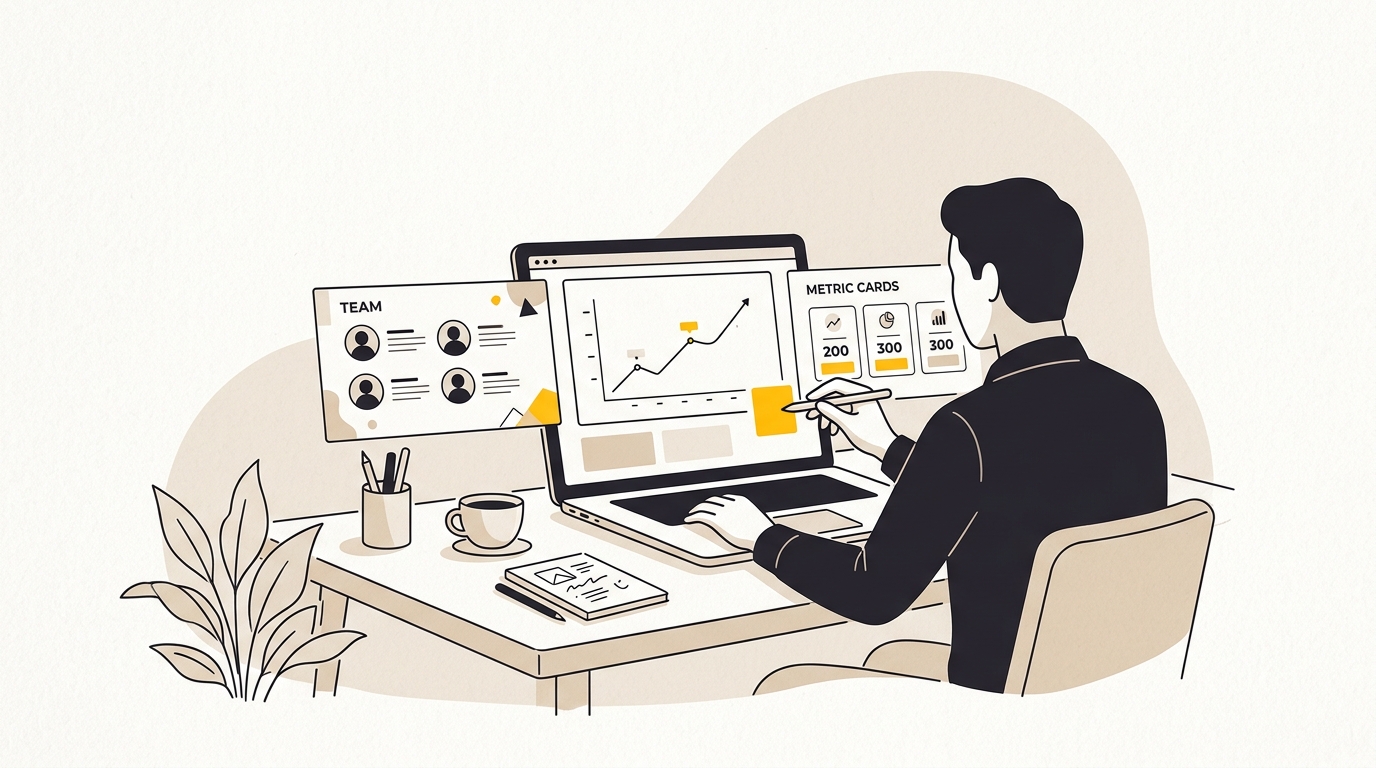
Custom Canva templates turn your brand guidelines into ready-to-use layouts that help your team make consistent marketing without needing a designer for every post. A designer translates the rules in your guide into practical choices about type, spacing, colour, images and what staff can edit. The result is not just a set of attractive files. It is a simple production system built around the way your business communicates.
If your brand guide is being ignored, the answer is rarely to send it around again. Start by identifying the brand decisions your team needs to make most often, then build templates that make the right choice easy. That work may involve refining the underlying identity first, which is one reason businesses ask for brand identity design from DesignFIT.
Why do brand guidelines fail when staff use Canva?
Brand guidelines explain how a brand should look and sound. A brand template puts those instructions into a working layout. The first is a reference document. The second is a tool someone can open, edit and use to create a specific asset, such as a social post, presentation slide or event flyer.
A guide can explain that a headline uses a certain font, that the logo needs clear space around it, and that a bright accent colour should be used sparingly. But when a team member is trying to publish a post between meetings, those instructions can feel abstract. They may not know which font to choose, how large the headline should be, or how much empty space to leave.
This is where a brand guide can become a brand guide graveyard: a useful document that people rarely open. It may be accurate and beautifully presented, but it does not tell someone which Canva file to use on a busy Tuesday morning.
The gap is usually not that staff do not care about the brand. It is that the brand rules have not been translated into the choices they face every day. A designer’s job is to make those choices easier and safer.
Why brand colours alone do not make a design look on-brand
A brand colour is one ingredient, not a complete design system. Two posts can use the same colours and still feel as if they came from different companies if one has a clear headline and generous spacing, while the other crams text against the edges and mixes several type styles.
A usable template needs a visual hierarchy. Visual hierarchy is the order in which a viewer is likely to notice information. For a promotion, it might be the offer first, the product second, and the call to action third. Font size, weight, contrast, position and spacing help establish that order.
If every element is bold, bright and large, nothing stands out. If the logo, a decorative shape and a small piece of supporting text compete with the main message, a viewer may not know where to look. Good template design gives each element a role.
What does inconsistency cost a small business?
The immediate cost is time. A team member searches Canva, chooses a layout, changes colours, adjusts text and asks someone else whether it looks right. Then another employee recreates a similar design from scratch. Without a shared starting point, small tasks create repeated design work.
There is also a communication cost. A proposal, an ad and a social post may all be technically correct, but if their typography, image treatment and spacing feel unrelated, the business can appear less considered than it is. That can weaken recognition and make it harder for customers to understand what is distinctive about the company. Industry research such as The Harris Poll's visual economy study shows that visual clarity and consistency heavily shape audience engagement and brand credibility.
While published brand consistency statistics from Dasho highlight measurable business value, do not treat brand consistency as a guaranteed revenue lift. The effect depends on the business, audience, offer and quality of the marketing. Instead, treat it as a design and operations problem you can observe: are staff using the right assets, can viewers identify your business, and are the layouts making the message easy to understand?
What is a custom Canva template?
A custom Canva template is a reusable layout designed for a particular brand and communication task. It includes decisions about dimensions, typography, colour, image placement and editable areas, so the user can replace content without rebuilding the design each time.
Custom does not necessarily mean every template must be created from a blank page. A designer may use an existing layout as a starting point, but the finished template should be tailored to your brand, content and workflow. A generic Canva design with your logo pasted on top is not the same thing.
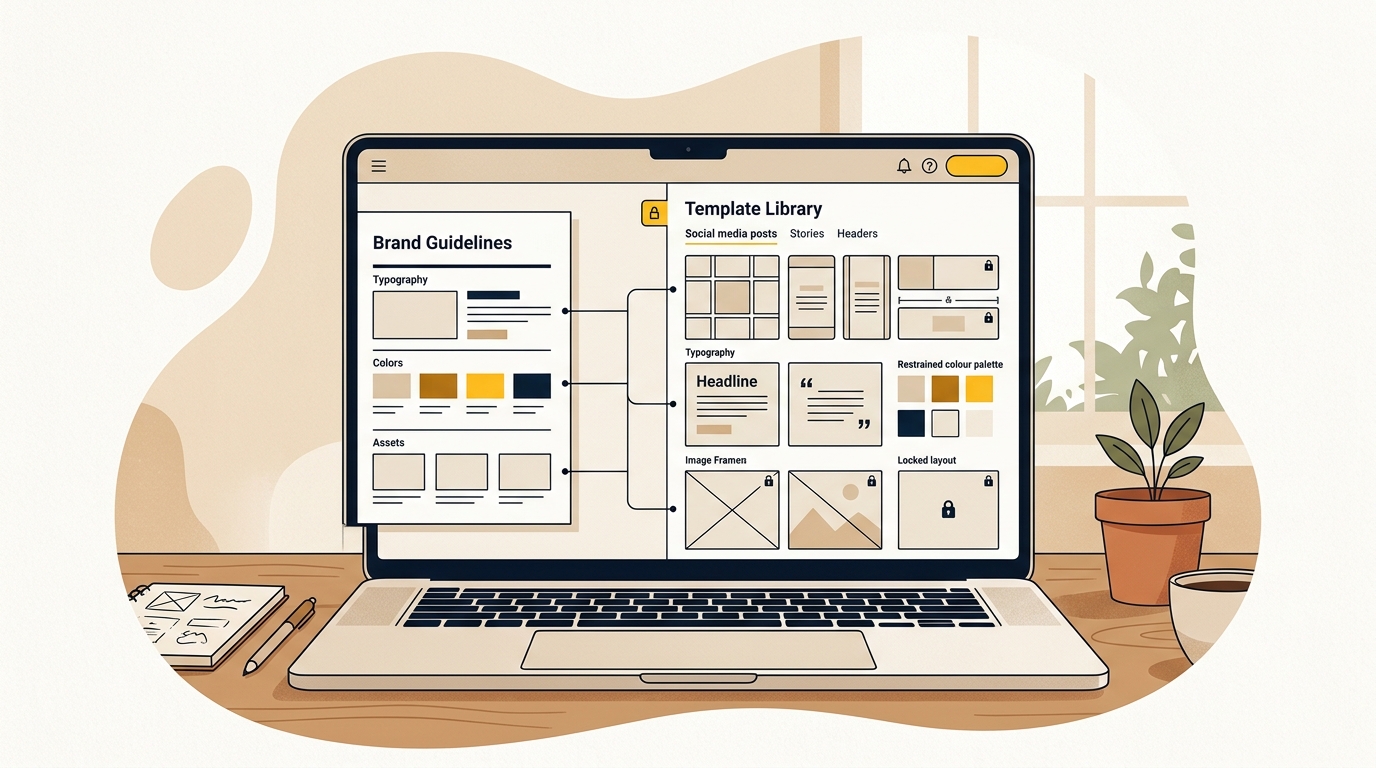
A template is also different from a brand kit. A brand kit is a collection of brand assets and settings, such as logos, colours and fonts. A template is an application of those assets in a particular layout. A kit can help people access approved ingredients; the template shows them how to combine those ingredients for a specific job.
Useful templates solve recurring needs. A small service business might need a client testimonial, a service explainer, a hiring post and a presentation cover. An online shop might need product launches, collection announcements, sale graphics and paid ad layouts. Build around the work your team actually does, rather than collecting templates for every possible format.
Start with the business task, not the Canva file
Before designing, list the regular communications your team produces. Include who makes each item, where it is published, how often it changes and what information must appear. This helps identify the templates that will save time and the ones that would only add clutter.
A simple inventory might look like this:
| Asset | Purpose | Content that changes | Content that stays fixed |
|---|---|---|---|
| Social service post | Explain one service and invite an enquiry | Headline, short description, image, call to action | Logo, type styles, colour roles, layout grid |
| Customer quote | Share a testimonial | Quote, customer name if approved, optional photo | Brand mark, attribution style, quotation layout |
| Presentation cover | Introduce a proposal or meeting | Presentation title, client name, date | Logo, background, title position, typography |
| Paid social ad | Promote a specific offer | Offer, image, button wording, legal text | Brand palette, text hierarchy, logo placement |
This inventory is not just an admin exercise. It influences the design. A fast-moving promotion needs a layout that can handle changing offer details. A client proposal cover needs to look composed even when the project title is long. A testimonial template needs space for a quote that may vary in length.
For each asset, agree on its main job. Is it meant to make a service understandable, prompt a click, support a sales conversation or establish credibility? One template can include a call to action, but it should not try to do every job at once.
A designer’s five-step method for custom Canva templates
Step 1: Translate the guide into usable design tokens
A design token is a reusable design value or rule. In plain terms, it is a specific choice such as the approved headline font, a named colour, or a standard spacing value. Tokens help turn broad brand instructions into details a designer can apply consistently across several templates.
Start by extracting the elements the team needs most:
- Primary and supporting colours, with their actual colour values.
- Display and body typefaces, including which role each one plays.
- Logo versions and rules for choosing between them.
- Image direction, such as subject, lighting, crop and level of contrast.
- Graphic shapes, lines, illustration styles or patterns that are part of the identity.
- The tone of voice and common calls to action, if the guide covers copy.
Then make the instructions practical. Instead of writing only that the accent colour is for emphasis, show which template element uses it. Instead of saying that the logo needs clear space, reserve a defined area around the logo in the layout.
A 60-30-10 colour split is sometimes used as a rough composition prompt: most of the design stays with a calm base, a smaller share provides structure, and a limited accent draws attention. It is not a universal brand law or a conversion formula. Follow the actual identity and use the proportions only if they help the layout stay clear.
Typography needs the same translation. A typeface is a family of letter designs, such as a particular sans serif or serif. A font is a specific style or weight within that family, such as regular or bold. A template might use one display style for the main message and one highly readable style for supporting information. This gives users choice without turning each page into a type experiment.
Check that the chosen fonts are available and usable in the team’s Canva workspace. If a font is licensed, confirm that the licence permits the intended use and upload. Canva features and permissions can vary by plan and account, so confirm the current setup with Canva’s guidance on building a Brand Kit.
Step 2: Design the hierarchy and space around the message
A grid is an invisible structure that helps align elements on a page. It might define columns, repeated spacing or the boundaries of a text area. A safe margin is the empty area between important content and the edge of a design. Together, these rules make templates feel orderly and reduce the risk of text or logos sitting awkwardly at the edge.
There is no single correct margin for every design. A square social post, a presentation slide and a printed flyer have different proportions and viewing conditions. The designer should set margins for the actual format and check that text stays readable at the size where people will see it.
Design the template around the message hierarchy. A social post might have a short headline, a brief supporting line and one next step. Give each a clear position and size. Do not assume users will know how to shrink a paragraph until it fits. Make the template work for the amount of copy the team can realistically produce.
One practical test is to replace the sample headline with the longest likely version. Do the same with the call to action, service name or event title. If the design breaks, either revise the layout or set a content limit in the instructions. Where a longer message is genuinely needed, create a second template rather than forcing it into the first.
Plan for the content that changes and the content that stays fixed. A headline area should accommodate edits. The logo, footer and key brand graphics should not move around just because someone is replacing text. That difference guides the locking choices in the next step.
Step 3: Lock the parts people should not accidentally change
In Canva, locking an element is a way to limit whether it can be moved or edited. Canva’s available lock options and behaviour can change, so use its current instructions for applying locks to Brand Templates rather than relying on an old tutorial.
Think about locking by purpose, not by habit. A logo that must stay in a fixed position may need to be protected from movement. A text box may need to stay aligned but still allow the user to replace the words. A decorative shape might be entirely fixed. The exact options visible to a user can depend on the element and Canva’s current features.
A useful rule is to lock the structure and leave the content editable. In practice, that can mean keeping the logo, layout dividers and background elements fixed, while allowing a headline, image or date to be replaced. If everything is locked, the template is frustrating. If nothing is protected, it is easy to dismantle.
Do not use locking as a substitute for good layout. If a template only works when every element is frozen, users may struggle as soon as the copy changes. A well-built design has enough flexibility to accommodate normal edits while protecting the elements that define its composition.
When testing, ask someone who did not design the file to make a typical update. Can they change the headline? Can they replace the photo? Can they find the right page? Can they do all of that without moving the logo or breaking the layout? A template is only useful if the intended user can operate it.
Step 4: Build image frames and realistic examples
An image frame is a container that holds an image in a defined shape or proportion. It helps the layout keep its shape when a user replaces the photo. A frame does not make a poor or unsuitable photo look professional, but it can make cropping and placement more consistent.
Choose image proportions based on the asset’s destination. A wide presentation image and a portrait social image need different crops. Start with the actual format you need, then test the template with several kinds of photo: a close-up, a wide scene and an image with a person or product near the edge.
Use sample images that demonstrate the intended art direction. Art direction means the visual choices that make images feel related, such as lighting, composition, colour treatment and subject matter. A placeholder photo should show the team what kind of image belongs in the frame, not merely fill the space.
Pay attention to where the crop lands. Faces, product labels and important details can be cut off when someone changes a photo. If a frame makes a common subject hard to use, adjust the layout or explain how to reposition the image. Avoid stretching photos to fit a space; cropping is usually the better way to fit an image to a fixed shape.
Also check the image against the text. A white headline may disappear on a pale photograph. A dark overlay can help, but it should be part of the design system rather than an improvised fix. The template should make a clear, readable combination possible with typical images from your team.
Step 5: Publish and organise templates for real use
A master template should be easy to find and safe to reuse. Canva offers a Brand Template publishing workflow; read Canva’s instructions for publishing designs as Brand Templates and check which sharing and team features are available in your workspace.
A published template and an ordinary shared design link are not necessarily the same thing. A shared link may give people access to the same file, depending on the permissions selected. A template workflow is intended to let someone start a new design from a reusable source. Before distributing it, test the experience using the account and permissions your team will actually use. Confirm that edits do not alter the master.
Organise templates around tasks rather than designer jargon. Names such as Social post, Client proposal cover and Product launch ad are easier to understand than Version 2 final or Campaign system B. Add a short description or instruction page where users need to know what to replace, what to leave alone and where to find approved images.
Keep the collection focused. A small set of useful layouts is easier to maintain than a large library of near-duplicates. If you have multiple audiences, services or sub-brands, make the difference clear in the folder and template names. Too many nearly identical choices can send users straight back to searching public templates.
How do Canva locks and Brand Controls differ?
Locking is generally about a particular design element or template. Brand Controls are workspace-level settings intended to guide or restrict how people use brand assets. The important difference is scope: a lock protects an item in a file, while a control can apply to how people create designs in the workspace.
Canva’s feature availability can depend on the account and plan. Do not assume that every workspace has the same controls, or that a setting works exactly as it did in a previous version. Check Canva’s current Brand Controls instructions and confirm permissions with your Canva administrator before building a workflow around a specific control.
Where controls are available, decide what genuinely needs to be restricted. Approved colours and fonts can reduce accidental variation, but restrictions should not block a legitimate campaign or accessibility requirement. A team may need a controlled exception, a review step or a second approved palette for a sub-brand.
Governance means deciding who can create, edit, approve and publish brand materials. It does not have to mean a slow approval chain. A small business may only need one person to review a new template and a clear rule for which materials can go live without checking. Set the lightest process that protects the work that matters.
The design decisions that affect results
Custom Canva templates cannot guarantee more enquiries or sales. Their value is that they help the business present information consistently and make it easier for viewers to understand what to do next. You can then measure whether the resulting work performs better for its intended purpose.
| Design decision | What it helps with | What to check |
|---|---|---|
| Clear type hierarchy | Helps people tell the main message from supporting details | Can someone understand the headline and offer quickly on a phone? |
| Restrained use of accent colour | Makes important information easier to distinguish | Does the highlighted element deserve attention, or is everything competing? |
| Consistent spacing and margins | Keeps layouts composed and text away from edges | Do the headline, image and call to action align across templates? |
| Repeatable image framing | Makes different photos fit a consistent layout | Are faces, products and key details still visible after replacement? |
| Protected brand elements | Reduces accidental changes to logos and structural details | Can users edit the content without shifting the layout? |
| A clear call to action | Gives the viewer a useful next step | Is the action specific and appropriate to the message? |
For example, imagine a clinic announcing a new service. A template with a clear service name, a short benefit, an appropriate image and one booking action can make the post easier to scan than a design that gives equal weight to a long paragraph, several decorative shapes and multiple links. That is a design hypothesis, not a promised result. Compare the response to the new asset with earlier work, while taking account of changes to the offer, audience and distribution.
A useful test is to ask a colleague who is not close to the project what the design is about and what they would do next. If they cannot answer, revisit the hierarchy and wording. This quick check can reveal problems that are hard to notice when you already know the message.
How to introduce templates without slowing the team down
A template library is a small operating system for routine design work. Like any system, it needs an owner and basic instructions. A rollout that is only a link in a chat may be forgotten, while a short demonstration can show people where to start and what they can safely change.
Use this rollout sequence:
- Choose a small pilot. Start with a few high-use assets, such as a social post, a presentation cover and a customer quote. Avoid rebuilding every piece of collateral at once.
- Name an owner. One person should decide when a template needs an update and who can approve a change to the core design.
- Show the intended workflow. Ask a team member to open a template, replace its content, export it and locate the master again.
- Test common edge cases. Try a long headline, a photo with a different crop and a service name with more words than the placeholder.
- Collect specific feedback. Ask where people got stuck, what they needed to change and whether they could find the correct version.
- Refine before expanding. Fix the layout or instructions, then add templates for the next recurring task.
Keep instructions short and close to the work. A one-page guide or an instruction slide at the end of a template can explain how to choose a photo, what text length works, how to export and who to contact if something is missing. Avoid repeating the entire brand guide inside every file.
An export is the file created when someone downloads or shares a design. Check the export settings for the intended use. A social image, a presentation and a print document may need different file formats or quality settings. If a template will be printed, test a real exported proof before distributing it widely.
Canva Free, Pro or a team plan: what should you check?
Canva’s product names, prices and feature access can change, and availability may depend on the account. Rather than choosing a plan based on an old comparison, first list what your team needs: shared access, custom brand assets, team permissions, approval steps or workspace-level restrictions. Then check the current Canva plan details and help documentation for those specific needs. Independent breakdowns such as Carly’s Canva pricing guide can help clarify feature tiers before you commit.
Basic element locking may be available in some accounts without every team governance feature. A solo business owner who makes their own posts may need a different setup from a team where several staff members create public ads. Do not buy a team plan just because a template needs one locked logo. Conversely, do not assume a single-user setup will provide the shared controls a growing team expects.
Before committing, check these points in your actual workspace:
- Can the team access the required brand colours, logos and fonts?
- Can staff start from a controlled master without editing the original?
- Can the relevant users publish or manage Brand Templates?
- Are workspace controls available for the rules you need to enforce?
- Who can invite users, manage permissions and approve designs?
- What happens when an employee leaves or a contractor’s access ends?
Do a small account test before a large template build. Features and plan names can change, so the official Canva business brand features page is a useful starting point, but your account’s settings are what matter in practice.
How do custom Canva templates fit with Figma or Adobe?
Figma and Adobe tools are often used by designers to develop visual systems and produce detailed creative work. Canva can be a practical production layer for a team that needs to update repeatable materials without working directly in those design tools. The tools do not have to compete; they can serve different users and stages of the work.
A designer might define the identity, refine layouts and create original assets in a professional design application, then prepare approved versions for Canva. The Canva templates give non-designers a controlled way to make everyday updates. More complex work, such as a new campaign concept, an identity change or a detailed illustration, can still go back to a designer.
The handover matters. If the Canva file does not preserve the key design decisions, it is not a good operational version of the identity. Check type availability, image quality, editable elements and the behaviour of the layout after a user replaces content. The purpose is not to reproduce every design file in Canva. It is to give staff the right tool for the tasks they need to do themselves.
Common mistakes when building Canva brand templates
Making every part editable. Users need room to change content, but they should not have to rebuild the grid or reposition the logo. Protect the parts that should stay fixed and test the rest with normal edits.
Locking everything. A locked file that cannot accept a new headline or image is a static design, not a useful template. Decide what a typical user must be able to change before applying locks.
Using placeholder copy that is too short. A compact sample headline can hide the fact that the real message will not fit. Test the longest common wording and set a practical text limit where needed.
Creating one template for every platform. Different placements have different dimensions and viewing contexts. A layout designed for a square post may not work when cropped into a portrait story or a wide advertisement. Build versions for real placements, not just one design that is resized everywhere.
Using a logo as a substitute for brand design. A logo cannot fix poor spacing, unclear typography or unsuitable imagery. Brand consistency comes from how the whole design system is used.
Adding templates without maintaining them. An outdated offer, retired service or old logo can remain in circulation if no one owns the library. Set a review point when your brand or core information changes, and remove old versions from the places people use to find templates.
Assuming a template is automatically accessible. Accessibility means making content usable by people with different needs. Small text, weak contrast and information shown only through colour can make a design harder to read. Check contrast, type size, plain language and whether important information is available in the accompanying post or document text.
A founder’s checklist for auditing a Canva workspace
Use this checklist to find the biggest gaps before you commission templates or reorganise the workspace:
- Can staff identify the correct current logo and avoid old versions?
- Are the approved colours and typefaces easy to find and correctly named?
- Do existing designs have a consistent headline, body text and call-to-action hierarchy?
- Are image styles recognisably related, or does each post use a different visual mood?
- Are logos and other fixed elements protected where appropriate?
- Can users change the copy and images without breaking the structure?
- Are templates named by the task they solve?
- Is there a clear place for current templates, and are outdated files removed?
- Does each layout fit the placement where it will be used?
- Can a new team member use a template without asking the designer to explain every step?
- Is there a simple owner and review process for changes?
If several answers are no, the first task may be to clarify the brand system rather than design more templates. You can also use DesignFIT’s brand guidelines resource to think through what a practical guide needs to contain. For related design resources, browse the DesignFIT resources library.
What to prepare before asking a designer for templates
A designer can make a better system when they understand what staff actually produce. Gather a few examples of current work, even if they are inconsistent. Bring the brand guide, current logos and font information, plus a list of the people who will use Canva.
Also note which content changes frequently, which details must never be altered and who approves public-facing material. Share the platforms and formats you use, but do not assume every platform needs a separate template. The design brief should describe the communication task and audience, not only request a certain number of files.
Agree on what success means before the work begins. Useful measures could include how often templates are used, how much rework staff report, whether assets follow the agreed rules and how audiences respond to specific campaign materials. Choose measures that match the problem. If the concern is time wasted recreating posts, track that workflow. If the concern is unclear advertising, assess the message and the campaign response together.
The takeaway: build a system, not a folder of pretty files
Custom Canva templates work best when a designer turns brand rules into decisions people can use: a clear type hierarchy, sensible spacing, suitable image frames, protected brand elements and editable content areas. Begin with the tasks your team repeats, test the templates with real copy and photos, and keep the library easy to find and maintain.
If your current brand guide is not helping staff create consistent work, the next step is to make the identity more practical. Explore DesignFIT’s brand design service to turn your brand into a system your team can use across everyday marketing.
Key takeaway
The best custom Canva templates make the correct brand choices easy by protecting the layout while leaving the right content editable.
Questions people ask
Why do my Canva designs look amateur even when I use my brand colours?
Brand colours do not set the hierarchy, spacing, image treatment or contrast by themselves. Create clear roles for headlines, supporting text and calls to action, then use consistent margins and suitable imagery.
How do I stop team members moving the logo or changing the layout in Canva?
Use the available lock options to protect fixed elements, and leave the intended text and image areas editable. Test the template with a staff member who did not build it, because available controls and behaviour can vary.
Can I lock elements in Canva Free, or do I need a paid plan?
Locking and team governance are different needs, and feature availability can vary by account and plan. Check the current Canva help pages and test the controls in your own workspace before choosing a plan.
What is the difference between sharing a Canva file and publishing a Brand Template?
A shared design link gives access according to its sharing permissions, while Canva’s Brand Template workflow is designed to provide a reusable starting point. Test the workflow with your team and confirm edits do not change the master.
Should a designer build templates in Canva, Figma or Adobe?
Use the tool that suits the task and the people doing it. Figma or Adobe can support identity development and detailed design work, while Canva can provide a practical way for non-designers to update approved everyday materials.