Ecommerce Collection Page Design for Large Catalogues
A practical guide to designing collection pages that make large catalogues easier to shop without creating an unmanageable web of filter URLs.
On this page
- What collection page design needs to solve
- Before you start: collect the right inputs
- Step 1: Set the collection and URL architecture
- Step 2: Choose filters that help customers decide
- Step 3: Design the filter behaviour, not just the controls
- Step 4: Design sorting and product discovery together
- Step 5: Decide how products load and how users navigate
- Step 6: Set technical rules for indexable and temporary URLs
- Step 7: Write collection content that earns its space
- Step 8: Protect speed, accessibility and visual consistency
- Step 9: Measure whether the design is working
- Mistakes to avoid
- Launch checklist for a large catalogue
- How to choose the right approach for your store
- Wrap-up
Ecommerce collection page design for a catalogue of 500 or more products needs to do two jobs: help shoppers narrow their choices, and make the pages with genuine search value easy for search engines to find. The key is to separate useful, intentional landing pages from temporary filter and sort combinations that do not need their own search result.
Start by mapping product attributes and customer search needs before choosing a filter layout or URL structure. If you are planning a store redesign, see how DesignFIT approaches e-commerce website design and website design and development.
This guide walks through the decisions in order: what to gather first, how to organise filters, which collection pages to make indexable, and how to test the result. The aim is not to add every possible filter. It is to make the next useful choice obvious, while keeping the catalogue manageable for people and search crawlers.
What collection page design needs to solve
A collection page, also called a product listing page, groups products around a category, use, brand or other shared attribute. It usually combines a title and introduction, filters, sorting controls, product cards and links to related categories.
With a small range, a simple grid can be enough. A large catalogue has a different problem: shoppers need a way to reduce hundreds of possible products to a set they can compare. At the same time, every combination of filters and sorting options can create another URL. If those URLs are all crawlable and indexable, the site can expose many near-identical pages without giving searchers a distinct, useful destination.
Good ecommerce collection page design treats the page as both a shopping interface and part of the site’s information architecture. A change to the layout can affect whether someone notices the filters, understands what is selected, and reaches a suitable product. A change to the URL rules can affect whether search engines spend time on meaningful category pages or repetitive filter states.
The best design is specific to the catalogue. Apparel stores may need size, colour and fit. Furniture stores may need dimensions, style and material. A parts retailer may need compatibility, model and technical specifications. Copying another store’s filter list without checking your own product data and customer questions often creates clutter rather than clarity.
Before you start: collect the right inputs
Do not begin by sketching a sidebar. First work out what people need to find, what information your products actually contain, and which category combinations deserve a dedicated page.
1. Audit the product data
Export a representative sample of the catalogue and list the attributes attached to each product and variant. Include the attribute name, the values used, whether it is consistently populated, and whether it varies by variant or product.
For example, “colour” might be recorded as “navy”, “midnight blue”, “blue” and “Navy Blue” across different products. A filter built on inconsistent values will feel broken even if the interface looks polished. Normalise values before you rely on them in filters. Decide whether values need to be merged, renamed or separated into more precise attributes.
Check the data for:
- Missing values on products where an attribute matters.
- Duplicate labels with slightly different spelling or capitalisation.
- Attributes that describe the product but do not help a customer choose it.
- Variant-level values, such as size and colour, that should not create duplicate product cards.
- Attributes that are only relevant to a small part of the catalogue.
A filter is only as useful as the data behind it. If the filter says “waterproof” but product records do not use that value consistently, customers will see incomplete results and lose confidence.
2. Learn how customers describe the range
Review internal site searches, customer service questions, product reviews, sales team notes and search queries from your analytics or search tools. Look for the words customers use to describe a need, not only the terminology your buying team uses internally.
A shopper might ask for a “small balcony table”, while your product data calls the relevant attribute “compact”. A runner may look for “wide fit”, while a technical catalogue stores width as a letter code. The design should make those terms easy to discover and translate them into reliable product data.
Check search demand before making a filter combination into a standalone SEO page. A useful filter for shoppers does not automatically deserve a page in search results. Conversely, a query with clear demand may deserve a curated collection even if it is not a standard filter label.
3. Map the current URLs and page performance
Record your main collection URLs, filtered URLs, sort URLs and pagination URLs. Check which pages are indexed, which generate organic visits, and which are linked from navigation or campaigns. Use your analytics and search reporting tools to identify collection pages that already attract demand, then review how well they help users reach products.
Also check the existing page on a phone, not only on a desktop. Note how many taps it takes to apply a filter, whether selected values remain visible, whether the page jumps after an update, and how quickly product images appear. These observations give you a practical baseline to compare against after the redesign.
4. Agree on the business rules
Before design or development, decide which product attributes are filters, which combinations can become curated collection pages, and what happens when inventory changes. Agree who owns filter labels and product attribute quality. Clarify whether merchandising teams need to pin, promote or exclude products in specific collections.
If this work is part of a broader store project, review the e-commerce design service alongside your product-data and platform requirements. The page design, catalogue structure and implementation need to work as one system.
Step 1: Set the collection and URL architecture
Create a simple map that separates three types of page: core collections, curated landing pages and temporary interface states.
Core collections are the main categories shoppers can reach through navigation. Examples include “Women’s jackets” or “Dining tables”. These should have clear, stable URLs and useful page content.
Curated landing pages target a distinct need or search topic, such as “waterproof hiking jackets” or “oak dining tables”. They should exist only when the selection is genuinely useful, the product range supports it, and there is a clear reason for a dedicated page. Give each one a clean URL, relevant title and heading, appropriate internal links, and a product set that matches the promise of the page.
Temporary interface states help a shopper narrow or sort a collection without necessarily creating a new search landing page. Examples can include a price range, a selected size, “in stock” or “price: low to high”. Depending on the platform, these states may be represented by URL parameters or handled in the page interface.
A practical rule is to make a filter combination indexable only when it has a distinct audience or search purpose and can be maintained as a useful destination. Do not create a landing page for every possible combination. A page with very few relevant products, no distinct content and no clear ongoing purpose is unlikely to be a good destination for either shoppers or search engines.
Google’s guidance on managing crawling of faceted navigation URLs explains why filter combinations can create a large number of URLs and why site owners should control which combinations crawlers can access. Use that guidance to plan your URL rules before building the filters, rather than trying to clean up a URL explosion later.
Make a page decision for each filter
Use this table as a starting point. The final choice depends on your product data, customer behaviour and platform implementation.
| Control or combination | Typical purpose | Starting approach |
|---|---|---|
| Main product category | Core navigation and broad search intent | Stable, indexable collection page |
| Category plus a high-value subcategory | Distinct product need or search intent | Consider a curated, indexable landing page |
| Category plus brand or material | Often useful for comparison and discovery | Check demand, product depth and ability to maintain it |
| Size, colour or fit selection | Helps a shopper narrow the current collection | Usually treat as a filter state unless a specific landing page is justified |
| Price range or in-stock toggle | Short-term decision support | Usually keep as a temporary state, not a new search landing page |
| Sort order | Changes display order, not the product set’s purpose | Do not create a separate indexable page |
| Pagination | Reveals another part of the collection | Keep accessible crawl paths to product listings and products |
This is a decision aid, not a rigid SEO rule. A colour collection may be useful for one category and irrelevant in another. Validate each proposed page against real product availability, customer language and search demand.
Step 2: Choose filters that help customers decide
Put the most useful filters first. A good order usually starts with attributes shoppers commonly use to rule products in or out, then moves to more specialised details. Do not promote a filter simply because the data exists. It should help a customer make a choice.
For each candidate filter, ask:
- Does it help someone choose or eliminate products?
- Is the attribute populated consistently across the relevant collection?
- Are the available values clear in customer language?
- Will the values produce a sensible number of results?
- Does the attribute belong across the whole collection or only a subcategory?
A broad collection may have six or more useful dimensions. A smaller, curated range may need only a few. If there are many attributes, group them in a predictable order and keep less common options collapsed. Make the group labels specific. “Features” is less helpful than “Water resistance” if water resistance is the choice shoppers need to make.
Avoid duplicate controls. If the page has a “Brand” filter, do not also show a row of brand links that repeats the same choices unless the row serves a clear merchandising purpose. Repetition adds visual weight and makes the page harder to scan.
Match the filter layout to the catalogue
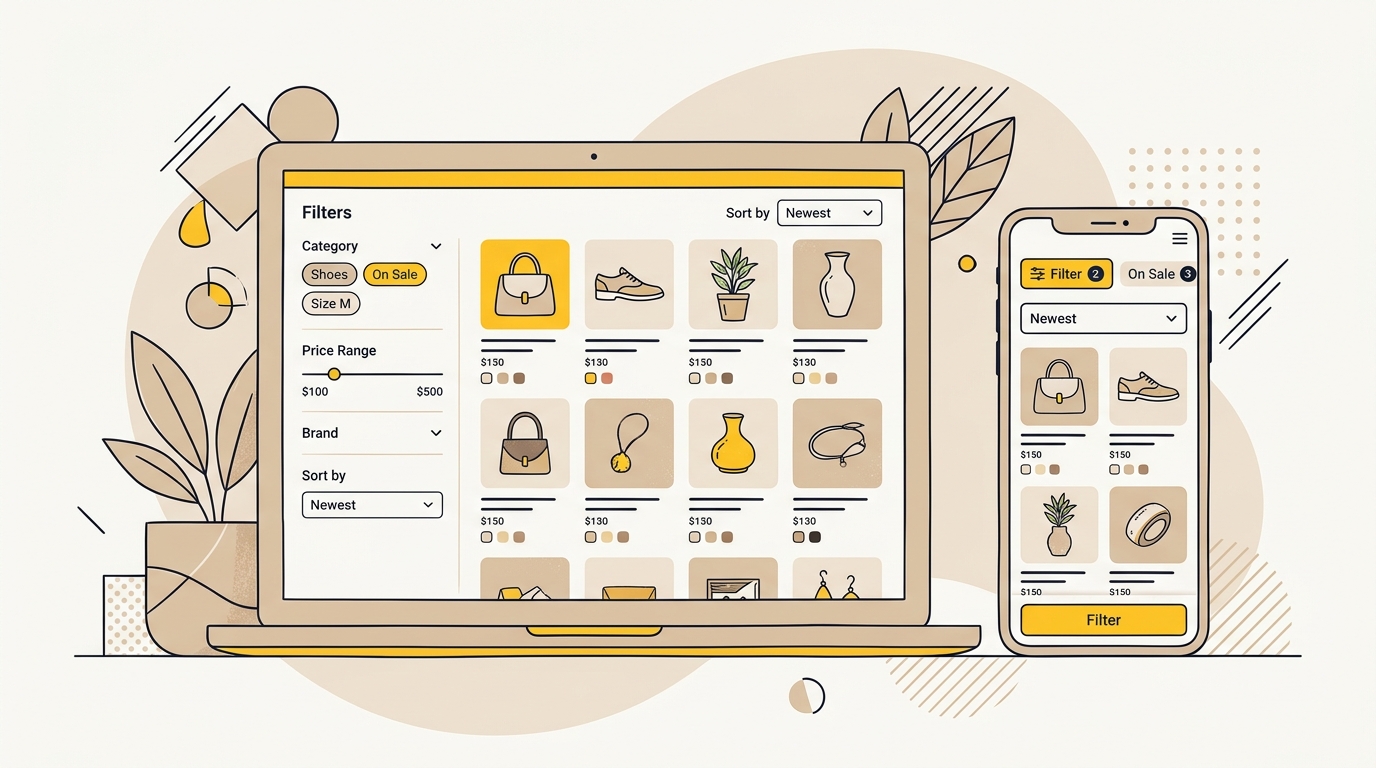
A left-hand sidebar works well when shoppers need to compare several filter groups at once and the desktop layout has room for it. A horizontal filter bar can suit a simpler catalogue with a small number of broad dimensions. Neither layout is automatically better. Choose the one that gives the product grid enough space and makes the controls easy to find.
On mobile, filters commonly work best as a clear button that opens a full-screen panel or bottom drawer. Show how many filters are active. Keep the apply action visible if the interface requires shoppers to select several values before updating results. If the page updates instantly, make the result change clear and prevent the panel from jumping or closing unexpectedly.
Baymard’s research on product list and filtering usability is a useful reference for reviewing common filtering problems. Its filter UI recommendations also offer examples of how control design can affect the shopping task. Use these as evaluation prompts, then test with your own customers and product range.
Step 3: Design the filter behaviour, not just the controls
The details of how filters behave determine whether the interface feels predictable. Choose and document the logic before development.
Use OR within a filter and AND between filters
If a shopper chooses both “blue” and “black” under colour, the usual expectation is to see products that are blue or black. If they also choose “medium” under size, they expect products that are blue or black and available in medium.
That is OR logic within one filter group, and AND logic across different groups. Other behaviours can make sense in specialist catalogues, but do not leave the logic ambiguous. Explain unusual behaviour in the interface or keep the selection model simple enough that the result is intuitive.
Show selected values and offer an easy reset
Once a shopper applies filters, show the active choices near the product results. Use readable labels, such as “Colour: Blue” rather than an unexplained code. Give each selected value a clear removal control and provide a “Clear all” action when several filters are active.
Do not make customers reopen a collapsed filter group just to learn what they selected. The active state should be visible at a glance, especially on mobile where screen space is limited and shoppers may have opened several groups.
Give useful feedback when results change
Show the number of matching products when it is available and keep the result count close to the filters or product grid. If a selection produces no results, say so clearly and help the shopper recover. Offer a simple way to remove the last selection or clear filters rather than leaving them on a blank page.
Where the platform supports it, make incompatible values unavailable or show a count that makes their effect understandable. Avoid hiding options in ways that make shoppers think the catalogue has lost products or that the interface is broken.
Keep product cards consistent
A product card should make comparison easy. Use consistent image ratios, readable product names, clear prices and any genuinely useful variant or availability information. Do not let long titles, promotional badges or different image crops make the grid jump unpredictably from one item to another.
When one product has many colours or sizes, consider showing one parent product card with a clear swatch selector rather than a separate card for every variant. This reduces repetition in the grid and helps a shopper understand that the options belong to one product. Make sure the selected swatch updates the image and that the card still links to a product page where the variant can be chosen and purchased.
Use product imagery that supports the decision. A colour swatch needs to be visually accurate. A furniture listing may need a consistent room or product view, while a technical item may need a clear product shot. Image decisions affect scan speed and confidence, not just the visual style of the store.
Step 4: Design sorting and product discovery together
Sorting should offer choices shoppers understand. Common options include relevance, newest, price ascending and price descending. Only include controls that work reliably and matter for that collection. A large list of sorting choices can compete with filters and make the page harder to use.
Use plain labels, and make the active sort visible after selection. Sorting changes the order of a product set. It should not be mistaken for a new collection with distinct search intent. Treat sort URLs as a technical state, and avoid creating a separate indexable page for every ordering option.
Sorting also needs to work with merchandising. If a collection uses a manually controlled order, be clear about whether “featured” or “recommended” is the default. Make sure a sort action does not silently remove active filters or send the shopper back to the top of the page without explanation.
Step 5: Decide how products load and how users navigate
A catalogue needs a way to move beyond the first screen of products. As detailed in Smashing Magazine's analysis, numbered pagination, a “Load more” button and continuous scrolling each have trade-offs. The right choice depends on the collection, device, accessibility needs and platform.
A “Load more” button can keep shoppers in control while allowing them to reveal more products. If you use it, show progress, such as “Showing 24 of 96 products”, and make the button keyboard accessible. Consider whether the browser back button should return the shopper to the same point in the list after opening a product.
Continuous scrolling can make browsing feel effortless, but can also make it harder to return to a particular item or reach the footer. Numbered pagination makes location clearer but asks the shopper to take an explicit step. A hybrid may work: a visible load-more control for shoppers, with crawlable links to additional result pages where the platform supports them.
Whichever method you choose, test that product links remain discoverable and that a shopper can return from a product page without losing their place. Do not rely on JavaScript-only behaviour if it prevents essential content or navigation from being accessed. Google’s documentation on faceted navigation and crawl management is relevant here because filters, pagination and generated URLs are part of the same crawl architecture.
Step 6: Set technical rules for indexable and temporary URLs
Write down how the site should handle each URL type before you configure canonical tags, robots rules or platform settings. Search Engine Land’s guide to faceted navigation provides additional technical strategies for handling parameterised pages. A canonical tag is a signal that identifies a preferred version of similar pages. It does not guarantee that a search engine will follow the preference in every case, and it is not a substitute for a coherent URL plan.
For a curated collection that is intended to appear in search, use a stable URL and give it a clear purpose. Make sure its title, main heading, product selection and page content match that purpose. Link to it from relevant navigation, category content or related collections so users and crawlers can discover it.
For temporary filter and sort states, decide whether they should be represented in the URL and whether crawlers need to access them. A URL that only changes sorting usually does not need a separate search result. A filter state can still be helpful to a shopper, but that does not mean it needs to be indexed.
Be careful with broad robots.txt blocks. A robots.txt rule can prevent crawling of matching URLs, but if a URL is already known to a search engine, blocking access can also stop it from seeing page-level signals such as a canonical tag or a noindex directive. Do not add a broad parameter block without checking the existing index and the exact URL patterns it will affect. Google’s faceted navigation documentation describes approaches to reducing unnecessary crawling; apply them to your site’s actual URL patterns, not a copied rule from another store.
Avoid relying on “noindex, follow” as a universal solution for crawl management. Search engines must fetch a page to see a noindex instruction, so it may not reduce crawling of the URL combinations that create the problem. Also avoid combining conflicting signals, such as blocking a page from crawling while expecting its canonical tag to be read.
Before release, test representative URLs from every group: a core collection, an intended landing page, a multi-filter state, a sort state and a paginated result. Check that each has the intended status, canonical behaviour, internal links and page content. Ask your developer or SEO specialist to review the real rendered page and response, not only the settings panel.
Step 7: Write collection content that earns its space
A collection page does not need a long essay above the products. It does need enough information to orient the shopper and make the page’s purpose clear. Start with a descriptive heading. Add a concise introduction where it helps explain the range, its use or the difference between this collection and nearby categories.
Keep important content close to the products and avoid pushing the grid far down the page with generic copy. A useful introduction answers a real question: what belongs in this collection, who it suits, or what to consider when choosing. Do not repeat the same paragraph across dozens of filtered URLs.
For an indexable curated landing page, make the content specific to the selection. The product set should match the title and description. If the page is “leather work boots”, it should not mostly show unrelated footwear. Add helpful links to adjacent collections and relevant buying guidance, but do not turn every collection into a wall of internal links.
Titles and headings should describe the products naturally. Write for the person choosing, not for a list of keyword variations. Use a clear H1, sensible subheadings where the page needs them, and descriptive link text for subcategories. Keep the design consistent with the broader store so shoppers do not feel they have moved to a different brand when they enter a sub-collection.
Step 8: Protect speed, accessibility and visual consistency
Filter panels and product grids can add scripts, image weight and layout shifts. Test the page on a typical mobile connection and device, not only on a fast office connection. Load product images at appropriate sizes, use consistent image ratios and avoid loading more imagery than the page needs immediately.
When filters update results, keep the interaction responsive and communicate what has changed. Prevent the page from jumping unexpectedly when results refresh. Ensure that buttons, checkboxes, radio controls and swatches have labels that assistive technologies can interpret. Make focus visible when a shopper uses a keyboard, and ensure the mobile panel can be opened, navigated and closed without a mouse.
Use colour as a visual aid, not the only way to communicate a selection. A swatch should have an accessible name, and selected options should have another cue such as a checkmark or border. Provide adequate contrast for labels and controls. If you use a drawer, make its close button easy to find and keep focus within the open panel until it closes.
Consistency matters across the full shopping journey. Use the same filter names and product attribute labels on collection pages, product pages and campaign landing pages. A “cotton” filter should not become “natural fabric” elsewhere unless the terms have a clear relationship. Consistency reduces uncertainty and helps customers compare products.
Step 9: Measure whether the design is working
A collection page redesign should have a measurement plan. Track the steps that show whether people can find and evaluate products, not only page views.
Useful measures include:
- Filter open rate and filter application rate.
- Which filter groups and values are used most often.
- Searches that return no results or lead to a filter reset.
- Product clicks and add-to-cart activity from collection pages.
- Conversion and revenue by collection, device and traffic source.
- Page speed and layout stability on mobile.
- Organic impressions, clicks and indexing patterns for the intended landing pages.
Do not treat a higher filter-use rate as success by itself. A confusing page can encourage repeated filter changes without helping shoppers find a product. Read behavioural data alongside customer feedback and the actual product results people see.
Compare performance before and after changes, allowing for seasonality, promotions, stock levels and traffic mix. If you test a new layout, change one meaningful part at a time where practical: for example, filter entry point, active filter chips or product card structure. Keep an eye on organic landing pages during the transition, especially if URLs or internal links change.
For ongoing store work, DesignFIT’s e-commerce page outlines the relevant design focus. If the project involves a wider rebuild, explore the website design service, consult our transparent design pricing, and review DesignFIT’s project work to understand how design and implementation fit together.
Mistakes to avoid
Adding every available attribute as a filter. A long list does not automatically improve discovery. Include attributes that shoppers use and that your data supports consistently.
Making every filter combination indexable. This can produce large numbers of low-value or near-duplicate URLs. Create dedicated landing pages selectively, based on a distinct purpose, product depth and real search demand.
Blocking URL patterns before checking what is indexed. A broad robots.txt rule can affect pages you intended to remain accessible. Audit representative URLs and understand how the platform builds them before changing crawl rules.
Showing duplicate cards for every variant. If a product has many colour or size variants, repeated cards can make a collection harder to scan. Consolidate variants where that reflects how customers shop, while keeping the variant choice clear.
Hiding active filters. A shopper should not need to remember what they selected or reopen every group to undo it. Show selected values and offer clear removal controls.
Designing mobile as a smaller desktop. A dense sidebar squeezed into a narrow screen is rarely comfortable. Give the mobile filter panel a clear opening point, usable controls and an obvious way to apply or dismiss changes.
Changing URLs without mapping redirects and links. If an existing collection URL changes, check internal links, redirects, canonical tags and search performance. Do not assume the platform will preserve every signal automatically.
Writing generic copy to make a page look complete. Repeated text adds little help for shoppers and does not make a weak filter combination a useful landing page. Put effort into relevant product selection, clear headings and genuinely useful guidance.
Launch checklist for a large catalogue
Before publishing, check each item:
- Product attributes are consistent and populated for the relevant products.
- Filters reflect real customer decisions, not just available data fields.
- Filter order and labels make sense on both desktop and mobile.
- Multiple selections behave predictably within and across filter groups.
- Active filters, result counts and clear-all controls are visible.
- Product cards handle variants without unnecessary duplication.
- Sorting choices are clear and do not become standalone indexable pages.
- Core collections and approved landing pages have stable URLs and useful content.
- Temporary filter and sort URLs follow a documented crawl and indexing plan.
- Robots rules, canonical tags and noindex settings do not conflict.
- Pagination or load-more behaviour keeps products accessible and supports return navigation.
- Images, filter panels and controls work on mobile and with a keyboard.
- Analytics can show how people use filters and reach product pages.
- The team has a process for maintaining product attributes and collection rules.
How to choose the right approach for your store
If most products belong to a few broad categories, start with clear navigation, a compact set of filters and strong product cards. Do not build a complex faceted system simply because your platform can support one.
If shoppers compare many technical attributes, use structured product data and filters that match those decisions. Keep specialist attributes within the relevant category instead of showing every control everywhere. Consider a specialist search or filtering app only after you have mapped the required behaviour and checked what your platform already supports.
If organic search is an important acquisition channel, prioritise a small set of carefully chosen landing pages and make sure they are linked from relevant parts of the site. Keep temporary combinations out of the index where they add no distinct search value, and monitor URL patterns after launch.
If product data is inconsistent, fix the catalogue before redesigning the interface. A polished filter design will not compensate for missing or contradictory product attributes. Start with a manageable category, clean its data, test the filter logic, then apply the pattern to other parts of the store.
If the existing collection page is slow or difficult to use, identify the cause before adding more tools. Too many scripts, oversized imagery, a crowded layout or unclear product cards may be the real problem. The right solution might be a design change, a data improvement, a platform configuration adjustment or a custom build. Choose based on evidence from the current store.
Wrap-up
Ecommerce collection page design for a large catalogue is a balance between useful discovery and controlled complexity. Give shoppers filters that match real decisions, show selected options clearly, and keep product cards easy to compare. For search, make a deliberate distinction between curated collections with a genuine purpose and temporary filter or sorting states.
Start with product data, customer language and the current URL map. Design and test the interface around the way people choose, then apply technical rules to the URLs your platform actually creates. When you are ready to improve your store’s collection experience, talk to DesignFIT about e-commerce design as your next step.
Key takeaway
Design filters around real customer decisions, and index only collection pages that provide a distinct, useful destination.
Questions people ask
How do I design a Shopify collection page for a large catalogue?
Start by cleaning product attributes and choosing the filters shoppers need for each category. Then design clear desktop and mobile controls, keep active filters visible, and decide which collection combinations deserve stable, indexable pages. Check Shopify’s current capabilities and test the URLs it generates before launch.
Do filtered collection pages hurt SEO?
Filters do not automatically harm SEO, but unrestricted combinations can create many URLs with little distinct value and make crawling less efficient. Decide which filtered combinations are useful search landing pages and manage temporary filter and sort states deliberately.
Should filtered collection pages be canonicalised to the main category?
It depends on whether the filtered page has a distinct purpose and content. A temporary filter state may be treated as a variant of its parent collection, while a curated page intended to rank should have a stable URL and signals that reflect its own purpose. Canonical tags are signals, not guaranteed instructions, so do not use them as a substitute for a clear URL strategy.
What is better for e-commerce SEO: infinite scroll or pagination?
Neither is automatically best for every store. Make sure shoppers can navigate the products comfortably and that product listings remain accessible through crawlable links where appropriate. A load-more control can combine continuous browsing with a clear user action, but its implementation still needs testing.
How many filters should a collection page have?
There is no useful fixed number. Include filters that help shoppers choose and that your product data supports consistently, then order them by importance. Hide or omit attributes that add clutter without helping the decision.