SaaS Pricing Page Design: Pricing and Signup UX
A practical guide to designing pricing, signup and onboarding experiences that help the right SaaS customers choose, start and reach value.
On this page
- Before you start: get the evidence and agree on the goal
- Step 1: Define the decision your pricing page must support
- Step 2: Build a clear plan hierarchy, not a wall of cards
- Step 3: Make the price model understandable at a glance
- Step 4: Put the right detail at the right depth
- Step 5: Place trust beside the decision
- Step 6: Design the signup flow around the information you need now
- Step 7: Make validation and errors useful
- Step 8: Design the first-run experience around a real first value
- Step 9: Connect the marketing promise to the product experience
- Step 10: Measure the experience and improve one problem at a time
- Mistakes to avoid when redesigning SaaS pricing and onboarding
- A practical review checklist
- Wrap-up: design the journey, not just the pricing page
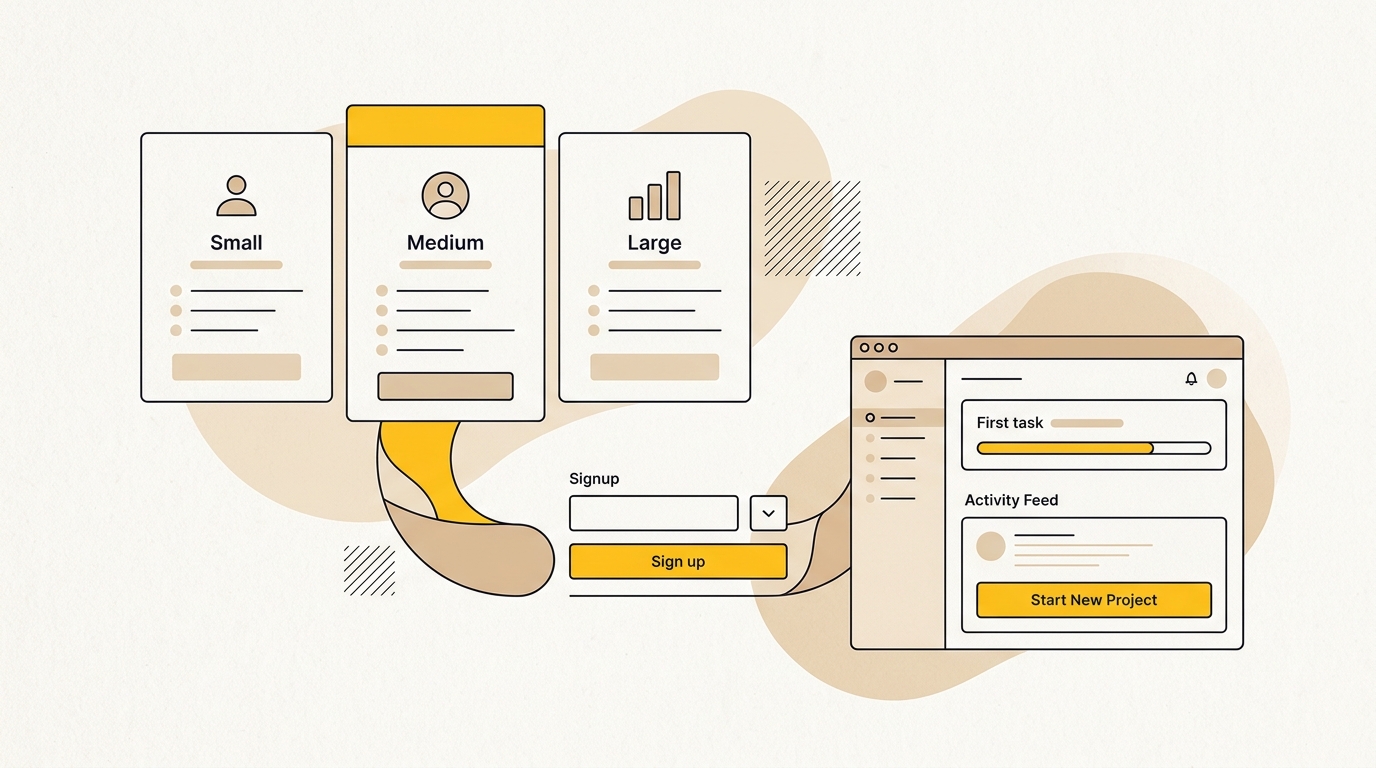
SaaS pricing page design is the work of helping a potential customer understand the plans, choose the right fit and take the next step with confidence. The signup flow and first-run experience then need to carry that promise through to a useful first result. Treat these as one connected journey, not three separate screens. If you are reviewing the experience across your marketing site and product, DesignFIT’s SaaS design work is a useful place to see how the design problem fits together.
This guide takes you through the process: what to gather first, how to shape the pricing page, how to reduce signup friction, and how to design onboarding around customer value. The goal is not to copy a popular product’s interface. It is to make the choices and actions in your own funnel easier to understand, measure and improve.
A polished page can still underperform if customers cannot tell which plan fits, if signup asks for information before it is needed, or if a new account opens onto an empty dashboard. Design decisions affect the business outcomes you care about: qualified signups, completed registration, activation and the time it takes a user to see value. Pretty is not enough. Design has to perform.
Before you start: get the evidence and agree on the goal
Do not begin by drawing pricing cards. Start by finding out where people hesitate and what they need to decide. A pricing page can be visually tidy and still fail because the plan boundaries are unclear, the price model is hard to calculate, or the page does not answer an important question about trial terms.
Collect the information below before changing layouts. You do not need a large analytics team. A small set of reliable observations is more useful than a long list of assumptions.
- Your funnel baseline: Track visits to pricing, clicks on each plan CTA, signup starts, completed signups, first key action and trial-to-paid outcomes. Define each event clearly so different teams are measuring the same thing.
- Customer evidence: Review sales calls, support conversations, cancellation reasons, user interviews and feedback from trial users. Note the words people use when describing their problem and the questions they ask before buying.
- Plan economics: Document the billing unit, included usage, limits, overage rules and any add-ons. Work out how a buyer would estimate a normal month and a high-usage month.
- Product activation: Agree on the first action that indicates a user has experienced meaningful value. Do not use account creation as a substitute for activation.
- Technical constraints: Confirm what your product can support in authentication, account setup, trial rules, data import and onboarding personalisation.
Separate the funnel into steps before you diagnose it. For example, a low number of pricing-page visits turning into clicks is a different problem from a strong click rate followed by poor signup completion. The first may point to unclear positioning or plan design. The second may point to form friction, technical problems or a mismatch between the promise and the signup experience.
If you do not yet have enough data for a reliable comparison, combine what you can measure with user observation. Watch a few people attempt to choose a plan and sign up. Ask them to explain what they think each option includes, what they expect to happen next and what they are unsure about. Avoid rescuing them too early. Their pauses and wrong turns are useful evidence.
Benchmark articles can help you generate questions, but treat them cautiously. A benchmark is only meaningful when the audience, product type, traffic source, trial model and measurement method are comparable to yours. The Daydream landing-page benchmark resource, Kanopy Labs pricing page guide and 1Capture’s free-trial benchmark article are starting points for research, not targets your team should assume it can reproduce.
Step 1: Define the decision your pricing page must support
A pricing page has a primary job: help a suitable buyer understand what they can buy and what to do next. Before choosing a layout, write down the decision the visitor is trying to make. Are they choosing between plans, checking whether the product fits their company, estimating usage costs, comparing against another tool, or confirming that a security requirement is met?
Those are different questions. A page designed only to display plan names and prices may not answer any of them well. For each key audience, write one sentence describing what they need to know before they can move forward. A small team may need to understand seats and collaboration limits. A larger buyer may need security, administration and procurement information. A user coming from a product-led ad may mainly want to know whether they can try the product without a sales call.
Then choose the page’s primary action. It might be starting a trial, creating a free account, booking a conversation or choosing a paid plan. Give that action the strongest visual weight. Secondary actions can be present, but they should not compete equally for attention unless the page serves genuinely different buying paths.
Map the decision in order:
- What does the product help the customer do?
- Which pricing model applies: per seat, usage-based, flat rate or a combination?
- Which plan is likely to suit their situation?
- What is included, and what limits or conditions apply?
- What happens after they click the CTA?
If the page answers these questions in a different order, that can be fine. The important thing is that the visual hierarchy matches the visitor’s decision process. Put the main value and pricing model where they can be understood quickly. Keep detailed terms available without forcing every visitor to read a dense comparison table first.
Step 2: Build a clear plan hierarchy, not a wall of cards
For many products, a small set of clearly differentiated plans is easier to compare than a long row of near-identical options. Treat three visible plans as a design starting point, not a universal law. Your actual plan structure should reflect real customer segments and the way your product creates value. If you have more options, consider grouping them by audience or use case rather than shrinking every card until it becomes unreadable.
Give each plan a useful name and a short description of who it is for. Names such as Starter, Growth and Scale are only helpful when the page explains the differences. A visitor should be able to identify the meaningful change between plans without decoding internal product language.
Within each card, establish a repeatable hierarchy:
- Plan name and intended customer.
- Price and billing unit, shown together.
- A concise explanation of what the price covers.
- A few benefits or limits that distinguish this plan.
- A clear CTA with a label that reflects what happens next.
- A short reassurance or condition near the CTA, where relevant.
Keep card heights and CTA placement consistent where possible. When buttons jump up and down because one card has much more text, scanning and comparison become harder. Use spacing, type size and contrast to show importance. Do not rely on colour alone to indicate the recommended option or to communicate a plan difference.
You can give one plan more visual emphasis if it is genuinely the best fit for a common customer group. Use a clear label such as “Best for small teams” only when you can explain why. A stronger border or background can help a visitor locate the option, but avoid making the card look like an advertisement that hides the trade-offs. The buyer should still be able to compare it with the alternatives.
Do not make the most prominent plan a decision trap. If a customer needs a feature available only in a more expensive plan, state that plainly. A well-designed page helps people choose a suitable plan, even when that means they do not choose the visually preferred one. A mismatch can lead to support work, downgrades or cancellations later.
Step 3: Make the price model understandable at a glance
A price is not clear just because it is large. It needs a unit, a billing period and any important conditions. If the product charges per user, make the per-user basis explicit. If a displayed amount is billed annually, say so beside the amount and make the total annual commitment easy to find. If usage affects the bill, explain how the usage is measured and what happens when an account goes beyond its included amount.
For monthly and annual billing, a toggle can help customers compare options. Label both states in plain language. Show the actual charge for the selected period, and make the consequences of switching understandable. If you display a monthly equivalent for an annual plan, place the annual billing condition nearby. Do not make a smaller monthly figure visually prominent while hiding the fact that the customer pays for a full year upfront.
For usage-based or hybrid pricing, give the buyer a way to estimate a realistic bill. A simple example can be more useful than a marketing line about flexibility. Show what a typical scenario costs, name the assumptions, and explain the parts of the calculation. If the bill depends on several variables, consider a calculator with clear labels and a visible explanation of what it includes and excludes.
Check price comprehension with a practical exercise. Ask someone unfamiliar with the product to answer questions such as: “What would a team of eight pay?”, “When would this charge happen?”, and “What happens if usage doubles?” If their answer requires guesswork, revise the presentation before testing button colours.
Common pricing design mistakes include:
- Showing a monthly equivalent without clearly stating the annual commitment.
- Using “starting at” without explaining what changes the final amount.
- Showing a per-seat price but omitting whether all seats are billed.
- Hiding usage limits, overage charges or required add-ons below unrelated content.
- Making a calculator produce an answer without showing its assumptions.
The SignupDrop benchmark resources provide another place to explore signup and funnel questions. Use any external benchmark to sharpen your own measurement plan, not to replace the work of understanding your pricing model and customer mix.
Step 4: Put the right detail at the right depth
A pricing page serves visitors who want a fast recommendation and visitors who need to inspect detailed requirements. Trying to satisfy both with a single dense grid creates cognitive load. Instead, give the visitor a quick comparison first, then provide deeper detail in a structured way.
Start each plan card with the details that change the buying decision. These might include team size, usage allowance, core workflow access, support level or a particular outcome. Keep the list short enough to scan. A handful of meaningful differences is more useful than a catalogue of features that appear in every plan.
Below the cards, use a comparison table for buyers who need to check specifics. Organise rows into named categories, such as collaboration, automation, integrations, administration and security. Use consistent terms across the page and product. If a capability has an important limit, explain the limit rather than showing only a tick mark.
A table should work on mobile as well as desktop. Avoid squeezing every plan into a narrow set of columns. You could allow horizontal scrolling with a clear visual cue, or let users choose a plan and inspect its details in a stacked layout. Test whether plan names and row labels remain visible while comparing. Do not hide essential differences in tooltips that are difficult to discover or use with a keyboard.
Use progressive disclosure for less common detail. This means showing the most relevant information first and allowing visitors to open additional information when they need it. Collapsed sections can help with long security explanations or technical limits, but the page should still reveal that the information exists. Keep pricing conditions and critical restrictions visible without an extra interaction.
A useful question for every row is: “Could this change which plan someone chooses?” If not, it may belong in product documentation rather than the main comparison. If yes, make it easy to find and understand.
Step 5: Place trust beside the decision
Trust elements work best when they answer the concern a visitor has at that moment. A testimonial near a plan can help if it explains a relevant outcome from a similar type of customer. A logo strip may establish familiarity, but it does not explain whether the product is appropriate for this buyer. Use proof that supports the decision, not decoration that fills space.
Place clear reassurance close to the CTA when it is accurate and relevant. Depending on your offer, this may explain whether a card is required, how long a trial lasts, whether the plan can be cancelled, or what happens to data at the end of a trial. Keep the wording specific. Do not promise “cancel anytime” if the customer must contact support or meet a notice period.
Answer objections before the visitor has to search the footer. Common questions include:
- What is included in the free plan or trial?
- Is a payment card required to start?
- What happens when the trial ends?
- Can I change plans later?
- How are extra users or usage billed?
- Can I speak to someone before purchasing?
A short FAQ below the comparison can handle these questions. Use headings that match the language customers use. Do not use the FAQ to bury important limitations that belong next to the relevant price or plan feature.
If enterprise pricing requires a conversation, explain why and provide a useful alternative for buyers who need an early estimate. For example, clarify the kinds of teams that need a tailored plan and let them describe their requirements without forcing them through an unnecessary sales sequence. A sales-led CTA should tell the visitor what happens after the click.
Step 6: Design the signup flow around the information you need now
Every field asks the user to spend effort and share information. That effort is justified when it helps create the account, meet a real legal or security requirement, or provide a noticeably better first experience. It is not justified merely because the information might be useful to another team later.
List each field in the current signup form and write down its purpose. Mark whether it is required to create an account, required before the product can work, or simply useful for segmentation. Move the last category out of the initial form where you can. Ask optional questions later, when the user has context and a clear reason to answer.
A practical signup sequence might look like this:
- Let the user choose an appropriate signup method, such as work email or a supported single sign-on option.
- Collect only what is required to create access and protect the account.
- Confirm the account and explain the next step.
- Ask a small number of setup questions only when the answers change the experience.
- Take the user directly into a relevant first task.
Do not add a form step just to make the flow feel guided. Each screen should either collect necessary information, explain a decision or move the user closer to value. If a field can be inferred, postponed or made optional without harming the product, consider removing it from the first step.
Before changing authentication, check the real needs of your users and product. Google, Microsoft, GitHub or enterprise single sign-on may suit your audience, but a method that is not relevant to your customers can clutter the page. Offer familiar choices and keep the labels explicit. If you support email and password, provide a way to reveal the password and explain password requirements before an error occurs.
Avoid making people retype information without a clear reason. If the user entered an email on the marketing page, carry it into the account form. If your product can support a magic link or a one-time verification code, test that path with your security and support requirements in mind. There is no universally best authentication pattern. The right choice balances convenience, account protection, implementation constraints and the expectations of your buyers.
Step 7: Make validation and errors useful
A form error should tell the user what happened and how to fix it. A red outline alone does not. Use a short message beside the affected field, keep the user’s valid entries intact and make sure the error is announced to assistive technology. On mobile, the message should not disappear off-screen when the keyboard is open.
Validate at a moment that helps rather than interrupts. For example, a field can be checked after the user leaves it, while the completed form should still receive a clear final check when submitted. Avoid showing an error before someone has had a reasonable chance to enter a value. For password requirements, state the requirements near the field so the user can meet them without repeated guesswork.
Write errors in a calm, actionable way. “Enter a valid work email, such as [email protected]” is more helpful than “Invalid input”. If a personal email address is not accepted, explain that before the user loses their work. If a company domain cannot be used because it already has an account, offer the next step instead of simply blocking signup.
Also design successful states. Confirm that the account was created, say what will happen next, and show how long any email verification step may take if you know that information. Give users a way to correct a mistyped email. These small details keep uncertainty from becoming a support ticket or an abandoned signup.
Test the form with keyboard-only navigation, screen readers where possible, common mobile screen sizes and realistic error cases. Test a slow connection and an expired verification link. A form that works only on the happy path is not finished.
Step 8: Design the first-run experience around a real first value
Signup is a gateway, not the finish line. The first-run experience begins when a new user enters the product and ends when they accomplish something that makes the product’s value tangible. Define that first value from the customer’s point of view. “Create a workspace” may be an important setup task, but the user probably signed up to organise work, analyse data, publish something or solve another problem.
Map the shortest reliable route to that outcome. Note every dependency. Does the user need to connect an integration, import a file, invite a colleague or configure settings first? Which steps can be skipped? Which can be completed with sample content? Your onboarding should direct attention to the action that most closely connects the product promise to a useful result.
Do not land every new account on a blank dashboard without guidance. Depending on the product, you can offer a sample project, a starter template, example data or a guided first task. Make it obvious that the sample is replaceable and will not be confused with the customer’s real information. If users have different roles or goals, ask one short question only when it helps select a more relevant starting point.
A first-run checklist can help when it names concrete actions and stays focused. Use a small number of steps, show progress accurately and make each task take the user to the place where it can be completed. Do not fill the list with setup work that exists for internal convenience. If the product requires a complex configuration, explain why and break it into manageable tasks.
Offer a route for experienced users to skip guidance. Onboarding that blocks an expert from getting to the product can be as frustrating as no guidance at all. Keep help available after the initial walkthrough, and let the user return to it when they need it.
Step 9: Connect the marketing promise to the product experience
The words and expectations set on the pricing page should match what happens after signup. If the page promises a quick start, make sure the product does not immediately demand a long configuration process. If a plan includes a feature, show where the user can access it. If a trial has a time limit or usage boundary, explain it before the customer relies on the product.
Look for handoff gaps across teams. Marketing may call a feature one thing while the product interface uses another label. Sales may promise a setup service that onboarding never mentions. A user may expect a template or integration based on an ad, then land on a generic dashboard. These inconsistencies make the product feel less trustworthy and can make a customer question whether they chose the right plan.
Create a simple journey map from the first visit through the first value event. For every step, write down what the user expects, what the interface asks them to do and what evidence shows that they succeeded. Include different paths where they matter, such as self-serve customers and teams that need a sales-assisted setup.
This is product design as well as marketing design. If the main problem sits inside the application, a new pricing page alone will not solve it. DesignFIT’s interface and app design service can support work on those product journeys, while the SaaS industry page gives growth teams a starting point for broader design needs.
Step 10: Measure the experience and improve one problem at a time
Choose a small set of measures that correspond to the journey. At minimum, consider pricing-page CTA rate, signup completion, activation and the proportion of new accounts that reach the agreed first-value event. Track the time between signup and that event if it helps you understand where users get stuck. Define how you count each measure and make sure the analytics event fires consistently.
Break results down by meaningful segments. A blended rate can hide differences between traffic sources, plan choices, company sizes, device types or self-serve and sales-led journeys. Do not create so many segments that every result becomes too small to interpret. Start with the groups that correspond to your actual acquisition and product paths.
Pair numbers with observation. Analytics can show that many people leave after a particular step, but it will not always explain why. Watch usability sessions, review support messages and inspect real user journeys. Check for technical failures before interpreting every exit as a design preference.
When you test a change, write down the hypothesis before implementation. For example: “Making the annual billing commitment visible beside the monthly equivalent will reduce confusion in plan selection.” Then decide which behaviour would support or reject that idea. Avoid changing several major elements at once if you need to learn which change mattered.
Do not declare a winner based only on a small or short-lived movement. Consider sample size, traffic mix, seasonality and whether the change affected customer quality as well as signups. More registrations are not necessarily better if fewer users reach value or the wrong plan is attracting the wrong customers.
A useful iteration cycle is:
- Find a specific point of friction in data or user feedback.
- State the likely cause and the design change you want to test.
- Identify the metric and any guardrail measures that matter.
- Implement the smallest clear change.
- Review the result alongside qualitative feedback.
- Keep, revise or remove the change, then record what you learned.
The SignupDrop signup conversion resources can help you think about how signup differs across contexts. Check the methodology and fit before comparing your own results with any published figure. Your own funnel, customer evidence and product economics should guide the decision.
Mistakes to avoid when redesigning SaaS pricing and onboarding
Copying another company’s pricing layout without its business model. A pattern that works for a product with one simple price may not work for software with seats, usage and add-ons. Borrow the principle, then design for your own rules.
Optimising button clicks instead of customer progress. A CTA can attract clicks while creating confusion or poor-fit accounts. Look at what happens after the click, including completion and activation.
Hiding plan limits to make a card look cleaner. If the limit changes the buying decision, disclose it where the customer compares plans. Clarity now is better than a surprise bill or an avoidable downgrade.
Making every visitor follow the same onboarding path. New users may have different roles, goals and levels of experience. Use a common route where it works, with relevant choices and a way to skip steps that do not apply.
Treating an empty state as a copywriting problem only. A helpful sentence matters, but the next action should be visible and achievable. Give users a relevant action, a sample or a clear route to bring in their own work.
Using animation or visual polish to cover a confusing flow. Motion and attractive styling cannot explain unclear pricing or repair a broken form. Fix content hierarchy, interaction and task order first.
Launching without checking mobile and accessibility. Pricing tables, toggles, forms and checklists all need to work with different screen sizes and input methods. Include contrast, focus states, labels, keyboard access and readable error messages in the design work.
A practical review checklist
Before launch, review the whole journey with this checklist:
- Can a visitor explain who each plan is for and what changes between them?
- Are price, billing unit, billing period, usage rules and important limits clear?
- Does the primary CTA say what happens next?
- Are trial, cancellation and payment conditions easy to find?
- Does the signup form ask only for information needed at that point?
- Can users understand and recover from errors without losing their entries?
- Does a new user have a clear route to a meaningful first result?
- Can experienced users skip optional guidance?
- Do the pricing page, signup flow and product use consistent names and promises?
- Are the key funnel events defined and tested on desktop and mobile?
- Have you watched real users attempt the journey?
If you cannot answer yes to every item, do not assume the solution is a full redesign. Prioritise the issue with the clearest evidence and the greatest impact on the customer’s decision or first successful task.
Wrap-up: design the journey, not just the pricing page
Strong SaaS pricing page design makes a complex choice easier to understand. A well-designed signup flow asks for only what is needed and makes errors recoverable. A thoughtful first-run experience guides the user toward a meaningful result instead of leaving them to work out what to do next.
Start with customer questions and funnel evidence. Clarify the plan hierarchy and billing model. Reduce unnecessary form effort. Then map onboarding to the first value your product can reliably deliver. Measure the journey as a whole, because more clicks at one step do not matter if users fail at the next.
For a next step, explore DesignFIT’s SaaS design work and identify the page or product journey where clearer design could help your customers move forward. You can also view our studio pricing to see how we scope and deliver design engagements.
Key takeaway
Design the pricing page, signup flow and first-run experience as one measured journey from customer choice to first value.
Questions people ask
How many plans should a SaaS pricing page show?
Show the number of plans your real customer groups need, with clear differences between them. A small set is often easier to scan, but adding or combining plans should follow customer needs and your pricing model, not a fixed design rule.
Should SaaS pricing show monthly or annual prices first?
Show the billing option that best matches how customers evaluate and buy your product, and make the commitment clear. If you display a monthly equivalent for an annual plan, show the annual billing condition and total charge nearby.
What should a SaaS signup form ask for?
Ask for what is needed to create and secure the account or to make the first product experience work. Defer details that are only useful for later segmentation until the user has a clear reason to provide them.
How do you improve a SaaS first-run experience?
Identify the first useful outcome a customer can achieve, then map the shortest reliable path to it. Give new users a clear next action, relevant guidance or sample content, and a way to skip steps that do not apply.