Mobile Ecommerce Design: Thumb-First Layouts That Convert
A practical, step-by-step guide to designing mobile product pages around real thumb reach, clearer choices and a faster path to checkout.
On this page
- What you need before you redesign
- Step 1: Map the thumb zone without treating it as a rulebook
- Step 2: Give the first screen a clear job
- Step 3: Make product media easy to inspect
- Step 4: Design variant selection for a confident choice
- Step 5: Add a sticky add-to-cart bar only when it solves a real problem
- Step 6: Use tap targets that are forgiving
- Step 7: Structure information so people can scan and verify
- Step 8: Make checkout feel like a continuation, not a surprise
- Step 9: Check performance as part of the design
- Step 10: Test the journey, then improve one thing at a time
- Choosing what to improve first
- The short version
Mobile ecommerce design works best when shoppers can understand the product, choose what they need and buy without fighting the screen. A thumb-first layout puts important actions within comfortable reach, keeps product information easy to scan and removes friction between interest and checkout. If you are planning a storefront redesign, see how DesignFIT approaches e-commerce design alongside our comprehensive website design services and this guide.
This is not simply a desktop website squeezed onto a smaller screen. It is a set of deliberate decisions about hierarchy, reach, tap targets, product media, variants and checkout. Those decisions affect whether a shopper can confidently add the right item to their cart, and whether the experience feels trustworthy enough to finish the purchase.
Use the steps below to audit or redesign a mobile product detail page. The principles apply to Shopify, WooCommerce and other storefronts, but the right layout depends on your products, customers and theme. Start with evidence from your own store, then test changes rather than assuming a pattern will improve sales.
What you need before you redesign
A useful mobile design project starts with a clear view of the current experience. Before moving buttons or installing a sticky add-to-cart app, gather the information that tells you where shoppers hesitate and what they need to decide.
1. A phone-first baseline
Open your store on a real phone, not only in a desktop browser preview. Test a range of screen sizes if you can, and use the same browser your customers commonly use. Check the product page, cart and checkout as a complete journey.
Record the basics for a small set of representative products:
- Which devices and screen sizes account for the most visits?
- Which products receive the most mobile product page views?
- Where do shoppers leave the page or stop moving towards checkout?
- Which variants, bundles or delivery options are selected most often?
- What questions appear in reviews, support messages and returns?
Analytics can show what people do, but not always why. Watch a few people use the current page or ask customers to describe how they would choose a product. Look for moments where they pause, scroll back, tap the wrong control or search for information that should be visible.
2. A product and decision inventory
List the information a shopper needs before buying. This usually includes the product name, price, key benefit, images, size or colour choices, stock status, delivery details, returns policy and product-specific information such as ingredients or materials.
Separate essential decision information from supporting detail. A shopper should not have to read a long brand story before learning whether an item comes in their size or when it can arrive. That does not mean hiding the brand story. It means giving each piece of information a clear place in the hierarchy.
3. A way to measure the change
Choose a primary measure before you change the page. Depending on the issue, that could be product page add-to-cart rate, variant selection completion, checkout start rate or completed purchase rate. Also check guardrails such as page speed, average order value, refunds and customer support contacts.
Use the same reporting definitions before and after the change. A new sticky bar can increase button taps without increasing purchases if shoppers choose the wrong variant or encounter unexpected costs later. Measure the whole journey, not just the most visible button.
Step 1: Map the thumb zone without treating it as a rulebook
The thumb zone is the area a person can comfortably reach while holding a phone. It is a helpful design model, not a fixed map: reach changes with phone size, grip, hand size and whether someone is using one or two hands. Steven Hoober's observations on how people really hold mobile devices are a reminder that users do not all hold a phone the same way.
As a starting point, think in three broad areas:
| Screen area | Typical reach | Suitable content |
|---|---|---|
| Lower area | Often easiest to reach one-handed | Primary actions, quantity controls and a reachable navigation action |
| Middle area | Usually comfortable for reading and interaction | Product images, variant choices, ratings and key product details |
| Upper area | More likely to require a grip change or second hand | Brand identity, page context, secondary navigation and passive information |
Do not take the table as a universal placement diagram. The top of the screen still matters for identity, context and back navigation. The point is to avoid placing the action that matters most only in a difficult-to-reach corner.
How to apply the map to a product page
First, identify the decision the shopper is making at each point. A shopper comparing colours needs usable swatches. Someone reading delivery details needs an obvious way to find them. Someone ready to buy needs a clear, available add-to-cart action.
Then check whether the action is near the content that explains it. A purchase button should not be separated from price, selected variant or stock information. A lower sticky action can help after the original buy block scrolls away, but it should not make the page feel like two disconnected interfaces.
Finally, test the layout in both one-handed and two-handed use. A shopper might hold a phone in one hand while carrying a bag, or use both hands to inspect product photos. Design for reach where it helps, but do not make an action impossible to find for people who use a different grip.
Step 2: Give the first screen a clear job
The first screen should quickly answer three questions: what is this, why might I want it, and what should I do next? It does not need to contain every detail. It does need to make the next useful action obvious.
A strong opening section often includes:
- A product name that is easy to understand.
- A clear price and, where relevant, sale or subscription terms.
- A useful product image or short media preview.
- A concise benefit or distinguishing feature.
- A visible rating summary when genuine review data is available.
- A clear cue that lets shoppers choose a variant or continue towards buying.
Keep the hierarchy deliberate. If a large promotional banner pushes the product name and buying information off the initial view, ask whether that banner is helping the shopper make a decision. A sale message should not compete with the product itself. Similarly, avoid making a decorative image so tall that shoppers must scroll before they can see the product's name or price.
Product photography does much of the explaining on a phone. Use images that show scale, texture, fit, colour and important details. If the product comes in several colours, ensure that selecting a swatch updates the displayed image to the correct colour. A technically attractive image that does not help someone assess the item is not doing enough work.
Step 3: Make product media easy to inspect
Mobile shoppers often rely on images to understand what a product looks like in context. A carousel can work well, but its controls and behaviour must be clear. Make it possible to swipe between images, and provide a visible indication that more images are available. Do not make tiny dots the only way to navigate a large gallery.
Choose images in a purposeful order. Start with the clearest overall view, then show useful angles, details, scale and real-world use. For clothing, show fit and material. For skincare, show packaging and texture where appropriate. For furniture, give a sense of scale and how it looks in a room. The sequence should answer predictable questions, not just present a collection of attractive shots.
Avoid autoplaying a large video before a shopper can see the product. It can slow the page, consume mobile data and take attention away from the buying decision. If video helps demonstrate the product, make it an intentional part of the gallery with a clear play control and a useful poster image.
Baymard's product page UX research and benchmark findings on mobile commerce design examine the details that shape product page usability. Use research like this to build an audit checklist, then confirm what matters for your own product category through customer feedback and store data.
Step 4: Design variant selection for a confident choice
Variant selection is part of the purchase decision, not a minor form field. Shoppers need to understand what they are choosing, whether it is available and what happens to the price or product image when they make a selection.
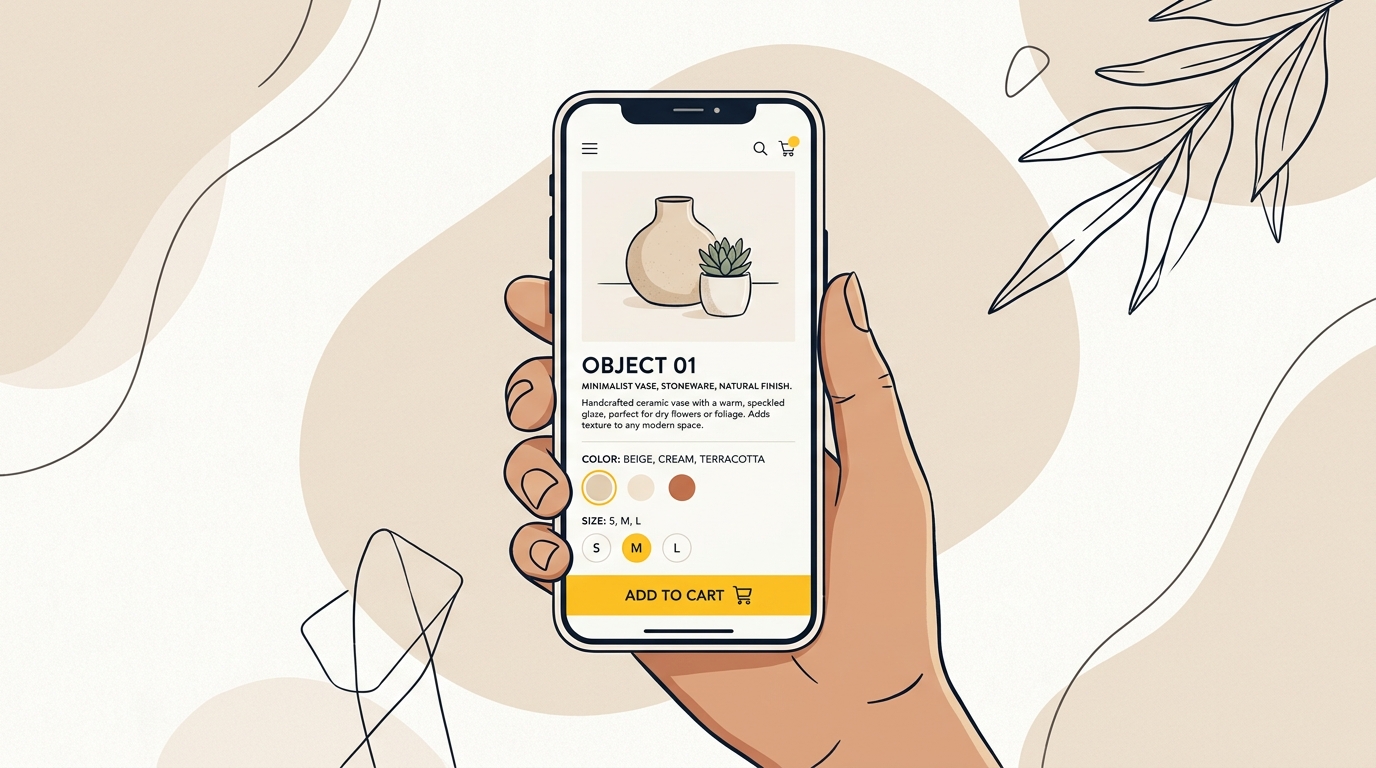
Use visible options when the set is small and easy to scan. Colour swatches and size buttons can be quicker to compare than a select menu, particularly when each option has a meaningful visual difference. Label controls clearly. A coloured circle alone may not communicate the shade name or accessibility state, so pair it with text, a selected indicator or an accessible label.
For each option, make these states easy to distinguish:
- Available and not selected.
- Available and selected.
- Unavailable or sold out.
- Focused or pressed, where relevant.
Do not communicate stock status by colour alone. If a size is sold out, make that clear in text or an unambiguous visual treatment. If customers can sign up for a restock alert, show that option without implying the item can be added to the cart.
When products have several dimensions, such as size, colour and pack quantity, avoid compressing everything into a tiny sticky bar. Let shoppers select options in a well-spaced section or open a bottom sheet. A bottom sheet is a panel that slides up from the bottom of the screen to present a focused task. Nielsen Norman Group's guide to bottom sheets explains the pattern and the situations where it can help.
Keep the selected variant visible near the purchase action. Before adding to the cart, the shopper should be able to confirm the size or colour they chose. If there is no selection yet, explain what is missing and take them to the relevant control instead of showing a vague error at the top of the page.
Step 5: Add a sticky add-to-cart bar only when it solves a real problem
A sticky add-to-cart bar stays visible while a shopper scrolls through a product page. When built according to proven sticky add-to-cart best practices, it can reduce the need to scroll back to the original purchase block, especially on a long page with reviews, specifications or detailed product information. It is not automatically a conversion improvement. If it blocks content or repeats a button already on screen, it adds noise.
Build the scroll-triggered pattern
A reliable starting pattern is to show the sticky bar only after the main add-to-cart button leaves the viewport. When the original button is visible, the sticky version is unnecessary. When it is no longer visible, the lower bar provides a useful route back to the purchase action.
In implementation, a developer can observe the main purchase block with an IntersectionObserver and toggle the sticky bar when that block is no longer in view. This is generally more robust than relying on a hard-coded scroll position, because product pages can vary in height and content. Confirm that the behaviour works after variant changes, on different viewport sizes and with the browser's own controls visible.
A useful sticky bar may include:
- A short product or variant label.
- The current price, including any relevant sale price.
- A clear add-to-cart button.
- A way to select a missing variant, if required.
Keep it compact. Do not include every product detail or a second set of navigation links. If the sticky bar hides the selected size, delivery information or page content, it is solving one problem by creating another.
Respect the phone's safe area
Modern phones can reserve space at the bottom of the screen for system gestures. The sticky bar should account for that area so its button does not sit against a home indicator or navigation handle. A front-end developer can use the CSS environment variable safe-area-inset-bottom with appropriate padding, then test on real devices and browsers.
Do not push the bar hard against the physical edge of the screen. Leave breathing room around the button, and ensure that shoppers can still scroll and interact with the page. If the bar covers content, consider adding sufficient space at the bottom of the page or dismissing the bar when another overlay is open.
Avoid sticky bar mistakes
- Do not place the bar at the top simply because it is easier to implement. That may be less reachable and can crowd the product header.
- Do not show a sticky action while the main purchase action is already visible.
- Do not cover cookie notices, chat controls, checkout messages or important page content.
- Do not show an enabled add-to-cart button before required options are selected.
- Do not display stale prices or variant details after the shopper changes an option.
- Do not assume that adding a sticky button will fix unclear product information or unexpected shipping costs.
The best test is not whether the bar appears. It is whether shoppers can select the correct item and progress through checkout with less effort, without hurting other measures such as page speed or completed orders.
Step 6: Use tap targets that are forgiving
A tap target is the area a person can press to activate a control. On a touchscreen, a small icon may look elegant but be difficult to hit accurately, particularly when it sits beside another control. Give important buttons and options enough size and spacing to make a correct tap easy.
The W3C explanation of WCAG 2.2 target size minimum describes the Level AA requirement and its exceptions. WCAG 2.2 includes a minimum target size criterion, but a technical minimum is not the same as a comfortable design target. For a primary mobile action, use a generous, clearly labelled control and test it with real fingers on a phone.
Pay particular attention to controls that are often placed close together:
- Size and colour options.
- Quantity increase and decrease buttons.
- Carousel arrows.
- Close icons on drawers and overlays.
- Cart, search and account icons.
- Checkbox labels and consent controls.
Spacing matters as much as the visible shape. A small icon can have a larger invisible interaction area if it does not overlap another control. But do not rely on invisible hit areas as the only improvement. Clear labels, consistent spacing and visible selected states help shoppers understand what they have tapped.
Step 7: Structure information so people can scan and verify
A long product page can support a confident purchase if the information is organised. It becomes frustrating when shoppers must scroll through one uninterrupted block of copy to find delivery, returns or material details.
Use a short summary near the top for the most important product facts. Then organise supporting content into clear sections such as:
- Product details and key benefits.
- Materials, ingredients or technical specifications.
- Fit, sizing or compatibility.
- Delivery and returns.
- Care instructions or product use.
- Reviews and customer questions.
Accordions can make a long page easier to scan, but do not hide information a shopper needs before choosing a variant. Give each accordion a descriptive label and a large, clear tap area. Keep the visual state obvious so shoppers know what is open. If an important condition affects price, delivery or suitability, show it near the decision rather than burying it several taps away.
Use plain language and specific labels. “Details” tells a shopper less than “Materials and care”. “Shipping” is more helpful than a vague “More information” when the shopper is trying to estimate delivery. A clear heading reduces the effort required to find the answer.
Step 8: Make checkout feel like a continuation, not a surprise
A good product page cannot compensate for a confusing cart or checkout. Check that the selected product, variant, quantity and price carry through accurately. Make delivery costs and important conditions visible before the customer reaches the final payment step wherever possible.
Review the mobile journey from add to cart through confirmation. Look for repeated data entry, unclear error messages, unnecessary account prompts and fields that are hard to use on a phone. If your platform supports express payment options, make them visible in a way that does not confuse them with the standard checkout path. Test the options available to your customer base and make sure the order details remain clear.
Baymard's checkout usability research is a useful source for reviewing form and checkout friction. Use it as a prompt to inspect your own flow, not as proof that one layout or payment option will produce the same result for every store.
Design form fields for mobile use. Use appropriate input types so the right keyboard appears for email, phone and payment details. Label fields clearly and preserve entered information when an error occurs. Put error messages beside the field that needs attention, explain how to fix the issue, and do not rely on red colour alone.
Step 9: Check performance as part of the design
Mobile design is not only about how a page looks. Heavy imagery, unnecessary scripts and excessive interface effects can make the shopping experience feel slow, especially on a weaker connection. A slow product page can delay the point at which shoppers can see and use the buying controls.
Start with the largest images and third-party scripts. Serve appropriately sized images, avoid loading every gallery asset at once when it is not needed, and remove apps that no longer serve a clear purpose. Review the effect of reviews, chat, personalisation and sticky-bar scripts individually. Each can add value, but each also adds weight and potential conflicts.
Do not assume a third-party app is faster or slower than custom code without testing. A lightweight app may be the right option for a simple store. A poorly configured custom script can also cause performance or accessibility problems. Compare the actual page before and after the change on representative devices, and watch for layout shifts, delayed buttons and scripts that interfere with the theme.
Step 10: Test the journey, then improve one thing at a time
A strong mobile ecommerce design process combines inspection, customer evidence and controlled measurement. Before launch, test common scenarios from the first page view to the order confirmation.
Use a checklist like this:
- Can a shopper tell what the product is and what it costs?
- Can they inspect useful images without guessing how to move through them?
- Are variant options readable, reachable and clearly selected?
- Is unavailable stock distinct from available stock?
- Can the shopper find delivery and returns information before committing?
- Does the sticky bar appear only when useful, and does it show current information?
- Can someone complete the journey with one hand without missing essential actions?
- Do forms use suitable keyboards and explain errors clearly?
- Does the page remain usable when images or scripts load slowly?
When possible, test one meaningful design change at a time. For example, compare the current purchase block with a scroll-triggered sticky bar while leaving the image order and variant controls unchanged. If you change several elements simultaneously, it becomes harder to understand what helped or harmed the result.
If traffic is too low for a reliable experiment, use a mix of customer interviews, usability sessions and analytics. Be honest about the strength of the evidence. A small number of observed sessions can reveal a confusing control, but it does not prove a percentage lift in sales. Keep learning after launch and make adjustments as products, traffic sources and customer expectations change.
Choosing what to improve first
Prioritise problems that block a purchase over details that merely look dated. If shoppers cannot select the correct size, fix the variant interaction before redesigning decorative icons. If the price or delivery terms are unclear, clarify those before adding a sticky bar. If the purchase action disappears on a long page, test a compact, scroll-triggered version.
| If you notice... | Start by improving... | Check the effect on... |
|---|---|---|
| Shoppers scroll back to buy | A sticky add-to-cart pattern | Add-to-cart and completed purchase rates |
| Customers choose the wrong option | Variant labels, states and confirmation | Variant changes, support contacts and returns |
| Product images do not answer basic questions | Image order, scale and detail views | Product engagement and customer questions |
| Important details are hard to find | Page hierarchy and labelled accordions | Information discovery and checkout progression |
| Customers leave during checkout | Form usability, delivery clarity and errors | Checkout completion and failed attempts |
If you need to review the wider storefront, compare your product page, collection page and cart as one connected experience. Design consistency matters: a button style, type scale or selected state should not change unexpectedly between steps. For a broader view of how DesignFIT works with online stores, visit our e-commerce industry page or view our upfront website design pricing to plan your project.
The short version
Thumb-first mobile ecommerce design puts the product decision and purchase action where they are easy to find, while keeping options, information and checkout clear. Start with real customer behaviour, design the product page around the decisions shoppers need to make, and use sticky add-to-cart only when it removes a genuine scroll problem. Make tap targets forgiving, respect device safe areas, check performance and measure completed purchases rather than button taps alone.
A mobile storefront may also need a broader product experience beyond a responsive website. If you are exploring a custom mobile experience or app, talk to DesignFIT about mobile app design as the next step.
Key takeaway
Design for the shopper's next decision, keep the purchase action reachable when it matters, and measure the full journey rather than the button tap.
Questions people ask
Where should the add-to-cart button go on mobile?
Place the main add-to-cart button close to the price and variant choices so shoppers can confirm what they are buying. If a long page moves that button out of view, test a compact sticky bar near the bottom that appears only while the original button is off-screen.
Does a sticky add-to-cart bar improve mobile ecommerce conversion?
It can make the purchase action easier to reach on long product pages, but it is not a guaranteed conversion improvement. Test it against your current page and measure completed purchases, not just taps on the sticky button.
How should a sticky add-to-cart bar handle product variants?
Show the selected variant and current price so shoppers can confirm their choice. If the product has several options, use a clear selection area or a bottom sheet rather than squeezing tiny controls into the bar.
What is the minimum tap target size for mobile ecommerce?
WCAG 2.2 includes a target-size minimum criterion at Level AA, with defined exceptions. Treat the standard as a baseline for accessibility, not a guarantee of comfort: give important controls ample size and spacing, then test them on real phones.
Why do shoppers abandon mobile ecommerce carts?
There can be several reasons, including unclear delivery costs, difficult forms, missing product information or an unexpected checkout step. Review your own analytics and customer feedback to find the friction in your store rather than assuming one cause applies to every business.