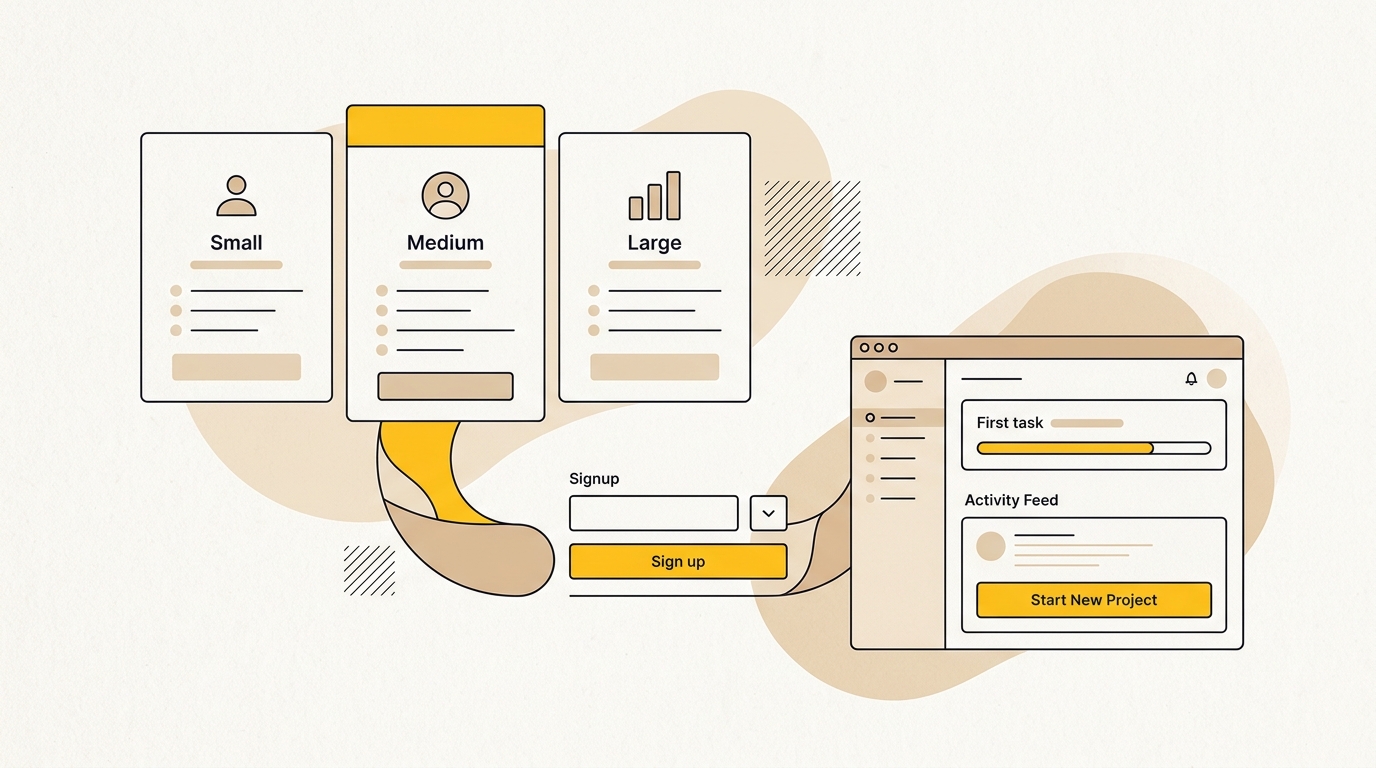
Shopify App Bloat: Design a Leaner, Faster Store
A practical, design-led guide to finding which Shopify apps your theme can replace, and how to make changes without disrupting sales.
On this page
- What Shopify app bloat means for your store
- Why reduce storefront app bloat?
- What to prepare before you remove or replace apps
- Step 1: Build an app inventory that shows what customers experience
- Step 2: Measure your baseline before touching the theme
- Step 3: Decide what each app is earning
- Step 4: Identify theme features that can replace app widgets
- Step 5: Design the replacement around the shopping task
- Step 6: Build and test on a duplicate theme
- Step 7: Remove app residue carefully
- Step 8: Recheck performance and conversion signals
- Tips for keeping the store lean after the audit
- Common mistakes to avoid
- A practical Shopify app bloat checklist
- How to decide what to do next
Shopify app bloat is not simply having a long app list. It is the unnecessary storefront code, duplicated features and visual clutter that slow down shopping or make the experience harder to use. The fix is to audit what each app does, keep the features that earn their place, and replace suitable storefront widgets with well-designed theme components. If your store needs a broader design and performance review, DesignFIT's e-commerce website design service can help connect those decisions to customer experience and commercial goals.
This is a step-by-step guide for stores with 20 or more apps. The goal is not to chase the smallest app count. It is to make the storefront faster and easier to shop, without breaking fulfilment, analytics, customer support or the parts of your brand that make people trust you.
What Shopify app bloat means for your store
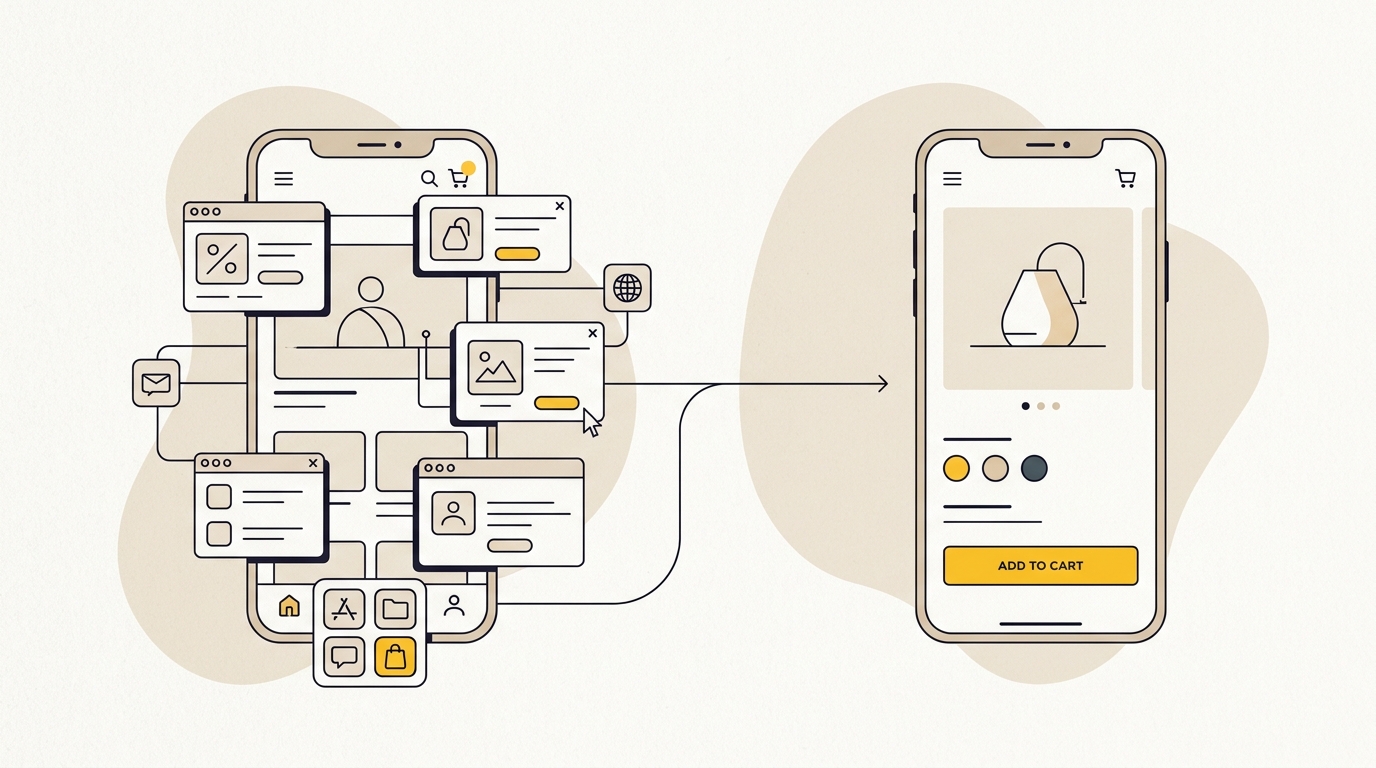
Shopify app bloat is the accumulation of apps, scripts and widgets that add more work or complexity than the value they provide, as explored in detailed guides to Shopify app bloat. Some apps run in the background and barely affect the customer-facing site. Others load scripts, styles, images or interactive elements directly on product and collection pages.
That distinction matters more than the total number in your Shopify admin. A store can have many operational integrations and a relatively light storefront. Another store can have only a few front-end apps that add noticeable delays, obstruct key buttons or make the layout jump as the page loads.
Good design helps separate useful functionality from unnecessary interface. A clear product page might answer sizing questions with an accordion, show colour options consistently, and place the add-to-cart action where customers expect it. If those elements are already part of a thoughtful theme, a separate widget may be redundant.
But not every app feature should be rebuilt. A specialist reviews service, complex loyalty programme or ERP connection may need an app. The practical question is whether the feature has a clear job, whether it is working, and whether it needs to load on the storefront at all.
Why reduce storefront app bloat?
Every extra script is another possible task for a shopper's browser. The effect varies by app, device, network, page and how the app is implemented. It can include delayed rendering, slower response to taps, layout shifts or extra network requests. Several small delays can combine into a frustrating experience, particularly on mobile.
Shopify's store speed and conversion analysis reports an association between slower load time and lower purchase conversion in its analysis of active stores. A separate Deloitte and Google study examined 30 million mobile sessions across 37 brands and found that a 0.1-second improvement in mobile speed was associated with an 8.4% increase in retail conversions and a 9.2% rise in average order value. Those findings show why speed is worth investigating. They are not a promise that a particular store will achieve the same gains by uninstalling apps.
Shopify's web performance guidance tracks Core Web Vitals, a set of measures for loading, interactivity and visual stability. App scripts are only one influence. Your theme, images, fonts, network conditions and other code matter too. Treat the metrics as a way to diagnose the experience, not a single score that tells you exactly what to remove.
There is a brand cost as well as a technical one. A floating discount wheel, chat bubble, sticky purchase bar and several trust badges can all compete for attention. A designed interface gives each element a role and a place. That can make product choices clearer and preserve focus on the next useful action.
What to prepare before you remove or replace apps
A safe app audit starts with access to the people and tools that explain how the store actually works. Before changing anything, gather:
- A current list of installed apps, their owners, monthly fees and renewal dates.
- A clear business contact for each app, including the staff member who relies on it.
- A list of storefront features and the pages where customers see them.
- Recent analytics and Shopify web performance data, with the date range noted.
- A duplicate copy of the live theme for testing. Do not use the live theme as your experiment.
- A record of important connected services, such as inventory, shipping, tax, email, reviews and customer support.
- A way to test key journeys on a phone, including product selection, add to cart and checkout.
Do not uninstall an app just because its name is unfamiliar or its widget looks small. First learn whether it powers an operational workflow, a customer-facing feature, or both. If you are preparing for a bigger rebuild, DesignFIT's website work can help turn the audit into a clearer structure, rather than simply moving widgets into a new theme.
Step 1: Build an app inventory that shows what customers experience
Start with a spreadsheet. Include one row per app and record its purpose, owner, monthly cost, key dependencies, storefront elements and pages where it appears. Ask the person responsible for the app what would stop working if it were disabled.
Then classify it by its main job:
| App category | Typical examples | First question to ask |
|---|---|---|
| Back-office operations | Inventory, fulfilment, accounting or ERP integrations | Does it affect the storefront, or mainly exchange data behind the scenes? |
| Customer-facing content | Reviews, size guides, loyalty points or product recommendations | Does it help customers decide, and where is it needed? |
| Marketing and measurement | Email capture, analytics, advertising pixels or attribution | Is the data still used, and is the implementation current? |
| Interface enhancement | Sticky bars, pop-ups, swatches, tabs or cart drawers | Can the same job be done more simply in the theme? |
| Unclear or overlapping | An app no one can explain, or two apps with similar roles | Can the owner show its current value and dependencies? |
This is a working map, not a verdict. Back-office tools may have no visible widget but still be essential. A marketing app may load only on one template, or it may add code on every page. Check the app's settings, ask its support team what it injects, and inspect the storefront before deciding.
The StoreInspect app-count analysis reports that app counts vary widely across Shopify stores. Treat any platform-wide count as context, not a target for your business. Your own app audit is more useful than comparing your store with a supposed ideal number.
Step 2: Measure your baseline before touching the theme
You need a before picture to know whether a change helped. Use the same pages and device conditions when you compare results. Start with your homepage, a busy collection page and a representative product page. Add any other page where customers report slowness or where a major app feature appears.
Record:
- The page URL and template.
- The date and time of the test.
- Whether you tested on mobile or desktop, and the connection or testing tool used.
- The relevant Core Web Vitals and any app-specific loading behaviour you notice.
- Whether important interactions respond correctly: menus, variant selection, add to cart, cart drawer, search and checkout hand-off.
Use Shopify's web performance reporting and a repeatable browser test. A single run can be noisy, so compare patterns across several runs rather than treating one result as definitive. Note what the shopper experiences as well as the numbers: does a banner shove the page down, does the cart take a moment to open, or do swatches appear after the product content?
Google's recommended Core Web Vitals thresholds include Largest Contentful Paint (LCP) at 2.5 seconds or less, Interaction to Next Paint (INP) at 200 milliseconds or less, and Cumulative Layout Shift (CLS) at 0.1 or less. These thresholds help frame the work; they do not identify which app is at fault. Shopify's performance overview explains how to review store performance data.
Avoid promising a specific ranking or conversion uplift from a cleanup. App removal is one possible improvement among many. The meaningful question is whether customers can see, understand and use the page more easily after the change.
Step 3: Decide what each app is earning
For each app, ask these questions with the app owner and your marketing or e-commerce lead:
- What customer or business problem does it solve?
- Who uses the information or feature it provides?
- Is it used regularly, and can you show evidence in analytics, support feedback or operational reporting?
- Does it need to appear on every page, or only on a specific template or interaction?
- Does another app or native Shopify feature already do the same job?
- What would break if you paused it in a test theme?
- Is the visual treatment consistent with the brand and the page hierarchy?
Give each app a provisional decision: keep, investigate, replace, restrict or remove. “Restrict” means the app may be valuable but does not need to load everywhere. For example, a review widget may be useful on product pages while being unnecessary on a collection page. Confirm the app supports the change before adjusting its loading behaviour.
Do not judge performance only by file size, or value only by an app's monthly fee. A small script can cause a problem in a key interaction, while a larger tool may be critical to revenue or operations. Consider its full job, its cost, its reach across templates and the quality of the experience it creates.
Step 4: Identify theme features that can replace app widgets
A modern Shopify theme can often handle straightforward presentation and interaction without a separate storefront widget. A theme replacement is a good fit when the feature is simple, uses content you control, and does not depend on complex external logic.
| App feature | A theme-led alternative to assess | Design decision that matters | Check before replacing |
|---|---|---|---|
| Product tabs or accordions | Product metafields or metaobjects displayed in native theme sections; semantic disclosure elements where appropriate | Group details by customer question, such as fit, care and delivery | Test keyboard use, screen readers, mobile layout and whether content is maintained correctly |
| Colour or pattern swatches | Shopify category metafields and native theme variant controls, when supported for your products | Make selected and unavailable options easy to distinguish | Confirm category data, variant relationships and theme support. Shopify explains how to add swatches using category metafields |
| Trust and guarantee points | Theme blocks using text and carefully optimised icons or inline SVG | Show only relevant reassurance near the decision it supports | Check claims, accessibility, image handling and whether the app supplies legal or dynamic content |
| Announcement bar | A theme section configured in the theme editor | Keep the message concise and prevent it competing with navigation | Test at small screen widths and check that loading does not shift the page |
| Sticky add-to-cart | A theme-controlled component or a simpler, carefully tested interaction | Keep it visible without covering variant controls, chat or navigation | Test focus order, mobile obstruction, variants, cart updates and reduced-motion settings |
| Product recommendations | Native recommendation sections or Shopify's Search & Discovery features where they meet the need | Keep card proportions and quick-add behaviour consistent across the catalogue | Compare relevance, merchandising controls and reporting before switching |
| Cart drawer or free-shipping message | A theme's cart experience, with supported Shopify cart functionality | Make totals, shipping progress and the checkout action easy to understand | Test discounts, subscriptions, bundles, shipping logic and every cart edge case |
| Mega menu | Theme navigation settings and sections | Use clear labels, sensible grouping and accessible interactions | Test touch, keyboard, screen-reader behaviour and large catalogues |
The table is a shortlist for investigation, not a claim that every theme can replace every app. Your theme version, app configuration and business rules determine what is feasible. A complicated bundle, loyalty programme or review system may need its specialist app even if a simpler visual version could be drawn in Liquid.
The best design replacement is not a close visual copy of the old widget. Reconsider the job it was doing. If a product page has a wall of badges and tabs, the better answer may be a more useful information hierarchy, not a handmade version of every badge and tab.
For swatches, Shopify's category metafield guidance describes a native route for supported product data. For product details, metafields and metaobjects can help editors manage structured content. Have a developer confirm your theme's implementation and content model before changing live product templates.
Step 5: Design the replacement around the shopping task
Before coding, sketch the page and decide what a customer needs to notice, understand and do. This keeps the work focused on the experience rather than on making a widget disappear.
For a product page, that may mean setting a clear order: product name and price, key benefit, variant choice, purchase action, delivery information, then supporting details. For a collection, it may mean making filters and product cards easier to scan. For a cart, it may mean clarifying the total, delivery threshold and next action without crowding the screen.
Write down the design rules for each replacement:
- Hierarchy: What is the primary action? What information supports it?
- Placement: Where does the feature belong in the page flow, and why?
- Responsive behaviour: What changes on a narrow screen? What must remain visible?
- States: What does the feature look like when selected, unavailable, loading or empty?
- Accessibility: Can people use it with a keyboard, understand the labels and distinguish its states?
- Brand consistency: Do type, colour, spacing, icon style and borders match the rest of the store?
- Content ownership: Who updates the copy, product data, images and rules after launch?
This is where design can reduce both code and confusion. A coherent set of theme components gives customers a more predictable interface. If the same button, product card and disclosure pattern behave consistently throughout the store, shoppers have less to relearn as they move between pages.
If you are planning a larger Shopify redesign, DesignFIT's e-commerce industry page is a useful starting point for thinking about the wider customer journey, not just app removal.
Step 6: Build and test on a duplicate theme
Duplicate the live theme and use the copy as a staging area. Keep the live version available so you can restore it if a test goes wrong. Confirm what the app provider recommends before disabling an app, particularly where it handles subscriptions, discounts, reviews or customer data.
Work in small batches. Replace one feature, then test that feature and the journeys around it before continuing. Avoid removing several apps at once: if something breaks, you want to know which change caused it.
For each replacement, test:
- Product pages with different templates, product options and availability states.
- Mobile and desktop layouts, including landscape and narrow screens.
- Keyboard navigation and focus order for interactive controls.
- Add to cart, cart updates, discounts, shipping calculations and checkout hand-off.
- Analytics and tracking events that the business relies on.
- Any app dependencies, such as review snippets, loyalty points or fulfilment notifications.
- Visual stability during loading, including banners, drawers and images.
A control that looks right in a screenshot can still fail when a customer changes a variant or uses a keyboard. Test actual interactions, not just the initial appearance. If you lack the skills to safely edit Liquid or JavaScript, involve a Shopify developer. A design-led implementation should still respect how the store is built and how its data changes.
Step 7: Remove app residue carefully
Uninstalling an app does not always remove every piece of code it added to a theme. Shopify's legacy storefront script tag documentation explains the platform's script tag approach and its deprecation. Theme customisations and older app installations can also leave snippets, assets or references behind.
Before cleaning code, make a backup and note the change. Search the theme files for the app name and related snippets, script URLs, styles or comments. Common areas to review include the main layout, snippets, assets and app embed settings. A developer should verify whether a reference is truly obsolete before deleting it. Similar-looking code may be used by another feature.
Use the browser's developer tools to inspect network requests and loaded scripts on the relevant pages. Filter by JavaScript or third-party domains, then compare the requests with your app inventory. A request you cannot identify is a reason to investigate, not proof that it is safe to remove.
Shopify announced that creating and updating legacy storefront script tags would be blocked from 1 October 2026, with storefront injection scheduled to stop on 1 March 2027. Check the current Shopify developer guidance on script tag deprecation and ask app providers whether their integrations have migrated. The dates matter for older integrations, but do not assume every installed app uses this mechanism or will fail. Confirm your own setup.
Step 8: Recheck performance and conversion signals
Once changes are stable, repeat your baseline tests using the same pages, devices and method. Compare the shopping experience as well as the performance data. Look for fewer unnecessary requests, more stable page layout, and responsive controls, but do not assume that every metric must improve immediately.
Review the results over a sensible period and compare like with like. Traffic mix, promotions, seasonality and stock changes can all affect conversion. If the new theme component loads faster but customers stop using a valuable feature, the change may need a design or merchandising adjustment.
Track the measures that relate to the specific change. For a variant selector, look at product interactions and add-to-cart behaviour. For a cart drawer, check cart progression and checkout starts. For a consent-based email capture, evaluate the quality of sign-ups as well as the number. Decide in advance what success means and avoid attributing every change in sales to app removal.
Shopify's store speed and conversion article and the Deloitte and Google mobile performance study are useful context for why speed matters. Your own store data should guide the decision about what to keep, replace or revisit.
Tips for keeping the store lean after the audit
- Add an owner and purpose to every new app request.
- Ask vendors whether their feature loads on all templates or only where it is used.
- Check for overlap before installing a new marketing or merchandising tool.
- Review the theme's native features when Shopify or the theme receives an update.
- Keep a record of theme edits and app dependencies so a future redesign does not remove something by accident.
- Test updates on a duplicate theme before publishing.
- Revisit the inventory after major changes to your catalogue, fulfilment or marketing stack.
A lean store is not a store with no apps. It is a store where each app has a clear purpose, its storefront code is appropriate to that purpose, and the design helps customers complete their task without avoidable friction.
Common mistakes to avoid
Uninstalling apps based on the count alone
There is no universal app limit that guarantees a fast store. Assess what each app loads, where it loads, and what business process depends on it.
Removing an operational integration by mistake
Some apps may look invisible to shoppers but support stock, orders, shipping or customer records. Confirm the operational owner and dependencies before disabling anything.
Rebuilding a complex app feature too casually
A simple accordion may be a reasonable theme feature. A loyalty system with customer accounts, points, rewards and reporting is a different job. Compare the full requirements before choosing between an app and custom work.
Editing the live theme without a rollback plan
A small change can affect a product template, cart behaviour or analytics. Duplicate the theme, test carefully and keep the previous version available until the new one is stable.
Judging success by a single speed score
Testing tools vary, and real shoppers use different devices and networks. Look for consistent changes and pair performance checks with real usability and business measures.
Replacing a widget without fixing the design problem
If a page has too many interruptions, recreating the same elements in Liquid will not make it clearer. Start with the customer's task, then decide which content and controls deserve attention.
Assuming the app has left no trace
Check embeds, theme code and network requests after uninstalling. Do not delete unfamiliar code without confirming what it does and documenting the change.
A practical Shopify app bloat checklist
Before you publish a leaner theme, confirm that:
- Each app has an owner, purpose and keep-or-change decision.
- You know which apps load customer-facing code and on which pages.
- You have recorded baseline performance and tested key shopping journeys.
- Replacement features work across product types, devices and interaction states.
- Accessibility, analytics, discounts, fulfilment and checkout have been checked.
- Old app code has been reviewed by someone who understands the theme.
- Your team knows how to update the new theme sections and product data.
- You have a rollback plan and have compared the results after launch.
How to decide what to do next
If an app is essential to operations, keep it and ask whether its storefront code can be limited to the pages that need it. If it provides a simple visual feature already supported by your theme or Shopify's native data, test a theme-led replacement. If its value is unclear or overlaps with another tool, investigate with the responsible team before changing it.
For a store with 20 or more apps, the biggest gains often come from understanding the system before making changes. Design the product page, collection and cart as one connected journey. Then remove duplication, build only the useful interface elements, and verify the experience on real devices.
Shopify app bloat is best solved with a careful audit and deliberate design, not an uninstall spree. The right theme changes can simplify the storefront and remove unnecessary work for the browser, while preserving the features your customers and team rely on. For a next step, check our transparent website pricing or talk to DesignFIT about a Shopify website project.
Key takeaway
Keep the apps that do essential work, and replace only the storefront features that a clear, well-tested theme design can do better.
Questions people ask
How many Shopify apps are too many?
There is no universal number that makes a store too slow. What matters is which apps load code on the storefront, how much work that code creates, and whether the features earn their place in the customer journey.
Why is my Shopify store still slow after deleting apps?
The theme may still contain an app embed, script, snippet or other reference, and other factors such as images, fonts and theme code also affect speed. Review the theme and network requests carefully, and test the same pages before and after changes.
Can Shopify's native features replace app swatches and product tabs?
They can replace some straightforward implementations, depending on your product data and theme. Shopify supports colour swatches using category metafields in eligible setups, while product details can be structured in theme sections; test accessibility and editing workflows before switching.
Will Shopify's legacy script tag changes break my apps?
Only integrations that rely on the deprecated storefront script tag approach are directly affected. Shopify says creation and updating of those tags was blocked from 1 October 2026 and storefront injection is scheduled to stop on 1 March 2027, so check the current developer documentation and confirm your app's migration status.
Should I replace every app with custom theme code?
No. Theme code can suit simple presentation and interactions, but complex reviews, loyalty programmes or operational integrations may need specialist apps. Compare the complete feature requirements, ongoing maintenance and customer experience before deciding.