Shopify Checkout Optimization: Mistakes That Cost Sales
A practical guide to finding and fixing the checkout design decisions that make ready-to-buy Shopify shoppers hesitate.
On this page
- What you need before changing your Shopify checkout
- Step 1: Map the buying journey before you edit it
- Step 2: Show the real price before checkout
- Step 3: Remove form friction, not useful information
- Step 4: Make the primary action unmistakable
- Step 5: Keep the storefront and checkout visually connected
- Step 6: Treat coupon codes as a secondary task
- Step 7: Offer guest checkout and explain account creation
- Step 8: Design for errors and mobile use
- Step 9: Test changes one at a time
- How to prioritise the most common checkout problems
- A final Shopify checkout optimization checklist
- The takeaway
Shopify checkout optimization means removing the design and usability problems that make a shopper hesitate, get confused or leave before paying. Start by finding where customers drop out, then make the next action clear, show costs early and ask only for information you need. A well-designed checkout supports sales, but no single change guarantees a lift. If you want help assessing the full shopping journey, DesignFIT’s e-commerce design service can help you identify what to fix first.
Baymard Institute reports an average cart abandonment rate of about 70% across the studies it tracks. That number is a broad benchmark, not a target for every store: some shoppers are browsing, comparing prices or simply not ready to buy. Your more useful task is to work out whether your own checkout is losing people who intended to purchase, and why.
This guide takes you through that work step by step. It focuses on visual hierarchy, forms, price transparency, trust and mobile usability, because checkout design is not decoration. Each decision changes how easy it is to understand the order, complete the form and feel confident enough to pay.
What you need before changing your Shopify checkout
Do not begin by installing a checkout app or changing button colours at random. First collect enough evidence to separate a real checkout problem from normal shopping behaviour. A redesign made without that distinction can add cost and complexity while leaving the cause untouched.
Get these items together:
- Your funnel data: Find how many sessions reach the cart, begin checkout and complete an order. Compare the same dates and markets, and check that your analytics events are firing consistently.
- A device breakdown: Review mobile and desktop separately. A form that works with a mouse may be frustrating on a phone, where the keyboard can obscure the order summary or the next field.
- A few recent customer comments: Look at support tickets, returns questions, reviews and messages about shipping, payment or discount codes. These can reveal confusion your analytics cannot explain.
- A test order: Walk through the store as a new customer. Use a phone as well as a desktop. Check the full path from product page to confirmation, including a real or test payment flow that is safe for your store.
- A list of constraints: Note your Shopify plan, theme, installed checkout and cart apps, shipping rules, payment methods and any required customer information. Shopify’s available checkout customizations vary by feature and plan, so confirm current options in your admin before planning development. Shopify explains the main checkout customization options and extensibility.
Write down your current baseline before editing. At a minimum, record checkout starts, completed purchases and the rate of completion from checkout start. If you can, also track each checkout step, payment errors, mobile versus desktop and the performance of different markets. Do not compare a busy sales week with a quiet week and assume the design caused the difference.
A useful diagnosis distinguishes cart abandonment from checkout abandonment. Cart abandonment means someone placed an item in the cart but did not necessarily start checkout. Checkout abandonment means they began the payment journey but did not finish. The first can point to product choice, price comparison or cart presentation. The second can point to form friction, delivery information, payment problems or trust. They need different fixes.
Step 1: Map the buying journey before you edit it
Make a simple journey map of what a customer sees and does: product page, cart or cart drawer, checkout, payment and order confirmation. For each screen, note the customer’s likely question and whether the answer is visible without extra effort.
For example, a shopper adding a jacket to the cart may ask whether it will arrive before a trip, whether shipping is free and whether it can be returned. If the cart answers none of these questions, the customer may leave to find the information. The checkout form cannot solve an uncertainty introduced earlier in the journey.
Run through the journey with at least three realistic situations: a first-time customer buying one item, a returning customer using an accelerated payment option, and a customer whose delivery address or payment details need correcting. If your store serves multiple regions, repeat the test for a common international destination. Different shipping rates, taxes and payment methods can change what the customer sees.
As you test, note every pause, surprise, backtrack and error. A pause is not proof of a problem, but it gives you somewhere specific to investigate. Record the screen, device, step and expected behaviour. Avoid vague observations such as the checkout feels clunky. Replace them with a clear observation, such as the shopper cannot see the shipping fee until after entering an address.
Baymard’s cart abandonment research groups common reasons people leave, including extra costs, delivery concerns, trust, account requirements and checkout complexity. Treat those findings as prompts for your audit, not as proof that your store has the same issue. Your analytics and customer feedback should determine which problem deserves attention first.
Step 2: Show the real price before checkout
Unexpected costs are one of the clearest ways to turn a ready-to-buy shopper into a hesitant one. Baymard’s research identifies extra costs such as shipping, taxes and fees as a major reported reason for abandonment. Your design job is to reduce the chance that a customer discovers a meaningful cost only after investing time in the form.
Start in the product page and cart. Make the shipping policy easy to find, state the free-shipping threshold where it matters, and show a clear estimate or explanation when the exact charge depends on location. If the final rate cannot be calculated until an address is entered, say that plainly before checkout rather than letting the shopper assume delivery is free.
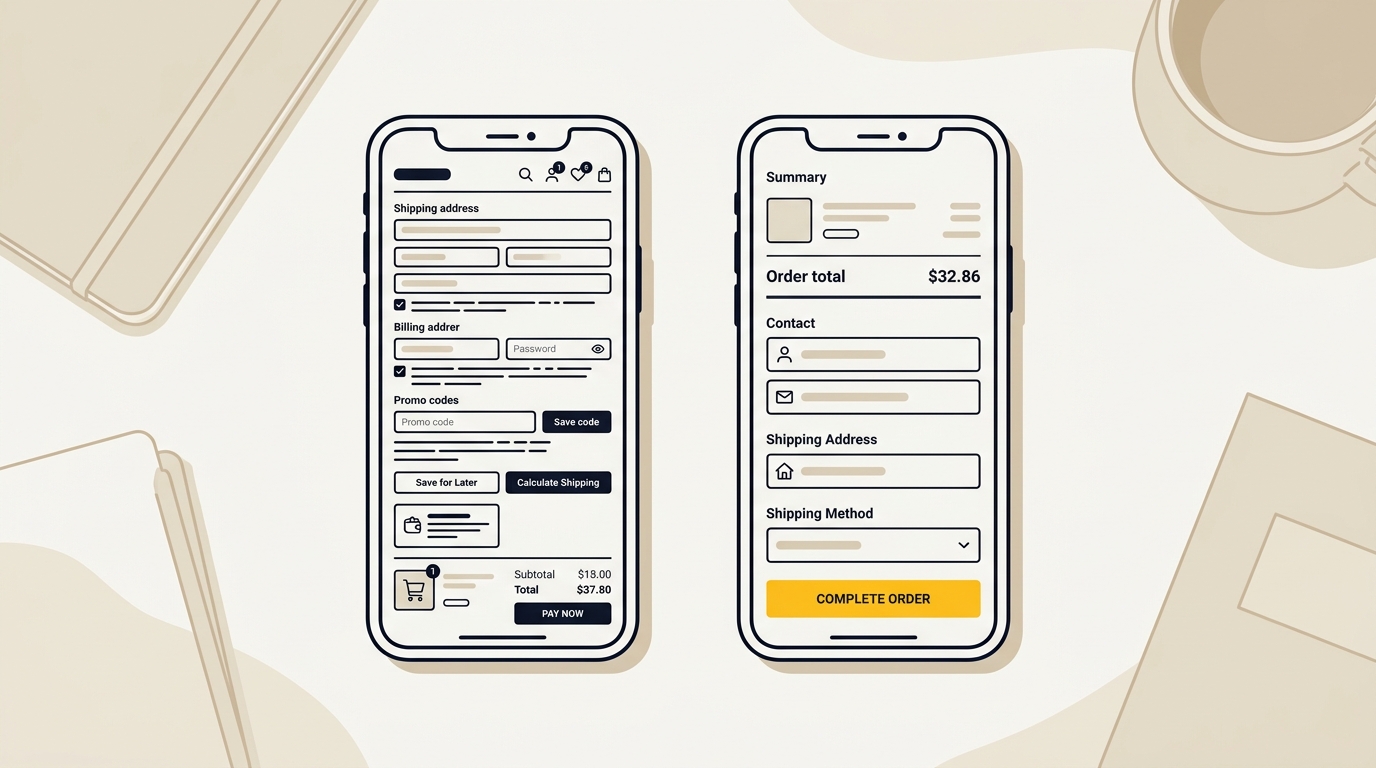
Then look at the cart summary. Keep the subtotal, discounts, shipping estimate and order total easy to scan. If you use a free-shipping threshold, show how close the customer is to it without making the message feel like pressure. A progress indicator should calculate correctly and explain what qualifies. If some products are excluded, say so beside the offer rather than hiding the condition in policy text.
Do not label a shipping choice only as Standard or Express. Explain what the customer can expect, using the most accurate delivery estimate your business can support. A range is better than a promise you cannot meet. If the timeline depends on location, make that dependency visible. Customers should not need to translate an unfamiliar service name into an arrival expectation.
Check the entire order for costs that appear late: gift wrapping, handling charges, duties, taxes, subscription renewals or selected add-ons. If the cost is necessary, explain it near the choice that creates it. If an add-on is optional, keep it clearly optional and do not preselect it in a way that could make customers feel misled.
Design tip: Use alignment and typography to make the total easy to locate. The total should be visually distinct from the line items, but not so loud that it competes with the primary action. A compact summary can reduce clutter, but customers still need a simple way to inspect what they are paying for.
Mistake to avoid: Do not put the full explanation of shipping, returns and taxes only in a footer or a long policy page. Important reassurance belongs near the decision it supports. Link to the detailed policy for customers who need it, but give the basic answer in the shopping flow.
Step 3: Remove form friction, not useful information
Every field asks for time and attention. On a small screen, it also takes up space and can trigger a keyboard that covers other content. Baymard’s checkout form research reports an average of 23.48 form elements in the checkout flows it assessed, and describes a much leaner range of roughly 12 to 14 elements as a practical target. These figures are a benchmark for reviewing unnecessary complexity, not a rule that every store must meet exactly. See its research on checkout form field counts and usability.
Review each field and ask: do we need this information to take payment, deliver the order, meet a legal requirement or provide a service the customer chose? If the answer is no, remove it or make it optional. If you cannot remove it because of a fulfilment or business requirement, explain why in plain language.
Common areas to review include:
- Company name: Hide it or make it optional for a consumer store unless business billing is necessary.
- Address line 2: Keep it optional. Customers with an apartment or unit can fill it in, while other customers can move on.
- Phone number: Ask whether your delivery provider or service genuinely requires it. If it is optional, label it that way. Do not quietly treat a phone number as permission for marketing.
- Separate name fields: Check whether your setup needs separate first and last names. Avoid adding fields solely because an app or internal process prefers them.
- Marketing consent: Keep consent distinct from required order information. Make the choice understandable and do not imply that promotional messages are necessary to purchase.
Use Shopify’s checkout settings to review customer information and field requirements. Names and exact controls can change as Shopify updates its admin, and apps or market settings may affect what is available. Test the resulting checkout rather than assuming a setting behaves exactly as expected.
Turn on address suggestions where available and test them with real address patterns for your main markets. Autocomplete can reduce typing, but it should not force a customer to choose an incorrect suggestion. Keep a clear way to edit the address, and check that apartment, unit and rural address details remain possible.
Labels should stay visible while a customer types. Placeholder text inside a field is not a dependable replacement for a label because it disappears when typing begins. Use a clear example only when it helps, such as a postcode format, and show format requirements before an error occurs.
Baymard’s payment UX research is useful when reviewing payment forms, field labels and error handling. The key design principle is that customers should be able to understand what is required, correct a mistake and continue without guessing.
Mistake to avoid: Do not make a field optional visually but mandatory in the validation logic. That mismatch creates a frustrating error at the point where the customer expects to pay. Test both the normal path and common edge cases, such as a missing apartment number or a non-standard address.
Step 4: Make the primary action unmistakable
A checkout screen should make the next step obvious. On each screen, choose one primary action, such as continuing to shipping or placing the order, and give it the strongest visual emphasis. Secondary actions such as returning to the cart should remain available, but should not look like equally important purchase buttons.
Establish hierarchy with position, contrast, size and spacing. Keep the primary button near the end of the relevant form, where the customer expects to continue. Use a label that describes the action accurately. Do not label a button Continue if it will immediately place an order or charge a card.
Check competing elements around the action. Large promotional banners, coupon fields, app-generated upsells, chat widgets and trust badges can all pull attention away. That does not mean every element must disappear. It means each one needs a clear job and should not visually interrupt the task of reviewing and paying for the order.
If you use reassurance beside the button, keep it specific and concise. A short statement about returns or secure payment can help answer a real concern. Avoid stacking multiple badges, promises and guarantees that customers cannot easily verify. Trust comes from consistency and clarity, not from filling every empty space with an icon.
Test the button on mobile with one hand. It should be easy to find and tap, and it should not be covered by a sticky banner, browser controls or an app overlay. If the page has a sticky action, verify that it does not obscure fields, terms or the order total. Also test the loading state so the customer can tell that the order is processing and does not tap repeatedly.
Do not assume that a one-page checkout is automatically better than a multi-step flow, or vice versa. A single screen may reduce transitions, but it can also feel long if the form, summary and payment options are crowded together. Shopify describes the one-page checkout approach, but the right experience depends on your store, product and customer. Test the flow with your own data and users instead of choosing based on a general claim.
Step 5: Keep the storefront and checkout visually connected
The checkout is part of your brand experience. If the storefront uses a considered typeface, colour palette and visual tone, but checkout suddenly looks generic or unfamiliar, the change can make customers pause. A coherent brand identity helps people recognise that they are still dealing with the same business.
Use Shopify’s checkout editor to align the elements it allows you to control: logo, colours, typography and button style. Keep the logo legible at its rendered size. A logo that looks sharp in a desktop header may become tiny or blurry in checkout, especially if the source file is low resolution or has too much whitespace around it.
Aim for continuity, not a pixel-for-pixel copy of the storefront. Checkout has a different job: it needs clarity, focus and trust. Use brand colour for meaningful actions and highlights, but keep form fields, summaries and error messages easy to read. Avoid decorative backgrounds behind important information. A restrained checkout can feel more trustworthy than a branded screen that makes every element compete.
Review the visual handoff on mobile and desktop. Check that the header, logo and colour choices still look like your store, while the payment and address fields remain familiar and easy to use. If you use Shop Pay or another accelerated payment method, make sure its button appears in a clear and predictable position, and that customers can still choose a different route if they prefer.
Shopify’s customization capabilities depend on your setup and can change over time. Before paying for a custom checkout feature, confirm whether it can be added to your plan and whether it uses Shopify’s supported extension approach. Shopify’s article on customizing checkout and checkout extensibility outlines the broad options. Be wary of advice that relies on older checkout code or promises access to every checkout area on every plan.
Mistake to avoid: Do not add decorative trust badges that resemble payment methods if they are not actually available. Do not use a different brand name, logo or visual system at checkout from the one customers saw while shopping. Fix consistency at the source rather than covering the problem with more graphics.
Step 6: Treat coupon codes as a secondary task
A prominent empty discount box can plant a doubt in the customer’s mind: perhaps there is a code they have missed. Some shoppers will leave checkout to search for a code, then get distracted, encounter expired offers or fail to return. If you offer promotions, make them easy to apply without turning the coupon field into the most noticeable part of the page.
If your checkout supports it, place the field behind a quiet link such as Have a discount code? Keep the wording visible enough for customers who have a code, but give the order summary and payment action the stronger hierarchy. If gift cards and promotional codes work differently in your setup, label them clearly so customers do not enter one in the wrong place.
For campaigns, consider sending customers a link that applies the offer automatically when Shopify supports that campaign setup. Test the link from the actual email or ad, including on mobile. Confirm that the correct discount appears in the cart and checkout, that the total changes as expected and that the code does not conflict with another promotion.
Do not hide a required discount or make customers guess how to redeem it. A collapsed field is for optional codes, not for concealing an advertised offer. If an offer has conditions, such as a minimum spend or selected products, show them in the campaign and make the checkout result easy to understand.
Track discount use and checkout completion together. If customers frequently search for codes or ask support how to apply one, the issue could be campaign communication rather than checkout layout. A visual change will not fix an unclear promotion.
Step 7: Offer guest checkout and explain account creation
A purchase should not feel conditional on creating a long-term relationship with your store. If a customer is ready to buy once, forcing an account setup before payment adds an extra task and can raise concerns about passwords or marketing. Where Shopify’s current settings allow it, offer a guest route and let customers choose whether to create an account.
If you want more accounts, explain the practical benefit: faster repeat ordering, saved delivery details or access to order history. Do not claim benefits your account experience does not provide. Make the choice easy to understand and avoid asking customers to create a password before they know whether the payment has succeeded.
After purchase, the confirmation or order status experience is a more natural place to invite account creation, if your store supports that option. The customer has completed the main task and can decide whether an account is useful. Keep the invitation separate from essential order details such as confirmation, delivery information and support contacts.
Check how returning customers move through checkout. Saved details and accelerated checkout can help, but they should not make the guest route hard to find. Test the journey in a private browser session and on a device where you are not already logged in. Store owners often see a smoother flow than a new customer because their browser has stored addresses, cookies or account information.
Baymard includes forced account creation among the reasons shoppers report leaving. Use that as a reason to test whether your own account gate creates friction, rather than assuming every customer wants the same checkout option.
Step 8: Design for errors and mobile use
A checkout can look polished and still fail when a customer mistypes a postcode or enters a card detail in the wrong format. Error handling is part of the design. A helpful error explains what needs to change, appears close to the relevant field and does not erase information the customer has already entered.
Test errors deliberately. Enter an incomplete address, omit a required field, use an invalid payment detail in a safe test environment, and try to submit while a required choice is missing. Check whether the page moves the customer to the problem, identifies it in plain language and keeps valid information intact. Avoid messages that simply say something went wrong when the shopper can take a clear next step.
On mobile, test the full checkout at the screen sizes your customers use. Look for fields that are difficult to tap, labels that wrap awkwardly, buttons pushed below unrelated content, keyboard types that do not match the field and order summaries that are hard to reopen. Check the landscape view if it is common among your customers, but prioritise the normal portrait experience.
Be cautious with apps that inject pop-ups or extra steps into the cart and checkout. An app can add useful functionality, but it can also slow the page, cover a button or create a second version of a message already present in the theme. Review every installed app that touches the buying journey. Remove unused features and retest the flow after an app update.
Do not treat an error as a customer failure. If several customers make the same mistake, the interface may be unclear. Look for confusing field names, a missing example, a poor default or a mismatch between the instructions and what the form accepts.
Step 9: Test changes one at a time
Once you have a shortlist, prioritise issues by customer impact, evidence and effort. A useful order is: fix a broken payment or shipping calculation, make total costs clearer, remove unnecessary form friction, improve errors, then refine secondary visual details. A broken checkout deserves attention before a colour adjustment.
Change one meaningful part of the journey at a time where possible. If you simultaneously redesign the cart, remove fields, change shipping copy and add a new payment app, you will not know which change influenced the result. For stores with enough traffic, use a controlled experiment. For smaller stores, use a documented before-and-after comparison and interpret it cautiously, since seasonality, traffic source and promotions can also affect performance.
Define the measure before you launch. For example, if you are changing address fields, monitor checkout completion and address errors. If you are clarifying shipping costs in the cart, monitor the transition from cart to checkout as well as completed purchases. Do not focus only on the click rate of a button. More people clicking through is not an improvement if fewer complete the order or support questions increase.
Keep a change log with the date, what changed, why you changed it and what happened afterwards. Include mobile and desktop separately if the pattern differs. Make sure your analytics events still work after theme, app or checkout changes. If tracking broke, you cannot use the resulting chart to make a reliable design decision.
Use small usability checks alongside the numbers. Ask a few people who are not familiar with your store to complete a realistic purchase task, and watch where they pause or ask questions. Do not coach them through the interface. Their confusion can reveal a design issue even when the traffic sample is too small to support a formal experiment.
How to prioritise the most common checkout problems
| What you see | What to inspect | A useful first change |
|---|---|---|
| Many carts, fewer checkout starts | Product expectations, cart contents, shipping threshold, unclear total | Put key price and delivery information in the cart |
| Checkout starts but few orders complete | Payment errors, fields, account gates, shipping surprises | Test the full checkout and remove the clearest source of friction |
| Mobile completion is weaker | Keyboard behaviour, field size, overlays, summary access | Complete a test order on a phone and fix observed obstacles |
| Customers ask about delivery | Vague timeframes, hidden fees, unclear location rules | State a realistic delivery expectation and explain cost calculation |
| Support gets discount questions | Campaign conditions, hidden code entry, code conflicts | Clarify eligibility and test the full discount link |
| Customers hesitate at payment | Inconsistent brand handoff, unclear payment options, errors | Align the checkout identity and make payment choices easy to compare |
Use the table to choose an investigation, not to skip one. The same symptom can have more than one cause. For example, lower mobile sales may come from a poor checkout, slower delivery options, an ad landing page that does not match the product or a payment method missing in that market.
A final Shopify checkout optimization checklist
Before you publish a checkout change, check the following:
- I know which step has the largest verified drop-off, rather than relying only on a general abandonment benchmark.
- The total price and delivery expectations are visible before the customer is committed to filling out the checkout.
- Each field has a clear business or fulfilment reason, and optional information is labelled honestly.
- The main action is visually clear and accurately named.
- The checkout looks like a continuation of the store, while keeping forms and payment choices easy to use.
- Discount instructions are clear and do not distract customers who have no code.
- A guest purchase route is available where our setup supports it.
- Errors explain what to do and do not discard correct information.
- The full path works on mobile, including payment, confirmation and any app overlays.
- Analytics and order tracking still work after the change.
- I have recorded the change and a date to review its effect.
The takeaway
Shopify checkout optimization works best when you find the point of hesitation, then remove that specific obstacle. Make prices and delivery expectations clear, reduce needless form work, preserve trust from storefront to payment and test the complete journey on mobile. Baymard’s figures are useful signals, but your store’s own customer behaviour should decide what you change next.
If you suspect the problem starts before checkout, review the product pages, cart and checkout as one connected experience. Explore DesignFIT’s e-commerce design work or see how our website design service can help shape a clearer shopping journey. You can also view our transparent design pricing or request a free AI search audit to see where your store stands. Start with the part of the experience your data shows is getting in the way.
Key takeaway
Find the moment shoppers hesitate, then use clear pricing, simpler forms and a consistent visual journey to remove that specific barrier.
Questions people ask
What is a good Shopify checkout conversion rate?
There is no single target that fits every store, because product price, traffic source, market and customer intent all affect completion. Compare your checkout completion over time and across devices, and investigate changes alongside promotions, shipping rules and payment errors.
How can I customize Shopify checkout without Shopify Plus?
Shopify provides checkout branding and settings, but the available customization depends on the feature and plan. Check your current Shopify admin and supported checkout options before paying for an app or custom development.
Is one-page checkout better than a multi-step checkout?
Not automatically. A one-page layout can reduce transitions, but a long or crowded screen can be difficult to use; test the complete flow with your customers and compare completion data.
Why are my Shopify cart additions not turning into sales?
The cause may be in the cart, checkout or payment flow. Check for shipping costs revealed late, unclear delivery expectations, unnecessary form fields, account requirements and payment errors, then compare cart-to-checkout and checkout-to-order behaviour separately.