Shopify Product Page Design: 12 Patterns That Lift Add to Cart
A practical guide to shaping product pages around how customers decide, with 12 design patterns and when each one helps or hurts.
On this page
- Before you redesign: find the hesitation
- Step 1: Decide what the page must answer first
- Step 2: Make the first mobile screen work
- Step 3: Choose the right patterns for the product
- Step 4: Check the page's technical behaviour
- Step 5: Test changes in a way that teaches you something
- Common Shopify product page mistakes to avoid
- A final checklist before publishing
- Wrap-up: make the decision easier, not the page busier
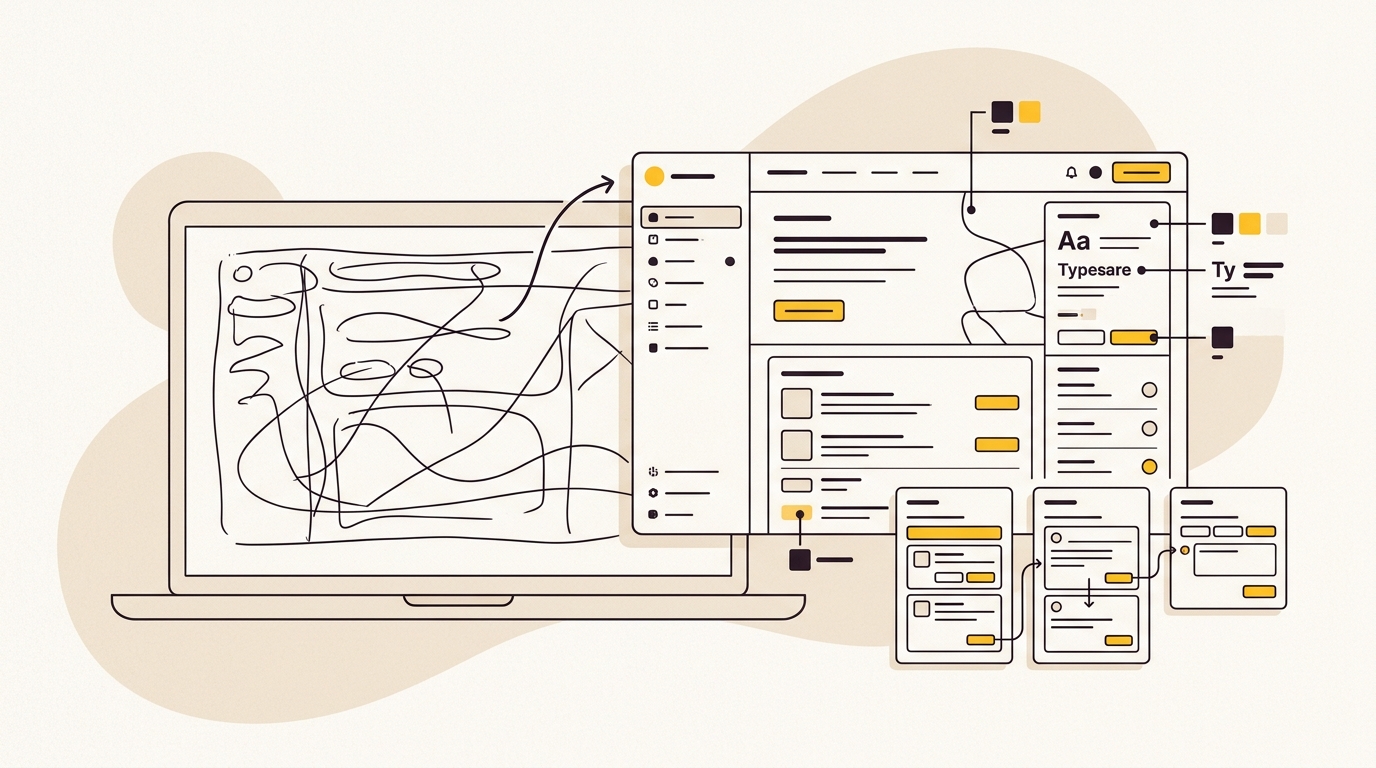
Shopify product page design can improve Add to Cart by making the product easier to understand, the choices easier to make and the next step easier to find. If your store already attracts the right visitors but few add products to their cart, start by diagnosing what customers cannot see, compare or trust, then change the page to remove that friction.
A product page is not just a photo, a price and a button. It is a sequence of decisions about hierarchy, images, options, delivery information and reassurance. Those decisions shape whether a visitor feels ready to buy. If you want a specialist to review the wider store experience, explore DesignFIT's e-commerce design work, our transparent design pricing and website design service.
Before you redesign: find the hesitation
A low Add to Cart rate does not automatically mean your button needs a brighter colour. The cause might be traffic that does not match the product, a slow page, unclear pricing, missing product details or a selection interface that is hard to use on a phone. Changing the page before finding the friction can make a polished page that still does not answer the customer's real question.
Start with these checks:
- Confirm the traffic is relevant. Compare the ad, search result or email promise with the product page. If an ad promotes a specific colour or benefit, make sure that item and message are immediately visible after the click.
- Check the funnel by device. Review product views, variant selections, Add to Cart events and checkout starts in your analytics. Separate mobile from desktop. A healthy desktop journey can hide a mobile interaction problem.
- Watch real sessions. Use session recordings or moderated usability testing, while respecting privacy and consent requirements. Look for repeated taps, backtracking, abandoned selectors and people scrolling up to find details.
- Ask what the buyer needs to know. Review customer service questions, returns, product reviews and search queries. Repeated questions about sizing, ingredients or delivery are clues that the page may be missing useful information.
- Check performance. Load the page on a real phone and a typical mobile connection. A late-loading hero image, jumping layout or app widget that blocks the page can interrupt the decision before a visitor reaches the product details.
Shopify's product page advice is a useful starting point for the essentials, but the right layout depends on your product, audience and store data. Shopify also recommends considering design and performance together in its theme design best practices and theme performance guidance.
Do not treat a single conversion benchmark as a target that every store should reach. Product price, category, traffic source, customer intent and measurement setup all affect the result. Establish your own baseline, then make controlled changes and measure the same funnel events before and after.
Step 1: Decide what the page must answer first
Before adjusting the theme, write down the customer's key decisions. For many products, these are: Is this the right product for me? What does it look or feel like? Which option should I choose? What will it cost in total? When will it arrive? Can I return or exchange it?
Then sort the content by importance. The product name, price, key benefit, primary image, available options and Add to Cart action usually need to be easy to find near the start of the page. Supporting detail such as material composition, care instructions and a full shipping policy can sit further down, as long as it is easy to access when needed.
This hierarchy matters more than the amount of information. A long description can still leave a shopper uncertain if it buries the one fact they came to check. For guidance on writing useful, scannable product information, see Nielsen Norman Group's product description research and CXL's product copy engagement research.
Step 2: Make the first mobile screen work
Open a product page on a phone and note what appears without scrolling. Can someone identify the product, see a useful image, understand the price and find the main action? If the first screen is crowded with a promotional banner, oversized logo, several app messages and a large block of copy, the purchase decision may be pushed out of view.
Keep the visual hierarchy deliberate. Use a clear type scale, enough space between separate pieces of information and a strong contrast between the primary button and secondary actions. Avoid shrinking text simply to fit more above the fold. The goal is not to cram everything into one screen; it is to make the next useful action obvious.
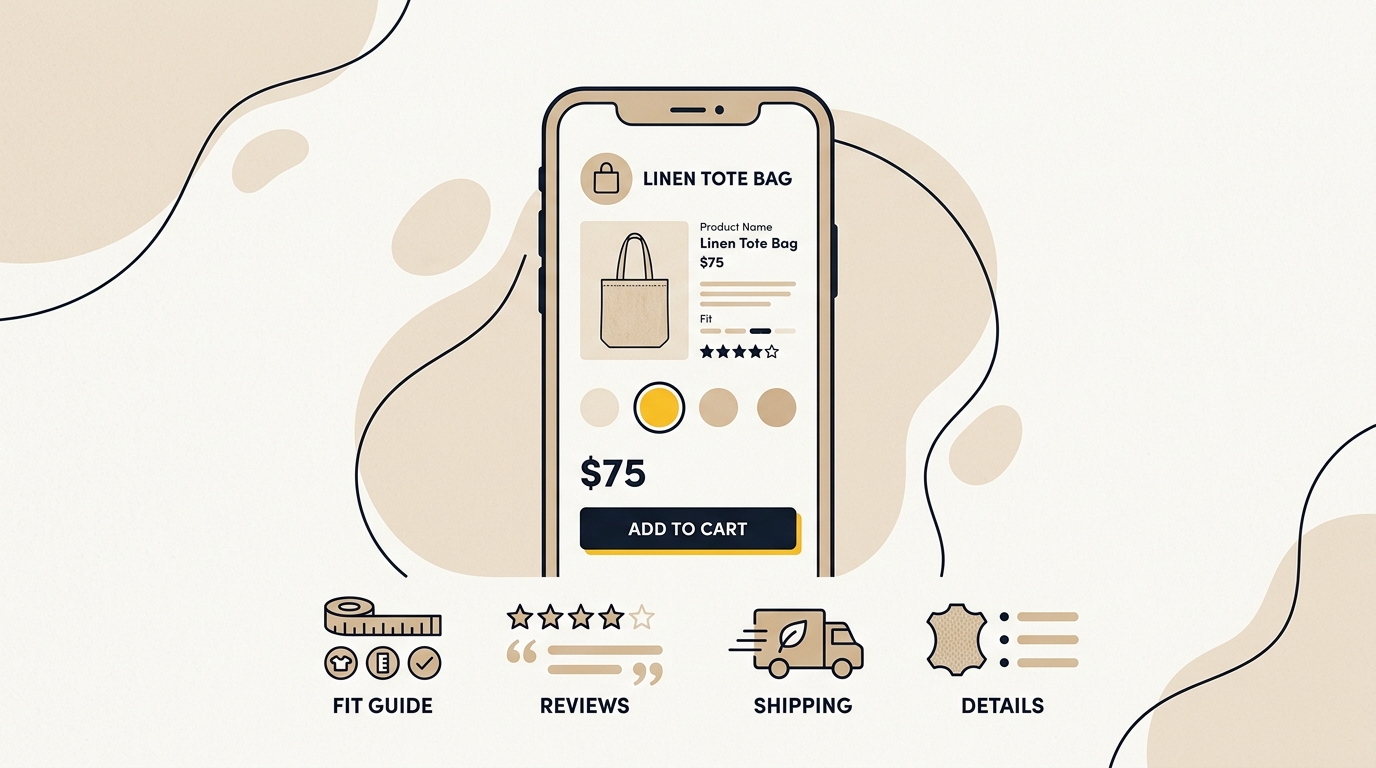
On small screens, test the full interaction, not just a static screenshot. Check whether the keyboard covers a selector, whether a popup blocks the CTA, and whether the page jumps when images or reviews load. The following patterns help solve common problems, aligned with Smashing Magazine's ecommerce UI design best practices, but each one should be added only when it suits the product and customer.
Step 3: Choose the right patterns for the product
1. Add a compact sticky Add to Cart on long pages
A sticky Add to Cart bar keeps a purchase action available after the main button has scrolled out of view. A useful version is compact and may show the product name or thumbnail, selected option, price and a clear button. It should appear only after the original purchase area leaves the screen, not duplicate it from the moment the page loads.
Use it when: the page is long because customers need to explore reviews, specifications, ingredients, sizing or product education before deciding. It can be especially helpful when a shopper has already chosen an option and is reading more detail.
It can hurt when: the page is short, or another fixed element already covers the bottom of the screen. Cookie notices, chat bubbles, SMS offers and a sticky CTA competing for the same space make the page feel cramped and can block content. Test on smaller phones, and make sure the sticky version reflects the currently selected variant and price.
Design check: keep the bar visually quieter than the main purchase area. Make the button large enough to tap, but do not let the bar take over the viewport. If several fixed elements are stacking, remove or reposition one rather than shrinking all of them.
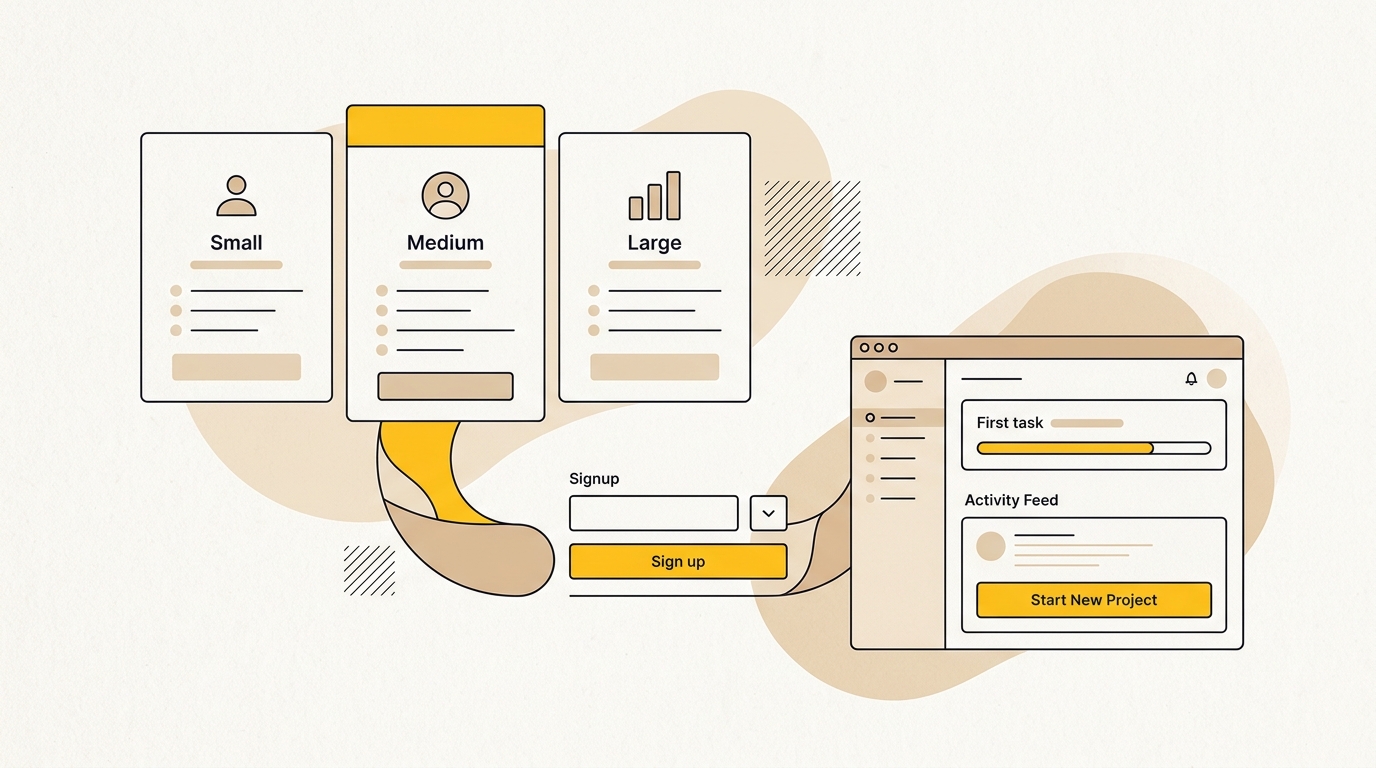
2. Show simple variants as visible choices
If a product comes in a handful of sizes, colours or finishes, visible buttons or swatches let shoppers compare the options without opening a dropdown. The design should clearly show which option is selected, which ones are unavailable and what each choice means. For colour swatches, provide a readable label as well as the visual colour cue.
Use it when: there are a few options and the differences are easy to understand at a glance. Size buttons work well when the labels are familiar. Colour chips can help customers compare a small, curated range.
It can hurt when: the product has a large or complex set of combinations. A grid of dozens of chips becomes visual noise and can push the price and CTA too far down. A generic dropdown can also hurt if customers cannot tell what is inside it or if it hides important information.
Design check: choose the interface based on the number and type of choices. For many options, consider a searchable selector, grouped choices or a two-step selection. Do not assume one selector style suits every product in your catalogue.
3. Sync the gallery with the selected variant
When a shopper selects a colour or finish, show imagery of that exact option. This makes the selection feel concrete and reduces the work of searching through a mixed gallery. Keep the selected option name visible so the image and choice remain connected.
Use it when: colour, pattern, finish or material changes the appearance enough that shoppers need to see the difference. Apparel, accessories, cosmetics and homewares often benefit from variant-specific imagery.
It can hurt when: the images are too similar to distinguish, or the gallery changes in a way that loses the customer's place. A slow update, unexpected zoom reset or layout jump makes the interface feel unreliable. Make sure each variant has accurate images and that unavailable options do not lead to misleading visuals.
Design check: test the variant switch with keyboard and touch. Keep the gallery position stable where possible, and ensure the selected thumbnail, variant label and purchase details agree. Shopify's theme setup and product data options vary, so verify the capability in your theme before adding an app or custom code.
4. Give a useful delivery estimate near the purchase action
Shipping details affect whether a shopper is ready to commit. If fulfilment systems allow it, show a clear delivery estimate close to the CTA rather than making customers search through a policy page. A range can still be useful if it is honest and explained. Avoid promising a precise day unless your business can support that estimate.
Use it when: delivery timing is an important part of the decision, such as for gifts, event outfits, perishables or products needed for a specific date. It is also helpful when shipping costs or fulfilment zones commonly cause questions.
It can hurt when: the date is inaccurate, changes unexpectedly or relies on assumptions the shopper cannot see. A confident but wrong promise damages trust more than a plain explanation of processing and shipping times. Do not add a countdown just to create pressure if it does not reflect a real fulfilment cutoff.
Design check: explain whether the estimate includes processing time, where the estimate applies and what can change it. Baymard's research on delivery dates versus shipping speeds discusses why a delivery date can be easier for customers to interpret than a vague shipping speed. Use the principle, but only show a date your operations can reliably maintain.
5. Put supporting detail in organised accordions
Accordions can make a long page easier to scan by grouping details under clear labels, such as Materials and care, Fit and sizing, What's included, Shipping and returns. This is progressive disclosure: secondary information remains available without filling the main purchase area with a wall of text.
Use it when: customers need different details for different reasons, and the main product benefits can be understood without opening every section. Standard labels across products also help returning customers find information in familiar places.
It can hurt when: essential information is hidden. Do not tuck the main product benefit, key ingredient, compatibility warning or a crucial limitation behind an accordion merely to make the page look cleaner. Shoppers may not know it is there, and important information can be missed.
Design check: write specific labels that tell shoppers what they will find. Keep key selling points visible near the top, and put detailed reference information into accordions. Check that sections open and close accessibly and that the interaction works on a touch screen.
6. Make the size guide answer fit questions
A size guide should help a customer choose, not just display a chart. Place a clearly named link near the size selector. In the guide, include the measurements and conversion information that matter for the item, plus context such as model height and the size worn when it is relevant and accurate.
Use it when: fit varies by style, sizing differs between markets, or customers often ask whether a product runs small, large or true to size. Footwear, clothing and wearable products are common examples.
It can hurt when: the guide is generic, hard to read on mobile or disconnected from the product's actual fit. A PDF that requires pinching and zooming creates extra work. A model note can be misleading if it is old, missing measurements or not representative of how the item fits different body types.
Design check: explain how to use the measurements and what to do when a customer sits between sizes. If the fit changes between styles, make the guide specific to the product or collection. Keep the link close to the choice it helps customers make, rather than burying it in the footer.
7. Build a clear price stack
The price area should make the cost easy to understand. Keep the current price visually prominent. If a genuine sale is running, show the previous price and the saving in a way that is legible and accurate. If tax, shipping or payment instalments need explanation, place a short, relevant note near the price or CTA.
Use it when: pricing has more than one element that affects the decision, such as a real discount, a subscription option or an instalment plan. For higher-priced products, a clear payment explanation may help customers assess affordability.
It can hurt when: several badges and finance widgets compete with the actual price. An instalment message may be unnecessary for an inexpensive item, and a crossed-out price without a legitimate reference can confuse shoppers. Hiding likely shipping costs until checkout can also make the displayed price feel incomplete.
Design check: read the price area as a customer would: What do I pay now? Is this a one-off or recurring charge? Are taxes included? What else might I pay? Keep the language plain, and check the display at narrow widths so the price does not wrap awkwardly.
8. Give Add to Cart a clear primary role
A product page can offer Add to Cart alongside accelerated checkout options. The visual hierarchy should reflect the route that makes sense for the store. If shoppers benefit from building a basket, keep Add to Cart prominent and make direct checkout secondary. If the store sells one main product and a fast single-item purchase is central to the experience, a direct checkout option may deserve more emphasis.
Use it when: the page has a clear next step and the button label matches what happens. A cart drawer can confirm the selected product and offer a sensible next action without sending customers into an unexpected flow.
It can hurt when: two equally loud buttons create uncertainty, or an accelerated checkout skips useful cart steps. A direct route can bypass bundle choices, free-shipping thresholds or cross-sells that customers expect to see. On the other hand, forcing every shopper through an unnecessary cart can add friction.
Design check: map the full journey from button tap to checkout. Decide whether the cart is part of the buying experience or simply an extra step. Shopify's product page guidance can help you review the basic product-page components, but test the actual payment and cart flow in your own store.
9. Make reviews easier to scan
Reviews help shoppers understand how a product works for people like them. A useful review area can include an overall rating, review count, filters or a short summary of common themes, followed by individual comments. Verified-purchase labels should be accurate and clearly distinguished from other review types.
Use it when: a product has enough genuine reviews to provide useful evidence. Filters can help customers find comments about fit, quality, performance or a specific use case.
It can hurt when: the product is new and a distribution chart implies more evidence than exists. Empty review widgets can look broken, while a handful of reviews presented with heavy visual emphasis can feel forced. Do not hide critical feedback or imply that a review is verified if it is not.
Design check: link the rating summary near the product title to the review section so it works as navigation, not decoration. Make review text readable on mobile, and let customers distinguish product feedback from comments about shipping or service. Baymard's ratings distribution summary guidance is useful when deciding how to present review breakdowns.
10. Use specific reassurance under the CTA
A short line below Add to Cart can answer a final concern, such as free exchanges, a trial period, recycled packaging or a warranty. Choose reassurance that is genuinely relevant to the product and supported by your business policies. A small set of clear statements is more useful than a row of generic security icons.
Use it when: shoppers need confidence about risk, returns, materials or support. It can help a less familiar brand explain what happens after the order is placed.
It can hurt when: badges are vague, repetitive or unrelated to the actual decision. Old-fashioned lock graphics and a long stack of claims can make the page look untrustworthy. A promise that conflicts with the return policy creates more doubt than it removes.
Design check: use short plain-language statements, not symbols that require interpretation. Put the most useful reassurance closest to the action, and link to the full policy where appropriate. Confirm every claim with the team responsible for fulfilment and customer service.
11. Show scale and context in product photography
A clean studio image can show detail, but it may not explain how large a product is or how it looks in use. Add context where it answers a genuine question: a bag worn by a person, a vase beside familiar furniture, a kitchen tool held in a hand, or a close-up showing fabric texture. The first image should still make the product easy to recognise.
Use it when: size, texture, drape, finish or real-world context is hard to understand from a cut-out image. Products for the home, accessories and apparel often need more than one view to communicate scale.
It can hurt when: lifestyle imagery is beautiful but does not show the product clearly. Inconsistent lighting, distracting backgrounds or images that suggest features the product does not have can undermine trust. A technical component may need a labelled diagram more than an atmospheric scene.
Design check: plan the gallery as a sequence. Start with a clear product image, then show important angles, details, scale and use. Keep image ratios consistent where possible and check cropping on mobile. Shopify's theme performance best practices are also relevant: large galleries should not make the first useful content slow to appear.
12. Offer a useful bundle without interrupting the purchase
A related product can raise basket value when it solves a real need, such as a refill for a reusable bottle or a compatible filter for a coffee machine. The offer can sit on the page or appear in a cart drawer after the customer has added the main item. Make the price and action clear, and keep the original purchase easy to continue.
Use it when: products naturally work together and the additional item is relevant to the shopper's choice. A bundle can also help customers select a complete routine or set when the combination is genuinely useful.
It can hurt when: the upsell appears as a takeover, interrupts the confirmation after Add to Cart or makes the customer feel they chose incorrectly. Too many recommendations dilute the page and can distract from the main product.
Design check: offer one or two relevant next choices rather than a catalogue. Ensure add-on selections do not silently change the original order, and make dismissing the offer simple. If you use a cart drawer, test it with discount codes, bundles, shipping thresholds and mobile screen readers.
Step 4: Check the page's technical behaviour
A carefully designed page still needs to load and behave reliably. Review the page with your actual theme and app stack. Product reviews, chat tools, popups, swatch apps and tracking scripts can all change performance and create interaction conflicts. Add tools only when they solve a defined problem, and remove overlapping features.
Use this practical check before launch:
- Load the page on a phone and confirm the product image, price and purchase action appear without awkward delays.
- Change every variant and confirm the selected label, image, price, availability and URL behave as intended.
- Add the product to cart and check that the correct option and quantity appear.
- Test sold-out, discounted and subscription states, not just the default product.
- Open popups, chat and cookie controls together to find overlaps and blocked buttons.
- Navigate with a keyboard and check focus states, labels and readable contrast.
- Make sure image loading does not cause content to jump or buttons to move unexpectedly.
Shopify's theme performance documentation is a good reference for treating speed as part of the experience, rather than as a separate technical task. If custom work is needed, keep the implementation focused and test it against the store's theme updates and app integrations.
Step 5: Test changes in a way that teaches you something
Do not redesign every element at once if you need to learn what is affecting Add to Cart. Choose one hypothesis, make a controlled change and track the relevant behaviour. For example: 'Customers may not understand the colour choices, so showing labelled swatches will increase variant selection and Add to Cart.' That is more testable than 'The page needs to feel more premium.'
A useful test plan includes:
- A specific audience and page. Start with a product that gets enough relevant traffic to observe behaviour, rather than changing the whole catalogue without a reason.
- One primary change. If you change image order, price layout, button colour and copy at once, you will not know which change mattered.
- A primary measure. Track Add to Cart rate for the selected product and device, but also check variant selection, checkout starts and completed purchases. More carts are not automatically better if the new visitors abandon later.
- A comparison period. Account for promotions, seasonality, traffic source and stock changes. A sale week is not a clean comparison with a quiet week.
- A decision rule. Decide in advance how long to run the test and what result would justify keeping, changing or reverting the design. Avoid calling a winner based on a handful of purchases.
If traffic is limited, combine analytics with short customer interviews and usability testing. Ask people to find the right option, explain what they think shipping costs and describe what happens after Add to Cart. Their hesitation can reveal a missing label or confusing interaction faster than another round of visual polishing.
Common Shopify product page mistakes to avoid
Treating the button as the whole conversion problem. Button contrast matters, but it cannot compensate for unclear product value, hidden costs or poor imagery. Follow the whole decision path from first view to cart.
Copying another brand's layout without checking the product. A highly visual fashion page and a technical parts catalogue have different information needs. Use patterns as options, not rules.
Adding apps for every small feature. Each app can add scripts, controls and maintenance. Check whether your theme already supports the feature and whether the benefit justifies the added complexity.
Hiding essential facts to make the page look minimal. Minimal design is not the same as missing information. Keep the most important answers visible and place secondary detail in a clear, findable structure.
Ignoring the traffic source. A product page receiving paid traffic should continue the promise that brought the visitor there. If the ad shows a particular use, offer or product version, the landing experience should make that match obvious.
Judging the result on one metric. Add to Cart is a useful signal, not the final business outcome. Review the rest of the funnel, order value, returns and customer service questions so the change supports a better purchase experience rather than simply more clicks.
A final checklist before publishing
- The product and its main benefit are clear at first glance.
- The price and any genuine offer are easy to understand.
- The primary image is clear, with useful context and detail further in the gallery.
- Each variant is labelled, selectable and shown accurately.
- The size guide or specification information answers the questions customers actually ask.
- Delivery, returns and important limitations are easy to find.
- Add to Cart is visually distinct and behaves as expected.
- Reassurance is specific, accurate and close to the purchase action.
- The mobile layout works with popups, chat, cookie controls and the keyboard.
- The page loads without distracting shifts or unnecessary app conflicts.
- Analytics can show what happens from product view through to purchase.
Wrap-up: make the decision easier, not the page busier
Strong Shopify product page design is a sequence of clear decisions. It helps customers see the product, compare options, understand the cost and feel confident about the next step. Start with evidence from your store, choose only the patterns that answer real customer questions, and measure what happens after the change.
If your store has traffic but the product pages are not turning enough visits into purchases, request a free AI search audit to see where searchers and AI engines run into friction, or talk with DesignFIT about e-commerce design.
Key takeaway
The best Shopify product page design removes the specific uncertainty stopping your customer from adding the product to their cart.
Questions people ask
What should appear above the fold on a mobile Shopify product page?
Show enough for a shopper to identify the product, understand its price and see a useful image, with a clear route to select options or add it to the cart. Do not force every detail into the first screen; make essential choices easy to reach and supporting information easy to find.
Should Shopify product pages use swatches or dropdowns?
Use visible swatches or buttons when there are only a few options and shoppers benefit from comparing them at a glance. For many or complex options, a grouped or searchable selector may be clearer than displaying a crowded grid.
Does a sticky Add to Cart button help on mobile?
It can help on long product pages when the main purchase action scrolls out of view. It can hurt if it overlaps with chat, cookie banners or promotional popups, so test it on small screens and keep it compact.
Should I show Buy It Now as well as Add to Cart?
That depends on the buying journey. Add to Cart often suits stores where customers build a basket or use bundles, while direct checkout may suit a focused single-product purchase; test both against the rest of your funnel.
How many images should a Shopify product page have?
There is no universal number. Include enough images to show the product clearly, its important details and how it looks in use or at scale, without making the gallery slow or repetitive.