Shopify Redesign Checklist: 30 Fixes Before Relaunch
Thirty practical checks to improve the buying journey and protect your sales, search visibility and tracking before your redesigned Shopify store goes live.
On this page
- Before you redesign: set a baseline
- Tier 1: Remove friction closest to payment
- Tier 2: Make product pages answer buying questions
- Tier 3: Improve mobile speed and interaction
- Tier 4: Help shoppers find the right product
- Tier 5: Protect search, tracking and post-purchase revenue
- How to run the redesign checklist without losing control
- Common Shopify redesign mistakes to avoid
- Final pre-launch pass
A shopify redesign checklist should focus first on the places where customers abandon a purchase, not on decorative details. Fix checkout friction, product page clarity and mobile performance before launch, then protect the search traffic and measurement your store already has. Use this checklist in order, adapting it to your products and customer data. For a broader view of how design supports online retail, see DesignFIT’s e-commerce design approach.
A redesign is a business change, not just a new theme. The right layout can make product choices easier, explain value sooner and reduce uncertainty at checkout. The wrong change can hide a buy button, slow a page or send existing search visitors to a dead end.
This checklist is ordered by likely revenue impact, not by page. Start with the steps closest to payment, then work back through product discovery and finally into launch safeguards. The order is a practical starting point, not a promise of results: your own analytics and customer feedback should decide which issues deserve the most attention.
Before you redesign: set a baseline
Before you change the design, record how the current store performs. Capture the same measures you will check after launch, using comparable date ranges and accounting for promotions, seasonality and changes in ad spend. A redesign should have a clear job, such as improving product discovery, making checkout easier or helping mobile shoppers understand the offer.
Review conversion rate, revenue per visitor, average order value, add-to-cart rate, checkout completion, returns and the share of sales from mobile. Compare product types and traffic sources separately. A store-wide average can hide an excellent product page next to a page that gets plenty of visits but few carts.
Use Shopify analytics alongside your other analytics tools, but do not treat every dashboard number as interchangeable. Check how each tool defines sessions, orders and attribution. If the current tracking is unreliable, make fixing measurement part of the redesign rather than using an uncertain baseline to judge the new site.
Also collect the questions customers ask before buying. Support emails, chat logs, product reviews and return reasons often expose gaps in product imagery, sizing, delivery information or policy language. Those details are design inputs. A stronger page hierarchy puts the answers where shoppers need them, instead of making them search through a long block of copy.
If you need a project brief or want to plan the work, browse DesignFIT’s e-commerce resources, read our small business website redesign cost guide and explore our website design service. The aim is not to copy a competitor’s layout. It is to make your own offer easier to understand and buy.
Tier 1: Remove friction closest to payment
A cart is not a sale. Baymard’s collection of checkout studies puts average e-commerce cart abandonment at about 70%, which is a useful reminder that many shoppers leave before completing an order. It is not a prediction for your store, and it does not mean every abandoned cart can be recovered. It does mean the steps between choosing a product and paying deserve careful testing. Read Baymard’s cart abandonment research for the context behind the benchmark, as well as practical research on how to reduce cart abandonment.
The best checkout design is clear, familiar and calm. Keep the customer focused on the order, show the next step plainly, and avoid surprises about price or delivery. A theme redesign may not give you control over every checkout element, so check what your current Shopify plan and setup allow before specifying custom behaviour.
- Review the checkout path from cart to confirmation: Remove confusing detours because every extra decision can give a ready-to-buy customer another reason to pause.
- Keep guest checkout easy to find: Do not make account creation feel like a condition of purchase because first-time customers may not want another password or commitment.
- Show the full cost as early as you can: Explain shipping, taxes and any likely duties before the final payment step because late fees can undermine trust.
- Make delivery timing specific and honest: Give a realistic dispatch or delivery estimate where you can because a clear expectation is more useful than a vague speed claim.
- Make payment choices easy to scan: Present the payment methods you support clearly because customers need to know how they can pay before they invest time in a form.
- Remove checkout fields you do not need: Ask only for information required to fulfil or process the order because unnecessary typing adds effort, especially on mobile.
Check each of these points against the actual checkout available to your store. Shopify’s checkout settings and checkout extensibility options can change, and third-party apps may add their own steps or scripts. Record which parts are controlled by Shopify, which come from an app and which are part of the theme. That simple map prevents a designer from promising a change that the store’s configuration cannot support.
Test the checkout on a phone with one hand, not only on a desktop with a mouse. Check that the keyboard does not cover the active field, that error messages explain how to fix the problem and that the order summary remains easy to find. If an address lookup, discount field or accelerated payment option fails, the customer should still have a clear route to complete the purchase.
Tier 2: Make product pages answer buying questions
Product pages do more than show an item. They help a shopper decide whether it is right for them, compare options and understand what happens after purchase. The order of information matters. Put the product name, price, primary image, important variants and add-to-cart action where they are easy to find, then support the decision with details and proof.
A high-performing product page is not necessarily short. It is organised so the most important information is visible first, while secondary detail remains available without overwhelming the shopper. A product with complex fit, ingredients or compatibility needs more explanation than a simple accessory. Design the page around that decision rather than forcing every product into an identical content template.
- Put the product name, price and main action in a clear visual group: A strong hierarchy helps shoppers understand what they are viewing and what to do next.
- Keep the add-to-cart action visible at the decision point: On long mobile pages, consider a tested sticky action so customers do not need to scroll back to buy.
- Show variant changes clearly: Make the selected colour, size or configuration obvious and update price or imagery when relevant so shoppers know what they have chosen.
- Place fit or compatibility guidance beside the choice: Put size charts, measurements or compatibility notes near the selector because guidance is most useful at the moment of decision.
- Use product imagery to answer real questions: Show scale, texture, details and use in context because a single polished hero shot rarely explains the whole product.
- Show reviews where they support the decision: Put a visible rating and review count near the product summary, then make the full feedback easy to reach and read.
- Explain delivery, returns and care without burying them: Use concise labels and expandable details because reassurance matters, but long policy text should not compete with the buying decision.
- Offer relevant bundles or complementary products: Recommend useful additions with a clear price and reason because unrelated upsells distract and can reduce confidence.
Do not treat a sticky add-to-cart bar, cross-sell block or review badge as a guaranteed conversion fix. Each component takes space and can compete with the main decision. Test it against the existing design, especially on smaller screens. A sticky control should reflect the selected variant and stock status, and it must not cover important page content or mobile browser controls.
Review the photography as a system. The first image needs to identify the product quickly. Supporting images should show the details that drive confidence: how large it is, how it works, what is included and how it looks in real use. Keep crops and backgrounds consistent across a collection so the grid feels considered, but do not make every image so similar that products become hard to distinguish.
For products with several variants, make selection states unmistakable. A small colour dot without a label may be difficult to interpret. Add text or a useful image where a shopper needs it, and make unavailable options clear rather than leaving customers to discover the problem after selecting them. If a variant changes the price, image or delivery expectation, show the change immediately.
Tier 3: Improve mobile speed and interaction
Mobile performance is a design concern as much as a technical one. The largest image, the order of page content and the scripts used for menus or pop-ups affect how quickly a shopper can understand and use the page. Practical data on the load speed impact on conversions demonstrates how quickly friction accumulates for mobile buyers. Deloitte’s study of retail brands found that a 0.1-second improvement in mobile site speed was associated with an 8.4% increase in conversions and a 9.2% rise in average order value in the brands studied. Those figures are not a forecast for an individual store, but they show why small performance improvements are worth measuring. See Deloitte’s Milliseconds Make Millions study.
Use real devices and mobile connections during testing. A page that feels quick on a studio computer may be slow on a shopper’s phone. Pay attention to what loads first, whether images jump as they appear, how quickly the menu responds and whether filters remain usable while the collection updates.
- Prioritise the main image and first screen: Load the key product or campaign image efficiently because it is often the first visual proof a shopper sees.
- Resize and compress image files: Serve appropriately sized, modern image formats because oversized assets waste time and data on small screens.
- Audit theme and app scripts: Remove code and app features that are no longer used because leftover scripts can slow pages and create unpredictable behaviour.
- Check layout stability as the page loads: Reserve space for images, banners and embedded content because sudden movement can make shoppers tap the wrong control.
- Make buttons and controls comfortable to tap: Give key actions enough space and separation because tiny targets cause errors on touchscreens.
- Use pop-ups with restraint: Delay or limit mobile overlays because an immediate full-screen interruption can hide the product before a visitor understands the offer.
- Test filters, menus and variant controls for responsiveness: Keep interactions immediate and predictable because shoppers should not wait or wonder whether a tap worked.
A useful performance review starts by removing things, not adding another optimisation app. Check whether the old theme still contains code for deleted apps, whether several tools perform the same function and whether an animation adds meaning or only delay. Ask what each script contributes to the customer journey, who owns it and how you will tell if it is still working after the redesign.
Treat image quality and file weight as a single design decision. Compression should not make a product look soft or alter important colour details. Compare the asset on a phone and a larger screen, and keep the correct focal point in view when the image crops responsively. A carefully prepared image can load more efficiently while still showing the product well.
Tier 4: Help shoppers find the right product
Discovery design affects which products customers see and how confidently they move through a catalogue. A menu that reflects internal team structure may make sense to staff but not to shoppers. Organise categories around customer language and buying intent, then check that the hierarchy works with your actual range, including seasonal products and out-of-stock items.
Search and filters should support one another. Search helps a customer who knows what they want; filters help someone narrow a broader category. Both need useful empty states, sensible defaults and clear ways to change or remove a selection. Review searches that produce no results and questions about product availability before deciding what to build.
- Make the main navigation match how customers shop: Use familiar category names and prioritise important ranges because visitors should not have to decode your internal catalogue.
- Give search a visible, usable place on mobile: Make it easy to open and return to because product discovery should not be hidden behind several menu steps.
- Show useful predictive search results: Include relevant products or categories when the feature is available because a clear suggestion can shorten the route to a product.
- Offer filters customers can understand: Use attributes such as size, colour, price or availability only when the catalogue data is accurate and consistently maintained.
- Design collection cards for quick comparison: Use consistent images, readable product names and relevant price or variant cues because shoppers often compare several items at once.
- Provide helpful no-results and 404 pages: Offer search, popular categories or relevant alternatives because a dead end wastes a visit that might still become a sale.
Test discovery with people who have not helped build the store. Give them a realistic task, such as finding a gift under a certain price or locating a specific size, and observe where they hesitate. You do not need a large research programme to spot obvious naming and navigation problems. A few short sessions can uncover language that seems clear to the team but not to customers.
Be cautious with badges such as ‘selling fast’ or ‘popular’. They should represent real information and be used consistently. A collection grid is a comparison tool, not just a gallery. If a badge, swatch or hover image helps a person choose, it earns its place. If it adds decoration without clarifying a decision, simplify the card.
Tier 5: Protect search, tracking and post-purchase revenue
A redesign can affect existing search visibility if URLs, page content or internal links change without a plan. An unmanaged launch risks a severe traffic drop after a website redesign. Create a record of important current URLs before launch, especially product and collection pages that receive organic visits or have valuable external links. Google recommends permanent redirects when URLs move and advises keeping them in place for at least a year. Follow Google’s guidance on redirects and Search, and do not assume a new theme will preserve every old path automatically.
- Map old URLs to the closest matching new page: Redirect moved products and collections to their relevant replacements because sending every old URL to the homepage is confusing for shoppers and search engines.
- Check page titles, headings, descriptions and structured product information: Preserve useful content and make the new version clear because a visual rebuild should not erase the context that helps pages get discovered.
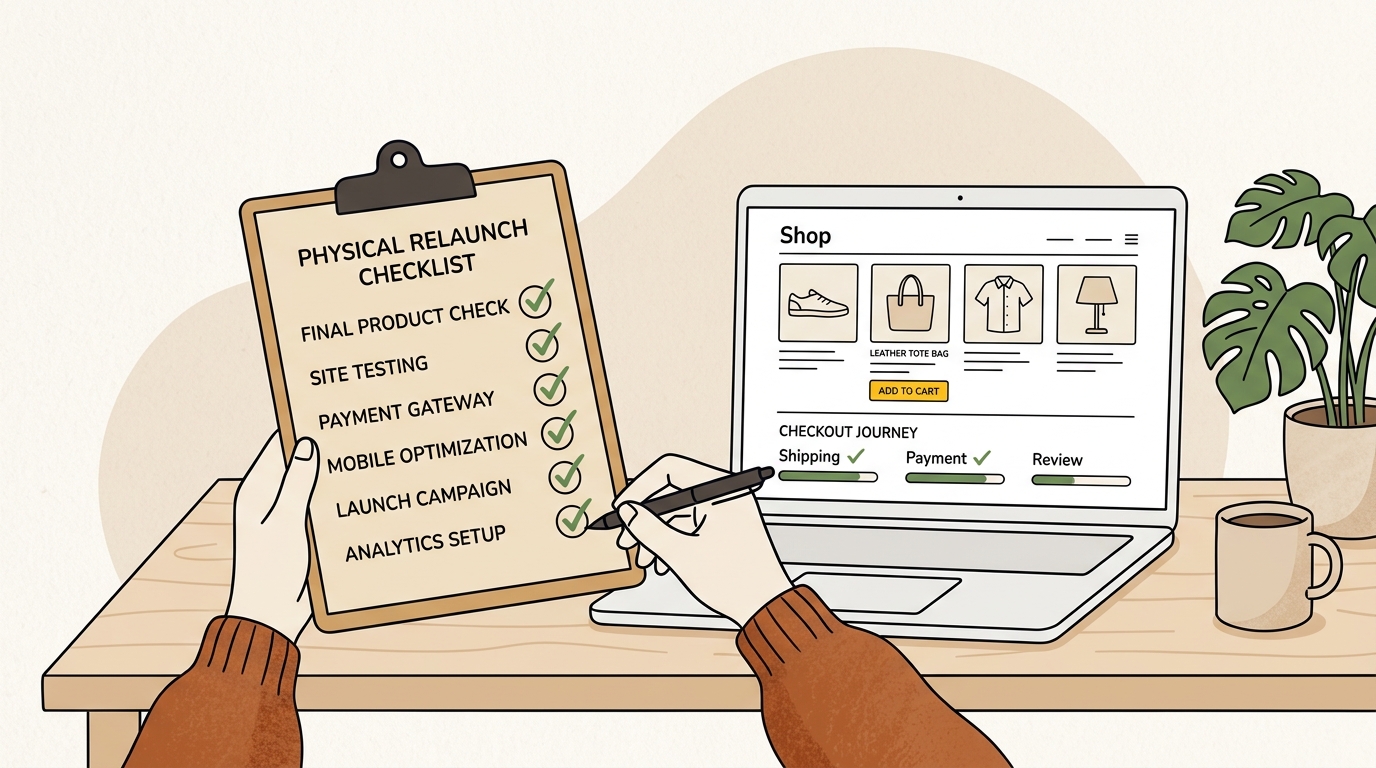
- Verify tracking, order messages and a complete test purchase: Check analytics events, confirmation emails, inventory changes and the sitemap because a beautiful launch is not successful if sales cannot be measured or fulfilled.
Build a redirect spreadsheet with the old URL, new destination, reason for the change and test status. Include URLs from analytics, Search Console, your sitemap and any known campaign links. Redirect to the closest equivalent, not automatically to a category or homepage. If there is no suitable replacement, decide deliberately what the customer should see instead of leaving a broken route.
Tracking needs the same care as the design. Make a list of the events you rely on, such as product views, add to cart, checkout start and purchase. Test those events in the new setup and confirm that they are recorded once, with the right values. If your store uses analytics, advertising pixels, consent tools or a customer data platform, test the full path with the people responsible for those systems.
Do not assume that a successful test order proves everything. Check that the order appears in the store, the confirmation message is accurate, the right stock changes and the expected tracking events arrive. Use a test method that is appropriate for your payment setup, and coordinate any real transaction with the people who manage refunds and accounting. Then test discounts, shipping options, taxes and an unsuccessful payment path where possible.
Post-purchase design is part of the customer experience. Review order and shipping messages for the new brand, clear delivery expectations and useful support details. A complementary product recommendation may make sense after purchase, but do not let cross-selling obscure essential order information. The first job of a confirmation is to reassure the customer that the order is recorded and explain what happens next.
How to run the redesign checklist without losing control
Assign an owner and status to every item. Mark each as not started, in progress, tested or not applicable, and add a note about who must approve it. This makes the checklist a working launch tool rather than a document that gets read once and forgotten. Keep evidence with each test, such as a screenshot, analytics comparison or test order reference.
Use a staging or unpublished theme for review, and keep a copy of the current live theme until the new version has passed its checks. Compare the same products and journey in both versions. Test the homepage, a collection, a product with variants, a product without variants, a search result, the cart and checkout. Include an out-of-stock product and any unusual fulfilment or discount rule your store depends on.
Before publishing, agree who can make last-minute changes and how you will respond if a serious issue appears. Avoid combining the redesign launch with unrelated changes to prices, promotions, fulfilment rules or advertising unless there is a clear reason. Fewer simultaneous changes make it easier to identify the cause if sales or tracking behave differently.
For the first days after launch, check the main funnel and error reports more often than usual. Look for sudden changes in add-to-cart rate, checkout completion, mobile revenue, page speed and search traffic. Compare like with like and consider normal variation before reacting to a small movement. If there is a clear failure, follow your rollback plan or fix the specific issue rather than making a string of unmeasured design changes.
Common Shopify redesign mistakes to avoid
Launching because the site looks finished. A visually polished homepage does not confirm that variants, shipping, search, tracking and checkout work. Judge readiness by tested customer journeys, not by the final design review alone.
Changing every page at once without a reason. A broad redesign makes it harder to learn which decisions helped. Prioritise the pages and components connected to the biggest customer problems, and keep a record of what changed.
Adding apps to solve layout problems. An app can be useful, but it can also add code, conflicts and ongoing maintenance. First ask whether the theme or a clearer design can solve the need with less complexity.
Copying a competitor’s design. Their catalogue, audience and fulfilment model may be different. Borrow ideas only when they solve a real problem for your shoppers, and validate that the interaction fits your products.
Treating search performance as someone else’s job. Designers, developers and whoever manages SEO need to agree on URLs, content and launch checks together. A strong visual refresh should make information clearer without casually removing pages that already attract qualified visitors.
Final pre-launch pass
Use this short pass when the redesign is nearly ready:
- The current store’s key performance measures and important URLs have been recorded.
- Mobile visitors can identify the product, choose the right option and reach the main action.
- Costs, delivery expectations, returns and payment options are clear before purchase.
- Product imagery, reviews and supporting details answer the questions customers actually ask.
- Search, filters, navigation and empty states have been tested with real catalogue data.
- Unused app code and unnecessary page elements have been reviewed.
- Redirects, analytics events, checkout, order emails and sitemap behaviour have been checked.
- Someone owns launch monitoring and knows what to do if a critical issue appears.
A successful Shopify relaunch is not simply a new look. It is a clearer buying journey that works on real devices, protects existing discovery and gives your team a reliable way to measure what changed. Start with the biggest friction points, test each change and keep the design decisions tied to customer behaviour.
If you are planning a store redesign and want help connecting brand, UX and performance, explore DesignFIT’s e-commerce work, review our transparent project pricing, request a free AI search audit or learn more about our core website design service.
Key takeaway
A Shopify redesign should make buying easier and protect what already works, so test the full customer journey before you publish the new theme.
Questions people ask
Does redesigning a Shopify store hurt SEO?
It can if useful pages disappear, URLs change without redirects or important content is removed. Record key URLs and search performance before launch, map changed URLs to relevant destinations and check the new pages after publishing.
What should I check before publishing a new Shopify theme?
Test the main product and checkout journeys on mobile and desktop, then verify shipping, discounts, tracking, order emails and inventory behaviour. Also check redirects, navigation, search and the live theme’s access to the right product information.
How do I switch Shopify themes without losing my setup?
Treat the new theme as a separate build and check which settings, app features and custom code need to be configured or reconnected. Keep the existing live theme available until the new version has passed testing, and document any store-specific behaviour before switching.
How long does a Shopify store redesign take?
Timing depends on the size of the catalogue, the amount of custom design and development, content readiness and integrations that need testing. Set the schedule after scoping those dependencies, and allow time for feedback, device testing and launch checks rather than planning only for design and build.