Website Accessibility Compliance in 2026: A Practical Guide
A plain-English guide to WCAG, legal risk and the design fixes that make your website easier for more people to use.
On this page
- What does website accessibility compliance mean?
- What is WCAG?
- What is the difference between WCAG A, AA and AAA?
- Is WCAG 2.2 AA the right target in 2026?
- Does my small business website need to be accessible?
- What does an accessible website look like in practice?
- How should I prioritise accessibility fixes?
- Can an accessibility scanner tell me whether my site complies?
- Should I install an accessibility overlay widget?
- How much does website accessibility work cost?
- What should I do if I receive an accessibility complaint or demand letter?
- A practical website accessibility checklist
- What should a business owner do next?
Website accessibility compliance means designing and building your website so people with disabilities can use its content and features. In 2026, a practical starting point for most businesses is to assess key pages against WCAG 2.2 Level AA, then fix barriers in important user journeys first. A website accessibility review can help you see what to prioritise, but no automated scan or single technical standard guarantees legal compliance.
Accessibility is not just a developer checklist. Contrast, type size, page hierarchy, button spacing, labels and clear error messages are design decisions that affect whether people can understand your offer and complete an enquiry or purchase. If your site needs broader changes, DesignFIT’s website design service can help make accessibility part of the structure and visual system, not an afterthought.
This guide explains the basics, what WCAG levels mean, how to approach legal risk, and a realistic order for making improvements. It is general information, not legal advice. The law depends on where you operate, what you provide and who your customers are. If you have received a complaint or demand letter, speak with a lawyer in the relevant jurisdiction.
What does website accessibility compliance mean?
Website accessibility compliance means meeting the accessibility duties or technical standards that apply to your business, while making your site usable by people with different disabilities. Those disabilities can affect vision, hearing, movement, speech, memory, attention or the way someone processes information. A person may also have a temporary or situational barrier, such as using a phone in bright sunlight or navigating with one hand while carrying a child.
A practical accessible website lets people do the same important tasks in different ways. A visitor should be able to read your service information, navigate to the right page, understand a form, correct a mistake and submit it without depending on a mouse, perfect vision or sound.
Accessibility is not a separate mode that people switch on. It is part of the ordinary website experience. Clearer text helps people with low vision and people reading on a small screen. Persistent form labels help screen-reader users and anyone who has forgotten what a field asks after typing into it. Large, well-spaced controls help users with motor impairments and reduce accidental taps for everyone.
The design goal is not to make every page look plain. It is to make sure the design communicates its meaning and gives people a reliable way to act. A brand can still use distinctive colour, photography, animation and typography. The design system needs alternatives and rules that preserve clarity when someone zooms in, uses a keyboard or turns off sound.
What is WCAG?
The Web Content Accessibility Guidelines, usually shortened to WCAG, are technical recommendations published by the World Wide Web Consortium (W3C). They describe ways to make web content more accessible. WCAG is not itself a law. Laws and regulations in different places may refer to WCAG or use it as a benchmark, so the standard that applies to a particular business needs to be checked locally.
WCAG is organised around four principles, often abbreviated as POUR:
- Perceivable: People must be able to perceive the information. For example, information cannot rely on colour alone, and meaningful images need text alternatives.
- Operable: People must be able to use controls and navigation. For example, the main actions should work from a keyboard, not only by mouse.
- Understandable: Content and controls should behave in ways people can understand. Instructions, labels and error messages need to be clear.
- Robust: Content should work with a range of browsers and assistive technologies. Semantic HTML, which gives elements their intended meaning, helps software interpret a page.
WCAG has three conformance levels: A, AA and AAA. Each level builds on the one before it. For most business owners, the practical conversation is about aiming for AA, while recognising that the right legal target depends on the rules that apply to the organisation.
The W3C’s WCAG 2.2 overview describes the newer success criteria and how they fit with earlier versions. WCAG 2.2 was published as a W3C Recommendation in October 2023. It adds criteria that address issues such as focus being hidden, small controls, dragging and accessible authentication.
What is the difference between WCAG A, AA and AAA?
WCAG levels describe how many accessibility requirements a site meets, not how good its design looks. Level A covers essential barriers. Level AA adds requirements that address many common barriers. Level AAA is a more demanding level that is not generally practical as a blanket target for every type of business content.
| Level | In plain English | What it could mean on a business website |
|---|---|---|
| A | The foundational requirements. Failing these can make key content or controls difficult or impossible for some people to use. | Images that convey information need text alternatives. Core controls need to work by keyboard. Forms need programmatic labels. |
| AA | A broader set of requirements often used as a practical target in accessibility work and referenced by some regulations. | Text needs sufficient contrast. Keyboard focus must be visible. Controls and instructions need to work across common use cases. |
| AAA | Enhanced requirements beyond AA. Some are specialised or difficult to apply consistently to all content. | Some text needs a higher contrast ratio, and additional measures may be needed for particular media or reading needs. |
Do not treat the levels as a promise that one label makes a site legally safe. Your obligations depend on local law, sector, service and circumstances. A compliance statement should describe what was tested, against which WCAG version and level, on what date, and what limitations remain. Avoid claiming full compliance based only on a scan or a widget.
Is WCAG 2.2 AA the right target in 2026?
WCAG 2.2 AA is a useful design and testing target for many businesses in 2026 because it includes the earlier WCAG 2.1 requirements and adds further criteria. It is not automatically the legal requirement for every business in every country. Check local rules and get legal advice where the consequences matter.
The newer criteria are practical, not abstract. A sticky navigation bar might cover the field a keyboard user has just reached. A product filter might require dragging a slider without offering buttons. A login might block password-manager use or force someone to solve a cognitive test. These are design and flow problems that can prevent a real person from completing a task.
A few useful WCAG 2.2 examples include:
- Target Size Minimum: Interactive targets generally need a minimum size of 24 by 24 CSS pixels, subject to stated exceptions. CSS pixels are the units used by web browsers to size and position elements. As a design choice, many teams use larger tap areas, such as 44 by 44 pixels, where the layout allows it. That larger figure is a usability choice, not the WCAG minimum.
- Focus Not Obscured: When a keyboard user moves through a page, the focused control must not be entirely hidden by other content. Sticky headers, cookie banners and chat widgets are common things to check.
- Dragging Movements: If an action requires dragging, provide another way to do it where the criterion applies. For example, a range control could offer buttons to adjust a value.
- Redundant Entry: In certain processes, information someone has already entered should not have to be entered again. This can affect long forms and checkout journeys.
- Accessible Authentication: Login steps should support accessible ways to authenticate, such as password managers and copy-and-paste, subject to the criterion’s requirements and exceptions.
A designer should assess the whole interaction, not just whether a control has the right dimensions. A 24-pixel button can still be difficult to use if it is crowded between other controls, has an unclear label or changes position unexpectedly.
Does my small business website need to be accessible?
Do not assume accessibility duties apply only to large companies. Legal requirements vary by country and organisation, and a small business can still face complaints or be expected to provide accessible services. If you sell online, accept bookings, publish important information or generate leads through your site, accessibility is also a practical customer experience issue regardless of your company size.
In the United States, Seyfarth Shaw reported 3,117 federal website accessibility lawsuits in 2025, a rise from 2,452 in 2024. These are federal filings, not a count of every complaint or state-level case, and they do not predict the likelihood of a claim against your business. Data tracked by the UsableNet ADA website compliance lawsuit tracker shows a similar pattern of accessibility claims across online businesses. The figures do show why US businesses should take the issue seriously. Read the Seyfarth Shaw report on 2025 federal website accessibility filings, published in March 2026.
If your business operates in Australia, the United States, the United Kingdom, Canada or the European Union, do not assume one country’s rules apply everywhere. The law can differ based on where you trade, what service you provide and who is responsible for the website. A technical accessibility audit can identify barriers, but it cannot decide your legal position. For that, get advice from a lawyer who understands the relevant accessibility and discrimination requirements.
The business case is broader than avoiding a dispute. If a prospective customer cannot read your pricing, select a product, use your booking form or understand why a payment failed, the site is not doing its job. Accessibility improvements can remove avoidable friction, although no single change guarantees higher conversion or search rankings.
What does an accessible website look like in practice?
An accessible website is not defined by one colour palette or a specific visual style. It is a site where content is structured, controls are understandable and people have workable ways to complete tasks. Here is what that means in common design situations.
Text and colour
Text needs enough contrast against its background to remain readable. For WCAG AA, the contrast ratio is generally at least 4.5:1 for normal-sized text and 3:1 for large text, with exceptions in the standard. A contrast ratio compares the relative brightness of the text and background. A light grey paragraph on a white background may look delicate in a design mock-up but become hard to read on a phone outdoors.
Do not test only the body text. Check button labels, navigation, form hints, error messages, text placed over photographs and hover or selected states. A button can pass in its default state and fail when hovered, disabled or focused. Colour should not be the only way to communicate meaning: pair a red error state with a clear message or icon.
Page hierarchy and navigation
A clear page hierarchy helps people scan and understand where they are. Use headings in a logical order, give pages descriptive titles and keep navigation labels consistent. A heading is not just large or bold text. It should also be marked up as a heading in the page code, so assistive technology can use it as a navigation point.
Keep the main navigation predictable. If a menu opens on hover, make sure it can also be opened and used with a keyboard. Give people a way to skip repeated navigation and move to the main content. A visible focus indicator shows which link or control is currently selected when someone uses a keyboard.
Images, icons and video
Alternative text, often called alt text, is a short text description attached to an image in the page code. It helps a person using a screen reader understand an image when that image communicates something important. A product photo may need a concise description of the product and relevant visual detail. A decorative flourish that adds no information can use empty alternative text so assistive technology can ignore it.
Do not write alt text as a list of keywords. Describe the image’s purpose in context. If the image is a link or button, explain the action or destination rather than describing every visual detail. For video, captions provide text for spoken words and important sounds. A transcript can also make information easier to review and search.
Forms and checkout
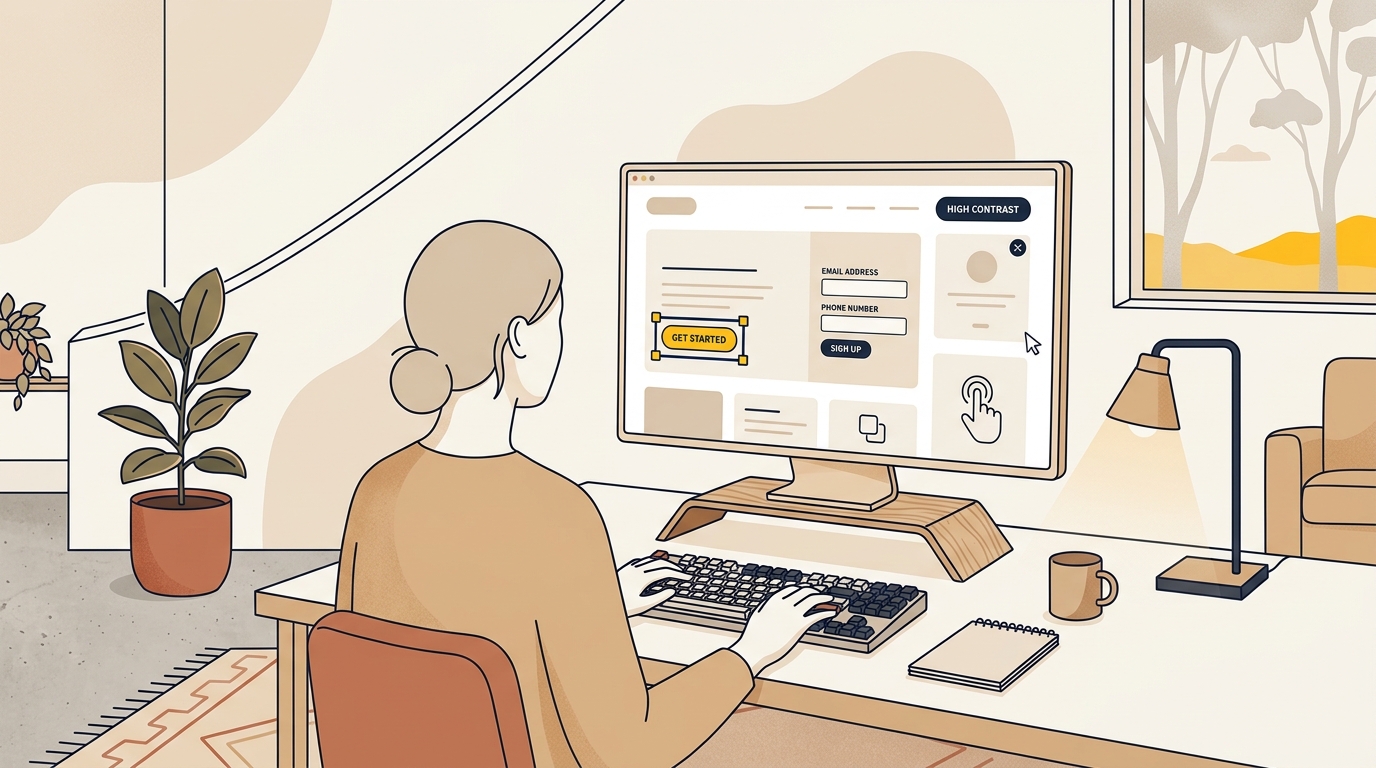
A form field needs a clear, persistent label. Placeholder text inside a field is not a reliable replacement because it can disappear once someone starts typing, and it may not be announced as a label by assistive technology. Put the label near the field and connect it correctly in the code.
Tell people what format you expect before they make a mistake. If a phone number needs a country code or a password has a minimum length, say so beside the field. When something goes wrong, explain the problem in text and identify the field that needs attention. Do not clear a form after an error unless there is a strong reason and the entered information can be recovered.
Checkout design deserves special attention because it combines several tasks: choosing a product, entering contact and payment details, reviewing information and confirming an order. Keep the steps clear, avoid asking for unnecessary details and make errors easy to correct. If billing and delivery information overlap, consider whether the flow can reuse information rather than forcing people to enter it twice.
Mobile controls and focus
Make interactive areas easy to tap and leave space between nearby controls. A tiny close icon beside a menu button is easy to miss, especially for someone with limited dexterity or using a phone one-handed. Enlarge the tappable area without necessarily enlarging the visible icon.
Keyboard focus needs to be both visible and unobstructed. Test the site by pressing Tab to move through interactive elements. Check that the order makes sense, that focus does not disappear, and that menus, popups and sticky elements do not hide the control in use. If a carousel or filter can be dragged, check whether the same task can be completed with buttons or another simple input.
How should I prioritise accessibility fixes?
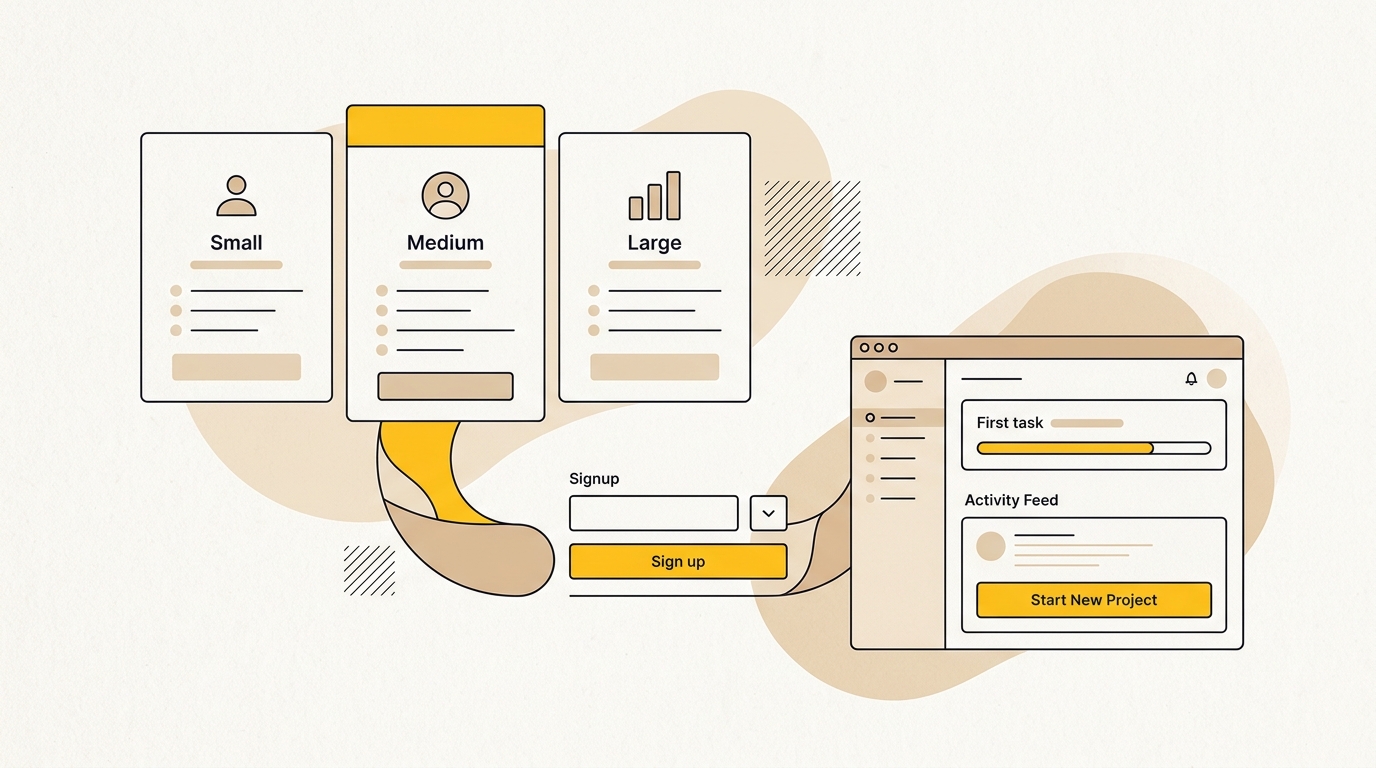
You do not have to redesign every page at once to start making progress. Begin with the journeys that matter most to customers and to your business, then fix patterns that repeat across the site. A shared button style or form component may appear on many pages, so correcting it once in the design system can resolve a widespread problem.
Step 1: Map important customer journeys
List the tasks a visitor comes to complete. For a clinic, that might be finding opening hours, understanding a service and requesting an appointment. For a retailer, it could be searching for a product, choosing an option, adding it to the cart and paying. For a professional service, it might be checking expertise and sending an enquiry.
Choose the pages and components that support those tasks. Include the homepage, service or product pages, contact forms, booking flows, checkout and account access if relevant. A homepage-only scan cannot tell you whether the full journey works.
Step 2: Fix shared design patterns
Review your typography, colour palette, links, buttons, form fields, focus states and spacing. Test colour contrast across combinations, not just the brand’s main colours. If a brand colour does not work for small text on white, use it for a larger surface or pair it with a more readable foreground colour.
Define accessible states in the design system: default, hover, focus, selected, disabled, success and error. A focus ring can be styled to suit the brand. It should remain visible against the surrounding colours and not be removed simply because it looks less polished in a static screenshot.
Step 3: Test forms and high-value flows
Complete each important journey using only a keyboard. Then try it with a screen reader or ask an accessibility specialist to test it. Check that fields have labels, instructions make sense, errors are announced and information is not lost unexpectedly. For online stores, test product options, the cart and the checkout, not just the product page.
A flow can pass a colour scan and still fail people because the next step is unclear or a button has an unhelpful name. Look at the full sequence, including confirmation messages and emails where they are part of completing the task.
Step 4: Check structure and content
Review heading order, page language, link names, image alternatives, captions and transcripts. A link labelled read more does not tell someone where it goes when read out of context. A more useful label might name the destination or action, such as view clinic appointment options.
Check that content remains usable when zoomed in. Text should not overlap, buttons should remain available and important information should not be cut off. Where content is updated dynamically, make sure users are told about important changes, such as an item being added to a cart or a form being submitted.
Step 5: Retest after changes and keep a record
Fixes can introduce new problems. A larger font may push a navigation item into a second line. A cookie banner may cover a form field on a small screen. Retest the pages and states affected by each change, and record what was checked, when, by whom and against which criteria.
Accessibility is ongoing because content, software, plugins and browser behaviour change. Add checks to your normal publishing and release process. Review critical journeys after significant redesigns, platform changes or new features, and train the people who add content to the site.
Can an accessibility scanner tell me whether my site complies?
No. Automated scanners are useful for finding some issues, but they cannot confirm that your website fully meets WCAG or the law. A scanner can flag certain contrast problems, missing labels or empty buttons. It cannot reliably decide whether alt text describes an image usefully, whether the reading order makes sense, or whether a person can complete a complex booking flow.
The WebAIM Million 2025 report assessed the homepages of one million websites using automated checks. It found detectable WCAG failures on 94.8% of the homepages assessed. That figure describes automated findings on homepages, not a full manual audit of every site or a legal verdict. Analysis of the WebAIM Million changes from 2024 to 2025 highlights how common basic contrast and structural errors remain across the web. It is a useful reminder that common issues are widespread and that a clean scan should not be mistaken for complete accessibility.
Use automated tools for repeatable checks and to catch regressions. Pair them with manual review: keyboard testing, zoom testing, inspection of content and, where appropriate, testing with assistive technologies by people who use them. A qualified accessibility professional can help decide the right level of testing for your site.
A sensible assessment usually answers four questions:
- Which pages and customer journeys were tested?
- Which WCAG version and level were used as a reference?
- Which barriers were found, and who is affected by them?
- What should be fixed first, and how will the fixes be verified?
If an audit gives you only a score, ask for more detail. The useful output is a prioritised list of issues, examples from your actual site, and clear guidance your designer or developer can act on.
Should I install an accessibility overlay widget?
An overlay is a third-party script that adds controls or adjustments to a website, often through a floating accessibility button. It may offer options such as text resizing or colour changes. It does not automatically repair every underlying barrier, and installing one should not be treated as proof of compliance or legal protection.
A visitor may still encounter missing labels, confusing keyboard order, unhelpful image text or an inaccessible checkout underneath the overlay. A separate widget can also add another interface a user has to understand. If you already use one, test the website with it enabled and disabled, and ask your accessibility specialist whether it helps or creates new problems.
The more reliable approach is to make the website itself work accessibly. Fix the source design and code, then use additional tools only where they address a specific, tested need. Be cautious of promises that a single script can make every site compliant automatically.
How much does website accessibility work cost?
There is no dependable price that applies to every small business website. Cost depends on how many page templates and customer journeys need review, how complex the site is, what platform it uses, how much manual testing is needed and whether the work is an audit, a set of repairs or a wider redesign.
A focused assessment of a small brochure site is a different project from testing an online store with account creation, product filters and a multi-step checkout. Guidance from legal advisers on what it really costs to make your website ADA accessible underscores how remediation expenses scale with code complexity and technical debt. The work may involve design changes, content editing, template development or changes to third-party tools. A site built on an old theme may take more effort to repair than a newer site with reusable components.
Ask providers to separate assessment from implementation. A useful quote should say what pages are included, which WCAG version and level are being used as a reference, what testing methods are included, what deliverables you will receive and whether retesting is part of the work. Ask what is excluded too, especially third-party booking, payment or chat tools.
If a redesign is already planned, include accessibility in the brief and design system from the beginning. Rebuilding the same inaccessible pattern page by page can cost more time than correcting the shared template once. Industry estimates of website accessibility compliance cost show that resolving issues during initial design is far less expensive than retrofitting live code. For context on planning a broader project, review our transparent pricing, see DesignFIT’s small business website redesign cost guide and website design service.
What should I do if I receive an accessibility complaint or demand letter?
Do not ignore it, and do not assume that adding a widget will resolve the issue. Preserve the letter and relevant records, note the date received, and contact a lawyer who handles the applicable accessibility or discrimination law. Do not make admissions or promise a legal outcome before getting advice.
In parallel, have the reported journey reviewed by a qualified accessibility professional. Keep a record of the issues, decisions and remediation work. A careful response and a measured plan are safer than rushing into a broad change that has not been tested. The right legal response depends on the letter, jurisdiction and facts, so this article cannot tell you how to respond to a specific claim.
A practical website accessibility checklist
Use this as a first pass, not as a certification:
- Can you reach and use every important control with a keyboard?
- Is keyboard focus clearly visible and not hidden behind sticky elements?
- Is text readable against its background in normal, hover, focus and error states?
- Do forms have persistent labels, useful instructions and clear error messages?
- Do meaningful images have suitable text alternatives, and are decorative images ignored by assistive technology?
- Are headings, page titles and navigation labels clear and consistent?
- Can people use menus, sliders and carousels without relying only on dragging or hovering?
- Are controls large and spaced well enough to tap comfortably on a phone?
- Can people zoom in without losing content or functionality?
- Do videos have captions when speech or meaningful sound is present?
- Can people complete the main task without being asked to re-enter information unnecessarily?
- Have you tested the full customer journey, not only the homepage?
If you cannot answer yes, note the page, the task and what happened. That makes the next conversation with a designer or developer much more useful than a vague request to make the site accessible.
What should a business owner do next?
Start with the customer journey that matters most: a booking, enquiry, purchase or sign-up. Test it on a phone and with a keyboard, identify the biggest points of friction, and make a prioritised plan. Then check the legal requirements that apply to your business and location with a qualified lawyer where needed.
Website accessibility compliance is best treated as an ongoing design and quality practice, not a one-time badge. Strong contrast, clear hierarchy, persistent labels, visible focus and usable mobile controls make it easier for more people to understand your offer and act. They also make the site more dependable for customers using different devices and abilities.
For a practical first step, request a DesignFIT website audit. If the review shows that key templates or user journeys need a broader rebuild, explore DesignFIT’s website design service.
Key takeaway
Treat accessibility as a design system and customer journey issue, then test and improve the parts of your website that matter most.
Questions people ask
Does my small business website need to comply with accessibility requirements?
Requirements depend on where your business operates, what services it provides and which laws apply. Do not assume that being small removes legal responsibilities; get local legal advice if you are unsure.
Will an accessibility widget make my website compliant?
No single widget can guarantee that a website meets WCAG or applicable law. It may add controls, but underlying issues such as form labels, keyboard order and inaccessible checkout steps still need to be assessed and fixed.
What is the difference between WCAG 2.1 AA and WCAG 2.2 AA?
WCAG 2.2 builds on WCAG 2.1 and adds criteria, including requirements related to focus visibility, dragging alternatives, target size and authentication. Which version is the right benchmark for your business depends on the relevant rules and your project requirements.
Can an automated accessibility scan prove that my website is accessible?
No. Automated scans can identify some detectable problems, but they cannot assess every issue of meaning, context or usability. Combine scans with manual keyboard testing, review of content and key user journeys, and specialist testing where appropriate.