WooCommerce to Shopify Migration: Protect Your SEO
A redirect map comes first. Use this step-by-step plan to move your WooCommerce store to Shopify while protecting search visibility and improving the shopping experience.
On this page
- Why the redirect map comes first
- What you need before starting
- Step 1: Crawl the WooCommerce site
- Step 2: Prioritise URLs by value
- Step 3: Build and review the 301 redirect map
- Step 4: Decide what to migrate, improve or retire
- Step 5: Design the Shopify store around buying decisions
- Step 6: Set up Shopify and move the data
- Step 7: Prepare launch and test the redirects
- Step 8: Monitor search, sales and customer experience
- Common migration mistakes to avoid
- How to know whether to migrate now
- Wrap-up: protect the routes, then improve the store
A WooCommerce to Shopify migration can protect your SEO, but only if you plan the URL changes before building the new store. Shopify uses different URL paths for products, collections, pages and blog posts, so make a complete redirect map first, then migrate content, design and launch against that plan. If you are weighing up a store rebuild, DesignFIT’s e-commerce design service can help connect the migration to the customer experience, not just the platform.
The aim is not to copy your old store pixel for pixel. It is to carry over the pages, search signals and useful customer information that matter, while making it easier for people to find products and complete a purchase. This guide walks through the work in the right order, from the first URL crawl to post-launch checks.
Why the redirect map comes first
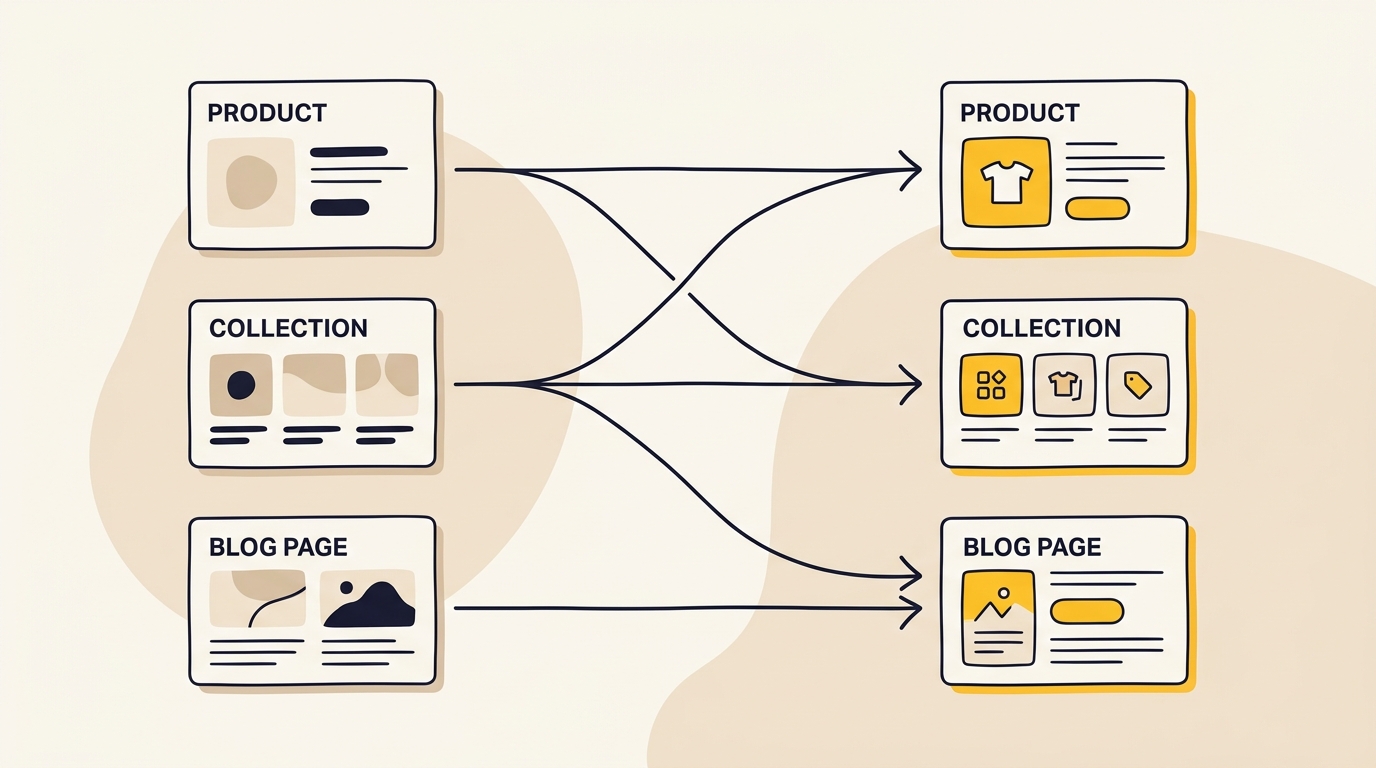
A redirect map is a list that pairs each important old URL with the most relevant new URL. It tells browsers and search engines where an old page has moved. On a platform migration, it is one of the first planning documents to create, not a task to leave until launch week.
WooCommerce lets a store owner use a range of permalink patterns. Shopify’s standard storefront uses set paths such as /products/handle, /collections/handle, /pages/handle and /blogs/blog-name/article-handle. That means a WooCommerce product at /shop/apparel/merino-crew-neck/ will not automatically live at the same address on Shopify. See Shopify URL structure explained for an overview of these path conventions.
When a search engine or customer visits an old URL, it needs a clear next destination. A relevant permanent redirect helps send them to the equivalent page. A redirect that sends every old URL to the homepage is not an equivalent replacement. It can frustrate customers, waste useful links and leave search engines uncertain about what happened to the original page.
Google’s site move guidance for URLs that change recommends mapping old URLs to their new counterparts and using permanent redirects. Treat this as a page-by-page migration, rather than a domain switch alone. Even if the domain stays the same, product and content paths may change.
The map also improves the design process. It tells the team which category pages deserve a clear place in the new navigation, which products need a successor page and which blog articles still bring useful visitors. That information can shape Shopify collections, product templates and content layouts before development starts.
What you need before starting
Set aside access, data and decisions before you begin building. You do not need to be a developer to prepare these items, but you do need someone who can make decisions about products, content and customer experience.
Gather:
- Access to the live WooCommerce site, hosting and domain provider.
- Access to Google Search Console and Google Analytics 4, if you use them.
- A product and category export, including variations, SKUs, prices, stock status and images.
- A list of current plugins and the job each one performs.
- Existing page titles, meta descriptions, image alt text and structured data settings, where available.
- Customer, order, coupon and review data, subject to your privacy, payment and record-keeping requirements.
- A list of payment providers, shipping rules, tax settings, email tools and other systems connected to the store.
- Your brand assets, including logos, fonts, colour specifications, product photography and usage guidelines.
- A person with authority to approve URL choices, design decisions and the launch date.
Decide what success means before you start. It might include keeping the most valuable landing pages accessible, reducing time spent maintaining plugins, improving mobile product discovery or making checkout easier. Pick measures you can actually observe, such as organic clicks, indexed pages, conversion rate, average order value, checkout completion and customer support requests.
Do not assume that a platform change will improve traffic or conversion by itself. Shopify can reduce some hosting and maintenance work, but the result still depends on your information architecture, content, theme, app choices and operations. DesignFIT’s website service focuses on the design and build decisions that affect how people find information and take action.
Step 1: Crawl the WooCommerce site
Start by making a full list of URLs on the current store. A website crawler can help find pages by following links, while Search Console, analytics and your product export can reveal important pages that a crawl misses. Combine these lists instead of treating any one source as complete.
Include more than product pages. Check for:
- Products, including variations with their own URLs.
- Product categories and subcategories.
- WordPress pages such as About, Contact, shipping and returns.
- Blog posts, author pages and blog category archives.
- Search, tag and filter pages that may be indexed.
- PDFs, buying guides and other downloadable resources.
- Image URLs that attract search visits or have links from other sites.
- Old campaign pages and discontinued product pages.
Export the URL, status code, page title, meta description, canonical URL and internal links if your crawler supports them. Add search clicks, impressions and landing-page sessions where available. If you can connect product revenue or orders to landing pages, include that too. The purpose is to understand what each URL does before deciding what replaces it.
Review the crawl for duplicates and technical variations. The same page may appear with and without a trailing slash, with tracking parameters, or through a filter combination. Do not create a redirect for every parameter variation without checking how the site currently handles it. You want a clean list of real page destinations, not an unmanageable collection of duplicate rows.
Make a separate record of pages you cannot confidently classify. For example, an old seasonal landing page may have no recent traffic but still have external links. Keep it in a review column rather than deleting it from the migration plan.
Step 2: Prioritise URLs by value
A migration can involve hundreds or thousands of addresses. Prioritise the pages with evidence of value so you know what needs the closest attention and what to test first.
Use several signals together:
- Organic search activity: Which pages earn clicks, impressions or meaningful search positions in Search Console?
- Commercial contribution: Which landing pages are associated with orders, revenue or qualified product enquiries?
- External links: Which pages have links from relevant publications, suppliers, partners or customers?
- Customer usefulness: Which pages answer common questions, explain delivery or help people choose a product?
- Operational importance: Which pages support launches, seasonal ranges, wholesale or customer service?
Do not rank pages using traffic alone. A low-traffic product page may be a high-margin item or an important route from a supplier link. A blog article may bring few last-click sales but introduce customers to your brand. Ask what role a page plays before labelling it disposable.
Create a priority field in your spreadsheet, such as High, Medium or Review. Mark the top set of pages for manual matching and launch testing. The exact number depends on store size. The principle is to give your most valuable URLs individual attention, not to rely on a quick bulk rule for everything.
Step 3: Build and review the 301 redirect map
Once you have the old URL inventory and priorities, assign the destination for every URL that should continue to exist. A 301 is a permanent redirect. It tells a browser and search engine that a page has moved permanently.
Use columns like these:
| Old URL | Old page type | Priority | New URL | Decision | Checked |
|---|---|---|---|---|---|
/shop/apparel/merino-crew-neck/ |
Product | High | /products/merino-crew-neck |
Redirect | Yes |
/product-category/knitwear/ |
Category | High | /collections/knitwear |
Redirect | Yes |
/2024/05/12/care-for-wool/ |
Article | Medium | /blogs/journal/care-for-wool |
Redirect | Yes |
/old-season-gift-set/ |
Discontinued product | Review | Confirm destination | Review | No |
For each old page, choose one of four outcomes:
- Redirect to its direct equivalent. Use this when the product, collection, article or page still exists.
- Redirect to a close successor. Use this when a product has been replaced by a newer model or range.
- Redirect to the most relevant broader page. Use this only when there is no direct replacement but a genuinely useful category or guide exists.
- Retire the URL. If the page is permanently gone and there is no useful replacement, return a genuine not-found response instead of pointing visitors to an unrelated destination.
The closer the new destination is to the old page’s intent, the better the journey for both shoppers and search engines. An old product page should normally lead to that product or a clear successor, not to the homepage. Google’s site move documentation explains the role of redirects in consolidating signals when URLs change. Google’s overview of Search Console’s Change of Address tool is also useful when you are checking which migration actions apply to your situation.
Check every destination for accuracy. Make sure the Shopify product exists, is available to the right market, has the correct handle and is not a draft or password-protected page. A spreadsheet full of plausible-looking paths is not a redirect map until someone tests that those paths resolve to the intended content.
Look for redirect chains as you review. If an old WooCommerce URL redirects to an intermediate URL that then redirects again, update the map so the old address points directly to the final Shopify URL. Also check for loops, where a path sends visitors back to itself or between two pages.
Shopify has a URL redirect area in its admin, and redirects can be imported in bulk. Prepare the file in the format accepted by your store, then validate a small sample before importing the complete map. If the store has complex rewrite rules, very large sets or unusual URL patterns, ask a developer to confirm the right implementation rather than assuming a spreadsheet can reproduce every WordPress rule.
Step 4: Decide what to migrate, improve or retire
A migration is a useful time to remove duplication and make the store easier to browse. It is also a risky time to rewrite every page at once. Make deliberate choices about what stays the same and what changes.
For products, confirm titles, descriptions, images, variants, identifiers, stock settings, shipping information and related products. Keep useful product details intact. If you change names or descriptions for clarity, record the change and check that the content still matches how customers search and make decisions.
For collections, design a hierarchy that reflects customer language and shopping behaviour. A collection name should help someone understand what is inside. Avoid building navigation around internal inventory terms if shoppers use different words. Check whether a product belongs in multiple collections, and make sure each collection page has a clear introduction where that helps customers choose.
For blog content, preserve useful articles and their context. A redesign can improve reading width, heading hierarchy, image treatment and product links, but do not remove paragraphs or sections simply to make a post shorter. If an article has earned search visits, keep its core purpose and answer intact. If it is outdated, update facts and links rather than carrying obsolete advice forward.
Record titles and meta descriptions before changing them. These are not a guarantee of rankings, but they help you maintain control over how pages are presented in search. Carry over image alt text where it describes the image meaningfully. Do not fill every alt field with keywords. Use plain descriptions that make the image understandable to people using assistive technology.
Review structured data settings as well. If your WordPress SEO plugin added product or article markup, check what the new theme and apps output. Avoid duplicating the same structured data from multiple sources. Ask a developer or SEO specialist to test representative product, collection and article pages after the move.
Step 5: Design the Shopify store around buying decisions
Do not treat the theme as a coat of paint over the old store. Plan the layout around the questions a shopper needs answered, the options they need to compare and the action you want them to take.
Start with the mobile experience. Review the home page, a collection page and a product page on a small screen. Keep the logo, navigation, search and cart easy to find. Use readable type sizes, clear spacing and buttons that are easy to tap. Put the most useful product information early: what the item is, what it costs, key options, availability, shipping expectations and how to add it to the cart.
Design a clear visual hierarchy on product pages. Product photography should show the item accurately and consistently. The product name, price and main buying action should be easy to scan. Place size, material, care, compatibility or delivery information close to the decision it supports, rather than hiding essential details deep in a long description.
Think about collection pages as decision tools. Filters should reflect meaningful differences between products, such as size, colour or use. Use clear labels and make it easy to reset filters. Avoid filters that lead to empty or confusing results. A shopper should be able to move from broad browsing to a suitable product without guessing how your catalogue is organised.
Make trust information visible at the moment it matters. Shipping and returns details, payment options, warranty information and customer reviews can help answer hesitation. Do not add badges or claims that you cannot substantiate. Design is not decoration here. The order and clarity of information can change whether someone understands the offer and feels ready to buy.
Treat speed as a design constraint. Large images, numerous apps, animations and heavy theme features can add weight. Choose a theme that supports the layouts you need, then avoid adding an app for a feature the theme or Shopify can already handle. Test actual pages on mobile after the design is populated with real product content. A polished empty theme preview is not a reliable performance test.
This is where a migration can become more than a platform swap. Explore DesignFIT’s e-commerce work for a design approach that connects storefront presentation with product discovery and sales. You can also review website project options before deciding how much support you need.
Step 6: Set up Shopify and move the data
Build the Shopify store in a controlled environment before changing the live domain. Configure the theme, navigation, collections and core store settings, then import a small sample of products first. A sample import exposes formatting problems before they affect the full catalogue.
Check common data issues closely:
- Product variants may have different options or naming conventions than the old store.
- Image order may not match the intended gallery sequence.
- Product descriptions can contain old shortcodes or formatting that does not work in the new theme.
- Categories may need to become Shopify collections, with rules or manual membership checked.
- Customer and order records need careful handling and validation.
- Reviews may require a separate export, import or supported app.
- Discounts, tax, shipping and payment settings may not transfer as expected.
Do not assume that customer passwords will migrate in a usable form. Password handling depends on platform and security constraints. Tell customers what to expect if they need to activate accounts or reset passwords after launch. Make sure the process is clear and does not ask customers to share sensitive information by email.
If you use apps, write down the purpose and owner for each one. Replace only what is needed. A product filter, subscription function, review system or fulfilment integration may be essential, while an old plugin may no longer have a job. Check app costs, support, data access and whether the function affects storefront speed before installing it.
Before launch, test the whole customer journey. Search for a product, use filters, select variants, add it to cart, apply a valid discount, enter delivery details and complete a test purchase using your chosen payment setup. Test order confirmation emails, stock reduction, fulfilment notifications and returns information as well. Include someone who did not build the store in the test. They are more likely to notice unclear labels and missing explanations.
Step 7: Prepare launch and test the redirects
Plan the launch as a coordinated change, not a last-minute domain edit. Choose a quieter trading period if you have flexibility, and make sure your team, fulfilment partner and customer support know what is changing. Do not launch when key people are unavailable to respond to an issue.
Before switching the domain, complete this checklist:
- Confirm the approved redirect map is imported or ready to activate.
- Check the destination of high-priority product, collection, page and article URLs.
- Confirm the Shopify store uses the correct domain and has a valid secure connection.
- Check that the store is not blocked from indexing by a launch or password setting.
- Confirm canonical tags and XML sitemap availability on representative pages.
- Test checkout, payment, shipping, tax, confirmation emails and fulfilment.
- Save a copy of the old crawl, redirect file and current site configuration.
- Make sure analytics and Search Console access are available to the launch team.
Once the domain points to Shopify, test old URLs from the redirect map. Include a mix of products, collections, blog articles and pages, with extra attention to the priority list. Confirm each URL reaches the correct page, not just a page that loads. Check for missing images, wrong variants, redirect loops and paths that accidentally land on the homepage.
Use a redirect checker or browser developer tools to inspect the response. The important point is that the old URL should return a permanent redirect to the final destination, and that the destination should load successfully. If you are not comfortable checking status codes, ask your developer or SEO partner to provide a test report.
Do not make a long list of unrelated changes on launch day. If you can, avoid changing product names, rewriting blog content, redesigning navigation and moving the domain all at once. When several things change together, it becomes harder to identify why traffic or sales moved. Keep a dated record of launch changes so the team can investigate issues quickly.
Step 8: Monitor search, sales and customer experience
The work continues after the new store is live. Search engines need to discover and process the new pages, and customers may reveal problems that did not show up in testing. Monitor the store closely and keep the people responsible for design, development and marketing aligned.
Submit the new sitemap in Google Search Console and inspect the coverage and indexing reports. If your domain has not changed, do not treat the Change of Address tool as a required step for a platform migration. Google describes that tool for a domain move, while URL changes on the same domain need their own redirect and sitemap checks. Review Google’s Search Console guidance to confirm whether your specific move qualifies.
Track these areas:
- 404 errors: Look for old URLs that are still receiving visits but have no useful destination.
- Redirect behaviour: Check whether priority URLs redirect directly to the intended live page.
- Organic search: Compare clicks, impressions and landing pages with the pre-migration period, allowing for normal variation.
- Sales and checkout: Watch conversion, payment errors, abandoned carts and order volume.
- Customer support: Note repeated questions about accounts, shipping, product options or missing information.
- Store usability: Test mobile navigation, search, collection filters and product pages using real devices.
Use the same date ranges and context when you compare performance. Promotions, stock availability, seasonality, paid campaigns and market conditions can all affect traffic and sales. A short-term fluctuation by itself does not prove that the migration succeeded or failed. Investigate page-level patterns and technical errors before making broad changes.
When a page has lost visibility, compare the old and new versions. Is the content still there? Does the new page answer the same question? Does the redirect go to a relevant destination? Is the new page indexable and linked from the store? Check the page itself before changing a title or redirect rule at random.
Keep the redirect map and rules active for the long term. Old links can remain in bookmarks, emails, partner sites and search indexes after launch. Google’s site move guidance recommends keeping redirects in place for at least a year. If there is no operational reason to remove them, retaining them longer avoids breaking old routes that customers or other websites still use.
Common migration mistakes to avoid
Redirecting every old URL to the homepage
This is quick to configure but rarely useful. A shopper looking for a specific item ends up at a general page, and the destination does not clearly replace the old content. Map each URL to the closest relevant destination, and retire pages that genuinely have no replacement.
Building the new store before understanding the old one
A fresh design can make it tempting to start with the home page and product templates. But without a crawl and performance review, you can miss valuable articles, category pages, downloads or product URLs. Inventory first, then decide what to carry over and how the new design should support it.
Changing too many things at once
Changing URL paths is unavoidable on many platform moves. Rewriting content, removing categories and renaming products at the same time adds more uncertainty. Preserve the useful content and structure where possible, then make improvements that have a clear reason and can be measured.
Treating imported data as finished content
A successful import only means the records arrived. It does not mean product images are ordered correctly, descriptions are readable, variants are clear or pages look good on mobile. Review representative products and collections manually before launch.
Forgetting blog and help content
Products may be the main revenue focus, but articles and guides can answer customer questions and bring in new visitors. Include them in the crawl, map and migration tests. Give them a readable layout with clear headings, useful internal links and product references that fit the article.
Installing an app for every old plugin
The point of changing platforms may be to reduce maintenance. Recreating every old plugin as a Shopify app can leave you with overlapping tools and unnecessary complexity. Decide what each function contributes, then test whether it is still needed and how it affects the storefront.
Launching without an owner for monitoring
If nobody is responsible for checking Search Console, customer support and checkout after launch, small issues can linger. Assign named owners for technical checks, merchandising, marketing and support. Agree how urgent problems will be reported and who can approve a redirect or content correction.
How to know whether to migrate now
A move may make sense if the current store is consuming too much time, key features depend on fragile plugin combinations, checkout changes are difficult to make or you need a simpler operating model. It may not be the right moment if a major sales period is close, product data is unreliable or you have not decided how existing integrations will work on Shopify.
Make a simple decision sheet with three columns: current problem, Shopify change required and evidence of success. For example, if the problem is confusing mobile product discovery, the solution is not merely choosing a Shopify theme. It may require clearer collection filters, improved product imagery and a better placement for product options. The evidence might be more successful product searches or fewer support questions about finding a size.
Estimate the full project, not just the platform setup. Include design, development, content cleanup, redirect mapping, data migration, app costs, payment fees, testing and staff time. Shopify pricing and payment terms can change and vary by country, payment method and plan, so confirm current details directly with Shopify before making a budget decision. A migration that looks inexpensive at the build stage may be costly if critical workflows are discovered late.
If the store has complex integrations, a large catalogue or substantial organic traffic, bring in experienced help early. Ask for a clear scope that names URL inventory, redirect mapping, data migration, design, testing, launch support and post-launch monitoring. See how DesignFIT approaches e-commerce projects, or review the website service if you need support beyond the store itself. If you also want to understand how your brand appears in AI search results, use the free AI search audit as a separate check, not as a replacement for migration QA.
Wrap-up: protect the routes, then improve the store
A safe WooCommerce to Shopify migration starts with a complete URL inventory and a carefully reviewed redirect map. Then you can migrate products and content, design the storefront around customer decisions, test the full buying journey and monitor the new site after launch.
Keep the work in that order. It gives your team a better chance of preserving useful search paths while making a store that is clearer to browse and easier to buy from. If you are planning a move, talk with DesignFIT about your e-commerce store and decide what needs to be protected, rebuilt and improved.
Key takeaway
Map every valuable old URL to its most relevant Shopify destination before you build or launch the new store.
Questions people ask
Will I lose SEO rankings if I migrate from WooCommerce to Shopify?
A migration can cause search visibility to fluctuate while search engines process the new URLs, but a platform switch does not automatically mean rankings will be lost. Crawl the old site, preserve useful content and metadata, map relevant URLs with permanent redirects, then monitor indexing and performance after launch.
Do I need Google Search Console’s Change of Address tool?
Usually not when the domain stays the same and only the platform or URL paths change. Check Google’s instructions for your exact situation, submit the new sitemap and make sure old URLs redirect to the right new pages.
Can Shopify use the same product URLs as WooCommerce?
Shopify’s standard storefront uses its own URL paths, including `/products/` for product pages and `/collections/` for collections. Plan redirects from the old URLs to the new Shopify addresses rather than relying on the old paths staying unchanged.
What should I do with a discontinued product?
If a product is temporarily unavailable, keep its page live and make stock status or a restock option clear. If it is permanently discontinued, redirect it only to a close successor or genuinely relevant category; otherwise, retire the page rather than sending shoppers to an unrelated destination.
How long should I keep WooCommerce redirects active?
Google’s site move guidance recommends keeping redirects for at least a year. Keeping them longer is sensible when old links may still appear in search results, customer bookmarks, emails or other websites.