WordPress Custom Theme Design: Edit Without Breaking It
A practical guide to building a WordPress editing system your marketing team can use with confidence.
On this page
- What a custom WordPress theme should make easier
- Before you start: gather the right inputs
- Step 1: Turn the brand into usable rules
- Step 2: Design a small, useful block and pattern library
- Step 3: Choose the right editing model for each section
- Step 4: Decide what should stay in sync across the site
- Step 5: Build accessibility and search structure into the system
- Step 6: Create useful publishing guidance
- Step 7: Test the editor with real people and real content
- Mistakes to avoid when designing a custom theme
- How to choose the right level of flexibility
- A practical project sequence
- Wrap-up: design the editor as carefully as the website
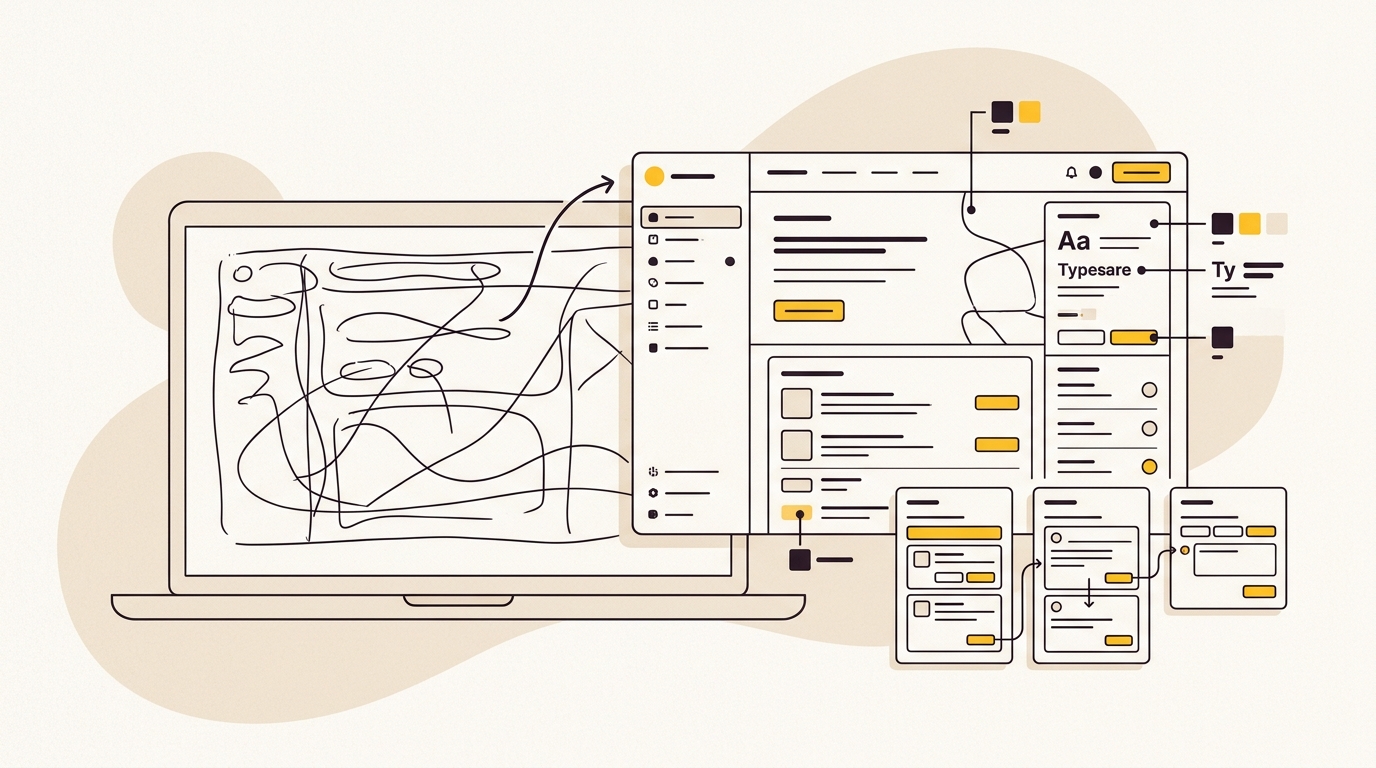
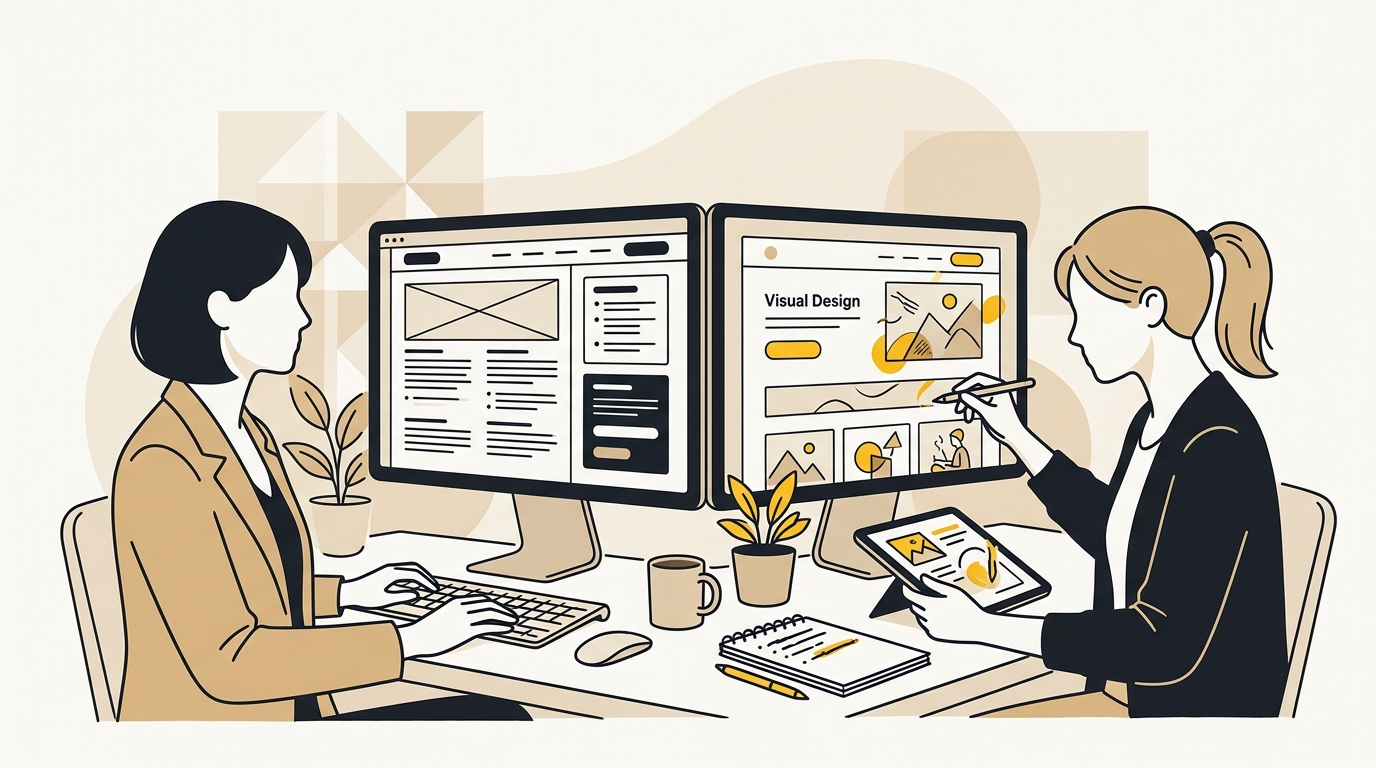
WordPress custom theme design can give your marketing team room to publish and improve pages without letting every edit change the brand or break the layout. The key is to design the editing experience as carefully as the website itself: set clear visual rules, build useful blocks and patterns, and decide which parts people can change. If your current site is difficult to update, DesignFIT’s website design service can help you plan a more manageable build.
This guide takes you through the decisions in order, from understanding your team’s workflow to testing the finished editor. The aim is not to lock marketing out of WordPress. It is to make the safe, useful choice the easy choice.
What a custom WordPress theme should make easier
A custom theme is not automatically a better editing experience. It can still leave staff with a blank page, dozens of styling controls or a list of developer-only fields. The useful question is not simply whether the theme is custom. It is whether the theme helps your team publish the right content in a consistent way.
A well-designed editing system should help people:
- Choose from a small set of layouts that suit the content.
- Enter copy and images in fields that make sense to them.
- Keep headings, colours, spacing and calls to action consistent.
- Build a new page without recreating design decisions from scratch.
- Make edits without accidentally removing a column, changing a shared component or disrupting mobile layout.
- See what the page will look like before it goes live.
That means treating the WordPress editor as a product interface. It has users, tasks, constraints and points where mistakes can happen. Your designers and developers need to understand how marketing works before they decide what the editor should allow.
Why sites become harder to edit over time
Teams often inherit one of two awkward setups. The first gives editors unrestricted visual controls. People can adjust spacing, colours and typography on every page. That freedom may help with unusual layouts, but it also makes it easy to create inconsistency and hard to maintain shared rules.
The second setup is so rigid that even a small content change needs a developer. A marketing manager may be able to change a headline but not add a section, update a call to action or create a campaign page. The site looks controlled, but the workflow becomes a queue of minor requests.
A custom theme can sit between those extremes. You define the design options and page structures your team needs, then decide which details should remain protected. This is a design decision with operational consequences: a clear, usable editor can support faster publishing, while controlled components help keep the experience coherent across pages.
Before you start: gather the right inputs
Do not begin by drawing a library of blocks. First find out what your team publishes, what the website needs to achieve and where editing currently goes wrong. If you skip this, you may build a polished system that does not fit real work.
1. List the page types and publishing tasks
Collect the pages your team creates or updates regularly. Typical examples include service pages, campaign landing pages, case studies, staff profiles, event pages and articles. Include high-value pages that change infrequently, such as the home page or pricing page, because their layout may need stricter review.
For each page type, write down the task. “Make a page” is too vague. Better examples are “publish a new service page using an approved structure” or “add a campaign landing page with a form and two proof points”. The task tells you what the editor needs to support.
Ask the people who do the work:
- Which changes do you make most often?
- Which pages do you copy when starting something new?
- What do you avoid changing because you are worried about breaking it?
- What do you need a developer to do today?
- What usually needs a second person to check before publishing?
These answers are more useful than assuming every editor wants total design freedom. They also help you separate genuine requirements from habits created by an old theme.
2. Review the content and performance evidence
Look at analytics and search data before deciding which page structures to prioritise. Identify pages that attract valuable visits, lead to enquiries or support a key campaign. Check which pages are frequently updated and where people leave or fail to take the next step.
Use the evidence to guide the hierarchy. If visitors need to understand a service before they enquire, the page should make the offer, proof and next action easy to find. If a page receives search traffic for several related needs, it may need clear sections that answer those needs rather than a short, generic sales pitch.
Do not treat a single metric as a design brief. A high-traffic page may have weak enquiries; a low-traffic page may serve an important sales conversation. Combine analytics with search demand, stakeholder knowledge and customer questions. Your theme should support the pages that matter, not just the pages that are easiest to build.
3. Define who can do what
List the roles involved in publishing. A writer may need to edit copy and links. A designer may need access to layout settings. An administrator may manage templates or install approved tools. Different roles should not all need the same controls.
Agree on ownership for:
- Creating and maintaining design tokens, such as approved colours and type sizes.
- Adding or changing patterns and reusable sections.
- Reviewing new page types and high-impact landing pages.
- Checking image quality, alt text and links before publication.
- Making technical changes to the theme.
This is not only about permissions. It sets expectations for how the site should evolve. If marketing can create pages but cannot invent a new brand style, document that distinction and make the approved route clear.
Step 1: Turn the brand into usable rules
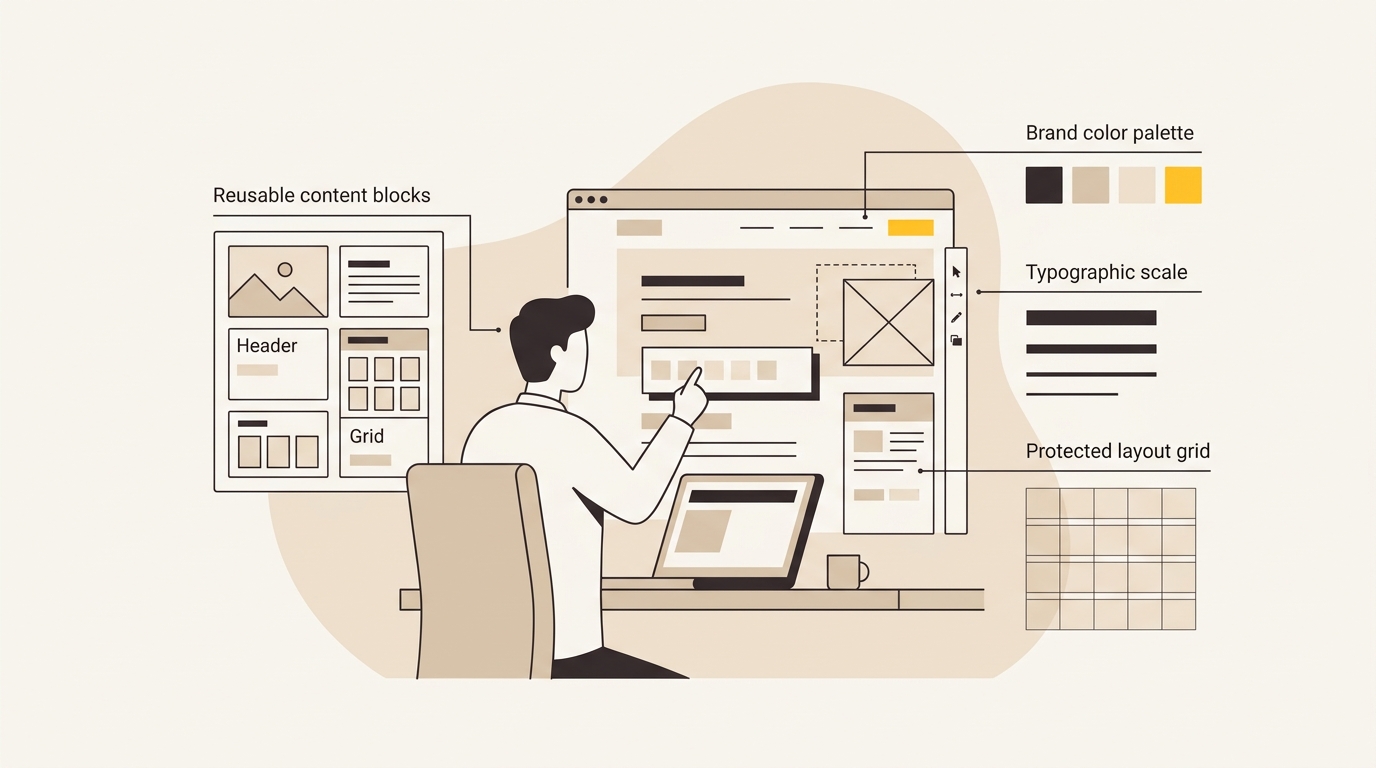
A brand guide is useful, but the WordPress editor needs practical choices. Decide which colours, type styles, widths and spacing options should be available to editors, then make those choices visible in the interface.
For colour, define roles as well as values. A palette might include a primary text colour, a brand accent, a light surface and a border colour. Names such as “Accent” or “Light surface” are easier to use than a row of hex codes. Keep colours that are not meant for general use out of the editor’s custom picker where your setup allows it.
For typography, define a short, deliberate scale. Editors need enough choices to establish hierarchy, not a separate font size for every paragraph. Set clear heading levels and explain what each is for. For example, the largest display style may be suitable for a hero statement, while the normal page heading should identify the topic of the page.
Spacing and content width matter just as much. If every editor can apply arbitrary margins, pages will gradually develop different rhythms. Create a small spacing scale and decide how wide text, images and full-bleed sections can be. Consistent widths make pages easier to scan and help prevent a long line of text from becoming uncomfortable to read.
In a block theme, WordPress documentation on global settings and styles explains how theme settings can define available design options and styles; technical resources such as the cheat sheet on the anatomy of theme.json show how developers structure these global properties. The specific controls you use should suit your WordPress version and theme architecture. Do not copy settings blindly from a code example without testing the editor your team will actually use.
Build tokens around decisions, not decoration
A design token is a named value for a repeated design choice, such as a brand colour or spacing size. Tokens make a design system easier to adjust because the value is defined centrally rather than recreated in many places.
Before adding a token, ask what decision it helps an editor make. “Use a pale background to distinguish supporting information” is a meaningful role. A list of six nearly identical greys is not helpful unless the page system genuinely needs those differences.
The same principle applies to buttons. Decide which actions deserve the strongest visual emphasis and how secondary links should appear. If every button can have a different colour, shape and size, the page loses hierarchy. If the editor offers two clear styles with useful labels, a marketer can choose based on the action instead of improvising a new design.
What to keep editable and what to constrain
A practical default is to let people change content while keeping the main visual system consistent. That usually means copy, button labels, links and approved images are editable. It does not necessarily mean that staff can change the page width, remove a key conversion section or use an unapproved font.
Avoid making every decision permanent. Some teams need to test campaign messaging or adapt a page for a new offer. Give them a safe way to do this. For example, allow approved button text and links to change while keeping button styling fixed. The point is to leave room for marketing work without requiring each editor to act as a designer.
Step 2: Design a small, useful block and pattern library
A block is an individual piece of page content, such as a heading, image or button. A pattern is a pre-arranged group of blocks that forms a useful section or layout. The best library is not the one with the most choices. It is the smallest set that helps your team create the pages it actually needs.
Start by sketching the common page structures. A service page may need a clear opening, a problem and solution, evidence, details of the offer, answers to objections and a next step. An article might need a title, introduction, readable text sections, related content and a relevant call to action. These structures should come from content and customer needs, not from a desire to showcase components.
A starting pattern set
Many marketing teams can begin by considering patterns such as:
| Pattern | What it helps communicate | Design decision to settle |
|---|---|---|
| Hero | What the page is about and what to do next | Heading width, image treatment and primary action |
| Text with image | A service, feature or process | Image position and mobile stacking order |
| Benefits list | Why the offer matters | Number of points and heading hierarchy |
| Testimonial or proof | Why visitors should trust the offer | Attribution, evidence and visual prominence |
| Process steps | How the service or product works | Numbering, labels and reading order |
| Comparison | Differences between options | Clear criteria and accessible table behaviour |
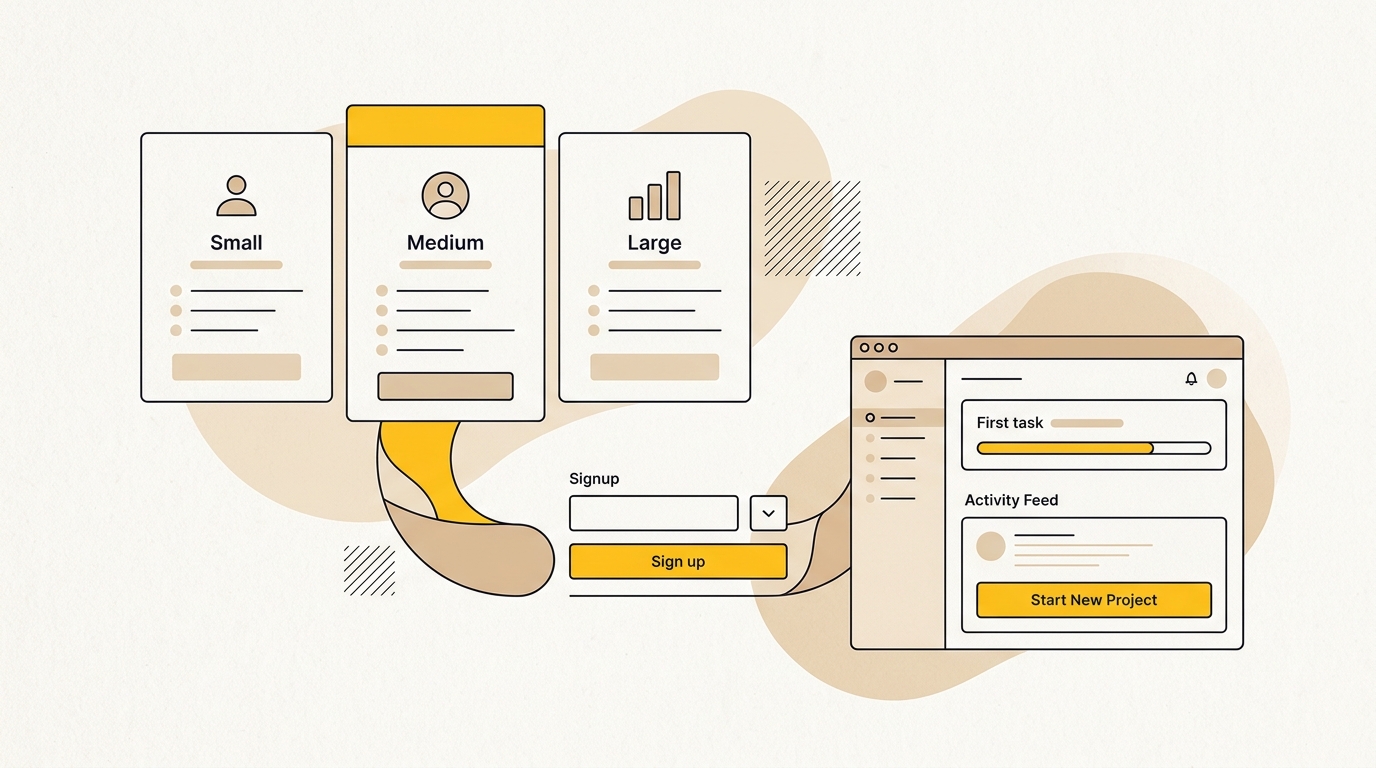
| Pricing or package cards | What is included and how to proceed | How options are differentiated without confusion |
| FAQ | Answers to recurring objections | Question wording and readable answer length |
| Lead form section | How to enquire or sign up | Field count, privacy reassurance and button label |
| Related content | Where a visitor can go next | Relevance and a clear link hierarchy |
Treat this as a conversation starter, not a fixed specification. A hotel, clinic, software company and professional services firm have different content and trust requirements. The design of a pattern should reflect what visitors need to understand before they act.
Make patterns understandable in the inserter
Pattern names should describe their purpose. “Hero with image and primary CTA” is clearer than “Layout 04”. Add short descriptions where the editor supports them. Organise patterns into sensible categories, such as “Page openings”, “Proof” and “Calls to action”.
Do not create several near-identical patterns that only differ in a small visual detail. Editors will not know which to choose, and your team will have more variations to maintain. If a section genuinely needs options, define the differences in plain language. For instance, “Proof: quote” and “Proof: client logos” communicate distinct uses.
The order of choices matters too. Put the patterns used most often near the top and make the recommended route obvious. Your editor should help people start well, not force them to remember a design manual every time they publish.
Design patterns for narrow screens first
A pattern is not complete because it looks good in the desktop editor. Check how content wraps when a heading is longer, a button has a longer label or an image has a different crop. Review the mobile order of columns and whether buttons remain easy to use.
Editors cannot always predict how a layout behaves with real content. Give patterns sensible limits and examples. If a pattern works best with a short headline, say so. If an image should be landscape, include the expected ratio in the field label or guidance. This reduces guesswork and helps prevent a page from looking broken when someone replaces a placeholder.
Step 3: Choose the right editing model for each section
Not every area of a website needs the same kind of editing. The job is to match the editing model to the content and the risk of a mistake.
A simple text section may work well with ordinary blocks. A carefully structured testimonial might be better as a pattern. A complex, repeatable content type may need a custom block or structured fields. A page layout with high brand or conversion importance may need some structural controls turned off.
Think in three levels:
- Free content editing: Writers can add, remove or reorder ordinary content blocks. Use this for flexible editorial pages where structure can vary.
- Guided assembly: Editors select approved patterns and fill in the content. Use this for marketing pages that need flexibility but should follow a reliable structure.
- Content-only editing: Editors change approved content inside a fixed layout. Use this for components or sections where the structure should remain stable.
WordPress has block locking features that can control whether blocks can be moved, removed or changed. Its theme documentation on patterns and block locking describes the available concepts. What makes sense depends on the blocks in use, the theme and how the editor is configured. Test with an actual editor account rather than assuming a setting will behave exactly as expected.
Use content-only editing with care
Content-only editing is useful when a team should update words or media without changing the underlying structure. But it is not a substitute for deciding what content belongs in a component. A locked section with confusing fields is still confusing.
Check that each editable field is labelled in a way your team understands. If a person sees “Text” or “Image” without context, they may not know the intended length, role or crop. A clearer prompt might say “Short supporting sentence” or “Landscape image for service page”. Provide guidance where it prevents a common mistake, but avoid lengthy instructions inside every field.
Also decide what happens when the content no longer fits. A long heading may wrap to several lines. A testimonial may be too long for its card. The right response may be a character guideline, a different pattern or a way to request a layout change. Do not rely on a lock to solve a content design problem.
When a custom block or fields make sense
Use a custom block or structured fields when the content has a consistent shape and needs a clear editing form. A staff profile might always need a name, role, portrait and short biography. A structured form can make those parts obvious and support consistency across the site.
But custom development adds responsibility. Your team needs a plan to maintain it, test it and keep it compatible with WordPress changes. Do not create a custom block simply because a standard block looks unfamiliar. Start with core blocks and patterns, then add custom functionality where a real workflow requires it.
When comparing a plugin-based field approach with native blocks, consider more than the first build. Ask what editors will see, who maintains the setup, how content can be reused and what happens if the plugin or theme changes. The best choice is the one that supports your publishing model without creating unnecessary dependencies.
Step 4: Decide what should stay in sync across the site
Some content is shared by design. A standard call-to-action section, contact detail or approved proof component may need the same structure wherever it appears. Other content should be unique to each page. Confusing these two categories can cause either inconsistent design or unwanted global edits.
A synced pattern is a reusable pattern that stays connected across its uses. A change to the shared pattern can affect its instances. WordPress also supports overrides for selected content, so a pattern can keep its structure while allowing particular text or media to vary by instance. The WordPress introduction to synced pattern overrides explains the feature and its intended use.
Use a shared pattern when the component is genuinely shared. For example, a consistent information band may need a stable layout but page-specific heading and link. Make the editable parts explicit. Keep visual rules, spacing and structural relationships consistent unless there is a strong reason to allow variation.
Do not sync a section simply because it looks similar. If one page needs different content, links or hierarchy, forcing it into a shared pattern can make future edits risky. Decide whether the design is a shared component or a repeated visual idea. The former benefits from central control; the latter may be better as separate instances or a pattern that editors insert and adapt.
Before relying on overrides, test the exact elements you expect to expose. WordPress features and supported block attributes can depend on the version and setup. The feature should be verified with your real pattern, not assumed from a demo. The WordPress documentation on adding content-only editing support is also useful when considering how custom blocks expose editable content.
Step 5: Build accessibility and search structure into the system
A good editing experience helps people make pages that are easier to use and understand. Accessibility and search are not separate add-ons to design. They depend in part on how content is structured, labelled and presented.
Set clear heading rules. A page should have a meaningful main heading, with sections organised beneath it in a logical order. Do not offer a visual heading style that editors can use as a substitute for choosing the correct heading level. Appearance and document structure are related, but they are not the same thing.
Give images sensible guidance. A decorative image may not need descriptive alternative text, while an informative image may need a short explanation of what it contributes. Avoid making alt text a place for keyword stuffing. It should help someone who cannot see the image understand relevant information.
Check link labels and button text. “Learn more” may be unclear when several such links appear together. A label that names the destination or next action is easier to understand. In forms, use clear field labels and error messages, and do not rely on colour alone to explain a problem.
For search, semantic headings and clear page content can help search engines interpret the information, but theme design by itself does not guarantee rankings. The editor should encourage useful, well-organised content and avoid making core information dependent on visual effects. Keep the main message and important links available as meaningful text, and test how the page works without decorative styling.
Keep performance decisions tied to the whole build
A block theme does not automatically make a site fast, and a page builder does not automatically make it slow. As technical investigations into whether to blame the theme for Core Web Vitals demonstrate, performance depends on the theme implementation, plugins, images, fonts, scripts, hosting and how the site is maintained. Avoid promises such as a guaranteed Lighthouse score based only on choosing one editing approach.
Still, design choices can make performance easier to manage. Reusing a small, deliberate set of patterns can reduce the temptation to add one-off effects and extra tools for every page. Use appropriately sized images, avoid loading fonts the site does not need and test pages with real content and common devices. Review the page after adding third-party forms, video embeds or tracking scripts, because those can affect the experience even if the theme is lean.
Measure important templates before and after changes. Test representative pages, not only the home page. A product or service page with a large image and form may behave differently from an article. If the goal is better conversion, check the user journey as well as technical metrics: can someone understand the offer, trust it and complete the next step?
Step 6: Create useful publishing guidance
The theme should carry the visual rules, but people still need to know how to use it. Write a short editor guide focused on real tasks, not a developer manual. Include screenshots or plain instructions if they help a new team member publish confidently.
Cover the decisions editors make most often:
- Which pattern to use for each common page type.
- How long a heading or supporting sentence should be.
- What image shape and quality to upload.
- When to use each button style.
- How to add a link and write useful link text.
- What needs review before publication.
- How to request a new pattern or report an editor problem.
Add guidance at the point of use wherever possible. A note beside an image field is more likely to help than a rule in a long PDF that people rarely open. Keep guidance short and specific. “Use a landscape image showing the service in context” gives an editor more direction than “choose a good photo”.
Decide how new requests are handled. If the marketing team regularly needs a new page type, the answer may be to add a pattern. If the request comes from one campaign, the answer may be to use an existing layout and change the content. A simple review process helps the library grow without collecting duplicate components that do the same job.
Step 7: Test the editor with real people and real content
Do not approve the theme based only on a design presentation or a developer’s test. Ask the people who will use it to complete realistic tasks. Give them the goal, not a list of clicks. For example: “Create a service page for this offer using the approved proof and enquiry sections.” Observe where they pause, choose the wrong pattern or ask what a field means.
Test the unusual cases as well as the perfect example. Use a long headline, a missing image, a short testimonial, a very long testimonial and a button label that differs from the sample. Check mobile layouts at narrow widths. Confirm that the page remains readable and that content does not overflow or become awkwardly compressed.
Use a pre-publication checklist such as:
- Does the page have one clear purpose and a relevant main heading?
- Is the intended visitor’s next step obvious?
- Are the correct patterns used for the content?
- Do images have the right crop and appropriate alternative text?
- Do links and buttons go to the intended destination?
- Is the page readable on a phone, with no clipped text or awkward columns?
- Have headings, forms and error states been checked?
- Has someone reviewed the page before publication if it is high risk?
Watch for repeated friction. If several editors cannot find the right pattern, change its name or category. If they keep inserting an unapproved colour, the choice may still be available somewhere. If one field is regularly filled incorrectly, improve the label or example. A custom theme should evolve from evidence about how the team uses it.
Mistakes to avoid when designing a custom theme
Giving everyone every styling control
More controls do not always mean more useful flexibility. Unlimited colours and spacing choices create more decisions and make consistency harder to protect. Offer a considered set of options, then make exceptions deliberate rather than accidental.
Locking the whole page when only one section needs protection
Over-locking can make routine publishing frustrating. Protect the structural elements that need to remain stable, but let editors change the content they own. If every small adjustment requires a developer, revisit the editing model rather than treating the team as the problem.
Building patterns before understanding content
A pattern library that is based on visual preference rather than page needs can look impressive and still be difficult to use. Start with real content, customer questions and common publishing tasks. Then design the smallest set of reusable sections that serves those needs.
Treating a synced pattern as a universal component
Shared patterns are useful when their shared behaviour is intentional. A global edit can affect multiple uses, so decide who owns the source and what should be allowed to vary. Test the effect of a change before applying it across important pages.
Making performance promises based on the theme alone
A clean editing system can support better technical choices, but it cannot compensate for every plugin, oversized image or third-party script. Measure the actual site and address the causes you find. Do not promise that a custom theme alone will deliver a particular search position or performance score.
Skipping handover and ongoing ownership
A theme is not finished when the code is deployed. Someone needs to maintain patterns, test updates, review new requirements and help editors learn the system. Agree on that ownership before launch. If you need ongoing design and website support, review DesignFIT’s pricing and choose a scope that suits the work ahead.
How to choose the right level of flexibility
Use the least complex editing model that comfortably supports the work your team needs to do.
| Your situation | A sensible starting point |
|---|---|
| Most pages are articles with varied structures | Flexible core blocks, clear typography and restrained design controls |
| Marketing publishes similar campaign pages often | Guided assembly from tested patterns, with editable copy and calls to action |
| A section must keep the same layout across many pages | A shared or locked component, with only intended content fields editable |
| A content type always has the same fields | Structured fields or a custom block, if the workflow justifies the maintenance |
| The team needs a developer for simple content changes | Improve the editor and permissions before adding more custom functionality |
| Pages regularly look inconsistent after edits | Review the available styling controls, pattern guidance and publishing checks |
The right answer can differ across one site. An article archive may need flexibility, while a lead-generation landing page may need a guided structure. Let the page’s purpose and editing risk determine the controls.
A practical project sequence
If you are planning a new theme or improving an existing one, use this sequence:
- Audit the current site. Identify important pages, recurring edits, awkward workflows and any inconsistent layouts.
- Agree on priorities. Decide which outcomes matter, such as clearer enquiries, easier publishing or more consistent service pages.
- Define the design system. Set the palette, type scale, content widths, spacing and button hierarchy.
- Map the content model. Decide which page types and components the team needs and what information each one contains.
- Choose editing controls. Specify where editors can create freely, assemble patterns or change content only.
- Build a small first library. Create patterns for the most common, high-value page tasks before adding edge cases.
- Test with editors. Use real tasks and content, then adjust names, guidance and controls based on observed friction.
- Measure and maintain. Review page quality and performance, gather requests and expand the system only when a real need appears.
This sequence keeps design decisions connected to the work the site needs to do. It also reduces the risk of building a large library before anyone knows whether the editing model makes sense.
Wrap-up: design the editor as carefully as the website
WordPress custom theme design works best when it gives marketing teams clear, safe choices rather than unlimited styling freedom or a developer bottleneck. Define the design rules, build patterns around real publishing tasks, and choose the right level of locking for each section. Then test the editor with the people who will use it.
The result should be more than a site that looks on brand at launch. It should be a system your team can keep using as campaigns, services and content change. If you are planning a new build or redesign, check our small business website redesign cost guide and talk to DesignFIT about a website project.
Key takeaway
A dependable WordPress editor gives your team flexible content choices inside design rules that protect the brand and the page’s purpose.
Questions people ask
How do you stop marketing staff from breaking a WordPress layout?
Give editors clear patterns and limit structural controls on sections that should not change. Test the setup with real users and content, because locks alone cannot fix confusing fields or unsuitable layouts.
What is the difference between synced and unsynced patterns?
A synced pattern stays connected across its uses, so changing the shared pattern can update its instances. An unsynced pattern is inserted as a separate copy that can be changed independently.
What are synced pattern overrides in WordPress?
Overrides let a synced pattern keep its shared structure while selected content, such as text or an image, can vary by instance. Check that the specific blocks and fields you need are supported in your WordPress setup.
Should I use ACF or native WordPress blocks for page editing?
Use native blocks and patterns when they support the editing workflow without extra complexity. Consider structured fields or custom blocks when content has a consistent shape and editors need a clearer form, while accounting for the added maintenance.
Does a custom block theme automatically improve SEO and Core Web Vitals?
No. A custom theme can make it easier to use consistent layouts and avoid unnecessary styling, but performance also depends on images, plugins, scripts and hosting. Search results depend on many factors beyond theme design.