WordPress Maintenance Plan: Protect Speed, Security and Design
A practical guide to the design, performance, security and content checks that keep your new WordPress site working for your business.
On this page
- What is a WordPress maintenance plan?
- Why can a new WordPress site need care so soon?
- What should a WordPress maintenance plan protect?
- Why are WordPress plugins a security concern?
- How much does a WordPress maintenance plan cost?
- What is the difference between hosting and a care plan?
- Can you maintain a WordPress site yourself?
- What should you ask before buying a plan?
- A self-audit you can do today
- A sensible maintenance rhythm
- The practical answer: buy protection for the experience, not just the dashboard
A wordpress maintenance plan should protect more than software updates. It should also preserve the design, speed, security and content quality that help your site earn trust and generate enquiries or sales. If your site has just launched, a carefully designed, performance-focused website needs ongoing checks to keep doing its job.
A website can look finished on launch day and still lose effectiveness over time. Images get heavier, plugins change, new content drifts away from the design system, and small mobile problems go unnoticed. A good plan catches those changes before they frustrate visitors or weaken your site.
This guide explains what a WordPress maintenance plan can cover, what it cannot, what to ask a provider and how to decide whether to manage the work yourself. Prices and product details change, so any figures below are identified as estimates or dated benchmarks, not universal quotes.
What is a WordPress maintenance plan?
A WordPress maintenance plan is an ongoing service or routine that keeps a WordPress website secure, functional, fast and up to date. It can include software updates, backups, security monitoring, performance checks, visual testing and small content or design changes.
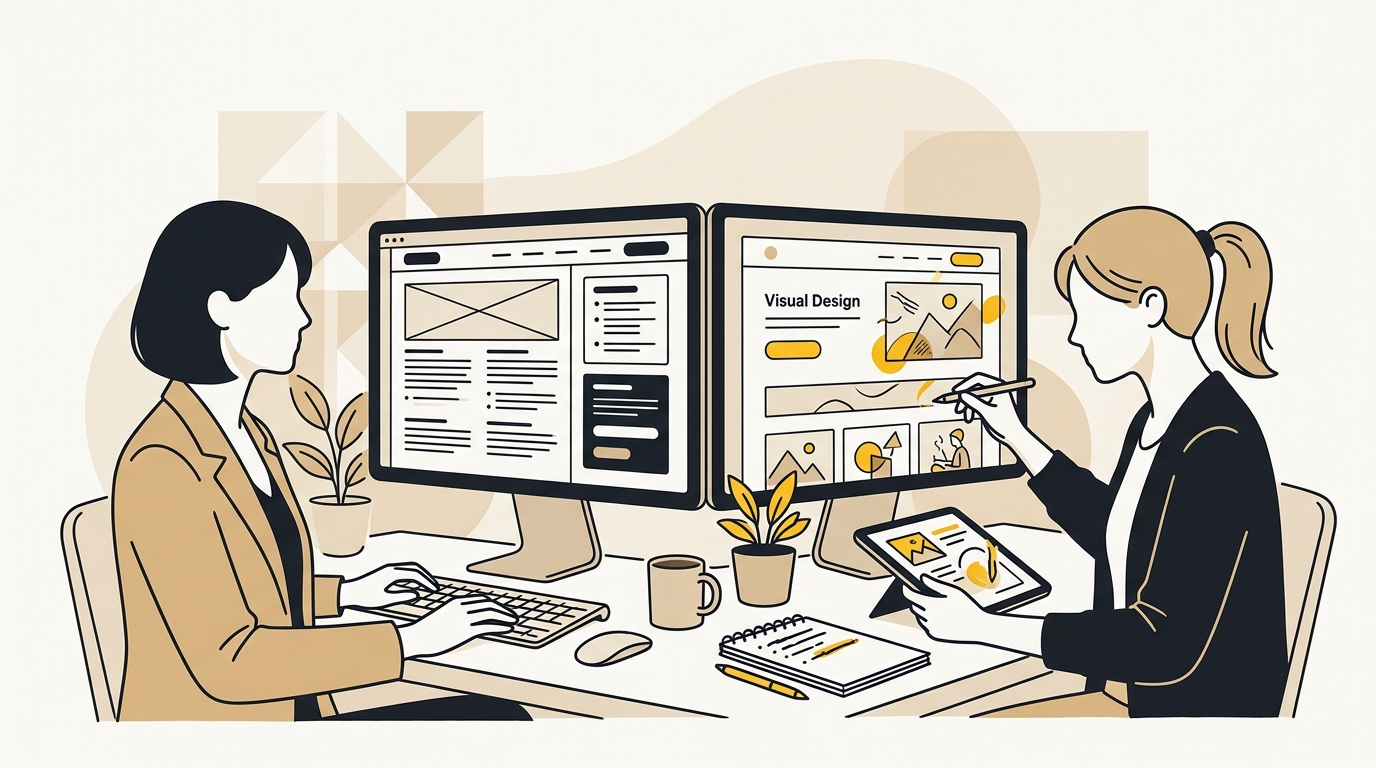
The important distinction is between maintaining the technology and maintaining the experience. A server can be online while a booking form is broken. A plugin can be updated successfully while a heading becomes too large on mobile. A maintenance plan should check both the technical health of the site and what a real visitor sees and can do.
Think of your website as a shop. Software updates are like maintaining the building and its equipment. Design checks are like making sure the signs are readable, the aisles are clear and the checkout still works. A plan that looks after only one side is incomplete for a business that relies on its website.
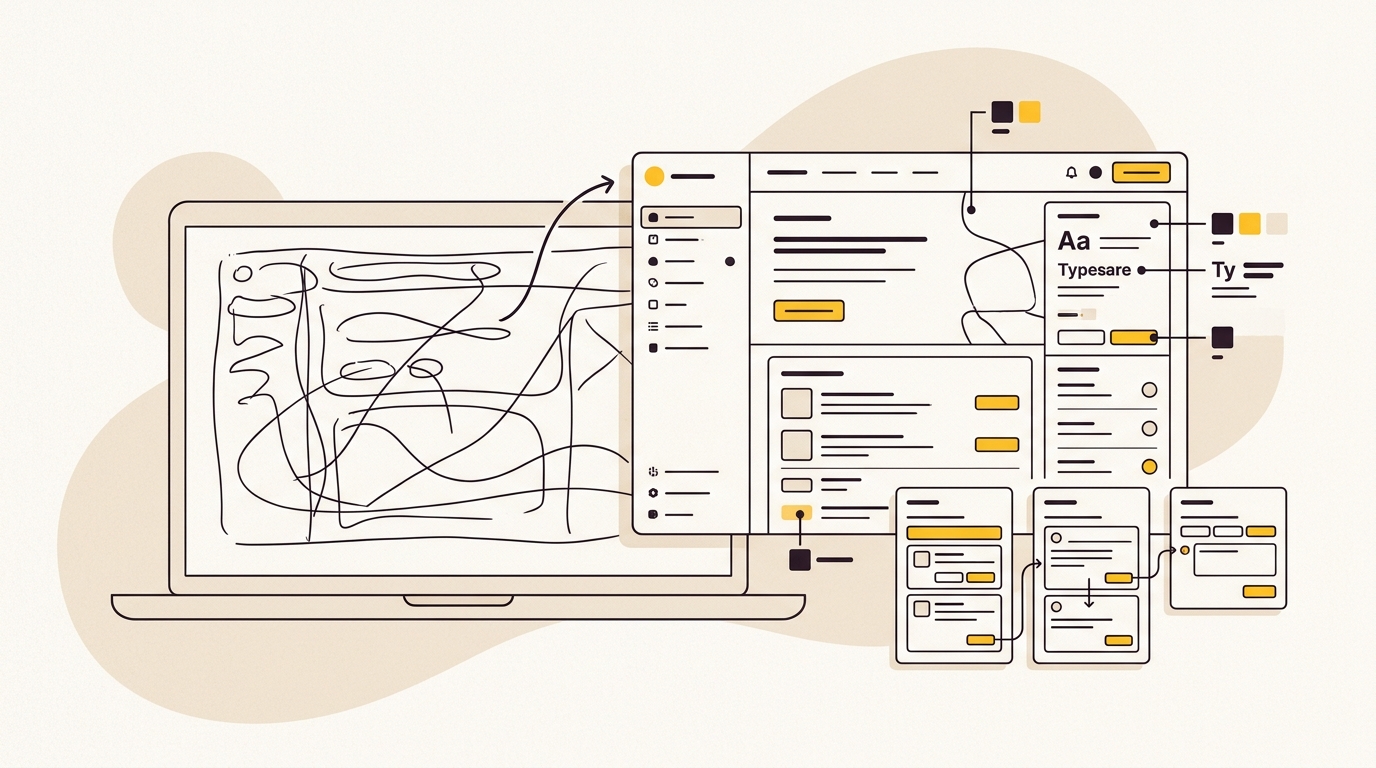
Maintenance does not mean a complete redesign every month. It means keeping the existing design system consistent and making small, controlled improvements when evidence shows they are needed. A design system is the set of reusable rules and components that make a site coherent, such as colours, typography, spacing, buttons, forms and page layouts.
Why can a new WordPress site need care so soon?
A new site is not a static file. It runs on WordPress core, a theme and plugins. Those parts are software, and their developers release changes over time. Your team also adds pages, images, tracking tools and other content. Each change can affect how the site looks or behaves.
The risk is often gradual. A new page may use a different heading style. A campaign adds a pop-up that covers the main call to action on a phone. A large image slows down the most visited page. None of these necessarily takes the whole site offline, so they can persist without anyone treating them as a technical emergency.
This gradual change is sometimes called design drift. Design drift is the slow loss of consistency between the site as it was designed and the site as it appears to visitors now. It can weaken brand recognition, make information harder to scan and reduce confidence at the moment someone is deciding whether to contact you.
For example, imagine a clinic whose booking button is easy to find on launch. A later theme update changes the header spacing. The button is pushed below the first screen on mobile, while a new cookie notice covers part of the page. The site still loads, but the path to booking is less clear. A useful care plan tests the journey, not just whether the homepage returns a response.
What should a WordPress maintenance plan protect?
A solid plan should cover four connected areas: the design system, safe software changes, speed and content integrity. The right depth depends on what the site does. A simple brochure site has different needs from an online store that takes orders every day.
1. Protect the design system and visitor journeys
The plan should identify the pages and elements that matter most to your business. These may include the homepage, service pages, product pages, contact form, booking flow or checkout. Those are the places to test after changes because a broken element there can block an enquiry or sale.
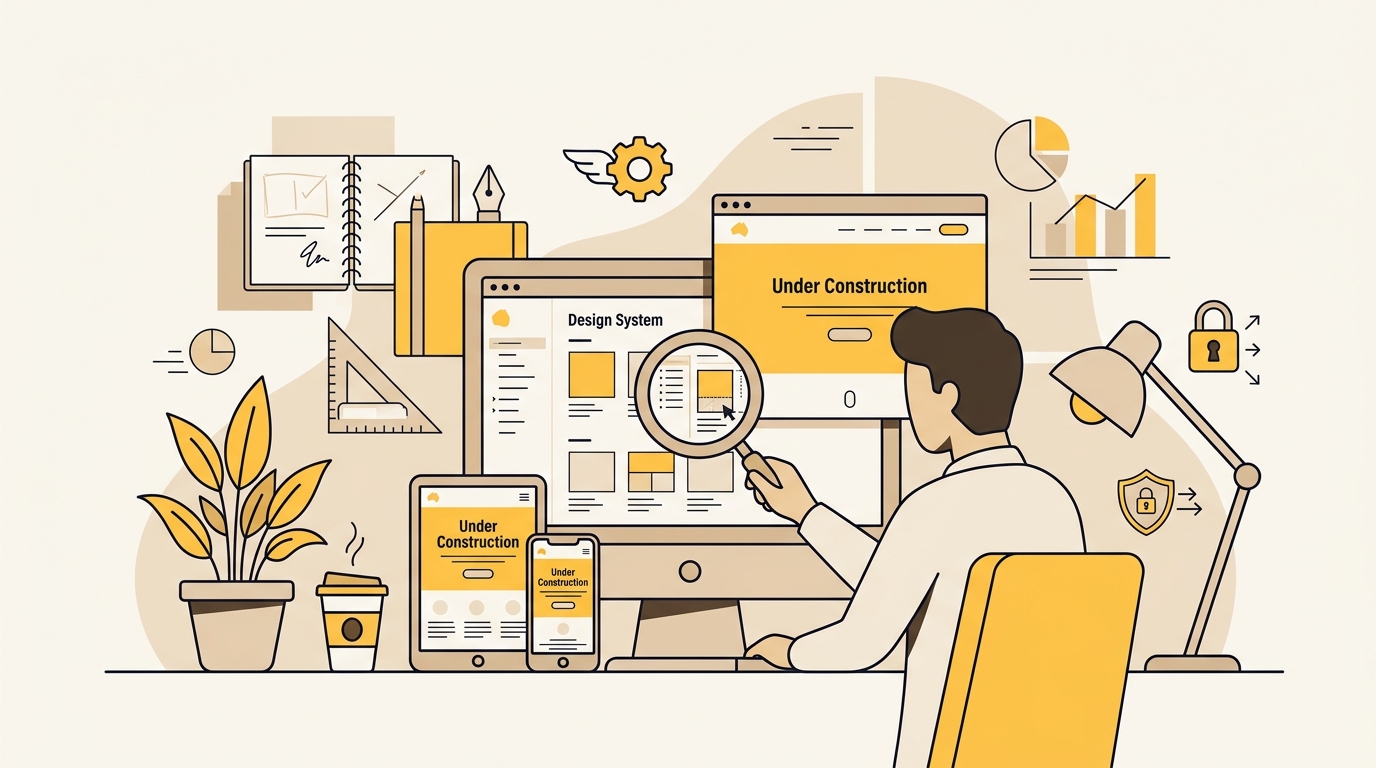
Visual regression testing is a way to compare screenshots of a page before and after a change. A visual regression test, or VRT, looks for visible differences such as a shifted button, missing image or altered spacing. Tools can capture pages at desktop and mobile sizes, then flag changes for a person to review. Diffy describes visual regression testing for WordPress updates.
A screenshot comparison is a warning system, not a final judgement. Some changes are intended, such as updating a promotion. Other differences may be harmless, like a rotating testimonial. A designer or developer still needs to decide whether the change is acceptable and check interactions that a static screenshot cannot reveal.
At minimum, ask whether updates are checked against the same key pages and screen sizes each time. Ask whether the provider checks the mobile menu, buttons, form states, image crops and cookie notices. If you have an online store, ask for a real test of adding a product to the cart and reaching checkout, not only a screenshot of the product page.
The design system should also be usable by the people who publish content. If staff know which heading style, image crop and call-to-action block to use, new pages are less likely to look like they belong to a different brand. A care plan can include a short publishing guide and occasional checks of new pages, rather than relying on everyone to remember design rules.
2. Apply updates safely
WordPress core is the main WordPress software. A theme controls much of a site's appearance and layout. Plugins add features, such as forms, ecommerce or search tools. All three can need updates for new features, compatibility or security fixes.
An update can change how another component behaves. A page builder and a theme may rely on different assumptions about spacing or scripts. A plugin update might introduce a conflict with a form or checkout extension. Sometimes the result is an obvious error. Sometimes the page loads but a feature no longer works as expected.
A staging site is a private copy of the live site used to test changes before visitors see them. Staging allows a provider to apply updates, inspect key pages and test important actions before deploying approved changes to the production site. Production means the live site your customers use.
The safer process is not simply “update everything on staging and push it live”. The copy needs to be reasonably current, and the test should reflect how the site is used. A form submission, booking request or checkout may depend on external services or configuration that a staging copy does not fully reproduce. The provider should explain what is tested and what still needs a live check.
Ask how urgent security updates are handled. Staging every update is sensible, but a serious vulnerability may require a quick response. A clear plan describes who assesses urgency, how the team tests the change and how it can be rolled back if something goes wrong.
3. Keep speed and visual stability in check
Speed affects whether a visitor can get to the information or action they came for. It is also a design concern: a carefully laid out page loses its impact if a large image takes too long to appear or content jumps as the page loads.
Core Web Vitals are Google's measures of real-world loading, responsiveness and visual stability. Largest Contentful Paint (LCP) measures how quickly the main content appears. Interaction to Next Paint (INP) measures how quickly the page responds to user interactions. Cumulative Layout Shift (CLS) measures unexpected movement of page elements while loading.
Google's current guidance describes good Core Web Vitals thresholds as LCP of 2.5 seconds or less, INP of 200 milliseconds or less, and CLS of 0.1 or less. These are field-based measures, which means they reflect real users over time rather than a single perfect test on one computer. See Google's Core Web Vitals business impact guidance for why performance matters to businesses.
A common cause of slow pages is unoptimised media. A staff member might upload a high-resolution photograph straight from a camera, even though the displayed image is small. Image optimisation means reducing an image's file size while keeping it visually clear at the size it appears on the page. Modern formats such as WebP or AVIF can help, but the right format and settings depend on the site's tools and image needs.
Other things to review include third-party scripts, plugins that load code on every page, caching and the quality of the hosting setup. Caching stores a ready-to-serve version of a page or resource so WordPress does not have to rebuild everything for each request. A care provider should measure before making changes: removing a useful tool just to reduce a score can harm the customer journey.
Performance testing also needs context. A score from a lab test is useful for diagnosing a page under controlled conditions, but it is not the same as the experience of every customer. Ask the provider to identify the page, device conditions and test method behind a performance report, and to explain what action they recommend.
4. Preserve content and search foundations
A website's content needs maintenance as well as its software. Services change, staff details become outdated, links break and old campaign pages remain indexed. A monthly or quarterly review can catch information that is inaccurate, duplicated or hard to understand.
A heading hierarchy is the order of headings that helps readers and assistive technology understand a page. Usually, a page has one main heading, followed by sections and subsections in a logical order. Headings should describe the content that follows, not just look visually large. A provider should flag pages where headings are being used for styling rather than structure.
Structured data is extra code that describes information on a page in a format search engines can interpret. For example, it may identify a business name, address or product. Structured data should match visible, accurate content. Adding markup does not guarantee a rich search result or an AI citation. It is one part of making information clear and machine-readable.
Keep an eye on broken links and changed page addresses, too. A 404 is the response a server gives when a requested page cannot be found. If you change a page URL, the old address may need a redirect to the new one. Otherwise, visitors and search engines can arrive at a dead end. If local business information is central to your site, our local business schema markup checklist explains the related structured-data basics.
For owners concerned about AI search, the fundamentals still matter: accurate service descriptions, clear page structure and consistent business details. Maintenance can include checking that important pages remain accessible and up to date. It cannot promise that a particular AI tool will cite your business. You can use DesignFIT's free AI search audit to review how your business appears in AI search separately from routine WordPress care.
Why are WordPress plugins a security concern?
Plugins extend WordPress, but each plugin is another piece of software to assess and maintain. The Patchstack 2026 report says it catalogued 11,334 new vulnerabilities in the WordPress ecosystem during 2025, with 91% in plugins and 9% in themes. These are figures from a security vendor's report, not a prediction that any one site will be compromised. Read the Patchstack State of WordPress Security in 2026 for its full methodology and findings.
The practical lesson is not to panic or uninstall every plugin. It is to know what each plugin does, who maintains it, whether it is still needed and whether there is a safe update path. A site with several well-supported tools can be healthier than a site with a small number of abandoned or poorly configured tools.
A vulnerability is a flaw that could be used to access or affect software in an unintended way. A security patch is an update intended to fix a known problem. A web application firewall, or WAF, filters web traffic according to security rules. A WAF may help block some malicious requests, but it does not replace timely updates, strong account access controls, backups or testing.
The Patchstack report also warns that some vulnerabilities may be publicly known before a developer releases a fix. That is why a plan should include monitoring and an escalation process, not just a monthly reminder to click “Update”. A provider can check whether a plugin has a fix or known mitigation, assess whether the plugin is exposed on your site and take an appropriate step. Ask them to describe how they handle a vulnerability when no patch is available.
Good security hygiene also includes using unique accounts for each person, removing access when someone leaves and limiting administrator permissions to people who need them. An administrator can change important site settings, so not every content editor needs that level of access. These small controls reduce avoidable risk without changing the visual design.
Backups matter because they give you a recovery point if an update, mistake or attack damages the site. A backup is a copy of the site's files and database. Off-site means the copy is stored separately from the live hosting environment, so one server problem is less likely to affect both. Ask how often backups are made, how long they are kept and when the last restore test happened. A backup that has never been tested is an assumption, not a recovery plan.
How much does a WordPress maintenance plan cost?
There is no standard price because plans include different levels of testing, support and responsibility. A low-cost automated service is not the same as a plan with staging, design checks and time for a developer to make changes. Compare what is actually included, not just the monthly figure.
The following are indicative published benchmarks, not a universal market survey. Codeable's pricing article lists a basic maintenance plan starting at US$240 per month, while Web Blend lists an Australian maintenance service starting at A$170 plus GST per month. Check Codeable's maintenance pricing information and Web Blend's Australian service details for their current inclusions. These examples may change, so confirm current prices directly with each provider.
| Type of care | Indicative monthly cost | What it may cover | Best suited to |
|---|---|---|---|
| DIY or automated tools | Free to about A$30, plus any tools or hosting | Manual checks, host backups, update notifications or automated updates | A simple site when an owner has time and can troubleshoot problems |
| Managed small-business care | About A$170 to A$390 plus GST in the supplied Australian benchmarks | Updates, backups, monitoring and some tested maintenance; the exact scope varies | A business site where downtime or broken forms would be costly |
| Higher-touch or ecommerce support | A$500 and above, with bespoke plans potentially higher | More frequent monitoring, checkout tests, performance work and agreed development time | Stores or lead-generation sites with critical customer journeys |
Treat the table as a starting point for questions, not a buying recommendation. A plan may be inexpensive because it automates routine tasks and excludes hands-on support. Another may cost more because it includes staging, visual checks, emergency response or a set amount of developer time. Confirm whether quoted prices include GST, the service level agreement, and any charges for work outside the plan.
A service level agreement, or SLA, is an agreement about how a provider responds to support requests. It should clarify response times and support hours, not imply that every issue will be fixed instantly. Ask what counts as included maintenance, what counts as a new feature and how out-of-scope work is approved and charged.
For a sense of the range in the Australian market, WP Creative's maintenance pricing page describes higher-touch services as well. A complex store or lead-generation site can require more support than a brochure site, but the price should follow a clear explanation of the work and risk involved.
What is the difference between hosting and a care plan?
Managed WordPress hosting is a hosting service configured to run WordPress. It may include infrastructure support, server-level backups, caching and some automatic updates. A WordPress care plan is broader when it also checks the website itself: its design, forms, content, plugins and customer journeys.
The boundaries vary by provider. One host may restore a server backup but not inspect whether a booking form works after restoration. A care provider may test the form but rely on the host for server availability. Ask both parties what they are responsible for, where backups are stored and who takes the lead if a problem affects both the host and the website.
Do not assume that a host's auto-updates make a separate plan unnecessary. They may be enough for a low-risk site if you understand the limits and can check the result. But automated updates are not the same as testing every important page, checking brand consistency or confirming that a customer can complete a transaction.
Can you maintain a WordPress site yourself?
Yes. A technically comfortable owner can handle a simple site if they have time, follow a repeatable process and know how to recover it. DIY maintenance is not automatically careless. The challenge is that it becomes a recurring responsibility, and a missed check can go unnoticed until a customer reports a problem.
A basic DIY routine should include checking for updates, making sure backups are current, testing the main forms and calls to action, reviewing key pages on a phone and checking that no important information has gone stale. Before an update, make sure you know how to restore a backup. After an update, check the pages and actions most important to the business.
Consider a professional plan when the site brings in meaningful revenue or leads, contains complex integrations, or has no internal owner with the time and confidence to test changes. A service business that relies on appointment requests may need its forms and booking path checked. An online shop may need checkout and order notifications tested. Your choice should match the cost of failure, not the size of your WordPress dashboard.
If you're comparing providers, DesignFIT's website project pricing information can help you understand how to frame the investment in your wider website work. A care plan and a redesign solve different problems: maintenance protects and improves an existing site, while a redesign changes its structure, content or visual direction.
What should you ask before buying a plan?
Use these questions to compare the actual service rather than a list of reassuring labels:
- Are updates tested on staging or applied directly to the live site? Ask what happens if staging is unavailable or an urgent security fix cannot wait.
- Which pages and actions are checked after updates? Look for specific checks of forms, menus, booking flows, cart and checkout where relevant.
- Are visual checks included? Ask whether someone reviews mobile and desktop layouts, and who decides whether a difference is a problem.
- Where are backups stored, and are restores tested? Get the frequency, retention period and recovery process in writing.
- What security monitoring is included? Ask how the provider handles a vulnerable plugin without a released fix.
- How are speed and content reviewed? Find out what is measured, how often, and what happens when performance or content quality slips.
- How much change work is included? Confirm whether small copy edits, new sections or design adjustments are covered, and how additional work is priced.
- Who owns the accounts and data? You should know who controls hosting, domain, analytics and WordPress administrator access, and how access is handed over if you change providers.
A good provider should answer these in plain language. If a plan promises “unlimited support”, ask what that means in practice. If it promises a fast site or top rankings, ask how success is measured and what is outside the provider's control.
A self-audit you can do today
You do not need to be a developer to notice common problems. This quick review is not a security audit, but it can help you decide where to investigate further.
- Test the site on your phone. Open the homepage and one key service or product page. Check that the menu opens, text is readable, buttons are easy to tap and nothing covers the main action.
- Complete a real form test. Submit a test enquiry or booking. Check that the confirmation appears and the message reaches the right inbox. Remove or clearly label any test entry afterward.
- Review the heaviest-looking pages. Look for oversized photos, video backgrounds or pop-ups that delay access to the main content. Do not delete tools without checking whether the business depends on them.
- Ask where backups live. Confirm that a recent copy is available outside the live hosting environment and find out when it was last restored as a test.
- Check who has administrator access. Remove old accounts and give each current team member only the permissions they need.
- Review recently added pages. Compare their headings, image treatment, spacing and calls to action with the rest of the site. Look for old offers, expired event details and links that lead nowhere.
- Look at a performance report. Google PageSpeed Insights can help identify areas to investigate, but one score is not a complete diagnosis. Compare similar tests over time and ask a specialist to explain what changes would improve the real visitor experience.
If you discover something broken, record the page, device and steps that reproduce it. A short screen recording or screenshot can help a developer understand the issue. Avoid making multiple live changes at once if you are unsure how to reverse them.
A sensible maintenance rhythm
Maintenance does not need to mean constant tinkering. A practical rhythm separates urgent monitoring from planned review. Monitoring can alert someone to downtime or a known security issue. A scheduled review can cover updates, backups, visual checks, speed, content and the actions that matter to your business.
The right frequency depends on how often the site changes and how costly interruption would be. A brochure site with stable content may need a lighter review than a store running frequent campaigns. A provider should recommend a cadence based on your setup and explain which checks run automatically and which require a person.
A monthly report is useful when it helps you decide what to do. It should say what was updated, what was tested, whether anything changed visually, what issues remain and what work is proposed. A dashboard full of green icons is less helpful if you cannot tell whether the contact form was tested or whether a backup can be restored.
Build a simple record of the site, too. Keep a list of active plugins and what each one does, key forms and integrations, important page addresses, and the people who own vendor accounts. That context reduces confusion when a problem occurs or a provider changes.
The practical answer: buy protection for the experience, not just the dashboard
A WordPress maintenance plan is worthwhile when it protects the parts of the site your business depends on. Look for safe updates, independent backups, security monitoring, speed checks and tests of the pages and journeys that generate enquiries or sales. Include visual and content checks so routine changes do not quietly weaken the brand or make the site harder to use.
The right plan may be DIY, a focused small-business service or a higher-touch arrangement for a store or critical lead-generation site. Choose according to the consequences of a failure and the time your team can realistically give to testing and recovery. Get the inclusions, response expectations and extra-work rates in writing.
Pretty is not enough. Design has to perform, and performance needs ongoing attention after launch. If you want an expert review of the site behind your next growth push, talk to DesignFIT about your website and the support it needs.
Key takeaway
Choose a WordPress maintenance plan that checks the real visitor experience, not only whether the software says it is up to date.
Questions people ask
What is usually included in a WordPress maintenance plan?
Most plans include some combination of WordPress, theme and plugin updates, backups, security monitoring and uptime checks. Stronger plans also test important pages and forms, review visual changes, check performance and define how small content or design requests are handled.
How much should I pay for WordPress maintenance per month?
It depends on the site and what the provider actually does. Published examples in the supplied benchmarks range from about A$170 plus GST per month for an Australian service to US$240 per month for a Codeable plan, but confirm current pricing and inclusions with each provider.
Can I maintain a WordPress site myself?
Yes, especially if it is simple and you can consistently manage backups, updates and post-update checks. Consider professional help when the site handles important bookings, leads or sales, or when you do not have time and confidence to test and restore it.
Do I need a maintenance plan if my host offers automatic updates?
Not necessarily, but automatic updates alone may not check whether your layouts, forms or checkout still work. Confirm what the host tests, where it stores backups and who is responsible for checking the customer experience.
Why did my WordPress site break after a plugin update?
A plugin can conflict with the theme, another plugin or a custom feature, even when the update itself installs successfully. Testing changes on a staging copy and checking key pages and actions before release can help catch problems before visitors encounter them.