Canva Email Design: Can It Replace an Email Designer?
Canva can help a small team create a simple newsletter, but a design tool alone cannot guarantee a reliable, accessible email in every inbox.
On this page
- What are we comparing, and why?
- Canva email design versus an email designer at a glance
- 1. Layout and hierarchy: does the email guide a reader?
- 2. Live text versus a single image
- 3. Inbox rendering: why the preview is not the final test
- 4. Mobile design: make the action easy to find and tap
- 5. Accessibility: visible design is only part of the experience
- 6. Dark mode and images that may not display
- 7. Code, clipping and deliverability: what design can and cannot solve
- 8. Personalisation and campaign complexity
- 9. Team workflow, brand consistency and the real cost
- What are the pros and cons of Canva email design?
- Which should you choose?
- A checklist before you send a Canva email
- The verdict: Canva is a useful tool, not a complete email strategy
Canva email design can work well for simple newsletters and announcements, especially when a small team needs to make routine updates without starting from scratch. It is not a full replacement for an email designer when your campaigns depend on reliable inbox rendering, accessible content, complex layouts or sales-driving automation. If you are weighing up what to build in-house and what to commission, DesignFIT’s email design service can help you make that call around the audience, email platform and outcomes you need.
The important distinction is that an email is not a digital poster. It is a document interpreted by different email apps, accessibility tools and screen sizes. The design choices that matter most are often structural: keeping copy as live text, giving the message a clear reading order, making the call to action easy to tap, and checking the result in the inboxes your subscribers use.
This comparison looks at Canva’s dedicated email workflow against a designer-led email build. It also explains how to test an actual send. It does not claim that every Canva export behaves the same in every email client, or that a preview alone proves an email is ready to send.
What are we comparing, and why?
Canva is a visual design platform. Its dedicated email design tools are intended to help people create email layouts and move them into an email workflow. Canva’s email design help page and test and export guidance describe the product’s email-specific workflow. What is available can depend on the account, region and integrations, so check Canva’s current instructions before choosing a process.
A professional email designer works on more than the artwork. They consider the structure of the message, its relationship to the email service provider, how the content behaves in different inboxes, and how to make the next action clear. Depending on the project, that can mean building reusable modules, editing HTML, or working within the client’s existing email platform.
The comparison is not Canva versus good design. Canva can produce polished visuals, and a designer can use Canva as part of a workflow. The useful question is whether Canva on its own covers the requirements of your particular emails.
| What we compare | Why it matters to a small business |
|---|---|
| Layout and hierarchy | Helps readers understand the message and find the next step |
| Live text and images | Affects readability, editing, image blocking and assistive technology |
| Inbox and mobile behaviour | Prevents a design that looks right in the editor but fails in a recipient’s app |
| Accessibility | Helps more people read, navigate and act on the email |
| Brand consistency and reuse | Reduces visual drift and repeated production work |
| Personalisation and integrations | Determines whether a design can support a more complex campaign |
| Review and measurement | Helps the team spot problems and learn what performs |
Canva email design versus an email designer at a glance
| Need | Canva email design | Designer-led email design |
|---|---|---|
| A straightforward newsletter | Often a practical place to start, if the available layout and export fit your email platform | Can improve hierarchy and create a repeatable template, but may be more than a one-off announcement needs |
| Routine edits by a small team | Visual editing can make simple changes easier for non-designers | A well-built system can also support team editing, with initial design and setup work |
| Reliable rendering across inboxes | Requires testing the actual exported email; an editor preview is not proof of universal behaviour | Can include client-aware structure and testing, but still needs review after changes and in the chosen sending platform |
| Accessibility | The design still needs deliberate text, contrast, alt text and reading order decisions | Can plan accessibility into the structure and check the final email, though no designer can promise every use case without testing |
| Dynamic or segmented campaigns | Suitability depends on the features of the export and the email platform | Can design around the platform’s templates, dynamic content and campaign requirements |
| Ongoing campaign system | Useful for visual asset creation; templates and team process still need governance | Can establish reusable components, documentation and a workflow for the in-house team |
1. Layout and hierarchy: does the email guide a reader?
A newsletter has limited time to earn attention. Readers need to understand what it is about, why it matters to them and what to do next. A large banner, several competing headlines and a cluster of equally prominent buttons can make a design feel busy, even if every element is attractive.
Canva’s strength is that it makes visual composition approachable. A small team can assemble a header, image, text blocks and button without asking a developer to build every campaign. That can be useful for a monthly update, a simple event invitation or a short announcement. A template also gives the team a starting point rather than a blank page.
The risk is treating the template as the strategy. Before opening a design tool, decide the email’s one main job. Is it to announce a new service, get a reader to register, share a useful update or bring a customer back to a product? Then make the headline, supporting content and call to action serve that job.
A designer will usually help shape this hierarchy before polishing the visuals. For a sales email, for example, the message might move from a specific customer problem to the offer, a short explanation of what is included, one proof point and a clear button. A newsletter with several stories might instead use a consistent heading and summary pattern so readers can scan and choose.
The practical difference is not that a designer always makes a more decorative email. It is that each block has a reason to be there. Removing a decorative panel or a secondary button can do more for clarity than adding another visual flourish.
Choose Canva when: the message is simple, the team already has a clear content structure, and the available template supports it.
Bring in a designer when: important offers compete for attention, the email is part of a customer journey, or the team needs a repeatable layout that makes the primary action obvious.
2. Live text versus a single image
Live text is text that remains text in the email, rather than being baked into a picture. That distinction affects whether people can select, resize, translate or have the content read aloud with assistive technology. It also affects whether a headline stays sharp when a recipient zooms in or views the email on a high-density phone screen.
A common Canva shortcut is to lay out a whole newsletter as one image and insert that image into an email. It can look exactly as intended in the design file. But the recipient sees a picture, not a properly structured message. Links inside the artwork do not become clickable unless separate links are added over them. If images do not load, the subscriber may see a blank area. Small text can become hard to read on a phone, and a screen reader cannot use the image to understand the full message unless appropriate text alternatives are provided.
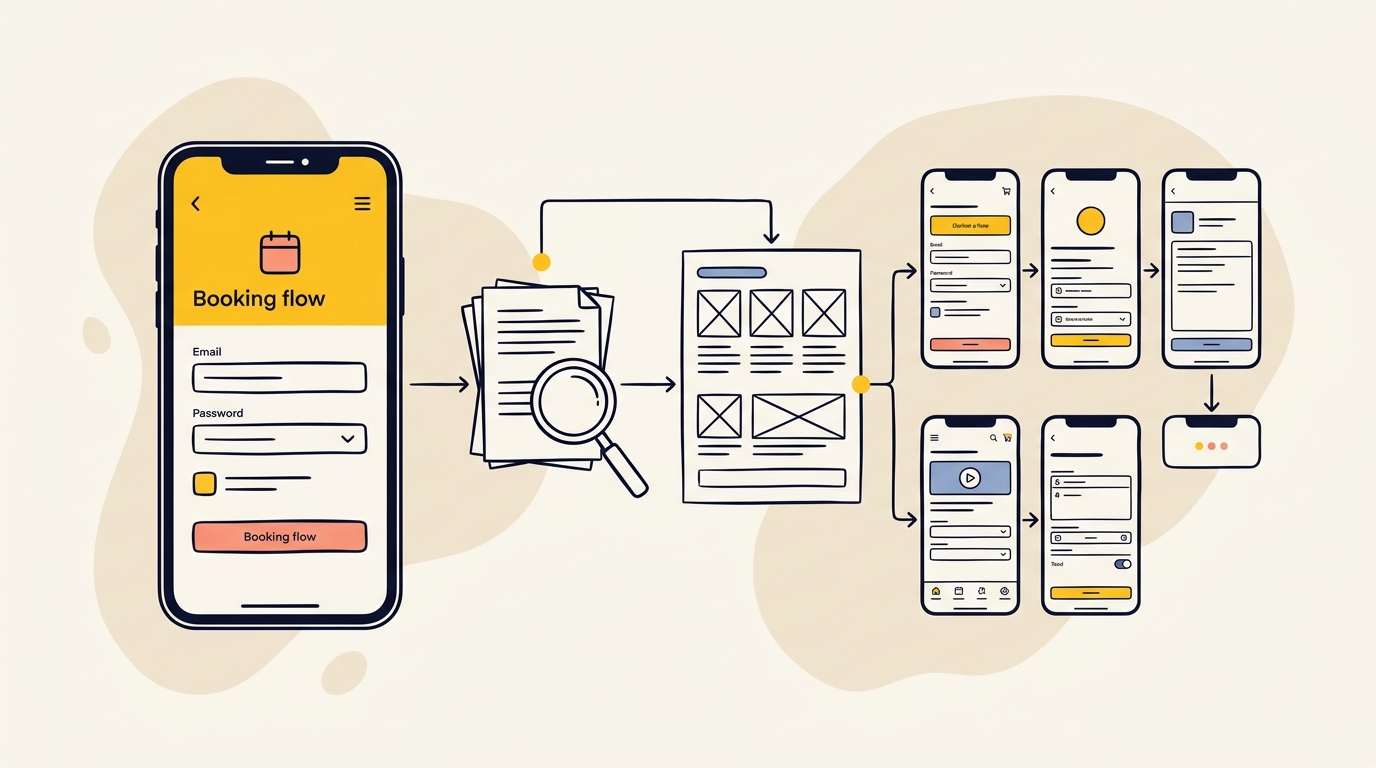
Canva’s dedicated email workflow is a different approach from exporting a standard flyer as an image. Use the email-specific process and check what the exported content becomes in the target platform. Canva’s guide to designing and using Canva email is a better starting point than assuming any Canva canvas can be pasted into a campaign and remain editable.
A designer can help decide where images add value and where copy should remain live. A product photograph can make a story more engaging. The offer, date, key details and call to action should not depend on a picture loading. Useful alt text can describe an informative image, while decorative images should not force a screen reader to announce meaningless content.
Before sending, ask:
- Can I select the headline and body copy as text in a test email?
- Does every important link work as an actual link?
- If images are turned off, can a recipient still understand the offer?
- Does the email make sense when enlarged on a phone?
- Have we added useful alt text to images that carry meaning?
If the answer to the first question is no because the whole email is one graphic, use that format only when the content is genuinely image-led and the message remains clear without it. For most newsletters, live copy is the safer foundation.
3. Inbox rendering: why the preview is not the final test
Email apps do not all display an email in the same way. The inbox, device, user settings and the email platform’s handling of the content can all affect the result. A clean view inside a design editor is encouraging, but it does not tell you exactly what a recipient will see in Gmail, Outlook, Apple Mail or another app. As community discussions around Canva emails and image alignment demonstrate, layout issues often appear once designs reach recipient inboxes.
That is why a useful comparison is not simply whether Canva offers a mobile preview. It is whether the version you will actually send has been tested after export, inside the platform you will use to send it. Canva’s test and export instructions explain its own process. Follow that with test sends from your email service provider, because the delivered version is the one your audience receives.
A designer-led build can be tailored to the technical needs of an email campaign. For example, a designer may simplify a layout that relies on delicate spacing, choose a more robust structure for columns, or check how buttons and images behave in target clients. This does not mean every designer-built email will work perfectly everywhere. Changes to the template, content or sending platform can introduce new issues, so testing remains part of the job.
A practical inbox test for a small team
- Export or connect the actual email. Test the version you intend to send, not a screenshot of the design.
- Send it through your normal platform. A direct draft or an editor preview may not reproduce the final campaign path.
- Check the inboxes your subscribers use. Start with your team’s commonly used desktop and mobile apps. If your email platform offers inbox previews, use them as an additional check, not as a substitute for a real send.
- Inspect the whole message. Look at the header, body, buttons, footer, unsubscribe details and any preference or browser-view links your campaign needs.
- Check narrow screens. Look for squeezed copy, awkward line breaks, columns that are hard to follow and buttons that are difficult to tap.
- Check images off. Confirm that the message still has a readable headline, useful context and working text links.
- Fix and resend. Test again after making changes. A revised image, button or content block can alter the final layout.
Canva is suitable when this test is straightforward and the result remains consistent enough for the campaign. If your team regularly finds display problems, or cannot confidently inspect the final email, the design process needs more support.
4. Mobile design: make the action easy to find and tap
A mobile-friendly email is not just a desktop layout squeezed into a narrow screen. The order of the content, line length, image crop and spacing all affect whether a reader can scan it and reach the next step. A button that looks prominent on a laptop may be easy to miss or awkward to tap on a phone.
Canva can help a team see a mobile version while designing. The useful question is how the exported message behaves in a real mobile inbox. Check that the main heading is still clear, paragraphs do not turn into long walls of text, images support the message rather than interrupt it, and the call to action is easy to locate.
Do not shrink the copy simply to fit more into the email. If a section feels cramped, shorten it, move supporting detail to a linked page, or remove a competing block. This is a content decision as much as a layout decision. A concise email with one clear route forward is often easier to act on than a miniature version of a brochure.
Tap targets need enough size and separation for comfortable use. Do not rely on a small text link buried in a dense paragraph for the email’s most important action. Use a clearly labelled button where appropriate, and include a descriptive text link as a fallback if the button styling does not display as expected.
A designer becomes more valuable when the campaign has several content types, multiple calls to action or a particular mobile journey to support. They can simplify the structure and make deliberate decisions about what should move, stack or disappear on a small screen.
5. Accessibility: visible design is only part of the experience
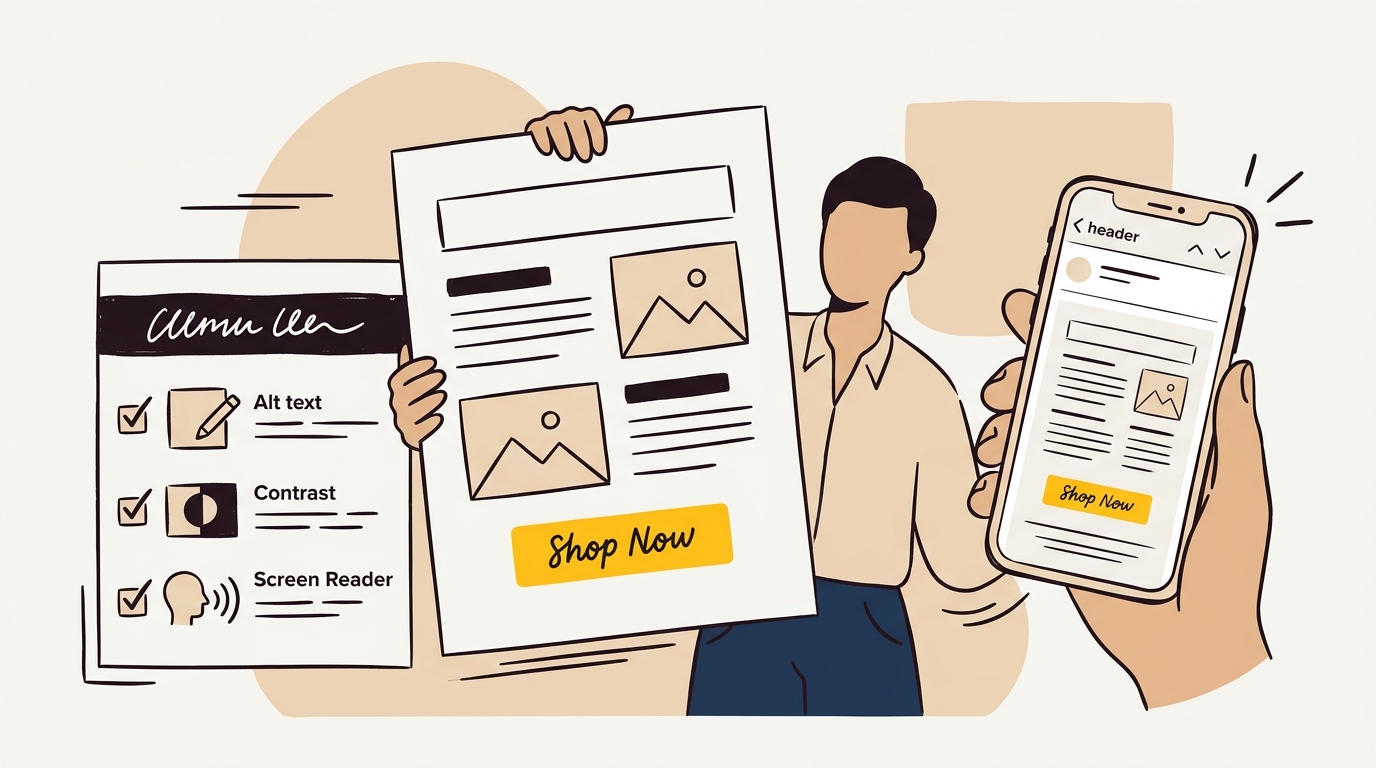
Accessible email design helps people with different vision, mobility and reading needs understand the content and use its links. Good practice includes readable live text, sufficient contrast, meaningful headings, clear link labels, useful image descriptions and a logical order for the content.
Canva’s accessibility information can help with design-level checks, but a visual checker cannot by itself confirm that an exported email is accessible in the recipient’s email app. The final structure matters. For example, columns that appear side by side visually may be read in an unexpected order by assistive technology, depending on how the email is built.
Do not treat a colour contrast warning as the only accessibility question. A pale button label might be difficult to read, but so might a long paragraph in an image, an unclear link called read more, or a layout that jumps between topics without meaningful headings. Check the content and the exported email as well as the artwork.
A basic accessibility review can include:
- Keep important copy as selectable text, not part of a flattened graphic.
- Use headings and paragraphs in an order that makes sense when read from top to bottom.
- Give informative images concise, relevant alt text. Avoid descriptions that merely repeat nearby copy.
- Use link labels that explain where the link goes or what it does.
- Check text and button contrast against their backgrounds.
- Make buttons and links easy to identify and use on a phone.
- Read the email aloud or test it with assistive technology where possible.
Canva can support the visual part of this work. A designer can plan the hierarchy and check the final output, but neither a tool nor a designer should promise complete compliance without testing the actual content and delivery context. If accessibility is a business requirement, make it part of the brief, template and review process rather than leaving it until the final export.
6. Dark mode and images that may not display
Some people read email with dark mode enabled. Email apps can treat backgrounds, text and images differently in that setting, so a design that depends on a precise white background or a dark logo on a transparent background can lose contrast. The practical answer is not to guess how every app will invert the design. Test it in the inboxes available to your team and make the important content robust to variation.
For logos, check whether the mark remains visible on both light and dark backgrounds. A logo with a dark wordmark and no background may need a version with enough contrast for a dark interface. Avoid putting essential copy inside an image, since it cannot adapt like live text and may not be visible if remote images are blocked.
Image blocking is another reason to design in layers. A subscriber should still be able to understand the subject and purpose of the email if pictures do not load. Use a live headline, text that explains the offer, actual links and useful alt text. Do not make a product price, booking detail or event date visible only in a banner graphic.
Canva can create the images and visual assets. A designer can help choose formats, backgrounds and fallback treatments that preserve clarity. In either case, the real test is the email as received, with images enabled and disabled where you can check it.
7. Code, clipping and deliverability: what design can and cannot solve
The HTML behind an email is part of the design system. A complicated layout or an export with a lot of unnecessary code can be harder to maintain, and very long emails may be affected by the limits of particular email services. Do not assume that a visually short email has a small code payload, or that a clean editor preview guarantees a clean final message.
Canva’s email workflow can reduce the need for a team to build the layout by hand. But if an email is exported as HTML or transferred into another platform, check that platform’s current instructions and test the result. Canva’s export guidance and its email preferences and unsubscribe help are useful for understanding parts of the workflow. The sending platform still needs to include the right account-specific links and footer details.
An email designer may be able to simplify the structure, remove unnecessary decoration and make the template easier to reuse. That is not the same as guaranteeing inbox placement. Deliverability also depends on factors beyond visual design, including sender setup, audience practices, message content and the platform’s sending configuration. A good-looking email cannot repair a poor mailing list or replace responsible sending practices.
If Gmail or another inbox shows only part of a long message, recipients may miss important content near the end. Keep the email focused, put essential information and the primary action high enough in the message, and test the final send. Avoid hiding legal or unsubscribe information at the bottom of a very long design. The platform should handle required footer elements correctly, and your team should confirm they remain present in the delivered email.
For more ideas on building a consistent communications system, browse the DesignFIT resources library. It is also worth reviewing your email template whenever your sending platform, brand assets or campaign structure changes.
8. Personalisation and campaign complexity
A static newsletter sends broadly the same content to everyone on a list. More involved campaigns may change content based on a subscriber’s interests, past actions, location, customer status or products viewed. The email platform, data and campaign logic have to support those changes. A visual design tool cannot create useful personalisation by itself. Practical guides on Canva email marketing illustrate how static designs connect into broader list-building and automated campaign workflows.
Canva is a reasonable fit when you are designing a single announcement or a simple broadcast and the receiving platform can handle the delivery. If you need conditional sections, product feeds, abandoned-cart content or a sequence of messages that changes based on behaviour, start with the email platform and campaign requirements. Then design a template that accommodates the data and the possible content variations.
A designer can work with your marketing or technical team to create flexible modules and define how each version should read. The designer’s job is not necessarily to write the automation logic. It is to make sure the design remains clear when the content changes, the product title is longer, a recommendation is missing, or a subscriber sees a different offer.
Before selecting a tool, write down the actual campaign rules. For example: who receives the email, which content changes, what happens when a field is empty, and what action counts as success. If the answers are not clear, investing in a more elaborate design will not fix the underlying campaign plan.
9. Team workflow, brand consistency and the real cost
Canva’s accessible editing can be a major benefit for a small team. The person who writes the newsletter may also need to update a photo, change a date or prepare a seasonal announcement. A visual workflow can make routine adjustments easier, especially when the team has agreed rules for fonts, colour, spacing and image use.
The trade-off is that easy editing can also make it easy to drift. One person changes the heading style, another adds a second button, and a later campaign starts from a different template. Over time, spacing, image treatment and tone become inconsistent. The reader may not know why a message feels less familiar, but consistency helps them recognise the sender and follow the established pattern.
A designer-led system can provide a set of reusable blocks and guidance for the in-house team. That might include a header, story module, product feature, event detail, button style and footer, along with rules for when to use each. The purpose is not to lock the team out of making changes. It is to make routine changes safer and reduce the need to rethink the whole layout each time.
Compare the full cost of the workflow, not only the software subscription. Count the time spent drafting, building, fixing exports, checking test sends, managing versions and making changes. Canva may be the economical choice when those tasks are quick and reliable. If the team repeatedly spends time repairing layouts or asking someone else to check every send, a custom template or a designer’s initial setup may be better value (see our transparent design pricing to compare options).
A practical middle ground is to have a designer create or review the core template, then let the team use Canva or the email platform for straightforward production. This approach can preserve flexibility without asking every campaign owner to solve layout, accessibility and rendering problems from scratch.
What are the pros and cons of Canva email design?
Canva email design: pros
- Approachable for small teams. Visual editing can make routine updates less intimidating for people who are not email developers.
- Fast for simple messages. A template can help a team assemble a basic newsletter or announcement without designing every element from zero.
- Useful for visual assets. Canva can support the creation of images and brand materials used in an email, even when the email itself is assembled in another platform.
- A lower-commitment way to start. If the audience and campaign are uncomplicated, a team can test a basic workflow before commissioning a larger system.
- Potentially helpful for collaboration. Teams can use shared design processes, subject to the account features and permissions available to them.
Canva email design: cons
- A preview is not a cross-inbox guarantee. The exported email must be tested in the sending platform and the inboxes that matter to your audience.
- Image-led shortcuts can create real barriers. A flattened email can make copy hard to read, links unavailable and content inaccessible when images do not appear.
- Email layout is less freeform than print or social design. Email clients have their own rendering behaviour, so a robust layout may require compromises that feel restrictive.
- Complex campaigns need the right platform structure. Dynamic content and segmentation depend on the sending platform and its data, not just on the visual editor.
- A team can still create inconsistency. Without a shared template and clear rules, easy editing can lead to visual drift.
Which should you choose?
| Your situation | A sensible starting choice | Why |
|---|---|---|
| You send occasional, simple updates | Canva email design | The message is straightforward and the team can test the exported result |
| You send a regular newsletter with a few repeatable sections | Canva with an agreed template, or a designer-built template | Keep production manageable while protecting hierarchy and brand consistency |
| You rely on email for sales, bookings or lead generation | A designer-led template and campaign review | The email’s structure, mobile flow and calls to action deserve deliberate attention |
| Your audience includes different customer groups or behaviour-based content | Start with the email platform and campaign logic, then design around it | Personalisation depends on data and platform features as well as layout |
| You have strict accessibility or brand requirements | Ask a designer to review the full email workflow | The final exported structure matters, not just the visual design file |
| Your team regularly fixes broken or inconsistent sends | Get help with a reusable email system | Repeated repair work is a sign the workflow may need redesigning |
Canva is most likely to replace the need to commission a designer for an individual email when the message is simple, the team has a clear template, the campaign is not technically complex, and the test send looks right. It is less likely to replace the designer’s role when email is an important revenue channel or when the business needs a consistent, accessible system across many campaigns.
A checklist before you send a Canva email
- Purpose: Can you describe the email’s main job in one sentence?
- Hierarchy: Is there one obvious main message and one primary action?
- Content: Is essential information live text rather than embedded only in an image?
- Links: Have you clicked every link in the actual test email?
- Mobile: Can you scan and use the email on a phone without pinching or hunting for the button?
- Images: Does the message still make sense if images are blocked?
- Accessibility: Are contrast, alt text, reading order and link labels considered?
- Brand: Does the email use the right logo, tone, colours and spacing?
- Platform: Are the footer, unsubscribe and preference details present in the delivered version?
- Testing: Did you send the final export through your normal email platform and check the result?
If several items are difficult to answer, the issue may not be the design software. It may be a sign that your team needs a clearer template, better testing steps or a specialist to review the email system.
The verdict: Canva is a useful tool, not a complete email strategy
Canva email design can be a good choice for a small team sending simple, mostly static newsletters. It helps with visual creation and can make routine editing approachable. Use the email-specific workflow, keep important information as live text, and test the actual version that will be sent.
A professional email designer is the stronger choice when the email needs to work hard: generating enquiries or sales, supporting a complex campaign, meeting accessibility requirements or looking consistent across repeated sends. The best outcome may be a designer-built template that your team can update, rather than a choice between doing everything yourself and outsourcing every newsletter.
The decision comes down to whether your process can reliably deliver a readable, usable email in your subscribers’ inboxes. If you need help shaping the email experience, talk to DesignFIT about email design and explain what you send, who receives it and what you want readers to do.
Key takeaway
Canva can help you assemble a simple email, but testing, accessibility and a clear design system determine whether it works for readers.
Questions people ask
Can I export a Canva email into Mailchimp as editable text?
Use Canva’s dedicated email workflow and follow the current export instructions for your account and Mailchimp setup. A standard Canva graphic exported as an image is not the same as an email made of editable text and linked elements, so send a test and check what you can select and edit in the final campaign.
Why does my Canva email look blurry on mobile?
If the copy is part of a raster image, it can look soft when enlarged and may be difficult to read on a small screen. Keep headlines and body copy as live text, use appropriately sized images, and inspect the email on a phone after sending a test.
Why is Gmail clipping my email?
A long email or its underlying code can be affected by Gmail’s message display limits, which may hide part of the message. Keep the email focused, place essential information and the main action where readers can find them, and test the final version in the platform you use to send it.
Does Canva email design support dark mode?
Dark-mode appearance can vary between email apps, and a design preview cannot confirm how every recipient will see it. Check logos, text and buttons in the inboxes available to your team, and avoid relying on a particular background colour or image to carry essential information.