How to Fix INP Core Web Vitals Without Losing Design
Make mobile taps feel immediate by finding the slow interaction first, then moving visual motion out of heavy JavaScript.
On this page
- What INP measures, and why mobile pages struggle
- What you need before changing code
- Step 1: Find the interaction that is actually slow
- Step 2: Separate input delay, processing and presentation
- Step 3: Replace scripted motion with CSS where it fits
- Step 4: Reduce the work triggered by a tap
- Step 5: Protect the design while you simplify
- Step 6: Test the fix on the page and in the user journey
- Step 7: Avoid these common INP fixes that backfire
- Step 8: Decide whether to fix one component or the wider page
- A practical launch checklist
- The short version
To learn how to fix INP Core Web Vitals on mobile, start by identifying which real tap takes too long to produce a visible response. Then simplify the work triggered by that tap and let CSS handle visual motion where it can. You do not need to strip your site of animation. You need to remove work that makes the browser wait before it can respond. If you are planning a wider rebuild, see how DesignFIT approaches website design and performance.
This guide covers how to measure the problem, prioritise the right interactions, replace common scripted animations, and check that the changes still feel like your brand. The examples apply to marketing sites and online stores, but any change to checkout, filters or cart behaviour should be tested carefully before it goes live.
What INP measures, and why mobile pages struggle
Interaction to Next Paint, or INP, measures how quickly a page responds visually after a visitor interacts with it. Google replaced First Input Delay with INP as a Core Web Vital on 12 March 2024. Unlike FID, which measured the delay before the first interaction handler began, INP considers interactions during the visit and reports a representative slow interaction. Its good threshold is 200 milliseconds or less, needs improvement is above 200 and up to 500 milliseconds, and poor is above 500 milliseconds. Google assesses field data at the 75th percentile. See Google’s INP explanation and thresholds.
A tap can feel slow even when the button eventually works. The browser may be busy with another JavaScript task, the handler may do too much work, or the browser may need time to recalculate layout and paint a visible response. Google groups these parts as input delay, processing time and presentation delay. Google’s INP optimisation guide explains how to distinguish them.
Mobile often exposes issues that are hard to notice on a fast desktop. A phone has different processing capacity, and a mobile page may also have different menus, filters, accordions, sticky bars and third-party widgets. Do not assume the homepage is the whole story. Product pages, service pages and checkout flows can have different scripts and different interaction patterns.
A high INP does not automatically mean the site needs a new design or that every animation is at fault. The aim is to get a clear, timely visual response to the interaction, then keep any decorative movement smooth and lightweight. Design changes should improve usability and protect the brand rather than remove useful feedback.
What you need before changing code
Gather the tools and information that will help you separate a real user problem from a hunch:
- A page and interaction to investigate. Start with a product page add-to-cart button, mobile menu, FAQ, filter, form submit or another control visitors use often.
- Field data. Check whether real visitors experience poor INP, and which page groups contribute. Google Search Console’s Core Web Vitals report can help identify affected groups, while Chrome’s PageSpeed Insights reports field and lab information when available.
- A repeatable test. Use Chrome DevTools Performance recording on the same page and interaction. Test on a phone as well as a desktop, and use CPU throttling in DevTools to expose work a fast laptop can hide. A throttled test is a diagnostic, not a prediction for every phone.
- A safe place to work. Use a staging site or a branch, and keep a record of the current interaction, visual state and conversion behaviour before editing it.
- A design reference. Note what must not change: brand colours, button size, easing, timing, menu position, touch target, focus state and reduced-motion behaviour.
For a store, include the real purchase path in your test plan. A quick animation improvement is not a win if the cart count fails to update, a filter stops applying or a checkout button loses its loading state. If mobile speed is part of a wider Shopify redesign, our guide to Shopify speed optimisation through design covers the design and page-weight decisions that sit alongside interaction work.
Step 1: Find the interaction that is actually slow
Do not begin by removing every animation library or rewriting the site’s front end. First identify a specific interaction with evidence behind it. Look at real-user data in PageSpeed Insights or Search Console, then record the interaction that feels delayed on the page. INP is about interaction responsiveness, not a general score for how quickly the page loads.
In Chrome DevTools, open the Performance panel, start a recording, perform the interaction, and stop the recording. Inspect the main-thread activity around the tap. Look for a long task before the event handler, a handler doing a large amount of work, repeated style or layout calculations, or a delay between the handler finishing and the next visible frame. DevTools changes over time, so use its timeline and event details to diagnose the cause rather than relying on one colour or label.
Repeat the test. Record the page URL, device or emulation settings, the control used, what should happen and what did happen. Also record whether the delay happens on the first interaction only or repeatedly. A first-use delay may point to code or assets loaded only when a component opens. A delay on every tap may point to repeated work in the event handler or a component that triggers too much rendering.
If you need to capture interactions from real visitors, use the web-vitals library with its attribution build and follow the current INP optimisation guidance. Attribution can help connect a slow interaction to its target and timing components. Treat captured data with care: do not log sensitive form values, and make sure analytics collection follows your privacy obligations.
Make an interaction inventory
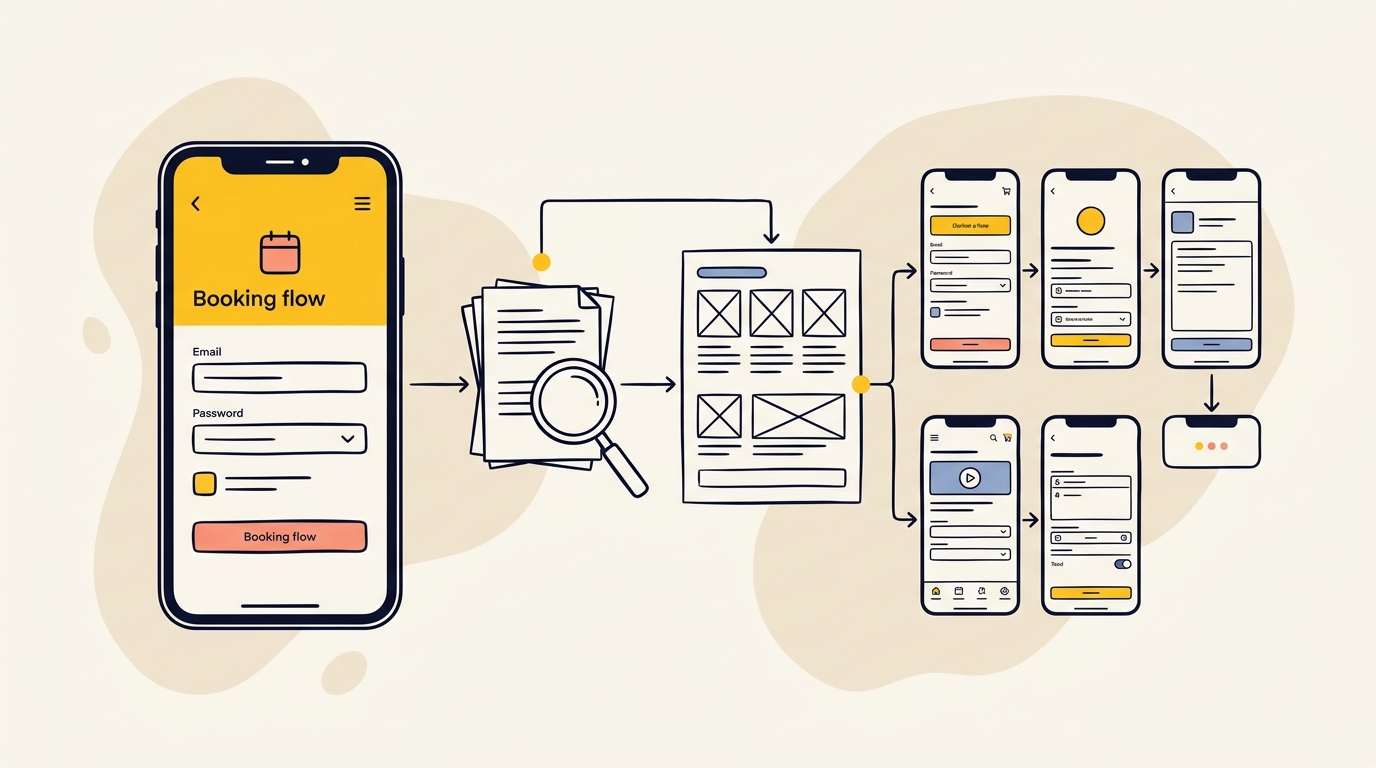
List the most important mobile controls and rank them by business value and evidence of delay. For example:
| Interaction | What the visitor expects | What to inspect |
|---|---|---|
| Menu button | Navigation opens promptly | Event handler, drawer movement, focus handling |
| Add to cart | Button or cart gives immediate confirmation | Cart state update, app scripts, network wait and loading feedback |
| Filter chip | Results visibly change | Filtering work, DOM updates and layout recalculation |
| FAQ control | Answer opens and can be read | Height animation, content rendering and accessibility state |
| Form submit | Clear progress or confirmation | Validation work, submit handler and server response |
This list is more useful than a generic instruction to make the page faster. It ties performance work to a specific visitor need and gives you a practical retest after each change.
Step 2: Separate input delay, processing and presentation
INP has three useful parts to investigate. The input delay is time spent waiting before the relevant event handler can begin. A busy main thread, including a long task from unrelated JavaScript, can keep the browser from handling a tap promptly. The processing duration is the time spent running callbacks for the interaction. The presentation delay is the time the browser needs after those callbacks to update styles, layout and pixels on screen.
Use the Performance trace to ask three questions:
- Was the main thread busy before the handler began? If yes, identify the task taking that time. It could be analytics, a tag, a large component render, a third-party widget or other page code. Moving an animation to CSS will not solve a separate long task that blocks the tap.
- Did the handler do too much? Check whether it loops over many items, recalculates data, updates a large part of the page or waits synchronously for work that can happen later. Keep the immediate response small, and defer non-essential work where doing so does not change behaviour.
- Did the browser take too long to show the result? Look for repeated layout-affecting changes, a large area of the page being updated, or animation code that forces style and layout calculations. This is where changing how the visual effect is produced may help.
A useful interaction usually has an immediate state change, even if further work takes longer. For example, a filter button can show that it is selected while results update, and an add-to-cart button can show a clear pending state while the cart request completes. Do not present a false success state before the action is confirmed. The visual feedback should honestly reflect what the system has done.
Step 3: Replace scripted motion with CSS where it fits
JavaScript is often needed to change application state. It does not need to calculate every in-between animation frame. A small handler can update an open class, an attribute or component state; CSS can then transition visual properties. This reduces animation work in JavaScript, but does not guarantee every interaction will be fast. Measure the result and keep the handler itself lean.
The strongest candidates are simple visual movements and feedback: a drawer sliding in, an icon changing scale, a button pressing down or a decorative element fading. CSS transitions on transform and opacity are often easier for browsers to optimise than animations that repeatedly alter layout-affecting properties such as left, height or margin. Browser behaviour depends on the page and the property. A CSS animation is not automatically free, and a property change can still cause layout or paint work.
Mobile drawer: animate transform, not position
A drawer that animates its left value can cause repeated layout work. If the drawer is fixed to the viewport and its size is known, keep its geometry stable and move it with transform. Here is the visual part of a simple example:
.mobile-drawer {
  position: fixed;
  inset: 0 0 0 auto;
  width: min(88vw, 24rem);
  transform: translateX(100%);
  transition: transform 240ms ease;
}

.mobile-drawer.is-open {
  transform: translateX(0);
}

@media (prefers-reduced-motion: reduce) {
  .mobile-drawer {
    transition-duration: 0.01ms;
  }
}
JavaScript still needs to open and close the drawer, update the control’s aria-expanded state, and manage focus appropriately. Make sure the closed drawer is not left keyboard-focusable or exposed as if it were open. A production menu also needs an understandable close control, escape-key behaviour where appropriate, and a sensible focus return when it closes. The CSS above handles visual movement, not all the accessibility or menu logic.
Avoid adding will-change to every element as a shortcut. It can ask the browser to prepare for changes, but excessive use can consume resources. Add it only if profiling shows a reason, and remove it when the movement ends if the element is not regularly animated.
Button feedback: give the tap a clear visual response
A button can communicate touch feedback without a JavaScript animation loop:
.button {
  transition: transform 120ms ease, opacity 120ms ease;
}

.button:active {
  transform: scale(0.98);
}

.button:focus-visible {
  outline: 3px solid currentColor;
  outline-offset: 3px;
}

@media (prefers-reduced-motion: reduce) {
  .button {
    transition: none;
  }
}
Keep :active feedback subtle. It should not make a button look disabled or move the text so far that the control feels unstable. More importantly, a press effect is not the same as confirmation that an action succeeded. For add to cart, update the button label or cart summary when the application has a confirmed state change. Preserve keyboard focus styling and test with a keyboard as well as a thumb.
Accordion and FAQ: remove per-frame height calculations
A common source of avoidable work is a script that repeatedly reads an element’s height and writes a new height to animate opening content. Reading layout values such as scrollHeight or getBoundingClientRect() is not inherently wrong. The risk is repeatedly mixing layout reads and writes during animation, which can make the browser recalculate layout over and over.
For a straightforward FAQ, use semantic disclosure markup such as <details> and <summary> if it suits the design. Native disclosure gives the browser and assistive technology a meaningful open or closed state without requiring a custom animation runtime. If you choose to animate between a fixed size and an intrinsic size such as auto, check browser support for interpolate-size and provide a usable non-animated fallback. Chrome’s guide to animating to height auto explains the property and its constraints.
If you need a custom accordion, first decide whether animation is worth the added complexity. A no-animation open and close can be clearer and more robust than a fragile effect. A CSS Grid approach can animate a wrapper’s row from 0fr to 1fr, but the markup, overflow and hidden-state handling need careful testing. Do not hide collapsed content from sight while leaving its links tabbable, or leave it exposed to screen readers when it appears closed. Keep the interaction state and accessibility state in sync.
Filters and tabs: separate state changes from decoration
Filters often feel slow because the tap triggers data work and a large results update, not because a chip animates. Keep selection feedback small and immediate, then profile the filtering itself. If the visible list is large, investigate whether the page is rendering more items than needed or recalculating unrelated components. Do not add a delayed animation to disguise a delay; show a truthful loading or updating state instead.
A CSS transition is appropriate for the selected chip’s colour or a small transform. It is not a replacement for the filtering logic, and it does not make a large synchronous calculation faster. Keep the design system consistent so focus, selected, disabled and loading states remain visibly distinct.
Step 4: Reduce the work triggered by a tap
Once you know the slow interaction and its timing, inspect the code that runs when it happens. Remove redundant event listeners and avoid doing work for controls that are not visible or relevant. Where the framework is rendering a large section after a tiny state change, check whether the component can update a smaller area without changing the architecture of the entire site.
For an interaction that needs network data, do not block the interface while waiting for the response. Show a clear in-progress state, make sure repeated taps cannot accidentally submit the same action several times, and communicate success or failure when the result returns. For a menu or accordion, the visual open state should not wait for unrelated analytics or a network request.
Third-party scripts deserve a specific review. A chat widget, review tool, personalisation script or tag manager can run work on the main thread even when the visitor taps a different control. Do not remove a business-critical tool on a guess. Measure its impact, check which pages load it, and discuss whether it can be delayed, loaded only where needed or replaced. When you change a script, recheck tracking and consent behaviour.
Avoid putting everything into requestAnimationFrame and assuming the problem is solved. It schedules work in relation to a paint, but substantial JavaScript still consumes time. Likewise, splitting work into small tasks can improve opportunities for the browser to respond, but only if the interaction’s important feedback is not delayed. Optimise for the visitor-visible response, not a code pattern in isolation.
Step 5: Protect the design while you simplify
Performance work can make a page feel better, not merely score better. A motion effect that stutters on a phone can undermine the sense of care in an otherwise polished brand. A quick, controlled response can feel more deliberate than a long animation that starts late. The goal is not to make every interaction instant in the same way. It is to make the next meaningful visual response clear and timely.
Before removing or changing an effect, write down what it communicates. Does a drawer’s movement show where navigation came from? Does a button state prevent a duplicate submission? Does an accordion help users scan a long page? Preserve the purpose, then choose the simplest implementation that serves it. If the motion is decorative, shorten it or remove it for reduced-motion preferences. If it communicates state, make sure the state remains visible without the animation.
Check the details that often get lost in a performance-only fix:
- The tap target remains large and easy to use on a phone.
- Text does not jump or become clipped as content opens.
- Keyboard focus is visible and follows a sensible order.
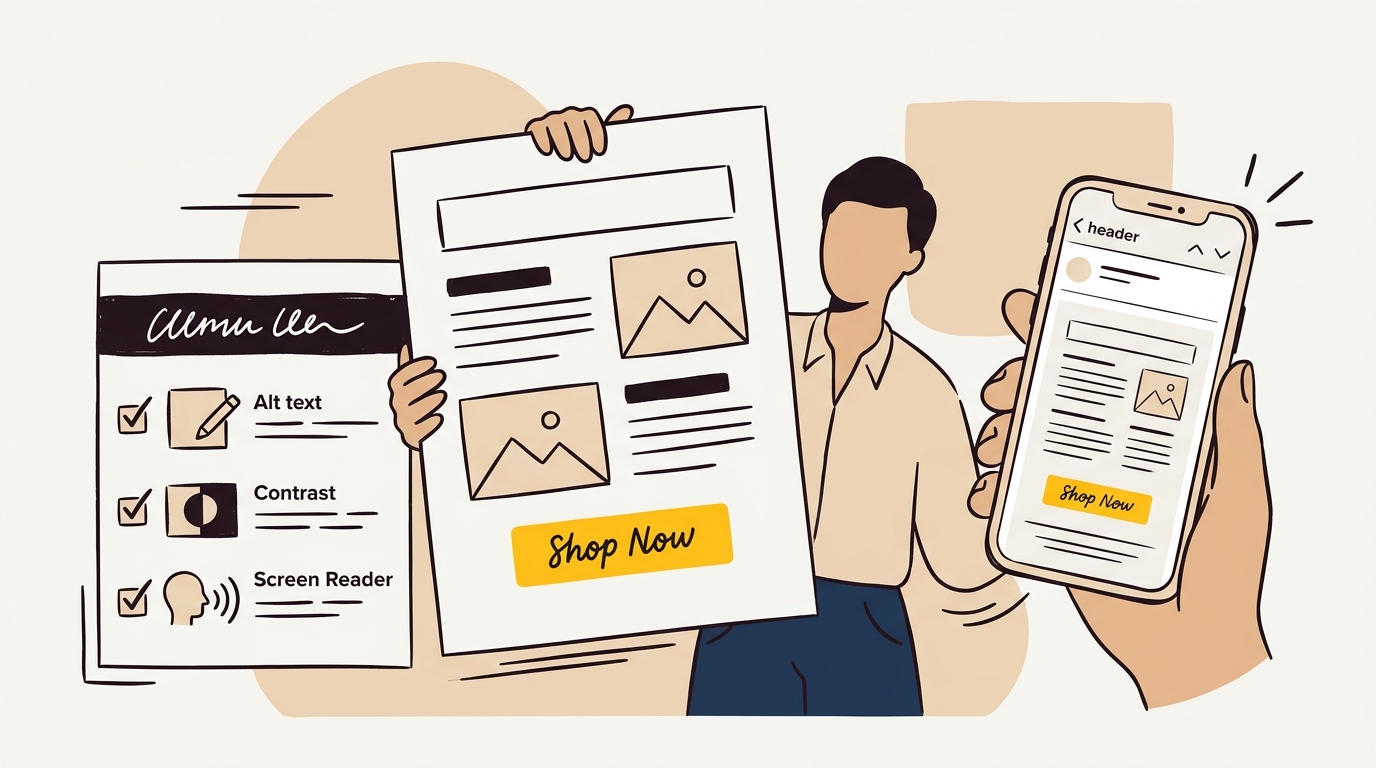
- Screen readers receive the correct expanded, selected or busy state.
- Reduced-motion settings are respected.
- Loading, success and error states are distinct.
- The design still uses your intended spacing, type, colour and easing.
If the work affects several templates or the design system, treat it as a design and implementation change rather than an isolated CSS patch. Our website redesign and build service can help align the mobile experience, interaction states and performance decisions in one brief.
Step 6: Test the fix on the page and in the user journey
After each meaningful change, repeat the same recording with the same interaction. Compare the timeline and the visible behaviour. Test both the first interaction and repeat interactions, then test the whole flow around it. If you changed a product drawer, check adding an item, closing the drawer, changing quantity and proceeding to checkout. If you changed an FAQ, check keyboard and touch use and confirm the collapsed content behaves correctly.
Use lab testing to find and reproduce causes, not as a substitute for field data. Google’s INP assessment uses real-user field data where available, and field measurements vary with devices, users and page conditions. A single Lighthouse run can be useful for investigating, but it does not prove that every visitor’s interaction will be good. Check field data again after release and allow enough traffic and time for a meaningful comparison.
Also compare visual quality. A change can reduce script work but create a drawer that feels abrupt, a filter that appears unresponsive or a button whose confirmation is unclear. Ask someone unfamiliar with the implementation to use the page on a phone. Give them a task, such as choosing a size and adding a product to the cart, rather than asking whether the site feels fast in general.
Document the change: which interaction was slow, what the trace showed, what you changed, what you tested and what you will monitor. This helps avoid reintroducing the same problem when another campaign widget, app or redesign feature is added.
Step 7: Avoid these common INP fixes that backfire
Removing all motion without checking its purpose. This can make controls less understandable and flatten the brand experience. Replace only the expensive implementation, and keep motion that gives useful feedback when it works reliably.
Blaming CSS or JavaScript as a whole. CSS can still trigger expensive layout and paint work; JavaScript can be essential for state and behaviour. Find the work on the actual interaction trace before choosing a fix.
Animating layout properties by default. Repeatedly changing dimensions or positions can cause layout work. Where the intended effect allows it, use transform or opacity and verify performance in the target browser. Do not assume a property is compositor-only in every situation.
Optimising the homepage and ignoring important templates. A product page may include reviews, variant selection, recommendations and cart logic that the homepage does not. Audit page types and key journeys separately.
Using a transition to hide a slow response. A slow animation does not make the underlying action responsive. Provide immediate, honest feedback and improve the work that delays it.
Changing several things at once. If you change an animation, a third-party app and a framework component together, it is difficult to know which change helped or broke something. Make focused changes where possible, then retest.
Forgetting the non-mouse user. A mobile interaction is not only a touch event. Check keyboard behaviour, focus, semantic state, screen-reader output and reduced-motion preferences.
Step 8: Decide whether to fix one component or the wider page
A component-level fix may be enough when one interaction has an identifiable cause and other interactions perform well. For example, a menu may use a legacy animation plugin while the rest of the page has no significant interaction delay. Replace or simplify that component, validate the user journey and monitor the result.
A wider review is sensible when several controls are slow, multiple templates fail field assessment, or the main thread is busy with many scripts. In that situation, a CSS change alone is unlikely to solve the full issue. Review third-party scripts, rendering work, page architecture and interaction design together. Prioritise pages and actions that matter to visitors and the business, rather than treating every animation as equally important.
For an online store, check whether theme code and installed apps both contribute to the same interaction. A custom theme change can be undone by an app update, so include ownership and regression testing in the plan. See our Shopify design audit checklist for a broader review of the design and storefront details to inspect.
A practical launch checklist
Before you release an INP fix, confirm each of these:
- You have named the slow interaction and captured a trace or useful field evidence.
- You know whether the largest delay is before the handler, inside it or after it.
- The change removes an identified cause rather than merely changing the animation style.
- JavaScript updates state; CSS handles visual interpolation where appropriate.
- The interaction gives immediate and truthful feedback.
- Touch, keyboard, focus and reduced-motion behaviour have been checked.
- The purchase, enquiry or navigation flow still works from beginning to end.
- Analytics, consent and third-party integrations still behave as intended.
- You have a post-release plan to review field data and test affected templates.
The short version
To fix mobile INP without ruining the design, measure a real interaction, find which part of its response is slow, and change that cause. Use CSS for simple visual movement where it fits, keep JavaScript focused on state and essential behaviour, and do not confuse a smooth animation with a fast response. Test the complete journey and accessibility states, then check real-user data after release.
For a site where mobile responsiveness, brand design and conversion need to work together, talk to DesignFIT about your website project.
Key takeaway
Measure the slow tap first, then use CSS for visual motion and keep JavaScript focused on the state change the visitor needs.
Questions people ask
Can I pass mobile INP without removing all animations?
Yes. INP measures how quickly the page responds after an interaction, not whether the page contains animation. Keep useful motion, simplify expensive effects and test the actual interaction on mobile.
Why does my site pass INP on desktop but fail on mobile?
The same JavaScript work can take longer on a phone, and mobile pages may include controls or scripts that are not present on desktop. Profile the specific mobile interaction instead of relying on a desktop result.
Does replacing jQuery slideToggle with CSS always fix INP?
No. It can remove repeated JavaScript-driven animation work, but the tap may still be delayed by other scripts, a heavy event handler or layout and rendering work. Record and retest the interaction to confirm the cause was addressed.
How do I find which button or tap is causing a poor INP?
Record the interaction in Chrome DevTools Performance and inspect the main-thread timeline around the tap. For real-user attribution, follow the current web-vitals guidance and check which interaction target and timing component are contributing.