Lead Form Design: Rules for Forms People Finish
A practical guide to designing lead forms that feel clear, trustworthy and easy to finish, without asking your sales team to give up useful context.
On this page
- Before you redesign: find the actual problem
- Step 1: Decide what information you need now
- Step 2: Put the fields in a sensible order
- Step 3: Write labels and instructions that remove doubt
- Step 4: Make errors easy to understand and fix
- Step 5: Design for mobile completion
- Step 6: Add trust where the decision happens
- Step 7: Design the confirmation and follow-up
- Step 8: Test changes without guessing
- Common lead form design mistakes to avoid
- A practical pre-launch checklist
- A worked example: simplifying a service enquiry
- How to decide what to change first
- Wrap-up: make the next step easier, not the form longer
Lead form design is the way you organise fields, instructions, errors and reassurance so a visitor can share their details with confidence. To improve completion, ask only for information you need now, put fields in a clear order, explain what happens after submission and make errors easy to fix. If your website needs a broader conversion review, explore DesignFIT’s website design service.
A lead form is not just a box at the end of a page. Its layout, wording and behaviour are part of the sales conversation. A field can create hesitation; a clear label can remove it. The aim is not to collect the most information possible. It is to make the next useful step easy for the right person.
This guide takes you through a practical redesign, from finding where people abandon your form to testing a better version. It covers field count, order, single-column layout, validation, mobile usability and trust copy. It also explains how to protect lead quality while removing unnecessary friction.
Before you redesign: find the actual problem
Do not start by deleting fields or changing the button colour. First find out where the form experience is failing. A low completion rate can come from the form itself, but it can also come from the wrong visitors, a weak offer, unclear page content or a technical problem.
Start with the journey. A person may arrive from a search result, an ad, a referral or a service page. They read some of the page, decide whether to enquire, reach the form, start filling it in and then submit. Each stage has a different problem to solve.
If lots of people visit but few reach the form, the page may not make the offer or next step clear. If people reach the form but do not interact with it, its position, appearance or invitation may be the issue. If people start but do not finish, inspect the fields, errors, mobile experience and what the form asks them to trust you with.
Step 1: Record a baseline
Before changing anything, capture what is happening now. Use your analytics platform and form tool to record the number of relevant page visits, form starts, completed submissions and qualified enquiries over a consistent period. You can compare your results against industry form conversion rate benchmarks to understand standard drop-off patterns. If possible, separate traffic by source and device. A form may behave differently for someone arriving from a high-intent search than for someone who has only just seen an ad.
Keep the definitions consistent. A form start might mean the first field receives focus, while a completion means the success message appears after a valid submission. A qualified enquiry is a further step, based on your own sales criteria. Do not treat all three as the same result.
Write down the current fields, which are required, the order they appear in and what happens after submission. Note any integrations, notifications or CRM rules that depend on a field. That last check matters: removing a question without checking how the team uses its answer can make the form easier to complete but create a new operational problem.
Step 2: Watch real users if you can
Ask a few people who fit your audience to complete the form while thinking aloud. Give them a realistic task, such as enquiring about a service, rather than telling them what the form is meant to do. Watch for pauses, rereading, skipped fields, uncertainty about required information and questions about what happens next.
Do not coach them through confusing copy. If they ask whether a phone number is compulsory, whether a budget answer is binding or whether they will receive a sales call, that uncertainty is useful evidence. Record the point of confusion and the exact words they use.
If you cannot run a user session, inspect the form on a phone and a desktop, submit it with deliberately incorrect details, and review any available field-level analytics. A simple device recording or session replay may show where people hesitate, but follow your privacy obligations and avoid recording sensitive data unnecessarily.
Step 1: Decide what information you need now
The most important field-count decision is not finding a universal ideal number. It is deciding what information is necessary for the next useful action. A form for booking an urgent appointment needs different information from a form for requesting a complex website proposal.
For each field, ask three questions:
- Do we need this answer before we can respond?
- Does it help us route or prepare for the enquiry in a meaningful way?
- Is this the easiest point in the journey to ask for it?
If the answer to the first two questions is no, remove the field or make it optional. If the answer to the third is no, ask later, after you have started a conversation or booked a meeting.
Make a keep, remove or defer list
Take your current fields and sort each one into three groups:
| Decision | Use it when | Example |
|---|---|---|
| Keep | It is required to reply, route the request or provide the promised service | Email address for a response to an online enquiry |
| Remove | It is not used, repeats other information or is easy to discover later | A company name that is already provided in a free-text description |
| Defer | It could help with qualification but is not needed to start the conversation | Budget range, project timing or detailed requirements |
The key is to assess the job each field does. A phone number may be essential for a service that must call back immediately. For a general website enquiry, it may be an unnecessary barrier. A budget question may help a consultant prepare, but it can feel premature if the visitor has not yet seen how you work or what your services cost.
Published research can help you form a hypothesis, but it cannot decide your exact form for you. Practical UX studies show that fewer input fields increase conversions by minimising friction, while HubSpot’s analysis of form fields is a useful reference for considering how field type and form length may affect conversions. Read HubSpot’s analysis of form fields and landing page conversions, then test changes against your own baseline.
Keep useful qualification without demanding an essay
A long text box asking “Tell us about your project” can be hard to answer, especially on a phone. It asks visitors to decide what information matters, compose a response and worry whether they have written enough. That is a lot of work for a first contact.
If you need a little context, offer a short prompt and make the field optional. You can also use a few clearly labelled choices when answers fall into predictable categories. For example, a design studio could ask what the person needs help with: “New website”, “Website redesign”, “Brand identity” or “Something else”. This makes the question quick to scan and easier to answer.
Use choice fields only when the options genuinely help. A dropdown with many vague choices can be harder to use than a short text field. Research on the psychology of choice on conversion rates shows that presenting too many options quickly overwhelms visitors. Do not force people to select an inaccurate category just to continue. Include “Not sure” or “Other” when it is appropriate, and provide a short follow-up text field only when you need it.
Step 2: Put the fields in a sensible order
A form should feel like a conversation that moves from the visitor’s reason for enquiring to the details you need to respond. Start with a simple, low-effort question if it helps route the request. Ask for contact details when the visitor understands what they are enquiring about. Put more sensitive or effortful questions later, or make them optional.
A practical order for a small service-business enquiry could be:
- What do you need help with?
- Name
- Email address
- A brief optional note
- A clear submit button and reassurance about the reply
If you require a phone number, explain why beside the field. For example: “Phone number, required so our team can call you about an urgent booking.” If you do not need it to respond, do not make it mandatory by habit.
A field can be technically optional but still feel required if the form does not say so. Label optional fields explicitly. For required fields, either mark them as required or explain that fields without an optional label are required. Choose one convention and use it consistently. Avoid relying on an asterisk alone, because visitors may not know what it means.
Use a single-column layout for most lead forms
A single-column form gives people one clear vertical path. They can read a label, enter an answer and move to the next field without deciding whether to scan across or down. It is also easier to adapt to narrow screens.
Two-column layouts can look compact on a wide screen, but they may create an unclear reading order. Someone might read across a row, down a column or follow the page’s visual grouping. If you use side-by-side fields, reserve that treatment for pairs that belong together, such as suburb and postcode, and test how they stack on smaller screens.
Keep labels above their fields rather than using placeholder text as the only label. A placeholder disappears as soon as someone starts typing, which can leave them unsure what the field asks for. The label should stay visible. Use a short example inside the field only when it helps clarify the expected format.
The width of a field can also help communicate what belongs in it. An email address field needs room for a full address. A postcode field can be shorter on larger screens, provided the layout remains clear and adapts sensibly on mobile. Do not let visual cleverness make the form feel cramped or inconsistent.
When should you use a multi-step form?
A multi-step form breaks a longer process into smaller screens or stages. It can make a complex enquiry feel more manageable, but it does not automatically improve completion. Each additional step adds interaction and can create uncertainty about how much is left.
Consider multiple steps when the form needs several distinct pieces of information, when answers change which questions appear, or when grouping questions makes the process easier to understand. Keep related questions together, show the progress clearly and tell people what is coming. A step labelled “Your project” is more informative than “Step 2”.
A useful sequence might start with the type of help needed, then ask for contact details, then offer optional scoping questions. Do not put a low-value question on the first screen simply to make the form look interactive. The first action should make sense to the visitor and lead naturally to the next one.
If you use a progress indicator, make it accurate. A bar that shows “halfway” before the longest or most demanding stage can feel misleading. Let people go back without losing their answers. On the final step, show a clear review or submit action, not a vague “Continue” button that hides what will happen.
Step 3: Write labels and instructions that remove doubt
People should not need to guess what a field means, what format it expects or why you are asking. Use familiar terms and keep instructions close to the relevant field. If you need a date, show the expected format or use an accessible date picker. If you ask for a work email, say why a personal email will not work, if that is genuinely the case.
Prefer direct labels such as “Email address” to abstract labels such as “Contact details”. A field named “Project details” can be improved with a prompt like “What are you hoping to improve? One or two sentences is plenty.” This tells the visitor what to write and how much effort is expected.
Avoid instructions that make the form sound like an application or an interrogation. “Provide all relevant information” is open-ended and demanding. “A short note helps us prepare, but you can leave this blank” is more specific and gives the visitor control.
Ask for phone numbers with a reason
A phone number is personal information. If you need it, say what you will do with it and how you will contact the person. “We’ll call to confirm your appointment” is more useful than leaving the reason unstated. If the team will not call unless asked, say that plainly.
A phone field is also a potential source of friction. A case study from Vital Design reports a change in form completions when a phone field was made mandatory. Treat Vital Design’s phone-number form field case study as an example of why this is worth testing, not as a forecast for your business. The result from one form and audience cannot promise the same outcome elsewhere.
If you want a number for sales follow-up rather than service delivery, consider asking for email first and offering a call booking as a separate next step. This lets visitors choose a conversation format instead of feeling that a phone call is the price of making contact.
Step 4: Make errors easy to understand and fix
Errors are part of the form experience. A visitor who makes a small mistake should be able to correct it without losing their other answers or starting again. Avoid waiting until submission to show a long, vague list of problems at the top of the page.
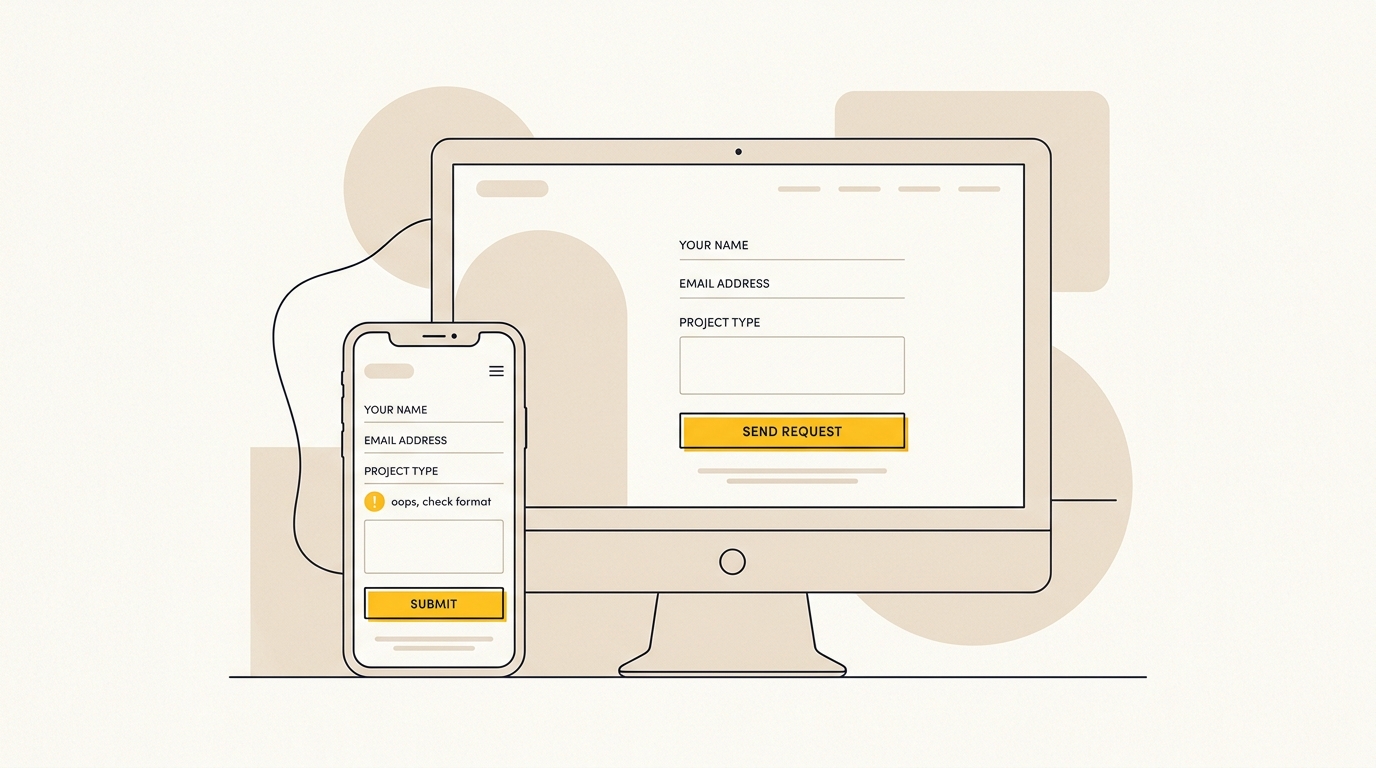
Use a clear error message beside the relevant field. Explain what needs to change and, where useful, show an example. “Enter an email address in the format [email protected]” is more helpful than “Invalid input”. For a missing required answer, “Enter your name to continue” is clearer than “This field is required”.
When a person submits an incomplete form, preserve the information they already entered. Move focus to the first error or provide a clear summary that links to it. The error should be visible in more than colour alone. Use text and a clear visual marker, and ensure it has sufficient contrast against the background.
Validate at the right moment
Validation checks whether an answer meets the form’s rules. Some feedback should appear after a person leaves a field, such as a message about an email format. Showing an error on every keystroke can interrupt someone before they have finished typing. For a password strength indicator or character count, continuous feedback may be useful because it helps the person complete the field.
Do not show a green success mark simply because a field contains something. It should mean the answer has passed the relevant check. If the person corrects an error, remove the error state and make the updated status clear. Baymard’s research explains why inline validation can help people identify and recover from form errors. See Baymard’s research on inline form validation when reviewing your validation pattern.
Test keyboard use as well as mouse use. Someone should be able to move through fields in a logical order, understand which field is active and reach the submit button without getting stuck. If an error appears, it should be announced and associated with the field for assistive technology users. A form that only looks clear is not enough; its structure and feedback need to work too.
Step 5: Design for mobile completion
Many visitors will meet your form on a phone, even if the enquiry is serious and high value. Test the full journey on a real mobile device, not only in a desktop browser resized to a narrow window. Check that labels wrap cleanly, fields are easy to tap, the keyboard does not cover important controls and the page does not jump unexpectedly after an error.
Use the correct input type for the answer. An email field should prompt an email-friendly keyboard, and a telephone field should make number entry convenient. Where appropriate, use autocomplete so a person can fill in standard details faster. Make tap targets comfortably large and leave enough space between controls to reduce accidental selections.
Watch for mobile-specific friction. A dropdown may be awkward if the choices are long. A calendar control may make it difficult to enter a date. A two-column layout may shrink fields until they are hard to read. A phone number field may trigger a keyboard that lacks the characters people need for international formats. Test with realistic answers, not just short sample text.
Keep the submit button visible and easy to activate without making it so large that it looks like an unrelated banner. If the form is long, consider a sticky action only if it does not cover fields, instructions or error messages. Mobile convenience comes from clarity and reliable behaviour, not decorative effects.
Step 6: Add trust where the decision happens
People decide whether to submit while they are looking at the form. Put the reassurance they need close to the action, rather than relying on a privacy page several clicks away. Useful trust copy answers three questions: what will happen, when will it happen and what will you do with the information?
For example: “We’ll review your enquiry and reply by email within two business days. We won’t add you to a marketing list.” Only make a response-time promise if your team can keep it. If you do not have a reliable turnaround time, say what the next step is without inventing a deadline.
A short privacy note can reduce uncertainty, but it should be accurate and consistent with your actual practices. Do not promise “No spam” if the form automatically adds a person to a promotional list. If the person will receive marketing, explain that and provide a clear consent choice where required. Keep consent separate from the act of asking for a response when those are different purposes.
Trust can also come from the surrounding page: a clear business name, relevant service information, real contact details, a consistent visual identity and credible proof that matches the claim. Do not add generic badges or ratings just to decorate the form. If you show testimonials or client logos, make sure you have permission and that they are genuine.
Make the button describe the outcome
“Submit” explains the website’s action, not the visitor’s benefit. Choose a button label that accurately describes what happens next, such as “Request a project conversation”, “Book an appointment” or “Get my estimate”. Do not promise a free audit, instant quote or guaranteed result unless the form really provides it.
Button wording should match the page and the next screen. If the button says “Book a call”, the submission should lead to a booking process or explain how the call will be arranged. If it says “Send enquiry”, show a confirmation that the enquiry was received and tell the visitor what to expect.
Do not rely on a persuasive button to compensate for a confusing form. The offer, labels, order, errors and reassurance all work together. A button that overpromises may briefly attract clicks but undermine trust when the next step differs from what the person expected.
Step 7: Design the confirmation and follow-up
The form is not finished when someone presses the button. A useful confirmation state tells them that the submission worked, what happens next and how to contact you if the request is urgent. Avoid a blank page, a spinner that never resolves or a generic “Thank you” with no context.
If the form has failed, preserve the answers and explain the problem in plain language. Let the person try again. If there is a network or integration issue, do not silently discard their work. Make sure the form team receives an alert when submissions stop reaching the right inbox or CRM.
Check the experience from submission to reply. Does the message arrive? Is it assigned to the right person? Does the person receive an acknowledgement? Are the answers readable on a phone? Does the team know which page or campaign the enquiry came from? A well-designed front end cannot fix a broken handoff behind the scenes.
If a form needs conditional questions, a custom flow or deeper connections to a digital product, the interface is part of a broader interaction design problem. See DesignFIT’s interface and app design service if the experience extends beyond a standard website enquiry.
Step 8: Test changes without guessing
A form redesign is a set of hypotheses. Write down what you expect each change to do before you publish it. For example: “Making phone optional should increase completions without reducing the share of enquiries we can respond to.” This gives the team a clearer way to judge the result than “the new form looks cleaner”.
Change one meaningful part at a time when practical. If you change field count, page layout, button wording and traffic source together, you may not know which change affected the result. In a small business, there may not be enough traffic for a formal experiment to reach a confident answer quickly. In that case, combine the data with user feedback and avoid claiming a small difference is conclusive.
Track the quality of the leads as well as the number of submissions. A shorter form can increase enquiries while also changing who enquires. Monitor whether people are relevant, whether the team can contact them and whether they progress to a useful conversation. If you are struggling with low-intent enquiries coming from paid campaigns, review our guide to stop Meta ads low quality leads. The goal is not to maximise raw submissions at any cost. It is to make it easier for suitable prospects to take the next step.
A useful measurement set includes:
- Page visits from relevant audiences.
- Form starts and completed submissions.
- Completion rate by device and traffic source, where the data is reliable.
- Validation errors and the fields where they occur.
- Qualified enquiries and the next sales outcome you can consistently track.
- Operational issues, such as missed notifications or unanswered submissions.
Record the date of each change and what changed. Keep the previous version available so you can revert if the new version creates a clear problem. When results are mixed, investigate the specific field or audience segment rather than immediately rebuilding everything.
Common lead form design mistakes to avoid
Keeping fields because they have always been there
A field that nobody uses can still make the form longer and create doubt. Ask the sales and service teams what they actually do with each answer. If there is no clear use, remove it or test making it optional.
Making every question mandatory
Required fields tell a visitor that the form cannot continue without an answer. Use that status only when you need the information to respond or provide the service. If someone can still enquire without a budget, timeline or project note, do not block them from doing so.
Using placeholders instead of labels
Placeholder text is not a reliable substitute for a visible label. It can disappear during typing, have low contrast or be mistaken for an example. Keep the label in place and use helper text for additional context.
Showing every error only after submission
A long error list can make people search the page to work out what went wrong. Show each message beside its field, preserve valid entries and help the person return to the first problem.
Treating mobile as a smaller desktop
Small fields, tight spacing, horizontal rows and a keyboard that hides the next action can turn a simple form into a chore. Test on a phone and make sure the order, controls and feedback still make sense.
Collecting data without explaining its use
A request for a phone number or budget can feel intrusive when the reason is hidden. Ask only when there is a clear purpose, explain that purpose and be honest about what happens to the answer.
Removing qualification without checking lead quality
Less friction may increase submissions, but the team still needs enough information to respond well. Compare the quality and follow-up effort of the resulting leads, then decide whether to add a later question, conditional logic or a human follow-up step.
A practical pre-launch checklist
Before publishing a revised lead form, check each item:
- Every field has a clear purpose and an identified owner who uses the answer.
- Required and optional fields are labelled consistently.
- Labels remain visible while visitors type.
- The field order follows a logical conversation.
- The form uses a clear layout that works on narrow screens.
- Instructions explain unfamiliar formats and sensitive requests.
- Errors are specific, close to the relevant field and easy to correct.
- Submitting an invalid form does not erase valid answers.
- Keyboard navigation and assistive technology feedback have been considered.
- The button describes the real next step.
- Privacy and response-time copy reflects actual business practice.
- The success state confirms receipt and sets a realistic expectation.
- Notifications, CRM handoff and follow-up have been tested end to end.
- The team has a baseline and a plan to review lead quality after launch.
A worked example: simplifying a service enquiry
Imagine a professional services firm with a form asking for first name, last name, work email, phone number, company, budget, project timeline and a detailed project description. The button says “Submit enquiry”. The form may be collecting useful information, but it asks for several decisions before explaining what will happen.
Start by asking the team which answers are essential to make an initial reply. They may decide that a name and email are enough to respond. The type of service can help route the request, while budget, timing and detailed requirements can be discussed later. Phone may be optional unless the person specifically wants a call.
A simpler first version could ask “What can we help with?” using a short list of relevant services, followed by name and email. An optional note could invite a brief description with a prompt such as “What would you like to improve?” Near the button, the firm could say, “We’ll review your enquiry and reply by email. We won’t call unless you ask us to.” That is a design hypothesis, not a guaranteed conversion result. The firm should check that the new form sends the service choice to the right person, compare the number of completed and qualified enquiries, and ask the team whether the information is sufficient to respond. If not, it can add a carefully chosen follow-up question or collect more context after the first reply.
A different business may need a different form. A clinic booking request may need a phone number to confirm an appointment. A software demo request may need a company name to route the enquiry. A quote request for a complex project may need a short scoping step. Use the visitor’s task and your real process to guide the design, rather than copying another company’s form.
How to decide what to change first
If you have limited time, prioritise the parts most likely to cause avoidable hesitation. First remove fields with no clear purpose. Then clarify the labels and required status. Next, inspect the order, phone requirement, mobile layout, error behaviour and submit confirmation. This sequence addresses structural friction before visual polish.
Use evidence in proportion to its strength. A field-level drop-off pattern in your own analytics is directly relevant to your form, although it may still need interpretation. A usability session can reveal confusion, even with a small number of participants. An industry case study can suggest a test, but it cannot tell you precisely how your customers will behave.
Design details matter because they change what a visitor notices and how much effort each action seems to require. A clear vertical hierarchy makes the next field easier to find. A persistent label reduces memory work. A specific error message turns a failure into an action. Reassurance beside the button makes the follow-up feel less uncertain. These are not decorative choices. They shape whether someone can complete the task and trust what happens next.
Wrap-up: make the next step easier, not the form longer
Good lead form design balances two needs: the visitor’s need for a clear, respectful experience and the business’s need to respond well. Ask only for what matters now, arrange questions in a natural order, write specific instructions and errors, and explain what happens after submission. Then test the result against both completion and lead quality.
If your form is part of a wider website problem, such as unclear service information, weak page hierarchy or a difficult mobile journey, talk to DesignFIT about website design, see our design project pricing, or reach out through our contact page to plan your next steps.
Key takeaway
A better lead form asks only for what is needed now, makes every field clear and tells people exactly what will happen after they submit.
Questions people ask
How many fields should a lead form have?
There is no ideal number for every business. Keep the fields needed to respond or route the enquiry, and remove, defer or make optional any questions that are not necessary at that point.
Should I make a phone number required on a lead form?
Only make it required when you need the number to provide the service or carry out the next step. Explain why you are asking and what you will do with it; otherwise, consider making it optional or collecting it later.
Do multi-step forms get more completions?
They can make a longer process feel more manageable, but they also add steps and do not automatically improve results. Use one when grouping questions makes the journey clearer, show honest progress and compare completion and lead quality with your current form.
Should form validation happen while someone is typing?
For most fields, avoid showing an error before the person has finished entering an answer. Give feedback when they leave the field or submit, and make any error specific, easy to find and straightforward to fix.