Elementor vs Gutenberg: Should You Replace Elementor?
A practical guide to deciding whether Gutenberg is right for your site and moving without sacrificing design, content or search visibility.
On this page
- Elementor vs Gutenberg: what are you comparing?
- When does replacing Elementor make sense?
- What you need before migrating
- Step 1: Audit Elementor before changing anything
- Step 2: Set a performance and design baseline
- Step 3: Choose the right theme and block setup
- Step 4: Rebuild templates and key pages on staging
- Step 5: Move content and replace features
- Step 6: Test the rebuilt site before launch
- Step 7: Launch in a controlled way and remove old code carefully
- Mistakes to avoid when moving from Elementor to Gutenberg
- Should you choose Elementor or Gutenberg?
- Your Elementor to Gutenberg migration checklist
- A safer way to decide
Elementor vs Gutenberg is not simply a choice between a visual builder and a basic editor. Gutenberg can make a WordPress site leaner and easier to maintain, but switching only improves speed when the rebuild also fixes heavy layouts, assets and scripts. The safe approach is to audit first, rebuild on a staging site, then test before replacing the live site.
If your pages are slow, difficult to update or inconsistent on mobile, start by identifying what is causing the problem rather than assuming Elementor is the only cause. A website design review from DesignFIT can help you connect performance fixes with clearer page structure, stronger brand consistency and more enquiries.
Elementor vs Gutenberg: what are you comparing?
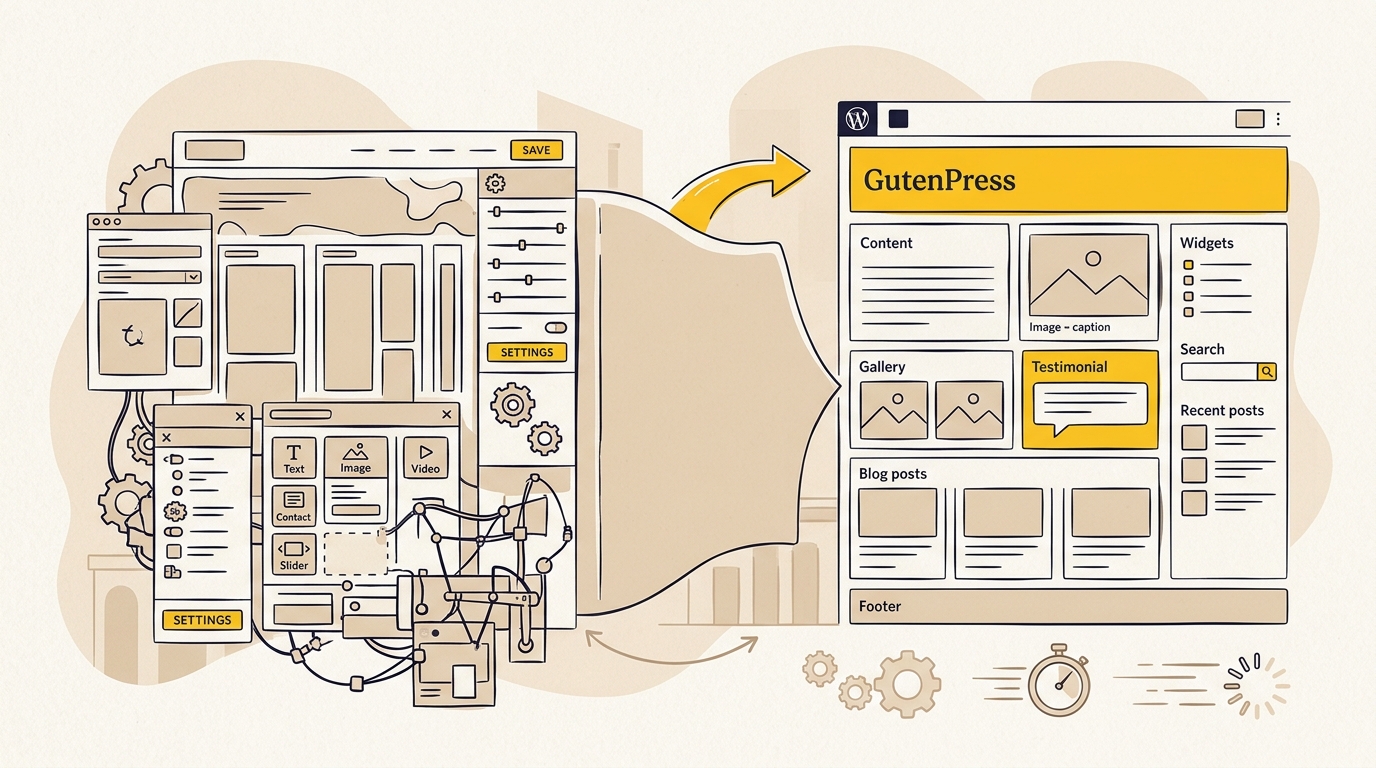
Elementor is a WordPress page builder. It provides a visual editing interface and a library of widgets and layout controls. Gutenberg, also called the WordPress block editor, is built into WordPress. You assemble content from blocks such as headings, images, buttons and groups.
A block theme is a separate, related idea. It lets you use the WordPress Site Editor to edit broader site areas such as headers, footers, templates and global styles. You can use Gutenberg content blocks with a classic theme, and you can use a block theme without rebuilding every page at once. When people say they want to move from Elementor to Gutenberg, they may mean changing the page editor, the theme, or both. Decide which job you are doing before you start.
The design difference matters as much as the code. Elementor offers freedom to position and style many individual elements. That freedom can be useful, but it can also lead to one-off spacing, inconsistent headings and deeply nested layouts. A block-based approach encourages reusable patterns and shared style rules. Those guardrails can make a site more consistent and safer for staff to edit.
Neither tool makes a site fast or slow on its own. A large hero image, several tracking scripts, an overloaded font set or a slow server can affect either kind of site. A well-built Elementor page may perform better than a poorly built block page. The practical question is whether your current setup is adding complexity you no longer need, and whether a rebuild will remove it.
When does replacing Elementor make sense?
Consider a move when there is a clear business or maintenance reason, not just because another site uses blocks. Gutenberg is worth assessing if:
- Your important pages load slowly on mobile, and testing shows scripts, layout complexity or page assets are contributing.
- Your team only uses a small part of Elementor but still relies on its runtime, styling system or add-ons across the site.
- Making a simple copy or image change risks shifting layouts or breaking responsive styles.
- The site has many page-specific design decisions, so buttons, spacing and typography look different from page to page.
- You want to reduce the number of paid extensions or dependencies and can replace their functions with suitable alternatives.
- You are already planning a redesign, and can combine the platform change with a better information structure.
Elementor may still be the right choice if your team depends on its specialised widgets, templates, forms or popup workflows, or if there is no time and budget for a properly tested rebuild. A rebuild has its own costs: design and development time, quality checks, content migration and possible plugin replacement. The Elementor pricing page and Elementor Pro plan documentation are useful when comparing the current cost of the licences you actually use with the cost of maintaining a new setup. Check the vendor’s current details before making a budget decision, as features and prices can change.
What can Gutenberg improve?
A careful move can reduce the amount of page-specific code and layout complexity the browser must process. It can also make global design decisions easier to manage. For example, a shared type scale and a small spacing system mean editors do not need to set a new font size or margin on every section.
That can help with mobile consistency and page speed, but it is not automatic. Gutenberg does not compress oversized images, remove unused third-party tags or fix a poor hosting setup. Nor does a block theme automatically improve search rankings. Measure the current site and the rebuilt version to see whether the changes help your visitors.
HTTP Archive publishes web technology and performance data, including data on WordPress and page technologies. Its 2025 CMS report provides broader context, but aggregate figures are not a prediction of how your individual site will perform. Use your own field and lab measurements to make the decision.
What you need before migrating
Treat the migration as a site project, not a plugin swap. Before you begin, gather the following:
- Access and a recovery plan. Confirm who can access WordPress, hosting, DNS and analytics. Arrange a complete backup and know how to restore it. Do not use the live site as your first test environment.
- A page and template inventory. List public pages, posts, landing pages, archives, headers, footers and any custom post types. Mark which pages are important to leads, sales or search traffic.
- A feature inventory. Record forms, popups, menus, sliders, tabs, accordions, booking tools, gated content, dynamic listings and integrations. Note which are Elementor features, which come from add-ons and which are supplied by other plugins.
- Baseline measurements. Test key pages on mobile with PageSpeed Insights and review field data in Google Search Console if it is available. Save the reports and note the page, device and date. Look at LCP, INP and CLS, but also record practical issues such as delayed menus, jumpy sections and hard-to-use forms.
- Search and analytics records. Export or record page URLs, titles, descriptions, redirects, analytics events and conversion goals. Identify pages that receive organic visits or generate enquiries. A redesign that looks better but loses these details is not a successful migration.
- A realistic scope. Decide which pages and features must be rebuilt for launch, who approves the new design and who will test it. Agree on what is not being rebuilt yet.
For a broader view of what a redesign involves, see DesignFIT’s guide to a data-driven website redesign. The point is not to measure everything. It is to know what currently matters so you can check that the migration has not made it worse.
Step 1: Audit Elementor before changing anything
Open the site and list every page, template and feature that uses Elementor. Check the WordPress page list, Elementor templates and the theme’s template settings. Include pages that look simple: an Elementor header or footer can affect many URLs even when the page body is made from standard WordPress content.
Create a table for each page or template. Useful columns include URL, purpose, visits or leads if known, current editor, reusable sections, special behaviour, owner and migration priority. Group similar pages into types. A business might have a homepage, service pages, location pages, team profiles and articles. Rebuilding one representative service page first can reveal what should become a reusable pattern.
Then inspect the live experience. Check mobile navigation, heading order, focus states, contrast, image crops, form confirmations and links. Make screenshots of long pages at desktop and mobile widths. Screenshots are not a substitute for accessibility testing, but they help you compare the design and catch missing sections later.
Avoid treating every existing element as essential. Some pages may contain decorative animations or duplicated calls to action that do not help users decide. Ask what the visitor needs to understand, trust and do on each page. A migration is a chance to simplify, not a requirement to reproduce every old widget.
Step 2: Set a performance and design baseline
Test a small group of representative pages: the homepage, a key service page, a high-traffic article and a conversion page such as contact or booking. Use the same URLs and test conditions again after launch. PageSpeed Insights combines lab diagnostics with field information when available, but an individual lab run can vary. Record patterns, not just one score.
Look for specific causes. Is the main image too large? Is the first visible content delayed by a background video? Are multiple font files being loaded? Does a third-party chat or analytics script block interaction? Are layout shifts coming from images without reserved space or from late-loading content? Record fixes that are related to the migration separately from improvements that would benefit any WordPress site.
Set design rules before rebuilding. Choose a small set of type styles, colours, spacing values, button treatments, content widths and image ratios. Decide how headings work across page types. Define mobile behaviour for navigation, columns and calls to action. A design system is not just a style guide. It is a set of repeatable choices that prevents each page from becoming a new exception.
Step 3: Choose the right theme and block setup
Choose a block theme if you want to manage headers, footers, templates and global styles in the WordPress Site Editor. Choose a classic or hybrid theme if it meets your requirements and you only need the block editor for page content. The right choice depends on your existing theme, custom features and who will maintain the site.
Build a test page with the intended setup before committing. Try the blocks you will need for real content: groups, columns, buttons, image and text layouts, lists, reusable patterns and query loops if your site needs them. Check what editors can safely change and what should remain controlled. If a required layout needs a large collection of extra plugins or custom code, review whether the chosen theme is still a good fit.
Use global styles and, where suitable, the theme’s design configuration to define typography, colours and layout settings. Do not assume that a theme’s demo design is your design system. Replace its sample styles with your brand rules and test the actual content lengths you have. A short sample heading may wrap neatly where a real service title does not.
Add a block extension only when it solves a real layout or editing need. Every extension adds another dependency to assess, update and support. Keep a list of why each plugin is installed and who owns it. The aim is not to chase a plugin count of zero. It is to avoid carrying tools that duplicate core features or go unused.
Step 4: Rebuild templates and key pages on staging
Create a staging copy that visitors and search engines cannot mistake for the live site. Confirm that forms, email delivery, analytics and integrations behave safely in that environment. Keep staging access restricted and do not let test submissions trigger real fulfilment or customer communications.
Start with global templates. Rebuild the header, footer, navigation, archive layouts and any custom post templates that are currently controlled by Elementor. Test the site-wide pieces before copying them across pages. A header that looks fine on the homepage may collide with a long page title or hide the navigation at a narrow screen width.
Next, rebuild a representative page for each page type. Use core blocks such as Group, Columns, Heading, Image, Buttons and List where they suit the content. Keep each section focused on one idea. Use headings in a logical order, and do not choose a heading level simply because its default size looks right.
Turn genuinely repeated sections into patterns. A synced pattern is useful when a change should update every instance, such as a standard callout. An unsynced pattern is better when editors should reuse the layout but adapt its wording or imagery. Name patterns by their purpose, such as Service enquiry callout, rather than by their visual arrangement. This makes the editor easier for a non-technical team to understand.
Rebuild the homepage and the highest-value service pages early. Confirm that the new page gives visitors a clear answer to what you do, who you help and what action to take. Then continue with lower-priority pages. Do not copy old clutter just because it exists. A service page design guide can help you assess whether the rebuilt structure supports a real enquiry journey.
Step 5: Move content and replace features
Copy text into native blocks and place media in the right blocks rather than trying to preserve the old layout markup. Review the content while moving it. Check the page title, heading hierarchy, internal links, image alternative text, captions, button labels and mobile reading order. Ensure that key information is not hidden in an image or conveyed only through colour.
Replace Elementor features one by one. For each form, popup, slider or dynamic listing, decide whether it is still needed and identify a suitable replacement. Check the replacement’s accessibility, spam handling, email delivery, analytics integration and mobile behaviour. A native-looking block does not necessarily provide the same functionality as a form plugin or booking service.
Keep URL paths stable wherever possible. If a URL must change, create and test a direct redirect from the old address to the most relevant new page. Preserve page titles and descriptions unless there is a reason to improve them. Keep a migration spreadsheet with old URL, new URL, redirect status and review status.
Be realistic about conversion. There is no reliable one-click conversion from a complex Elementor layout into a clean, maintainable block design. Tools may assist with parts of a move, but they cannot make the design decisions for you. Elementor stores page-builder data in its own format, while Gutenberg represents content through blocks. When Elementor is removed, its layouts may no longer render as intended. That is why you should rebuild and test the result, not deactivate Elementor first and hope the content converts itself.
Step 6: Test the rebuilt site before launch
Use a launch checklist, not a quick visual glance. Test the site at several viewport widths and with real content. Check that the layout still works with long headings, missing optional images, large text settings and longer button labels. Test the keyboard path through navigation and forms. Confirm that focus is visible and that controls have clear names.
Test every form from end to end. Submit it, check the confirmation, verify that the correct person receives the message and confirm that analytics records the intended event. Test menus, search, booking links, downloads, embedded media and any third-party tools. A page can appear finished while its main conversion path is broken.
Compare performance with your baseline using the same pages and similar conditions. Check that the main content appears promptly, images are sized appropriately and interaction remains responsive. Recheck mobile layouts for movement as fonts and images load. A better score is useful, but the goal is a better experience for real visitors, including people on older phones or less reliable connections.
Review search basics before launch: page titles, descriptions, canonical settings, indexability, structured data where relevant, internal links, sitemap and redirects. Keep the live URL structure where you can. After launch, watch Search Console for indexing or crawl errors and check analytics for a sudden change in key actions. Do not assume that a redesign has preserved search visibility just because the pages look similar.
Step 7: Launch in a controlled way and remove old code carefully
Choose a quieter launch window if your business has periods when enquiries or orders are especially time-sensitive. Take a fresh backup immediately before deployment. Confirm who is responsible for the switch, who can roll it back and how you will verify the live site.
Once the rebuilt pages and templates are live, check the actual production URLs. Confirm that caching, forms, analytics, redirects, mobile navigation and consent behaviour still work. Clear relevant caches and test from a clean browser session. Keep the staging version available privately for comparison, but do not leave it publicly indexable.
Do not delete Elementor or its add-ons until you have confirmed that no live page, template or workflow still depends on them. After verification, remove unused plugins through WordPress and review orphaned data only with a tested backup and appropriate technical support. Do not edit database tables manually just to make the installation look clean. Deleting metadata without understanding how it is used can damage content or remove information you still need.
Keep a rollback plan for a sensible observation period. If important pages fail, restore the prior version or fix the issue promptly. Maintain a record of the changes so your team knows which editor and patterns to use going forward, and establish a WordPress maintenance plan to keep dependencies secure.
Mistakes to avoid when moving from Elementor to Gutenberg
Expecting a speed improvement from the editor alone. A new editor cannot compensate for oversized images, poor hosting, unnecessary scripts or an overloaded design. Measure and address the causes you find.
Rebuilding every page before testing a pattern. Start with one example of each page type. That reveals whether the theme, blocks and editing experience work before you multiply the approach across the site.
Choosing a block theme only because it is fashionable. Confirm that it supports your templates, content needs and staff workflow. A stable hybrid setup may be a better fit than a full theme change.
Recreating the old design pixel for pixel. Preserve brand recognition and useful content, but reconsider sections that confuse visitors, duplicate information or make mobile pages unnecessarily long.
Removing Elementor before the replacement is ready. Elementor-dependent layouts can stop displaying correctly when their builder is unavailable. Complete the rebuild, test it and then remove old dependencies in a controlled way.
Changing URLs without redirects. Search engines and existing visitors may still use old addresses. Keep URLs stable or map each changed URL to a relevant destination.
Ignoring editor usability. A site that performs well but is hard for staff to update creates a different maintenance problem. Give editors clear patterns, sensible block options and a short guide to the new workflow.
Treating clean markup as an SEO guarantee. Clear structure helps browsers and people interpret a page, but rankings depend on many factors. Useful content, relevant search intent, technical health and a strong user experience still matter.
Should you choose Elementor or Gutenberg?
| Your situation | Sensible starting point |
|---|---|
| You need a fast redesign and your current Elementor site is stable | Keep Elementor for now, simplify the design and measure the results before planning a migration. |
| You are rebuilding the site and use few specialised Elementor features | Test Gutenberg with a suitable theme and rebuild a representative page first. |
| Your staff often break layouts while editing | Consider a controlled block system with reusable patterns and limited design controls. |
| Your site depends on complex Elementor widgets or add-ons | Map and replace those features before choosing a launch date. |
| Performance is poor but the cause is unknown | Audit the pages and scripts first. The editor may be only one part of the problem. |
| You cannot test on staging or arrange a rollback | Delay the migration until you can protect the live site and its leads. |
The WordPress performance chapter in the 2025 Web Almanac is useful background on the wider performance picture. For a comparison of page-builder and block-editor behaviour, see Interactive Builds’ Gutenberg and Elementor performance breakdown. Treat third-party comparisons as context rather than a promise: results depend on the exact theme, plugins, content, hosting and test method.
Your Elementor to Gutenberg migration checklist
Before launch, make sure you can answer yes to these questions:
- Have we backed up the site and tested how to restore it?
- Have we listed all pages, templates, features and Elementor add-ons?
- Have we recorded mobile performance and important conversion actions?
- Have we chosen a theme and block setup based on our real requirements?
- Have we built and reviewed representative page types on staging?
- Do shared design patterns make typography, spacing and calls to action consistent?
- Have we replaced and tested every form, popup, integration and dynamic feature we still need?
- Are URLs, titles, descriptions, redirects and analytics events accounted for?
- Have real people tested the new site on mobile and with a keyboard?
- Do we know who will monitor the launch and how to roll back if needed?
A safer way to decide
Elementor vs Gutenberg is a decision about maintenance, design control and the work your website needs next. Gutenberg can support professional marketing sites, especially when the theme, global styles and reusable patterns are planned well. The move is worthwhile when it addresses a real problem and you can protect the site through audit, staging and testing.
If you are planning the rebuild, define the design system and page priorities before choosing blocks. That keeps the project focused on what visitors need, rather than on replacing one editing interface with another. Explore DesignFIT’s website design service to plan a WordPress rebuild around performance, brand consistency and business goals.
Key takeaway
Switch from Elementor only when a measured, staged rebuild can simplify the site and improve the experience, not because Gutenberg alone guarantees speed.
Questions people ask
Can I convert an Elementor site to Gutenberg with one click?
There is no dependable one-click conversion for complex Elementor layouts that produces a clean, maintainable block design. Rebuild important pages on staging, then verify content, features, URLs and mobile layouts before launch.
Will Gutenberg make my WordPress site faster?
It can reduce layout and front-end overhead when the rebuild removes unnecessary complexity, but it is not a speed guarantee. Images, scripts, hosting, fonts and other plugins also affect performance, so compare the same pages before and after.
Is Gutenberg suitable for a professional business website?
Yes. Gutenberg and block themes can support page layouts, reusable patterns and site-wide templates. The result depends on choosing a suitable theme and designing clear editing guardrails for your team.
Should I keep Elementor if my site is already working?
If the site is stable, easy to maintain and meets performance and conversion needs, there may be no reason to migrate immediately. Measure the pages that matter and compare the cost and risk of a rebuild with improving the current setup.